
Adding A Little Art To Our Vocal Stories
From A Suggestion By The Dani Writer frpm 2024

Introduction
In my Vocal Inverse Challenge entry "Skin Burns" The Dani Writer asked:
"You might want to consider an instruction guide. You're good at that 😊"
because I included a visual version of the poem.
I've included "Do It" by The Pink Fairies from their album "Never, Never Land" because the way to get things done is to do it, but you need to know how to do it before you can do it. This piece is for those that want to do it, but don't know how ... yet.
Note: The devices used here are an Android Phone (Google Pixel for selecting emojis) and a Windows Computer (for creating the stories and "Snip & Sketch" for Screenshots)
How I Include Art In My Vocal Stories
The Vocal editor is limited, but given that it is all about getting word down it is more than adequate. My biggest gripe is the autosave that happens about thirty seconds after you start a story and wipes all your typing in the time. Autosaves are fine but they should not lose any of the words you have typed.
The Vocal Editor doesn't have justification, font choice, font face, font colour, font size and many other things that you have in a word processor.
This has never been an issue for me and here is my piece on using the Vocal Editor.
The big plus is that the Vocal Editor allows you to include images and videos as well as links to web pages. So the image below is from a weblink to Brimham Rocks in Yorkshire.
See how this is starting to look?
Your words and writing are the most important things, but pictures can draw people in too.
In the Facebook Poetry Societ someone complained that poems only got reads if they had an accompanying picture, but another poet published this handwritten poem:
And Vocal has allowed me to share this, thus enhancing this article.
When I started I just put down text with an image or video as Vocal requires that for their stories.
I then realised there was a problem with videos, because they are often pulled from YouTube leaving a blank image, and there is no option to upload videos directly.
So I then started using free images but got accused of plagiarism and theft so I took to generating AI images, but I still attract criticism for that.
Then someone (I have forgotten who, but another Vocal Creator) suggested that I use emojis to split my verses in my poetry.
As I developed I started choosing emojis that related to the poems, but found that online emoji pages were slow and awkward, so I created a library in Google Docs so I can pic and choose very easily.
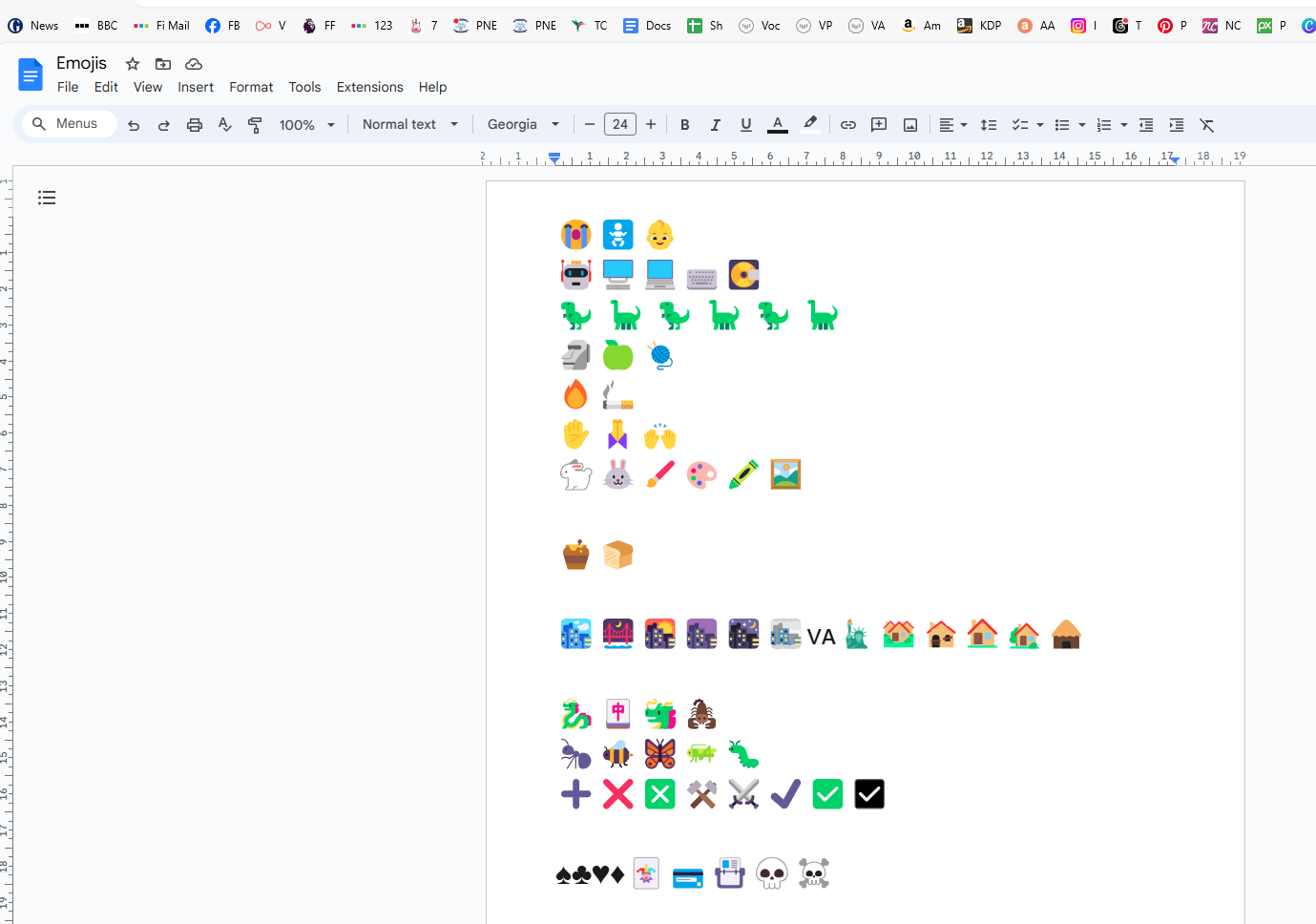
I add the emojis from my Google Pixel Android phone and then access the Google Document when I am writing my poetry.
Google Docs is another way of adding artistic text to your Vocal Story because it has lots of the facilities that the Vocal Editor doesn't have. You can justify, use different fonts, sizes and colours.
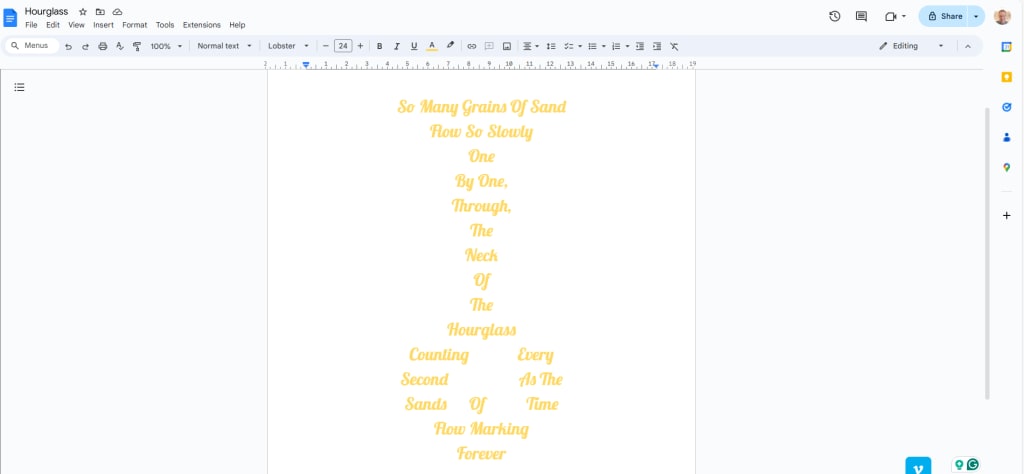
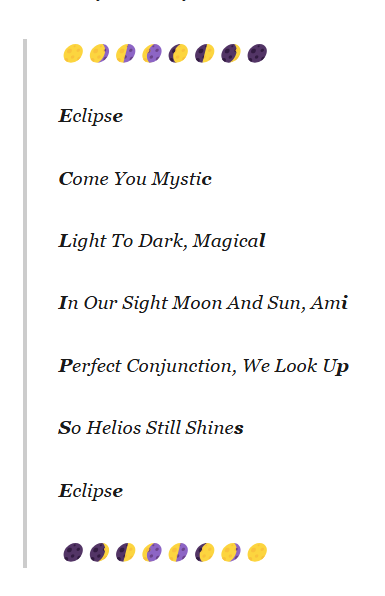
This also gives the option to create Visual Poetry and "Eclipse below is an example. It is done in the shape of an eclipse and I have shared screenshots of the Google Doc, the text in the Vocal Story and a link to the Story.
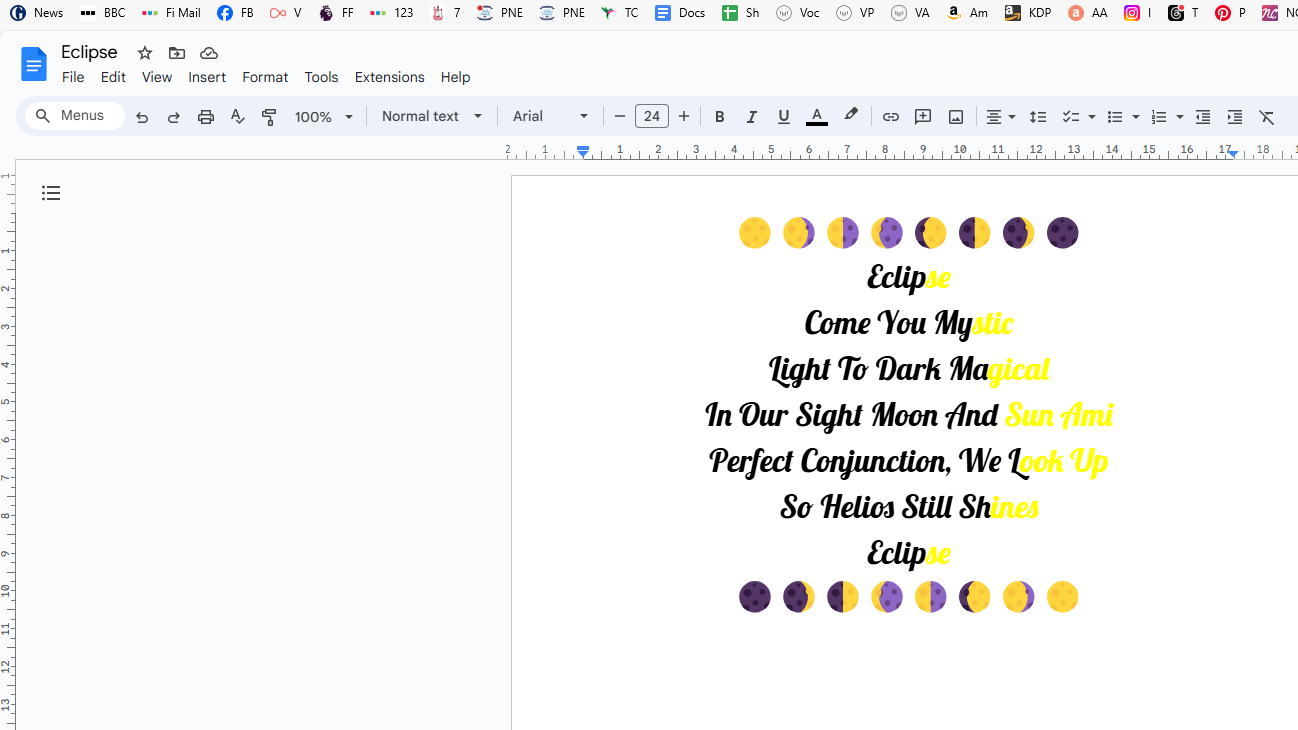
Step By Step A Visual Poem On Vocal
Write your poem in Google Docs Add Emojis as Desired Change The Font and Colors as desired When you are happy, take a screenshot of your poem. (you may need a few, but make sure they all align. Practice with Snip and Save) Save the screenshots Create Your Vocal Story Upload the screenshots into the Vocal Story. Cut and paste the text from the google Doc to your Vocal Story
Conclusion
This has just been a dip into the way that I create. You may do things differently, but this is just to share my methods.
I hope that this helps or at least gives you some ideas to improve your creations.
Thank you so much for reading.
About the Creator
Enjoyed the story? Support the Creator.
Subscribe for free to receive all their stories in your feed.
Comments
There are no comments for this story
Be the first to respond and start the conversation.