
Why is the red light blinking on my printer?
Easy Steps to fix red light blinking on my printer
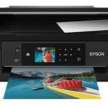

# Why Is the Red Light Blinking on My Printer? Troubleshooting Guide
A blinking red light on your printer can be a source of frustration, especially when you’re in the middle of an important print job. This indicator is your printer’s way of signaling that something is wrong. The issue could range from a simple paper jam to a more complex hardware problem. In this article, we will discuss the common causes of a blinking red light on your printer, provide step-by-step troubleshooting tips.
Common Reasons for a Blinking Red Light on Your Printer
1. Paper Jam
- **Description**: One of the most common causes of blinking red light is a paper jam. Paper can get stuck in the printer's rollers, feed tray, or output tray.
- **Troubleshooting Steps**:
1. Turn off the printer and unplug it from the power source.
2. Open the printer cover and gently take out any jammed paper. Do not rip the paper because small pieces may get stuck inside.
3. Check all accessible areas, including the paper tray and output tray, for any remaining paper fragments.
4. Reload the paper tray correctly, making sure the paper is aligned and not overfilled.
5. Reboot the printer and attempt printing again.
2. **Ink Cartridges Low or Empty**
Description A flashing red light can indicate that one or more ink cartridges are low or empty.
Troubleshooting Steps:
1. Access the ink levels on your printer's display or through the printer software on your computer.
2. Replace the empty or low cartridges with genuine manufacturer-recommended cartridges.
3. After replacing the cartridges, start the printer up again and check if the red light stops blinking.
3. **Ink Cartridge Installation Problem**
- **Explanation**: A flashing red light can be the sign of an improperly installed ink cartridge.
- **Troubleshooting Steps**:
1. Open the printer cover and take out the ink cartridges.
2. Remove any protective tape or packaging that may still be on the cartridges.
3. Replace the cartridges and make sure they are properly seated in their slots.
4. Close the printer cover and restart the printer.
4. **Printer Cover Open
- **Description**: If the printer cover is not closed completely, the printer may not work properly, and the red light will blink.
- **Troubleshooting Steps**:
1. Check if all printer covers and trays are closed properly.
2. If the cover is closed but the light continues to blink, inspect the cover for any obstructions or damage.
3. Restart the printer after ensuring the cover is properly closed.
5. **Print Head Issues**
- **Description**: A clogged or misaligned print head can cause the red light to blink.
- **Troubleshooting Steps**:
1. Run the printer's built-in print head cleaning utility. This can usually be accessed through the printer's control panel or the printer software on your computer.
2. If the problem persists, manually clean the print head using a lint-free cloth and distilled water.
3. Align the print head through the printer's settings if necessary.
6. **Hardware Error**
- **Explanation**: A blinking red light may mean a hardware error, such as a faulty motor or sensor.
- **Troubleshooting Steps**:
1. Switch off the printer and unplug it from the power source.
2. Wait for some time and then plug the printer back in and switch it on.
3. If the red light blinks and does not stop, refer to the printer's manual for the error code or contact the manufacturer's support.
7. **Waste Ink Pad Full**
Description: Some printers have a waste ink pad that holds excess ink. When the pad is full, the printer might stop working, and the red light will blink.
Troubleshooting Steps:
1. Look in the printer's manual or software for a waste ink pad counter reset option.
2. If the pad is saturated, you'll possibly have to replace it or get an expert to service it .
8. **Firmware Update Required**
**Description**: Obsolete firmware may lead to many problems, one of which is a blinking red light.
**Troubleshooting Steps**
1. Go to the website of your printer manufacturer and check if it has firmware available for your specific model.
2. Download the firmware update following the instructions
3. Allow the printer to restart and ensure that the red light is not blinking anymore
Preventive Maintenance Tips
- To prevent a blinking red light on your printer: follow these preventive maintenance tips
- - **Regular Cleaning**: Clean the printer's outer and inner parts for dust accumulation.
- - Genuine Supplies: Use only genuine ink cartridges and recommended paper types.
- - Firmware Update: Update your printer's firmware for maximum performance.
- - Proper Paper Handling: Do not overstuff the paper tray and ensure proper paper alignment.
- - **Regular Usage**: Use your printer regularly to prevent ink from drying up and causing clogs.
FAQ Section
1. **Why is the red light blinking on my printer?**
- The red light can blink due to various reasons, including paper jams, low ink levels, ink cartridge installation issues, or hardware errors. Refer to the troubleshooting steps above to identify and resolve the issue.
2. How do I fix a paper jam?
Switch off and unplug the printer, lift up the cover, and take out the jammed paper. Then, look for any pieces that might have broken off and place the paper in the paper tray properly.
3. My ink cartridges are low. What do I do?
- Replace the low or empty ink cartridges with genuine manufacturer-recommended cartridges. Check the ink levels through the printer's display or software.
4. How do I clean the print head?
- Use the printer's built-in print head cleaning utility, accessible through the control panel or printer software. For manual cleaning, use a lint-free cloth and distilled water.
5. **Can I reset the waste ink pad counter myself?**
- Some printers will allow you to reset the waste ink pad counter via the printer's software or control panel. Refer to your printer's manual for specific instructions.
6. **How do I update my printer's firmware?
- Go to the printer manufacturer's website, download the latest firmware for your printer model, and follow the installation instructions provided.
7. Why is my printer not recognizing the ink cartridges?
Ensure that the cartridges are installed correctly and that any protective tape or packaging has been removed. If the problem persists, the cartridges may be defective or incompatible.
8. The printer cover is closed, but the red light is blinking. What do I do?
Check the cover for obstructions or damage. All printer covers and trays must be closed securely before restarting the printer.
9. How often do I need to clean my printer?
- Regular dusting is necessary to avoid its accumulation and guarantee the best results. Clean from the outside as well as the inside, which depends on your usage.
10. **May I use any third-party cartridge in my printer?**
- Third party cartridges may well work, but they can introduce compatibility problems or even void a warranty. Therefore, it's always best to use the OEM-recommended brand cartridges.
Thus, by understanding why your printer light blinks red and following through with the solutions provided above, you will solve the problem right away and print again. Periodic maintenance of your printer also helps avoid some problems and its lifespan will also be longer if used correctly. If the situation does not clear up, please do not hesitate to call up the manufacturer's support for help.
Related Article
- Epson Printer Error 202620 | Expert Solutions and Support
- How do I fix an Epson Printer Not Connecting to the Internet | A Comprehensive Guide
- Epson Printer Offline Window & Mac (Solved) | How to fix
- How do I install Epson Printer drivers on My Computers,Laptop,mac
- Epson Printer Problems and Solutions
- Epson Printer Troubleshooting Tips
About the Creator
Enjoyed the story? Support the Creator.
Subscribe for free to receive all their stories in your feed.
Comments