
Epson Printer Problems and Solutions
Troubleshooting guide to fix Epson printer Problems and Solutions
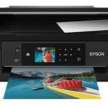

Epson Printer Problems and Solutions: Easy Troubleshooting Guide
Epson printers are known for their reliability and high-quality output. However, like any electronic device, they can sometimes get into trouble. Whether you have paper jams, connectivity issues, or print quality problems, this all-inclusive troubleshooting guide will walk you through the most common Epson printer problems and their solutions. Furthermore
Common Epson Printer Problems and Solutions
1. **Printer Not Turning On**
- **Problem**: Your Epson printer won't power on.
- **Solution**:
1. Check if the power cable is securely connected to both the printer and the power outlet.
2. Ensure the power outlet is functioning by plugging in another device.
3. If the above does not solve the problem, replace the current power cord.
4. If none of the above works, there might be a problem with the printer's inner power supply and you may need to contact Epson support.
2. Paper Jams
- **Problem**: Paper is stuck inside the printer.
- **Solution** :
1. Switch off the printer and unplug it from the power source.
2. Open the printer cover and carefully take out the jammed paper. Do not tear the paper as small pieces may get stuck inside.
3. Check for any remaining paper fragments and remove them.
4. Reload the paper tray correctly. The paper must be aligned, and not overfilled.
5. Restart the printer and try printing again.
3. **Poor Print Quality**
- **Problem**: Prints are blurry, streaky, or faded.
- **Solution**:
1. Run the printer’s head cleaning utility from the maintenance settings on your computer or the printer’s control panel.
2. Check the ink levels and replace any empty or low cartridges.
3. Ensure you’re using the correct paper type and print settings for your document.
4. If the issue persists, adjust the print head via the settings of the printer.
4. **Printer Is Not Responding**
- **Problem**: The printer fails to respond to print commands.
- **Solution**:
1. Check the connectivity between the printer and your computer. If connected via a USB cable, confirm that it's properly connected. For wireless, confirm that both the printer and your computer share the same network.
2. Restart the printer and your computer.
3. Update or re-install the Epson printer driver from the official Epson website.
4. Clear the print queue of any pending jobs.
5. **Ink Cartridge Issues**
Problem: The printer is reporting an error about the ink cartridge.
Solution:
1. Remove the ink cartridge and inspect for the presence of a protective tape or packaging that hasn't been removed during installation.
2. Reinsert the cartridge making sure it clicks into place correctly.
3. If it still doesn't work, your cartridge is likely faulty or counterfeit. Replace with a genuine Epson cartridge.
6. **Wireless Connection Issues**
Problem: The printer won't connect to Wi-Fi.
Solution:
1. Make sure that your printer is in range of your Wi-Fi router.
2. Turn off the router and then turn off your printer.
3. Reconnect the printer to your Wi-Fi network using your printer's control panel or through the Epson Connect app.
4. Go to the Epson website to look for updates in the firmware for your printer.
7. **Printer Offline**
Problem: Printer status reads offline.
Solution:
1. Check the printer's connection to your computer or network.
2. Restart the printer and your computer.
3. Set the printer as the default device in your computer's settings.
4. Disable the "Use Printer Offline" option in the print queue settings.
8. **Slow Printing**
- **Problem**: The printer is printing slowly.
- **Solution**:
1. Check the print settings and ensure you’re not using high-quality or high-resolution modes unnecessarily.
2. Clear any pending print jobs from the queue.
3. Update the printer driver and firmware.
4. If printing wirelessly, be sure the network signal is strong.
9. **Error Codes**
Problem: The printer shows an error code (for example, 0002, 0311, etc.)
Solution:
1. Check the printer's manual or the Epson website for the meaning of the particular error code.
2. Troubleshooting Steps for this error code.
3. If still failed, contact Epson support.
10. **Scanner Not Working**
Problem: The scanner function is not working
Solution:
1. Check that the scanner is properly connected to your computer.
2. Restart the printer and your computer.
3. Update or reinstall the scanner driver and software.
4. Check for any obstructions in the scanner bed or cover.
Preventive Maintenance Tips
To avoid common Epson printer problems, follow these maintenance tips:
- - Clean the printer's exterior and interior regularly.
- - Use genuine Epson ink cartridges and paper.
- - Keep the printer firmware and drivers up to date.
- - Avoid overloading the paper tray.
- - Turn off the printer properly when not in use.
\FAQ Section
1. **Why is my Epson printer not printing?**
- This could be due to connectivity issues, low ink levels, paper jams, or outdated drivers. Follow the troubleshooting steps outlined above to resolve the issue.
2. **How can I clean Epson printer head?**
You can run the print head cleaning utility inside the printer with the help of the maintenance option in your computer or control panel of the Epson printer itself.
3. **Can Epson printer utilize third-party Epson ink cartridges?
- Third-party cartridges are mainly acceptable but cause possible compatibility problems and may invalidate your warranty. Purchase Epson OEM cartridges.
4. How do I connect my Epson printer to Wi-Fi?
Connect to your home network using the control panel on the printer or the Epson Connect app. Also, ensure that your printer and router are in close range of each other.
5. **What if my Epson printer shows me an error code?**
Look for the printer's manual or visit the Epson website and search for that specific error code's meaning to find out the steps to resolve it.
6. **How frequently should I replace my Epson printer's ink cartridges?
- Replace empty cartridges or when print quality starts to deteriorate. Most Epson brands will message when the ink level is low.
7. Why is my Epson printer printing blank pages?
This may be caused by empty ink cartridges, clogged print heads, or improper print settings. Inspect the ink levels and run the head cleaning utility.
8. **How do I update my Epson printer's firmware?**
- You just need to visit the Epson website, download the latest firmware for your model of printer and follow the instructions for installation.
9. **Can I print from my smartphone to an Epson printer?**
- Yes, you may use the Epson Connect app or the printing capabilities built-in to your device to print from your smartphone.
10. **My Epson printer is printing slowly. What should I do?**
Check the print settings, clear the print queue, and ensure your network connection is strong if printing wirelessly.
By following the steps in this troubleshooting guide, you can sort out most problems that may plague your Epson printer. And if the above methods do not help, never hesitate to ask Epson's customer support about any further problem that you're experiencing. Good maintenance and handling can make the printer last longer for years.
Related Article
Epson Printer Error 202620 | Expert Solutions and Support
How do I fix an Epson Printer Not Connecting to the Internet | A Comprehensive Guide
Epson Printer Offline Window & Mac (Solved) | How to fix
How do I install Epson Printer drivers on My Computers,Laptop,mac
About the Creator
Enjoyed the story? Support the Creator.
Subscribe for free to receive all their stories in your feed.
Comments