mobile
The ins and outs of mobile; explore the evolution and future of smartphones and how mobile technology impacts the way we live and communicate.
How to Use Bing AI Image Creator on the Web, Android, and iPhone For Free
Microsoft recently announced that you can create images on Bing Chat using just natural language. Simply use words to describe a scene and the AI will instantly generate images based on your prompt. That is one of many ways you can use Bing AI Chat. So if you are wondering how to use Bing AI Image Creator on the web, Android, or iPhone for free, follow our comprehensive tutorial below. It works like many of the AI Art Generators and does not take much time to process the image. On that note, let’s jump to the guide. How to Use Bing AI Image Creator (2023) Here, we have mentioned detailed instructions on how to use Bing AI Image Creator on the web, Android, and iPhone. We have also mentioned an alternative if the feature is not live for your account. You can expand the table below and move to any section you want. Table of Contents Use Bing Chat’s AI Image Creator on the Web for Free The Bing AI Image Creator is now live in Bing Chat and Microsoft is continuously adding more people to the preview access. It’s powered by OpenAI’s DALL-E model, which is used to generate digital images from natural language descriptions. The good part is that there seems to be no limit to creating images in Bing Chat. However, after 25 image generations per day, it may take more time to create images based on your promp. Now, with that out of the way, let’s jump to the instructions. 1. First, ensure you have access to Bing Chat. You can head to bing.com/new and join the waitlist using your Microsoft account. Users are currently getting instant access to Bing Chat, so go ahead and enroll yourself. Use Bing AI Image Creator on the Web For Free 2. Once you have access, open bing.com/chat in your browser to access the new Bing AI chat interface. If you are using a browser other than Microsoft Edge, you need to install an extension to use Bing Chat in any web browser. It will work on all Chromium-based browsers. Use Bing AI Image Creator on the Web For Free 3. Now, switch to the “Creative” conversation style in Bing Chat. Keep in mind, Bing AI Image Creator currently only works in this mode. Use Bing AI Image Creator on the Web For Free 4. Now, enter your prompt for creating an image. For example, I entered “create an image of the Taj Mahal in the snow,” and Bing created four images in different variations within a minute. That’s cool, right? You can also start your prompt with “draw an image…”. Use Bing AI Image Creator on the Web For Free 5. For more prompt ideas and varieties, you can add these keywords: digital art, photorealistic, futuristic, 3D render, abstract, dreamy, detailed sketch, etc. Here, I added “create an abstract image where AGI has taken over the world. it should be futuristic.” and this is what Bing AI Image Creator generated. Use Bing AI Image Creator on the Web For Free Use Bing AI Image Creator Website on Your Desktop If Bing AI Chat does not generate an image, you will have to wait for the feature to go live on your account. Meanwhile, you can head to bing.com/create to generate AI images in a similar fashion. Here too you get 25 image generations per day, with longer wait for generations after this limit is exhausted. Bing Image Creator is based on DALL-E 2 and is currently in preview. You can enter your prompt at the very top to start creating AI artworks. Then, you can click on each image and download them in a larger resolution. It outputs a JPG image of 1024 × 1024 resolution. Use Bing AI Image Creator on Android and iOS for Free 1. Android and iPhone users can also generate images using Bing AI Image Creator. You simply need to install the Bing – Your AI copilot app (Android /and iOS, Free) on your smartphone. Android users open the Play Store app and iOS users open the App Store app. 2. Next, tap on “Get started,” followed by “Sign in and join“. You will need a Microsoft account to sign in and access the Bing AI Image Creator. Use Bing AI Image Creator on Android and iOS For Free 3. Once signed in, tap on the “Bing” icon at the bottom center. It will open the Bing AI Chat on your smartphone. Here, switch to the “Creative” mode. Use Bing AI Image Creator on Android and iOS For Free 4. Now, you can type or speak your prompt directly. Start with “create an image of …” and add your keywords. Now, tap on the “Send” button. android screenshot 5. In a minute or two, AI-generated images will be ready on your Android or iOS device. bing app 6. If it does not generate an AI image in Bing Chat, you can open bing.com/create on your mobile browser and use the same service, albeit in a different interface. screenshot 7. Now, you can tap and long-press on the image to download it right away. So this is how you can use Bing AI Image Creator on iPhones and Android smartphones. screenshot Generate Images With AI Using Bing Image Creator So this is how you can use Bing AI Image Creator on the web, Android, and iOS absolutely for free. I tried this AI art generator on multiple platforms and Bing Image Creator worked without any fumbles. I have personally used Stable Diffusion in the past and I must say, the Bing Image Creator didn’t disappoint. Anyway, if you want to use ChatGPT 4 for free, go to our tutorial for detailed information. Apart from that, if you are interested in a comparison between Google Bard and Bing Chat, follow our linked article. Finally, if you have any questions, let us know in the comment section below.
By Surya Kumar4 years ago in 01
How to Save Instagram Story With Music (3 Methods)
author-Arjun ShaArjun Sha - Last Updated: March 16, 2023 11:41 am While you can create stunning Instagram stories with photos, videos, music, filters, stickers, texts, and much more, it doesn’t allow you to download the story with music. Why, you ask? It has mostly to do with music licensing and free distribution. Nevertheless, if you still wish to save an Instagram story with music, there are a few simple ways to do so. Our guide here will help you download Instagram stories with music, even without posting the video. In addition, you can save Instagram stories with music without making your account public. So, on that note, let’s jump in and learn about the various methods to save an Instagram story with music in your gallery. Save Instagram Story With Music (2023) In addition to stories you have posted recently, you can also download old Instagram stories using our instructions. Expand the table below to find all the methods. Table of Contents Download Your Own Instagram Stories With Music (Easy Method) With this nifty trick, you can download Instagram Stories with music to your smartphone without using a third-party app. The best part is that it works flawlessly and without any limitations. The quality of the video also remains intact and private accounts are also supported in this method. You can basically save an Instagram story with music without posting the same. Now, having said that, let’s move to the steps. 1. First, open Instagram and create a story with photos, videos, stickers, and all. You can also add music if you want. Now, don’t publish the story. Instead, tap the three-dot menu in the top-right corner and choose “Save“. Save Instagram Story With Music (2023) 2. As we all know, the story will be saved to your iPhone or Android device, but without music. 3. Now, open Instagram again and swipe left to enter the Messages section. Here, open one of the chats with your close friend and tap the “camera” icon at the bottom-left corner. 4. Now, choose the video you just downloaded. 5. Finally, swipe up and add the music to your story. After that, make sure “Keep in chat” is selected at the bottom-left corner. After that, tap on “Send” in the bottom right. 6. After the message is delivered, tap and hold on the video to see a host of options at the bottom. Here, tap on “More” and select “Save” to download the video to your gallery. 7. That’s all. You have successfully downloaded the Instagram Story with music on your smartphone. Save Your Instagram Story with Music After Publishing the Story In case you have already published the story or want to save an old Instagram story with music from the archives, you can do that as well. Again, this will also work for private accounts without any reduction in quality. Follow the below steps to learn how it works: 1. Open the Instagram app and move to your profile. Here, tap the hamburger menu in the top-right corner and open “Archive“. Archive saves all your past stories in the cloud. 2. Now, choose the story you want to download. After that, tap on the three-dot menu and select “Save Video” from the pop-up. The story will be saved to your camera roll but without music. 3. Now, just like the above method, send the story (downloaded video) as a message to one of your close people in DM and then add music. After that, enable the “Keep in chat” option in the bottom left corner. Finally, send the video to your friend. 4. After the message is delivered, tap and hold the video message and select “More” from the options that appear. Then, go ahead and save the Instagram Story with music. Download Instagram Stories with Music via Third-Party Websites Apart from the native way, you can save Instagram Stories with music using third-party online services as well. However, note that your Instagram account must be public to use any of the services. I would discourage users from using third-party apps as most of them force users to log in with a username and password. You must not enter your Instagram password on third-party apps to safeguard your account from any kind of mischief. That said, let’s look at two tools that you can use: StorySaver.net 1. First, head over to storysaver.net (visit) and enter your Instagram username. After that, click on “Download” here to retrieve all your Instagram stories. 2. Next, scroll down to find all the recent Instagram stories posted by you. Click on “Save as Video” here, and the story will be saved on your device with music. 3. In case you want to save older stories, click on “Show #Highlights” and save the story you want. Snapinsta Apart from that, you can use Snapinsta to quickly download Instagram stories with music to your phone gallery. But again, you will need to have a public account. that said, here’s how it works: 1. Launch the Instagram app and open the story you want to save with music. Now, click on the three-dot menu and copy the link. 5. Open snapinsta.app (visit) in your mobile browser and move to the “Instagram Story Download” tab. Now, paste the link here and hit “Download”. 6. Finally, go ahead and download the story with music. Repost Instagram Story With Music on WhatsApp & Other Socials So this is how you can save Instagram stories with music, both using native and third-party methods. For most users, the first trick will do the job as it does not compromise on any front and gives you the video without any reduction in quality. Anyway, that is all from us. If you are facing DM issues on Instagram, follow our article to find a possible solution. And if you want to turn off suggested posts on Instagram, head to our linked tutorial. Finally, if you have any questions, let us know in the comment section below.
By Surya Kumar4 years ago in 01
The World Without Smartphones: What Would Happen?
In today's world, smartphones have become an indispensable part of our lives. They have revolutionized the way we communicate, work, learn, and entertain ourselves. From making phone calls to sending messages, browsing the internet, taking pictures, playing games, and accessing social media, smartphones have made our lives much more convenient and connected. However, have you ever wondered what would happen if smartphones were not found? In this essay, we will explore the potential consequences of a world without smartphones.
By The Truth Speaks4 years ago in 01
iphone repairing course
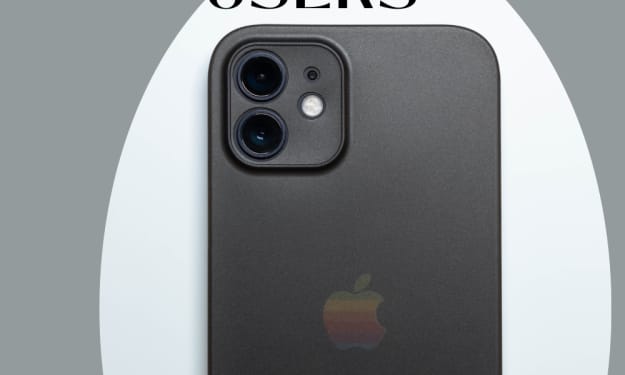
iPhone, iPad and iPod Repairing: An Essential PDF Ebook for Apple Users Are you an Apple user who is looking for help to repair your iPhone, iPad, or iPod? Then look no further! Our latest digital product, a PDF ebook on iPhone, iPad, and iPod Repairing, is the perfect resource for you. This ebook covers all the basics of repairing these popular devices and is an essential resource for anyone who wants to learn how to repair their own Apple products. With this helpful guide, you will have all the information you need to get your Apple device back up and running in no time.
By A Simple Man 4 years ago in 01
The World of Luxury Tech Gadgets
Luxury tech gadgets are high-end devices that are known for their premium materials, exceptional design, and advanced features. These gadgets often come with a high price tag due to the use of expensive materials, advanced technologies, and limited production runs. Here are some examples of luxury tech gadgets and why they are so expensive:
By Ashok kumar4 years ago in 01
How to Monetize ChatGPT
Introduction: ChatGPT is an AI language model that is becoming increasingly popular for its ability to assist with a wide range of tasks, from answering questions and providing writing assistance to helping with personal productivity and language learning. While ChatGPT itself may not directly earn money, there are several ways in which it can be used to generate income.
By Ashok kumar4 years ago in 01
Mobile Backend as a Service: Why Choose MBaaS for Business?
As technology grows stronger, it permeates deep into life to simplify different tasks. The advent of mobile technology has grown at a pace where app developers do not require to build code for the backend from scratch.
By Prateek Sharma4 years ago in 01
Top 4 Anime Series of all Time! That you must watch. Top 4 shounen anime.
Top 4 Shounen anime in my opinion that you must watch. Hey audience We here cover anime of all types (Shounen, Shoujo, Mecha, Isekai, Slice of life, Action, Romance, Comedy, Fantasy, Adventure, etc.) Follow our page to stay updated on anime and more.
By Unkown Me?4 years ago in 01
Godot Engine
Godot /ˈɡɒdoʊ/[a] is a cross-platform, free and open-source game engine released under the MIT license. It was initially developed by Argentine software developers Juan Linietsky and Ariel Manzur[7] for several companies in Latin America prior to its public release.[8] The development environment runs on multiple operating systems including Linux, BSDs, macOS, and Microsoft Windows. It is designed to create both 2D and 3D games targeting PC, mobile, and web platforms and can also be used to develop non-game software, including editors. Godot Engine Godot logo.svg Godot3.4.png A screenshot of the editor in Godot 3.4 Original author(s) Juan Linietsky Ariel Manzur Initial release 14 January 2014; 9 years ago[1] Stable release 4.0.2[2] Edit this on Wikidata / 4 April 2023; 20 days ago Preview release 4.0.2 RC 1[3] Edit this on Wikidata / 31 March 2023; 24 days ago Repository github.com/godotengine/godot Edit this at Wikidata Written in C++[4] Operating system Microsoft Windows, macOS, Linux, Android, Web, FreeBSD, NetBSD, OpenBSD[5] Platform See § Supported platforms Size 28–189.3 Megabytes (varies by operating system)[6] Available in 36 languages List of languages Arabic, Argentine Spanish, Brazilian Portuguese, Bulgarian, Catalan, Czech, Dutch, English, Esperanto, Finnish, French, Galician, German, Greek, Hebrew, Hungarian, Indonesian, Italian, Japanese, Korean, Latvian, Malay, Norwegian Bokmål, Polish, Portuguese, Romanian, Russian, Slovak, Simplifield Chinese, Spanish, Swedish, Thai, Traditional Chinese, Turkish, Ukrainian, Vietnamese
By Surya Kumar4 years ago in 01