how to
How tos for tech whizes and luddites alike; tips, tricks and shortcuts to optimize your computer, smartphone or internet mastery.
How to Fix ChatGPT Not Working: ChatGPT Down, Error 1020, Internal Server Error, & More
Home AI How to Fix ChatGPT Not Working: ChatGPT Down, Error 1020, Internal Server Error, & More How to Fix ChatGPT Not Working: ChatGPT Down, Error 1020, Internal Server Error, & More author-Arjun ShaArjun Sha - Last Updated: March 24, 2023 4:52 pm ChatGPT, the chatbot from OpenAI, is one of the fastest-growing tools on the internet, having reached a user base of 100 million in just two months! Currently, ChatGPT serves around 13 million daily active users. Scaling at this proportion in such a short span of time is just mind-blowing. However, due to a large number of users swarming in like bees, ChatGPT frequently goes down, is at capacity, or can’t generate responses, and users complain that it does not work reliably. Some users report ChatGPT error codes like 1020 and 429. Particularly after the release of the newest GPT-4 language model, the downtime has increased. The chatbot encounters internal server errors intermittently, and at times, ChatGPT refuses to open. If you are searching for fixes or googling “ChatGPT down” when the service is not working, follow our guide to learn how to fix ChatGPT errors. ChatGPT Not Working? Here are the Fixes (2023) In this article, we have explained all the ChatGPT errors and their fixes. If ChatGPT is not working on your device, expand the table below and get started with the well-tested solutions. Table of Contents Common ChatGPT Errors and What They Mean ChatGPT Error Code 1020 The first and most common ChatGPT error code is “Error 1020. Access denied.” This usually happens when ChatGPT finds something unusual about your network or device, and therefore, blocks your access. It may also occur if ChatGPT detects misconfigured VPN settings on your device. Basically, ChatGPT enforces certain security measures before you access its service, and if your device or network fails compliance, it displays Error 1020. ChatGPT Error Code 429 ChatGPT returns Error 429 when you make too many requests to the server in a short period of time. If you are using the OpenAI API to use ChatGPT, this error means you have exceeded the maximum number of requests in a given time. To ensure fair usage, ChatGPT throws Error 429. ChatGPT Network Error on Long Responses As the name suggests, network error means you may have connectivity issues while accessing ChatGPT. Basically, your device is unable to connect to ChatGPT properly, hence, the error. It might be due to server, internet, or firewall issues on your device. At times, it also displays a “Network error on long responses” error, meaning the connection is timing out while trying to receive a response from ChatGPT. ChatGPT Login Error If you are getting a login error on ChatGPT, it may occur due to incorrect credentials or expired cookies stored in the browser. So make sure to enter the correct username and password to fix the login error on ChatGPT. Continue reading below to read our guide on how to clear cookies and fix the issue. ChatGPT Error in Body Stream If you encounter an “Error in body stream” message on ChatGPT, it means that the request you made or the data sent to the server is either corrupt or invalid. It generally happens when the connection between the user device and server is not established properly for, and that could be for a number of reasons, including bad internet connectivity. There was an Error Generating a Response This error, along with the something went wrong error, crops up when ChatGPT is unable to complete the user request. It may be due to a variety of factors, including server-side load, internet connectivity issues, or invalid user data. That said, these errors usually occurs due to a temporary glitch. So simply refreshing the page or sending a new request should fix the ChatGPT ‘error generating a response’ ChatGPT is at Capacity Right Now Error ChatGPT is at Capacity Right Now Error When trying to access the service, if you face a “ChatGPT is at capacity right now” error, it means the server is unable to handle more requests from users. Due to the high traffic volume, the system throws this error to reduce server load. Again, if you encounter this error, you don’t need to fix anything on your device. You simply need to wait for some time and then try accessing ChatGPT later on. There’s also another fix, which we have shared below. ChatGPT Internal Server Error If ChatGPT throws an internal server error, that means OpenAI is having issues with ChatGPT’s servers. This indicates a server-side error, meaning your device or network is not at fault. Once the company fixes the problem, ChatGPT should be up and running. So if you get an internal server error on ChatGPT, wait for some time and then try again. Chat.openai.com is Down If ChatGPT displays a “chat.openai.com is down” error, it means that the service is currently overloaded due to extremely high demand or the server has been taken down for maintenance. And for that reason, ChatGPT has become inaccessible. To resolve this issue, you can wait for some time and then try accessing ChatGPT.
By Surya Kumar4 years ago in 01
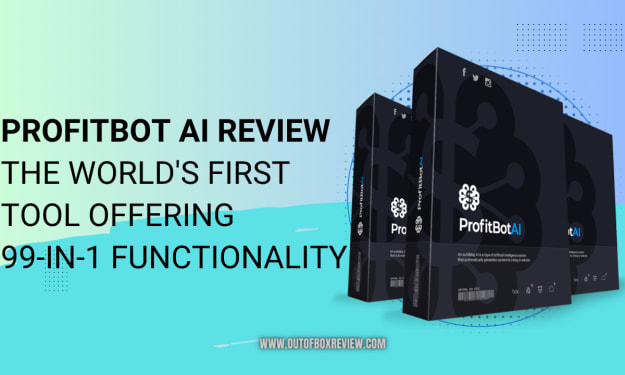
ProfitBot AI Review The Worlds First Tool Offering 99-In-1 Functionality
ProfitBot AI review, we take a closer look at the world's first tool offering 99-in-1 functionality for web scraping, data extraction, data analysis, and more. We evaluate the tool's features, benefits, ease of use, performance, customer support, and pricing, and include feedback from users who have already tried it. Read on to find out if ProfitBot AI is worth your time and money.
By outofboxreview4 years ago in 01
How to Build Your Own AI Chatbot With ChatGPT API: A Step-by-Step Tutorial
Beebom - Tech That Matters Beebom Home How To How to Build Your Own AI Chatbot With ChatGPT API: A Step-by-Step Tutorial How to Build Your Own AI Chatbot With ChatGPT API: A Step-by-Step Tutorial author-Arjun ShaArjun Sha - Last Updated: March 7, 2023 11:49 am In a breakthrough announcement, OpenAI recently introduced the ChatGPT API to developers and the public. Particularly, the new “gpt-3.5-turbo” model, which powers ChatGPT Plus has been released at a 10x cheaper price, and it’s extremely responsive as well. Basically, OpenAI has opened the door for endless possibilities and even a non-coder can implement the new ChatGPT API and create their own AI chatbot. So in this article, we bring you a tutorial on how to build your own AI chatbot using the ChatGPT API. We have also implemented a Gradio interface so you can easily demo the AI model and share it with your friends and family. On that note, let’s go ahead and learn how to create a personalized AI with ChatGPT API. Build Your Own Chatbot With ChatGPT API (2023) In this tutorial, we have added step-by-step instructions to build your own AI chatbot with ChatGPT API. From setting up tools to installing libraries, and finally, creating the AI chatbot from scratch, we have included all the small details for general users here. We recommend you follow the instructions from top to bottom without skipping any part. Table of Contents Things to Remember Before You Build an AI Chatbot 1. You can build a ChatGPT chatbot on any platform, whether Windows, macOS, Linux, or ChromeOS. In this article, I am using Windows 11, but the steps are nearly identical for other platforms. 2. The guide is meant for general users, and the instructions are clearly explained with examples. So even if you have a cursory knowledge of computers, you can easily create your own AI chatbot. 3. To create an AI chatbot, you don’t need a powerful computer with a beefy CPU or GPU. The heavy lifting is done by OpenAI’s API on the cloud. Set Up the Software Environment to Create an AI Chatbot There are a couple of tools you need to set up the environment before you can create an AI chatbot powered by ChatGPT. To briefly add, you will need Python, Pip, OpenAI, and Gradio libraries, an OpenAI API key, and a code editor like Notepad++. All these tools may seem intimidating at first, but believe me, the steps are easy and can be deployed by anyone. Now, follow the below steps. Install Python 1. First, you need to install Python on your computer. Open this link and download the setup file for your platform. Build Your Own AI Chatbot With ChatGPT 3.5 (2023) 2. Next, run the setup file and make sure to enable the checkbox for “Add Python.exe to PATH.” This is an extremely important step. After that, click on “Install Now” and follow the usual steps to install Python. Build Your Own AI Chatbot With ChatGPT 3.5 (2023) 3. To check if Python is properly installed, open Terminal on your computer. I am using Windows Terminal on Windows, but you can also use Command Prompt. Once here, run the below command below, and it will output the Python version. On Linux or other platforms, you may have to use python3 --version instead of python --version. python --version
By Surya Kumar4 years ago in 01
How to Use Bing AI Image Creator on the Web, Android, and iPhone For Free
Microsoft recently announced that you can create images on Bing Chat using just natural language. Simply use words to describe a scene and the AI will instantly generate images based on your prompt. That is one of many ways you can use Bing AI Chat. So if you are wondering how to use Bing AI Image Creator on the web, Android, or iPhone for free, follow our comprehensive tutorial below. It works like many of the AI Art Generators and does not take much time to process the image. On that note, let’s jump to the guide. How to Use Bing AI Image Creator (2023) Here, we have mentioned detailed instructions on how to use Bing AI Image Creator on the web, Android, and iPhone. We have also mentioned an alternative if the feature is not live for your account. You can expand the table below and move to any section you want. Table of Contents Use Bing Chat’s AI Image Creator on the Web for Free The Bing AI Image Creator is now live in Bing Chat and Microsoft is continuously adding more people to the preview access. It’s powered by OpenAI’s DALL-E model, which is used to generate digital images from natural language descriptions. The good part is that there seems to be no limit to creating images in Bing Chat. However, after 25 image generations per day, it may take more time to create images based on your promp. Now, with that out of the way, let’s jump to the instructions. 1. First, ensure you have access to Bing Chat. You can head to bing.com/new and join the waitlist using your Microsoft account. Users are currently getting instant access to Bing Chat, so go ahead and enroll yourself. Use Bing AI Image Creator on the Web For Free 2. Once you have access, open bing.com/chat in your browser to access the new Bing AI chat interface. If you are using a browser other than Microsoft Edge, you need to install an extension to use Bing Chat in any web browser. It will work on all Chromium-based browsers. Use Bing AI Image Creator on the Web For Free 3. Now, switch to the “Creative” conversation style in Bing Chat. Keep in mind, Bing AI Image Creator currently only works in this mode. Use Bing AI Image Creator on the Web For Free 4. Now, enter your prompt for creating an image. For example, I entered “create an image of the Taj Mahal in the snow,” and Bing created four images in different variations within a minute. That’s cool, right? You can also start your prompt with “draw an image…”. Use Bing AI Image Creator on the Web For Free 5. For more prompt ideas and varieties, you can add these keywords: digital art, photorealistic, futuristic, 3D render, abstract, dreamy, detailed sketch, etc. Here, I added “create an abstract image where AGI has taken over the world. it should be futuristic.” and this is what Bing AI Image Creator generated. Use Bing AI Image Creator on the Web For Free Use Bing AI Image Creator Website on Your Desktop If Bing AI Chat does not generate an image, you will have to wait for the feature to go live on your account. Meanwhile, you can head to bing.com/create to generate AI images in a similar fashion. Here too you get 25 image generations per day, with longer wait for generations after this limit is exhausted. Bing Image Creator is based on DALL-E 2 and is currently in preview. You can enter your prompt at the very top to start creating AI artworks. Then, you can click on each image and download them in a larger resolution. It outputs a JPG image of 1024 × 1024 resolution. Use Bing AI Image Creator on Android and iOS for Free 1. Android and iPhone users can also generate images using Bing AI Image Creator. You simply need to install the Bing – Your AI copilot app (Android /and iOS, Free) on your smartphone. Android users open the Play Store app and iOS users open the App Store app. 2. Next, tap on “Get started,” followed by “Sign in and join“. You will need a Microsoft account to sign in and access the Bing AI Image Creator. Use Bing AI Image Creator on Android and iOS For Free 3. Once signed in, tap on the “Bing” icon at the bottom center. It will open the Bing AI Chat on your smartphone. Here, switch to the “Creative” mode. Use Bing AI Image Creator on Android and iOS For Free 4. Now, you can type or speak your prompt directly. Start with “create an image of …” and add your keywords. Now, tap on the “Send” button. android screenshot 5. In a minute or two, AI-generated images will be ready on your Android or iOS device. bing app 6. If it does not generate an AI image in Bing Chat, you can open bing.com/create on your mobile browser and use the same service, albeit in a different interface. screenshot 7. Now, you can tap and long-press on the image to download it right away. So this is how you can use Bing AI Image Creator on iPhones and Android smartphones. screenshot Generate Images With AI Using Bing Image Creator So this is how you can use Bing AI Image Creator on the web, Android, and iOS absolutely for free. I tried this AI art generator on multiple platforms and Bing Image Creator worked without any fumbles. I have personally used Stable Diffusion in the past and I must say, the Bing Image Creator didn’t disappoint. Anyway, if you want to use ChatGPT 4 for free, go to our tutorial for detailed information. Apart from that, if you are interested in a comparison between Google Bard and Bing Chat, follow our linked article. Finally, if you have any questions, let us know in the comment section below.
By Surya Kumar4 years ago in 01
How to Install and Use Auto-GPT: An Autonomous AI Tool
Beebom - Tech That Matters Beebom Home AI How to Install and Use Auto-GPT: An Autonomous AI Tool How to Install and Use Auto-GPT: An Autonomous AI Tool author-Arjun ShaArjun Sha - Last Updated: April 20, 2023 4:03 pm After the launch of ChatGPT, AI has brought a monumental change in how we perceive computing. You can now train your AI chatbot with your own data and develop apps with natural language. Developers are now working on the next big thing – Autonomous AI Agent – a peek into the beginning of AGI (Artificial General Intelligence). Auto-GPT is one such tool that lets you achieve your goals by allowing LLMs to think, plan, and execute actions autonomously. You no longer need to add any input as the AI can think and take decisions rationally. So if you are interested, follow our tutorial and learn how to install and use Auto-GPT. Table of Contents Things to Know Before You Use Auto-GPT 1. You don’t need a powerful computer to install and use Auto-GPT. Any decent computer would do the job. The heavy lifting is done by OpenAI API on the cloud. 2. If you have access to the GPT-4 API, Auto-GPT would work best as it’s much better at thinking and coming to a conclusion. It’s also less prone to hallucination. If you do not have access already, you can join the waitlist for GPT-4 API access using the link here. However, you can also use the regular OpenAI API with the GPT-3.5 model. 3. Auto-GPT uses a lot of tokens, so you have to add billing details and set up spending limits once your free credit limit is exhausted. 4. Unlike the free version of ChatGPT, Auto-GPT can connect to the internet and find the latest information on any subject. So you can use it to access any webpage and capture information. How to Set up Auto-GPT on Your PC Step 1: Install Python and Pip 1. First off, download the latest version of Python from here for your platform and install it. How to Install and Use Auto-GPT: An Autonomous AI Tool 2. On Windows, make sure to enable “Add python.exe to PATH” before installing Python. Now, click on “Install Now.” You can check out the in-depth tutorial to install Python and Pip on Windows via the link here. How to Install and Use Auto-GPT: An Autonomous AI Tool 3. To test Python’s installation, open Windows Terminal and run the below commands. Both commands should return the version number. Linux and macOS users should use python3 and pip3 in these commands. python --version pip --version python Step 2: Add API Keys to Use Auto-GPT 1. Next, head over to this link to open the latest GitHub release page of Auto-GPT. Here, click on “Source code (zip)” to download the ZIP file. Add API Keys to Use Auto-GPT 2. Now, double-click to extract the ZIP file and copy the “Auto-GPT” folder. Add API Keys to Use Auto-GPT 3. Next, simply paste the folder to your choice of location. folder 4. Now, open the folder to find a “.env.template” file here. Open it using Notepad or any text editor. Add API Keys to Use Auto-GPT 5. Next, go to OpenAI’s website and get the API key. If you don’t have an account, create a free account and click on “Create a new secret key“. Now, copy the API key. Add API Keys to Use Auto-GPT 6. After that, move to the text editor and paste the API in the “OPENAI_API_KEY” section. You can refer to the below image to get an idea. openai api key 7. Next, open pinecone.io (visit) and create a free account. It will allow the LLM to retrieve relevant information from memory for AI applications. Add API Keys to Use Auto-GPT 8. Here, click “API Keys” in the left sidebar and click on “Create API Key” in the right pane. Add API Keys to Use Auto-GPT 9. Give a name like “autogpt” and click on “Create Key“. Add API Keys to Use Auto-GPT 10. Now, copy the “Key Value” by clicking on the button.
By Surya Kumar4 years ago in 01
How to Make Money with ChatGPT (5 Easy Ways)
Home AI How to Make Money with ChatGPT (8 Easy Ways) How to Make Money with ChatGPT (5 Easy Ways) author-Arjun ShaArjun Sha - Last Updated: April 26, 2023 3:53 pm Even since OpenAI launched ChatGPT, things have changed dramatically in the tech landscape. The OpenAI Large Language Model (LLM) is so powerful that it can do multiple things, including creative work like writing essays, number crunching, code writing, and more. People are now using ChatGPT’s insane AI capabilities to make money on the side. You can readily use ChatGPT and its alternatives to build apps and services with zero knowledge of programming languages. It’s also being used for affiliate marketing, starting new ventures, and much more. So to learn how to make money with ChatGPT, follow our detailed article below. Table of Contents 1. Find Unclaimed Money With the help of ChatGPT 4 and OpenAI plugins, you can find unclaimed money under your name – at least in the United States. Yes, it’s possible now and the CEO of DoNotPay has already demonstrated it on Twitter. With the internet browsing plugin, ChatGPT 4 can access live internet and find unclaimed refunds from companies and government agencies under your name. You just need to add your name, location, and date of birth and ask ChatGPT to find you some money. It will scan the internet and offer you the link to get a refund. That’s pretty cool, isn’t it? So go ahead and make some money with GPT 4 without building any product or doing any side hustle. 2. Build an App, Website, or Service The next best way to make money with ChatGPT is by building a product. And for this, you don’t need to learn to code. ChatGPT can help you translate your ideas into real products with step-by-step instructions on how to use frameworks, toolchains, programming languages, etc. Recently, Ihor Stefurak, a Ukrainian entrepreneur, built a Chrome extension with the help of ChatGPT having zero knowledge of programming. And he made $1000 within 24 hours of launching the extension. That’s bonkers, right? How to Use ChatGPT to Make Money You can become a solopreneur and build a business in a matter of hours. Want to build a cool-looking HTML page? Ask ChatGPT. Want to integrate Stripe for easy checkout? Ask ChatGPT. Get errors along the way? Again, you can very well ask ChatGPT to debug the code too. That said, I would recommend subscribing to ChatGPT Plus in order to access ChatGPT 4. ChatGPT 4 is good at code generation and can find errors and fix them instantly. While you don’t have to be a programmer, a basic understanding of logic would help you see what the code is doing. To sum up, if you want to use ChatGPT to make money, go ahead and build a tech product. 3. Get Business Ideas From ChatGPT To make money using ChatGPT, you must use it to its full potential. In case you are unaware, ChatGPT is good at churning out new ideas for passive income. For example, you can run the below prompt in ChatGPT to ask about side hustle ideas, depending on your preferences. I want to start a side hustle using ChatGPT. I want to take advantage of your technology but I'm not sure where to start. Please ask me as many questions as you like so you can help me with your best ability. How to Use ChatGPT to Make Money ChatGPT will now ask you a bunch of questions about your expertise, interest, challenges, and more. After that, the AI chatbot will come up with tailored business ideas that meet your ability and expectation. You can query further and conceptualize the plan on how to start it, what are the things to keep in mind, etc. You can also start with “Generate a new business idea for…” and then ChatGPT will come up with some amazing results. 4. Create an AI Chatbot After the launch of ChatGPT, the demand for AI-assisted chatbots has only gone higher. Business companies, educational institutions, apps, and even individuals want to train the AI on their own custom data and create a personalized AI chatbot. You can earn good money if you learn how to train an AI and create a cool front end. Stripe has already created a ChatGPT-powered virtual assistant that understands its technical documentation and helps developers by answering questions instantly. How to Use ChatGPT to Make Money We have also written a tutorial on how to train an AI chatbot on custom data. The best part is that to create an AI chatbot, you don’t need to be a programmer. You can ask ChatGPT to help you out with this as well. Ask it how to create an AI chatbot using Python, and it will start giving you instructions. You can use the OpenAI API to quickly find relevant information from the indexed JSON file. You can also use Typescript to build the front end of your chatbot. There are many ways to do it and ChatGPT will surely help you out. So if you want to sell the idea of a custom-trained AI chatbot for customer service, technical assistance, database management, etc., you can start by creating an AI chatbot. 5. Email Affiliate Marketing Email affiliate marketing is one of the easiest ways to make money using ChatGPT. The chatbot is good at writing emails in various ways and can persuade the user to click on a link to buy products or subscribe to a service. You can add your affiliate link and that will likely make money for you. To begin with, choose an affiliate program, be it Amazon, Shopify, ConvertKit, etc. 5. Email Affiliate Marketing After that, you have to build an email list around your targeted marketing campaign using lead magnets, email signups, and much more. Now, craft a compelling email campaign using ChatGPT which should include the benefits, services offered, and affiliate link. Now, monitor the emails for click-through rates and conversion rates and it will give you a good idea of how well your campaign is performing. Email affiliate marketing is surely one of the lucrative ways to earn money using ChatGPT without much effort.
By Surya Kumar4 years ago in 01
Health and Wellness
Health and wellness are essential aspects of our lives that contribute to our overall well-being. A healthy lifestyle can help us to prevent chronic diseases, improve mental health, and increase our energy levels. In this article, we will explore the benefits of health and wellness, some tips for achieving a healthy lifestyle, and the impact of health and wellness on our society.
By Mohamed Samy4 years ago in 01
Building a GDPR-Compliant Architecture on AWS
Data is the new gold in the modern digital age, and organizations are becoming more and more dependent on it to run their operations. The GDPR (General Data Protection Regulation) was designed to protect the privacy and personal data of EU citizens and includes robust requirements that raise and harmonize standards for data protection, security, and compliance.
By ZenBit Tech 4 years ago in 01
The World Without Smartphones: What Would Happen?
In today's world, smartphones have become an indispensable part of our lives. They have revolutionized the way we communicate, work, learn, and entertain ourselves. From making phone calls to sending messages, browsing the internet, taking pictures, playing games, and accessing social media, smartphones have made our lives much more convenient and connected. However, have you ever wondered what would happen if smartphones were not found? In this essay, we will explore the potential consequences of a world without smartphones.
By The Truth Speaks4 years ago in 01