How to Link Your Social Media Accounts in Your Vocal Profile
Grow your audience and let them know where they can get updates on your stories

As a creator, Vocal is just one tool in your arsenal to grow and engage your audience. Posting on Twitter, Instagram, and other socials is a great way to bring your stories to new readers—but it goes both ways. Linking back to your social media accounts in your Vocal profile lets your audience keep up with you and engage with your brand.
If you tweet when you create a new story, post extra content on your YouTube channel, or answer readers’ questions on Instagram, linking your accounts in your bio lets curious readers learn more about you and opens up new possibilities for connection and collaboration.
Add social media links
Linking to your social media profiles only takes a few steps:
- Edit your bio and add some anchor text for your link. (E.g., “Follow me on Instagram!”) Your anchor text should indicate where you’re sending your readers.
- Highlight your anchor text. This brings up the text editor bar.
- Hit the link icon and paste in your URL.
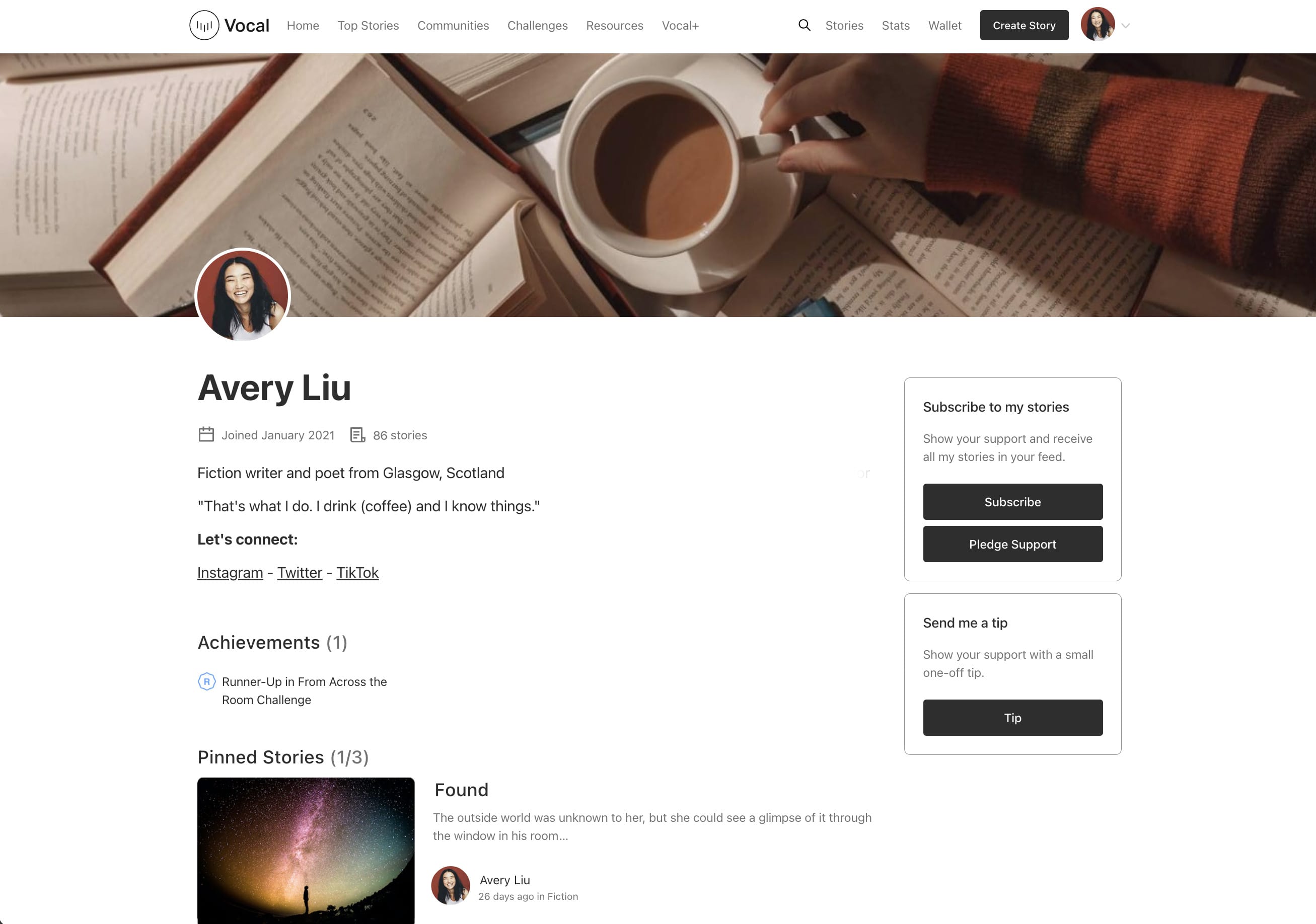
Get creative with your links
The linking process is straightforward—but you don’t have to settle for a bland bio. The 240-character limit gives you plenty of space to let your personality shine. Your audience wants to know you better, so give them a taste of what they can expect when they follow you.
You may go for a call to action (“Keep up with me on Twitter or check out my personal blog.”) or explain what followers will get when they follow you (“Want to see behind-the-scenes content or vote on what I write next? Follow me on Twitter and Instagram!”).
Feeling inspired? Update your bio and let your audience know where they can find you.
About the Creator
Vocal Team
By creators, for creators.
Enjoyed the story? Support the Creator.
Subscribe for free to receive all their stories in your feed.
Comments
There are no comments for this story
Be the first to respond and start the conversation.