
How To Make Background Transparent in 2024?
[Ultimate Guide]


If you’re looking to remove the background from a product or a portrait photo, the five background transparency tools highlighted in this article can effortlessly facilitate this process, opening up a plethora of creative opportunities. These techniques cater to both novices and seasoned professionals alike. Continue reading to discover step-by-step instructions on how to create a transparent background.
1. How To Make Background Transparent in Photoshop?
To make background transparent, many people pick Adobe Photoshop because it has a lot of strong tools. Photoshop 2021 added a handy “Remove Background” feature. This uses smart computer magic from Adobe Sensei to help you make the background clear fast. Also, you can manually use the tool to make background transparent for more detailed image editing.
1.1 Remove Background: Automatically remove images of single subjects with simple backgrounds with one click
Step 1: Duplicate the Image
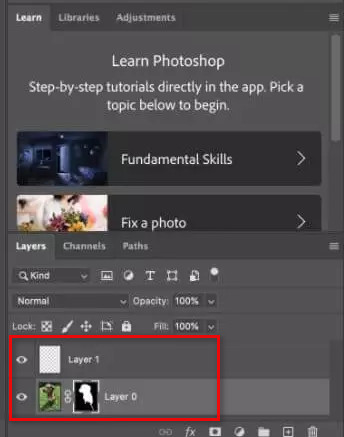
Open the image you want to edit in Photoshop. Select the entire image (Ctrl + A), copy the image (Ctrl + C), and paste it as a new Layer (Ctrl + V).
In the Layers panel, click the eye icon to the left of the original photo to hide it.
Step 2: Make Background Transparent
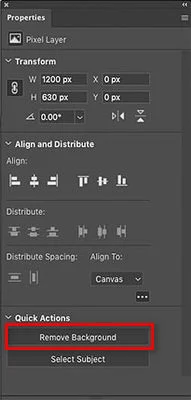
Go to the Properties panel and click the “Remove Background” button in the Quick Actions section. Photoshop will automatically identify and remove the background of your image.
1.2 Selection Tools: Manually make image background transparent with different tools
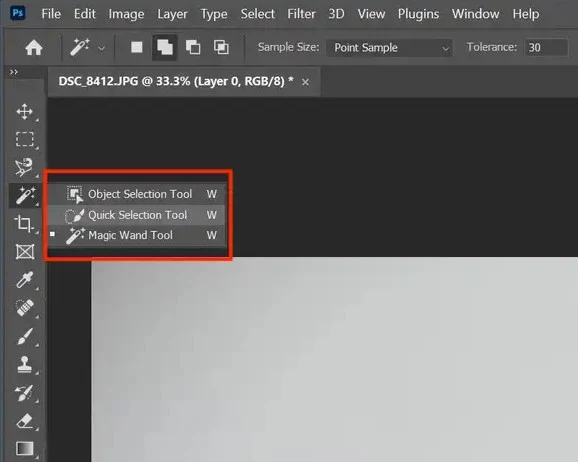
Quick Selection Tool: Select the Quick Selection Tool > It will attempt to identify the borders of a portion of an image when you click and drag over an object > Add or subtract from your selection > Invert the selection and press the Delete key.
Magic Wand Tool: Choose Magic Wand Tool > Click in the background area and adjust the Tolerance value to select more or fewer areas of similar color > Refine it and tap the Delete key to make background transparent.
Pen Tool: Select the Pen Tool > Click on the edge of the image to draw the full subject object path > Convert the path into a selection by choosing “Make Selection”> Invert the selection and create transparent background.
Lasso Tool: Select the Lasso tool > Hold and drag to outline the shape of your selection > Fine-tune the retained part and invert the selection > Delete and make background transparent.
2. How To Make Background Transparent in Canva?
Canva is renowned for its comprehensive design toolset and extensive resources. It boasts numerous sophisticated capabilities, such as the option to produce images with transparent backgrounds. It's worth pointing out that this particular feature is exclusive to Canva Pro subscribers. Nonetheless, Canva's tool for creating transparent backgrounds enables users to achieve this effect without charge.
Step 1: Upload the Image
Visit https://www.canva.com/features/transparent-background/ and click on the "Upload your image" button to add the image to Canva transparent background generator.
Step 2: Make Image Background Transparent
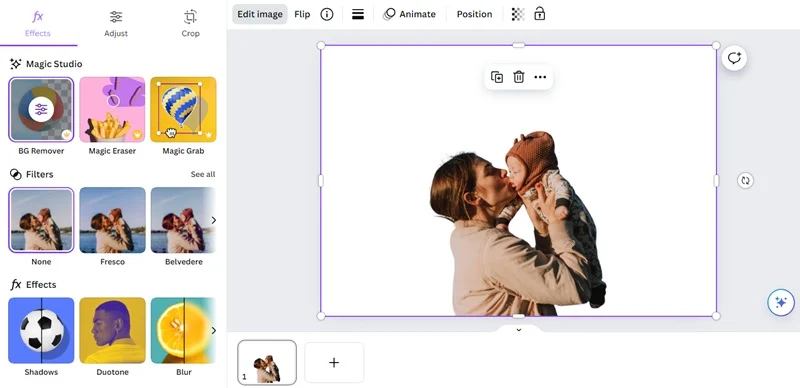
Click the image you uploaded, and then click "Edit Iamge" in the upper left corner. Under the "Magic Studio" section, click the "BG Remover" to make image background transparent.
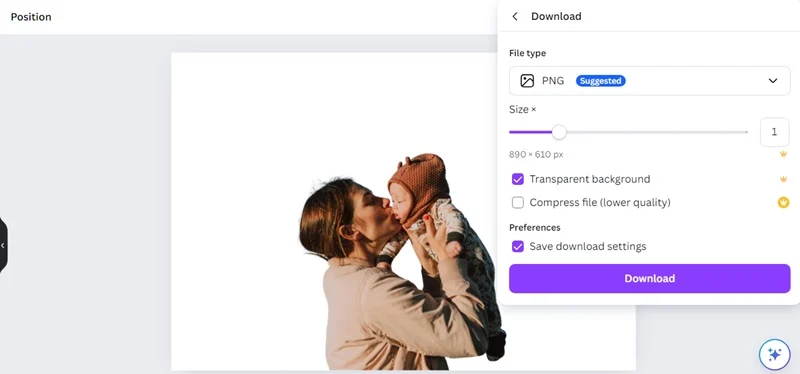
Step 3: Download Transparent Background Image
Click the "Publish" button in the upper right corner to select the "Download" option in the menu bar. Select to save the picture in PNG format and check the "Transparent Background" option.
3. How To Make Background Transparent in Gimp?
Read more: avclabs.com
About the Creator
Enjoyed the story? Support the Creator.
Subscribe for free to receive all their stories in your feed.
Comments
There are no comments for this story
Be the first to respond and start the conversation.