
Where Is the Microphone on a Dell Laptop? A Comprehensive Guide with Expert Tips
Struggling to find the microphone on your Dell laptop? This guide shows you how to locate, test, and optimize it step-by-step!

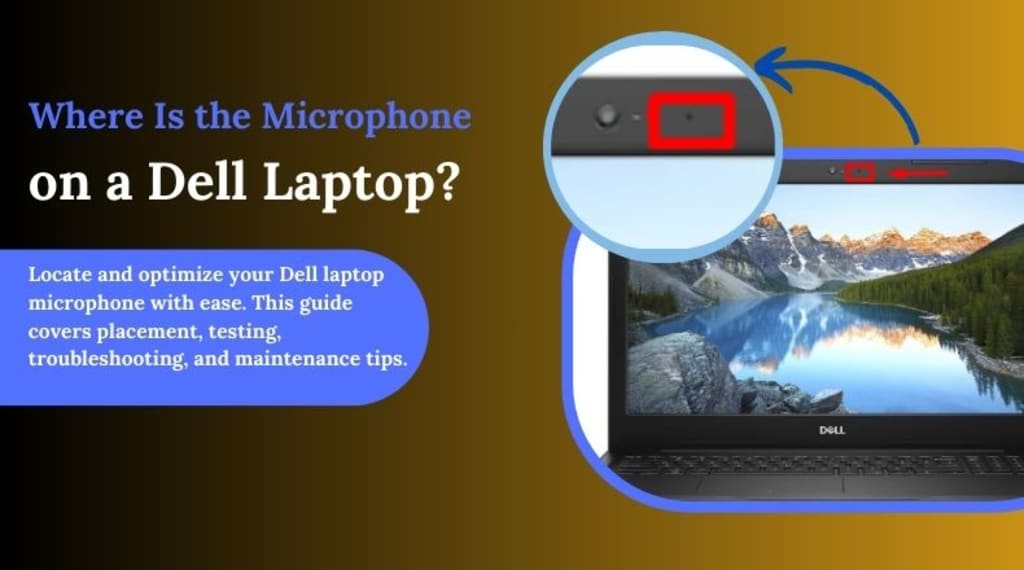
Have you ever been scrambling to find where is microphone on Dell laptop before an important meeting? You’re not alone! Many users are unsure of where this vital feature is located or how to optimize it for the best performance. In this guide, we’ll take you step by step through locating the microphone on your Dell laptop, optimizing its settings, and troubleshooting common issues for superior audio quality.
________________________________________
Where Exactly Is the Microphone on a Dell Laptop?
The location of the microphone on a Dell laptop can vary depending on the model. Here are the most common placements:
1. Near the Webcam: Typically found on the top bezel of the screen, next to the webcam module.
2. Above the Keyboard Deck: Positioned at the top edge of the keyboard area.
3. Small Grille or Hole: Look for a tiny pinhole or grille near the screen or keyboard—this often indicates the microphone.
Pro Tip: If you’re unsure, consult your Dell laptop’s user manual or visit the Dell support page for model-specific details.
________________________________________
How to Locate and Test the Microphone on a Dell Laptop
1. Conduct a Visual Inspection:
• Look around the webcam and keyboard for small grills or pinholes that house the microphone.
2. Use System Settings:
• Open Control Panel > Sound > Recording Tab.
• Select your active microphone to view its details and test its functionality.
3. Refer to the User Manual:
• Check the Dell user guide or online support for model-specific information.
________________________________________
Optimizing Your Microphone for Better Audio
1. Adjust the Volume:
• Open Control Panel > Sound > Recording Tab.
• Right-click your microphone, select Properties > Levels, and adjust the input volume as needed.
2. Enhance Audio Quality:
• Go to the Enhancements Tab and enable features like Noise Suppression and Echo Cancellation.
3. Test the Microphone:
• Navigate to Windows Settings > Sound > Test Your Microphone to ensure everything is functioning properly.
Pro Tip: Regularly testing your microphone ensures consistent audio performance during important calls or recordings.
________________________________________
Troubleshooting Common Microphone Issues
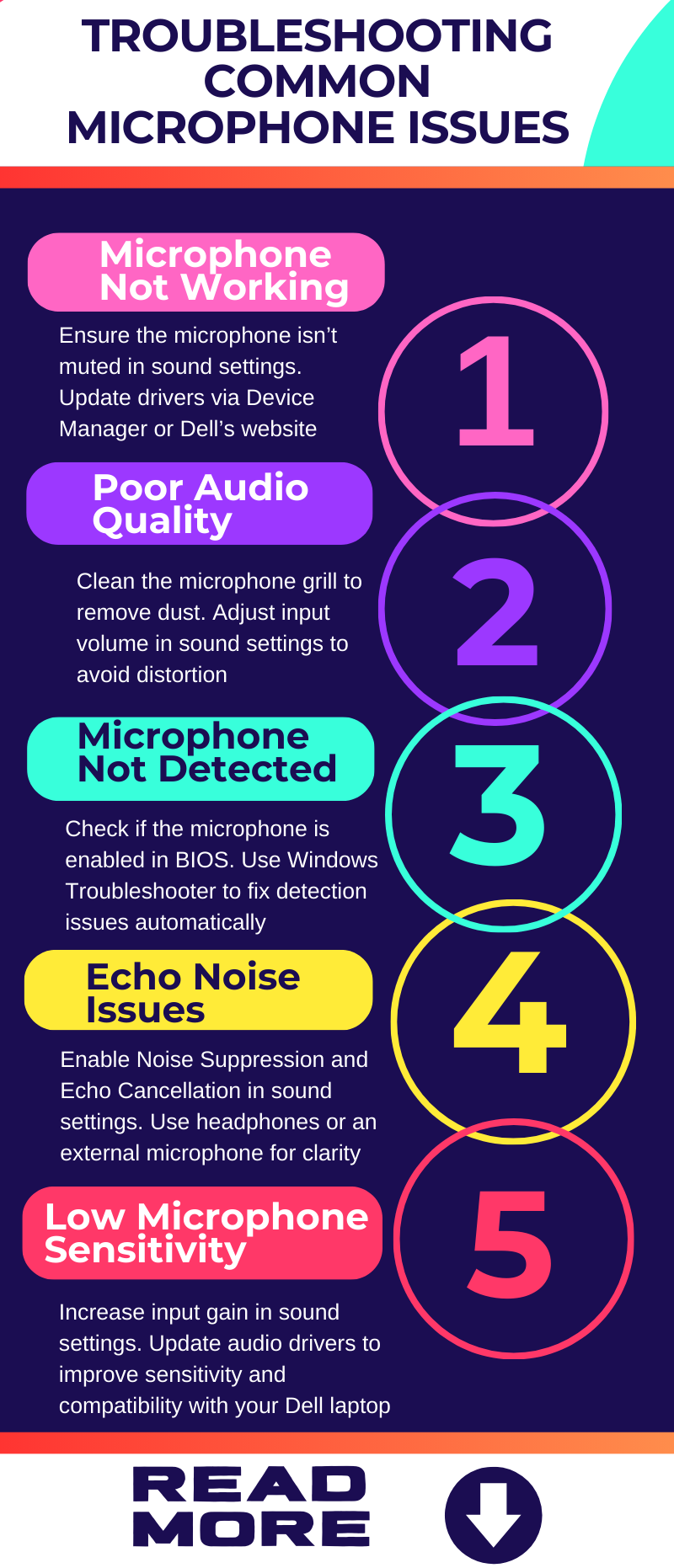
1. Microphone Not Working:
• Ensure the microphone is not muted in your sound settings.
• Update audio drivers via Device Manager or Dell’s official support website.
2. Poor Audio Quality:
• Clean the microphone grill to remove dust or debris that may block sound input.
• Adjust the input volume to prevent distortion or low-quality audio.
3. Microphone Not Detected:
• Check if the microphone is enabled in BIOS Settings.
• Use the Hardware and Devices Troubleshooter in Windows to identify and resolve detection issues.
________________________________________
Preventive Tips for Maintaining Your Microphone
1. Keep It Clean: Regularly clean the microphone area with a soft brush to prevent dust build-up.
2. Avoid Moisture: Protect your laptop from spills and humid environments to prevent hardware damage.
3. Update Drivers Frequently: Ensure your audio drivers are up-to-date to avoid compatibility issues.
________________________________________
FAQs
Q: Where is the microphone on a Dell laptop?
A: It is typically located near the webcam on the top bezel or along the top edge of the keyboard deck.
Q: How can I disable the microphone on my Dell laptop?
A: Go to Device Manager, right-click the microphone, and select Disable.
Q: Can I use an external microphone with my Dell laptop?
A: Yes, external USB or audio-jack microphones are compatible and often provide superior audio quality.
Q: Why is my microphone picking up background noise?
A: Enable Noise Suppression in sound settings to reduce unwanted noise during calls or recordings.
________________________________________
Conclusion
Locating and optimizing the microphone on a Dell laptop doesn’t have to be a challenge. With the steps and tips outlined in this guide, you can ensure your microphone works flawlessly for video calls, voice dictation, and audio recording. Don’t forget to share this guide with others and explore our blog for more tech tips to enhance your laptop experience!
Found this guide helpful? Share it with your friends or leave a comment with your feedback. For more expert tips, subscribe to our blog today!
About the Creator
Dell Laptop Service Center
Expert Dell Service Center Mumbai offering reliable repairs, genuine parts, and skilled technicians to fix all Dell laptop issues. Fast, affordable, and customer-focused solutions.
Enjoyed the story? Support the Creator.
Subscribe for free to receive all their stories in your feed.
Comments
There are no comments for this story
Be the first to respond and start the conversation.