
iOS 26 Adds a Fun Way to Customize Your iPhone Wallpaper — Here’s How to Use It
How to Apply the 3D Spatial Effect to Your iPhone’s Wallpaper in iOS 26

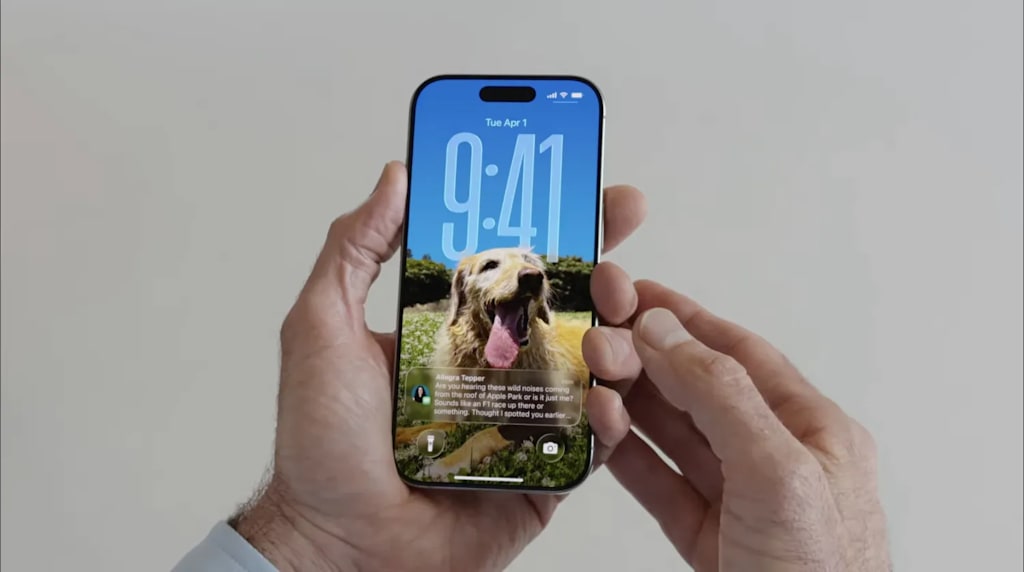
Your iPhone’s wallpaper has always been one of the simplest yet most powerful ways to make your device feel truly yours. From family photos to aesthetic backgrounds, wallpapers reflect personality, mood, and even creativity. With the release of iOS 26, Apple has taken this personalization a step further by introducing a fresh and engaging feature — the 3D spatial effect for wallpapers.
At first glance, it might seem like a small update. But once you start using it, you realize how much it changes the way your iPhone feels in your hand. It adds depth, movement, and a subtle sense of life to your screen that wasn’t there before.
In this detailed guide, we will explore everything about this feature — what it is, how it works, how to use it, tips to get the best results, and why it actually matters more than it seems.
What Is the 3D Spatial Effect in iOS 26?
In simple terms, the 3D spatial effect allows your wallpaper to react to the movement of your iPhone. When you tilt or shift your device, the image appears to move slightly, creating a sense of depth — almost as if parts of the photo are layered in space.
According to Apple’s official iOS 26 release notes:
Spatial scenes let you add a new 3D effect to your photo wallpapers, bringing them to life when you move your iPhone.
This effect is not entirely new in concept. Similar visual tricks have existed before in different forms, such as parallax effects in earlier iOS versions. However, what makes iOS 26 different is how refined and accessible this feature has become. It is smoother, more responsive, and works with a wider range of photos.
Why This Feature Feels Different
At its core, the spatial wallpaper effect is about interaction. Your phone is no longer just displaying an image — it’s responding to how you hold it.
Here’s why it stands out:
1. It Adds Depth Without Complexity
You don’t need any design skills or third-party apps. The system automatically analyzes your photo and creates a layered effect.
2. It Feels Subtle but Engaging
The movement is not dramatic or distracting. It is gentle enough to feel natural while still being noticeable.
3. It Enhances Personal Photos
Unlike generic wallpapers, your own pictures — friends, family, pets, or travel shots — feel more alive.
4. It Aligns With Apple’s Design Philosophy
Apple has always focused on making technology feel intuitive. This feature fits perfectly into that idea — simple to use, yet visually impressive.
How to Apply the 3D Spatial Effect to Your Wallpaper
If you want to try this feature yourself, the process is straightforward. You can either use Apple’s suggested wallpapers or apply the effect to your own photos.
Step-by-Step Guide
Follow these steps to enable the spatial effect:
Open Settings
Tap on Wallpaper
Select Add New Wallpaper
Tap Photos in the top-left corner
Choose the image you want to use
Tap the geometric icon near the lower-right corner of the screen
Wait for the spatial scene to generate
Move your iPhone slightly to preview the effect
Tap Add to save your wallpaper
Once applied, you will immediately notice the difference when you tilt your device.
Using Apple’s Suggested Spatial Wallpapers
When you create a new wallpaper in iOS 26, you will notice a section labeled “Spatial Scenes.”
These are pre-optimized images that already support the 3D effect. If you prefer a quick and easy setup, this is the best place to start.
Why Use Suggested Wallpapers?
They are optimized for depth detection
The effect is smoother and more consistent
No need to adjust or experiment
However, while these wallpapers look great, they may not feel as personal as your own photos.
Applying the Effect to Your Own Photos
One of the most interesting aspects of this feature is that it works with almost any image in your Photos library.
That means you can turn everyday pictures into something visually dynamic.
Best Types of Photos for Spatial Effect
Not all images work equally well. For the best results, choose photos with:
A clear subject in the foreground
A visible background for separation
Good lighting and contrast
Minimal clutter
For example:
Portraits
Nature shots
Cityscapes
Objects with depth (like a road or hallway)
Photos That May Not Work Well
Flat images with no depth
Overly busy scenes
Low-quality or blurry pictures
The system tries its best, but the effect depends heavily on how well it can distinguish layers.
What Makes This Feature Technically Impressive
Even though Apple presents this as a simple feature, there is quite a bit happening behind the scenes.
1. Depth Mapping
The system analyzes your photo and separates it into layers — foreground, midground, and background.
2. Motion Tracking
It uses your iPhone’s sensors to detect movement and adjust the layers accordingly.
3. Real-Time Rendering
All of this happens instantly, without noticeable lag.
The result is a smooth and natural 3D effect that feels responsive rather than artificial.
Comparing It to Older iOS Features
If you have used iPhones for a while, you might remember the parallax effect from earlier versions of iOS.
Key Differences
Feature Old Parallax iOS 26 Spatial Effect
Depth Quality Basic Advanced
Photo Compatibility Limited Wide
Smoothness Moderate Very smooth
Customization Minimal Flexible
The spatial effect is clearly a more refined version, built with better processing and smarter image analysis.
Does It Affect Battery Life?
This is a common question.
Since the feature involves motion and rendering, it is natural to wonder if it consumes extra battery.
The Reality
The effect is lightweight
It only activates when you move your phone
It does not run continuously in the background
In most cases, you will not notice any significant impact on battery life.
Should You Use the Spatial Effect?
The answer depends on your preference.
You Might Like It If:
You enjoy customizing your phone
You like subtle visual effects
You use personal photos as wallpapers
You Might Skip It If:
You prefer a completely static look
You want maximum simplicity
You rarely change your wallpaper
It is not a must-have feature, but it definitely adds a new layer of personalization.
Tips to Get the Best Experience
If you want your wallpaper to look its best, keep these tips in mind:
1. Experiment With Different Photos
Try multiple images to see which one creates the best depth effect.
2. Use High-Resolution Images
Better quality images produce smoother results.
3. Avoid Overediting
Heavy filters can confuse the depth detection system.
4. Test Before Saving
Always preview the movement before applying the wallpaper.
Why Features Like This Matter
At first, this might seem like a minor update. But small features often shape the overall experience of using a device.
Personalization Is Important
People use their phones every day. Even small visual improvements can make the experience more enjoyable.
It Shows Attention to Detail
Apple is known for focusing on details. Features like this reflect that approach.
It Keeps the Experience Fresh
Even if the hardware remains similar, software updates like iOS 26 help keep the device feeling new.
The Bigger Picture of iOS 26
The spatial wallpaper feature is just one part of a larger update.
iOS 26 continues Apple’s trend of improving usability, design, and personalization without overwhelming users with complexity.
Instead of adding unnecessary features, the focus remains on refining what already exists.
Final Thoughts
The 3D spatial effect in iOS 26 is a simple idea executed well. It does not try to transform your iPhone completely, but it enhances something you already use every day — your wallpaper.
It is easy to set up, works with most photos, and adds a subtle sense of depth that makes your device feel more interactive.
While not everyone will find it essential, it is one of those features that quietly improves the overall experience.
If you have not tried it yet, it is worth exploring — especially if you enjoy personalizing your device in small but meaningful ways.
About the Creator
Muhammad Abbas khan
Writer....
Enjoyed the story? Support the Creator.
Subscribe for free to receive all their stories in your feed.
Comments
There are no comments for this story
Be the first to respond and start the conversation.