
How to Turn Images into Text in Seconds
Turn Images into Text

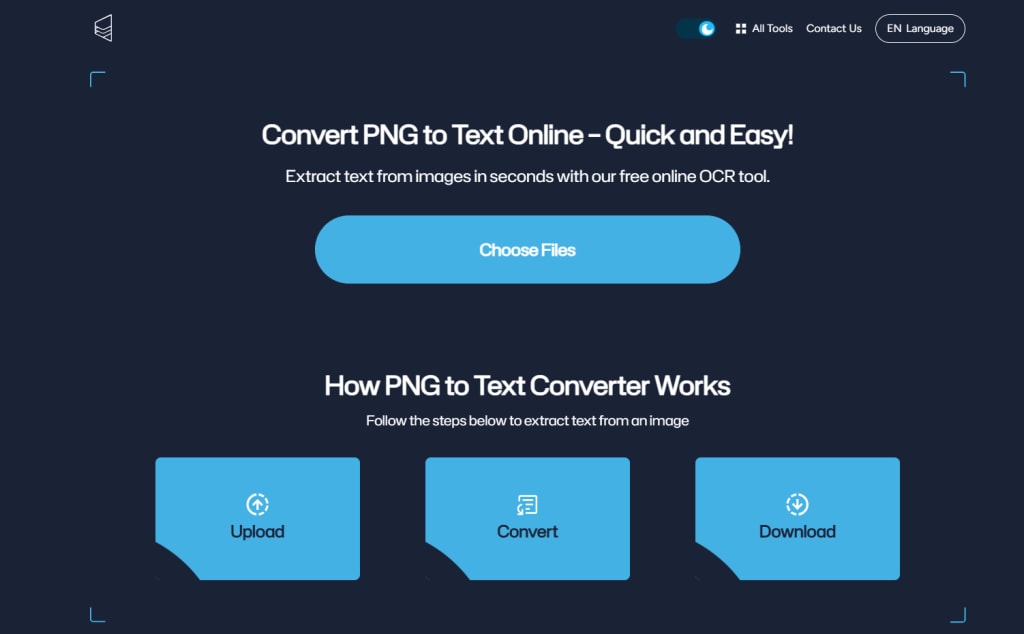
Extract text in a few seconds. Sounds great. Let me tell you the accurate and best way to achieve this motive.
In this digital era, Image text extraction has become an important task. Each field such as business, industries, marketing, healthcare, or education system relates to documents. Image converters need to be your best friend if you are among these professions.
Above all, you have to extract text without wasting time or effort. As it is well known; time is money, right?
What does Image Text Conversion mean?
Image to text conversion means extracting text that is written on an image. This includes text extraction from even scanned documents like PDFs.
Image-to-text converters are tools used to turn images into text. Provide accurate results and copy image text in seconds. Later, we will discuss OCR and AI tools and various types to find the best match for your task.
Text extraction mechanism
You can manually turn images into text Converter, but it is time-consuming. The focus should be on accuracy for text extraction. To avoid errors OCR text extractors are the best solution for accurate text extraction. Image text extractors use the following techniques to turn images into text. Following are some techniques mostly used by text extractors.
Pre-Processing
Pre-processing is the image cleaning that removes obstacles from the image for accurate text extraction. This technique includes image deskewing, removing noise and artifacts, or solving lighting issues.
Text Scanning
In this step, tools identify characters, features, and patterns. Some tools use machine learning processes or AI for human intelligence.
Post-Processing
Post-processing is a technique to identify errors in the extracted text. Error identification is followed by error correction using machine learning processes or databases.
Step-by-step guide
Image-to-text converters mostly have a user-friendly interface. Following are some steps to turn images into text easily. Any beginner or non-technical person can follow these steps for text extraction.
Select Tool
First, decide which tool is needed for your task.
There are various types of tools. Simple OCR, AI-based OCR, or OMR (optical marker recognizer).
Choose, do you need an app, online tool, or OCR API System?
Upload Image
Apps and online tools are user-friendly. App users just open the app, choose an image from the browser, and upload it.
For online tools, an option is provided for image/file uploading on the website. Just click that button and choose your file.
Extract text
After selecting the image, app users click scan or a camera icon to extract text. Then copy or save the data.
To extract the text using the online tool, just upload the file and wait for a second. Then copy/download the extracted text.
Review extracted text
After text extraction, check if your extracted text is accurate or not.
Note
OCR API Systems are used for OCR integration in specific business workflow. They are trained to extract text from specific document formats such as receipts or invoices. They extract text in CSV/Excel/JSON files or other formats. For further guidance on this topic click this link OCR API Guidance for beginners
Best tools for text extraction
How to turn images into text, text extractors, their types, and how to use them. Now, you know all this stuff very well. Then, this is the right time to choose the tool best for you.
OCR Tools
Again, you can choose which type of OCR you want. We will provide you with OCR scanner apps, on-web OCR Tools, and OCR API systems. Let's discuss a few of our best discoveries.
PNG Text Extractor
PNG text extractor is an online OCR tool. This is a user-friendly tool even for non-technical people. You just upload the image and extract accurate text. There is no need for any purchase. It is a free online tool.
Amazon Textract
Amazon Textract is an OCR API system. Amazon API is adaptive to different font styles and document templates. Its integrated AI system enhances its efficiency. This is a paid tool with a few free trials.
Adobe Acrobat
This is an app useful for converting images or scanned documents into text using your phone. You can convert a bundle of docs with one click and save your file wherever you want.
Google Docs
Google Docs also converts images or PDF files into editable files. First, upload the file on Google Drive. Secondly, right-click on the file and choose Open with Google Docs. Then, Google Docs will automatically convert the file into an editable file. Sign in to Google Docs by clicking this link.
Tips to turn images into text
Always check image quality. Nowadays, most OCR tools pre-process images to improve image quality.
Select the appropriate tool according to your requirements. If you want to scan a few images you can use Online OCRs. When you need to scan many PDFs you will choose an app.
Always review the extracted text for accurate results. OCRs are improving day by day, but it is important to double-check the results for valuable files.
Always check the format of the extracted text. Some OCRs can not recognize document format and extracted text loses its original format. So, remember to edit the format for your documents after text extraction.
Before text extraction, it was important to inform you about text extraction, converters, mechanisms, step-by-step guides, and tips. Hope, we are being successful.
Now turn images into text in seconds. I hope you have achieved your best plan for text extraction. We aimed to provide you with information. Now it is your turn.
About the Creator
Png to Text
Image to Text converter is a 100% free tool with unlimited usage to extract text from PNG, JPG, or any format. Use Batch Upload to save your time.
Enjoyed the story? Support the Creator.
Subscribe for free to receive all their stories in your feed.
Comments
There are no comments for this story
Be the first to respond and start the conversation.