
How to Check Your Laptop’s Generation & Why It Matters (Ultimate Guide)
Find Your Laptop’s Generation in Seconds!

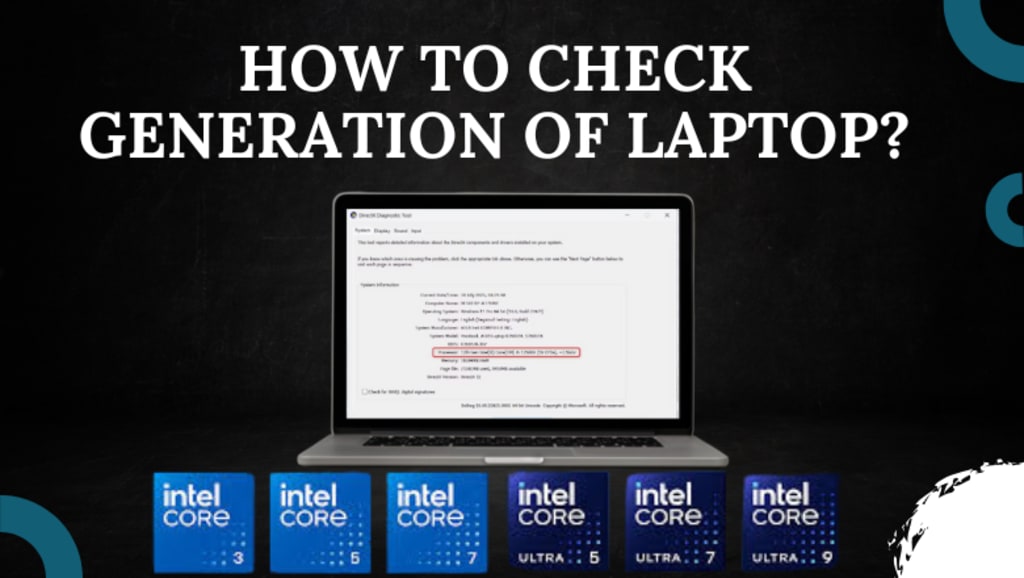
In today’s fast-paced tech world, knowing your laptop’s generation is crucial. Whether you’re upgrading software, fixing performance issues, or selling your laptop, understanding its generation helps you make informed decisions. But do you know how to check generation of laptop? Don’t worry—we’ve got you covered!
In this comprehensive guide, we’ll show you quick and easy methods to check your laptop’s generation using built-in Windows tools and third-party software. We’ll also answer frequently asked questions, such as which laptop generation is best and how to check laptop generation in Windows 10. Let’s dive in!
What is Laptop Generation?
A laptop’s generation refers to the version of its processor (CPU), such as Intel Core i5 10th Gen or AMD Ryzen 5000 series. Newer generations feature better performance, power efficiency, and advanced features. For instance, a 12th Gen Intel processor outperforms an 8th Gen processor due to improved architecture and core count. Similarly, AMD Ryzen 5000 series processors introduced massive improvements in multitasking and gaming performance.
When selecting a laptop generation, consider your needs:
- Gamers & Professionals → Go for the latest generation for high performance.
- Casual Users → Older models can still handle basic tasks efficiently.
Why Checking Your Laptop’s Generation is Important?
Understanding your laptop’s generation helps in several ways:
✅ Software Compatibility → Some software requires a newer processor (e.g., Windows 11 needs at least an 8th Gen Intel processor).
✅ Hardware Upgrades → Ensures compatibility when upgrading RAM, storage, or GPU.
✅ Resale Value → Buyers prefer newer generations, which affects the price.
✅ Performance Optimization → Newer CPUs enhance speed, battery life, and multitasking.
How to Check Your Laptop’s Generation in Windows 10 & 11
Find out generation of laptop is easy. Here are the best methods:
Method 1: Using System Information
1️⃣ Press Windows + R, type msinfo32, and press Enter.
2️⃣ In the System Information window, find the Processor field.
3️⃣ The processor name includes the generation (e.g., Intel Core i7-1165G7 → 11th Gen).
Method 2: Using Command Prompt
1️⃣ Press Windows + X, select Command Prompt.
2️⃣ Type wmic cpu get name and press Enter.
3️⃣ The processor model will display its generation (e.g., Intel Core i5-8250U → 8th Gen).
Alternative Ways to Check Laptop Generation
🔹 Device Manager → Expand Processors to see your CPU details.
🔹 Third-Party Tools → Use CPU-Z or HWiNFO for an in-depth hardware analysis.
🔹 Check Packaging or Invoice → The laptop’s generation is often printed on the box or receipt.
Which Laptop Generation is Best for You?
💻 Older Generations (8th Gen and below) → Affordable, great for browsing, office work, and media streaming.
🎮 Newer Generations (10th Gen and above) → Best for gaming, video editing, and multitasking due to higher speed & efficiency.
For gaming, choose at least a 10th Gen Intel or Ryzen 5000 series for superior performance and graphics.
Why Choose Dell Laptop Service Center in Mumbai?
If you need expert Dell laptop repair center in Mumbai, trust only the Dell Laptop Service Center. Here’s why:
✅ Certified Technicians → Experienced professionals trained to fix Dell laptops.
✅ Genuine Dell Parts → 100% original components for durability.
✅ Fast Repairs → Quick service with minimal downtime.
✅ Transparent Pricing → No hidden charges.
📞 Call Now: +91-9891868324
🌐 Website: Dell Laptop Service Center in Mumbai
FAQs About Laptop Generations
Q1: How can I check if my laptop has the latest generation?
Use System Information or Command Prompt to check your processor model and compare it with the latest Intel or AMD releases.
Q2: Can I upgrade my laptop’s generation?
No, laptop generations are linked to the CPU, which is soldered onto the motherboard. Upgrading means replacing the entire motherboard.
Q3: Which generation is best for gaming?
For gaming, opt for at least a 10th Gen Intel Core or Ryzen 5000 series for high-speed performance and modern game support.
Q4: What if I’m not tech-savvy? How can I check my laptop’s generation easily?
Use CPU-Z or check the specifications online for a hassle-free way to find your laptop’s generation.
Final Thoughts
Understanding your laptop’s generation helps with performance optimization, software compatibility, upgrades, and resale value. Whether you use Windows tools or third-party apps, checking your laptop’s generation is quick and easy.
🚀 Take a few minutes to check your laptop’s generation today and share this guide with others who might find it helpful!
About the Creator
Dell Laptop Service Center
Expert Dell Service Center Mumbai offering reliable repairs, genuine parts, and skilled technicians to fix all Dell laptop issues. Fast, affordable, and customer-focused solutions.
Enjoyed the story? Support the Creator.
Subscribe for free to receive all their stories in your feed.
Comments
There are no comments for this story
Be the first to respond and start the conversation.