
Hack a Windows Session Password: The Ultimate Guide to Regaining Access
How to unlock your PC in minutes and why you should think twice before trusting this tool blindly.

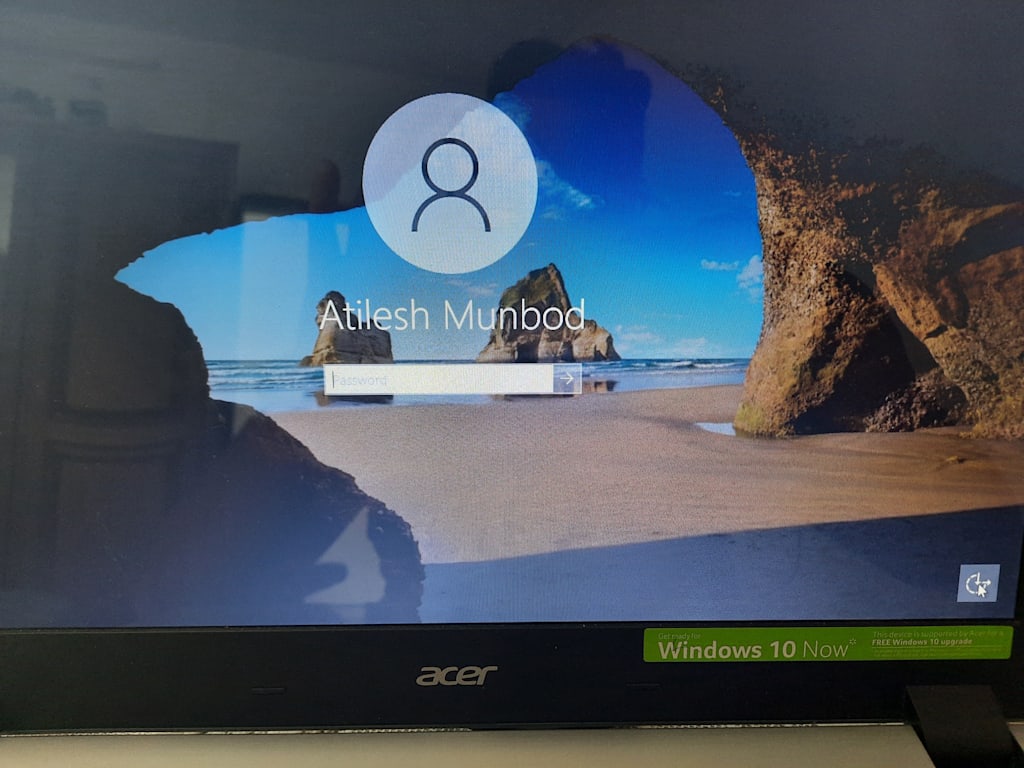
There are few moments more panic-inducing than sitting down at your computer, ready to work or play, only to realize you cannot remember your Windows password. Maybe you changed it recently and it slipped your mind. Perhaps you have been using Windows Hello or a PIN for so long that the actual password has faded from memory. Whatever the reason, you are locked out, and it feels like your digital life is on hold.
Here is the good news: You can "hack" a Windows session password. And no, this is not about breaking into someone else's computer. It is about regaining access to your own machine without losing any of your files, photos, or installed software. This comprehensive guide walks you through every reliable method—from the simplest online recovery to advanced command-line tricks that work on any version of Windows.
Pass Revelator Windows: The Quick Fix for a Forgotten Password
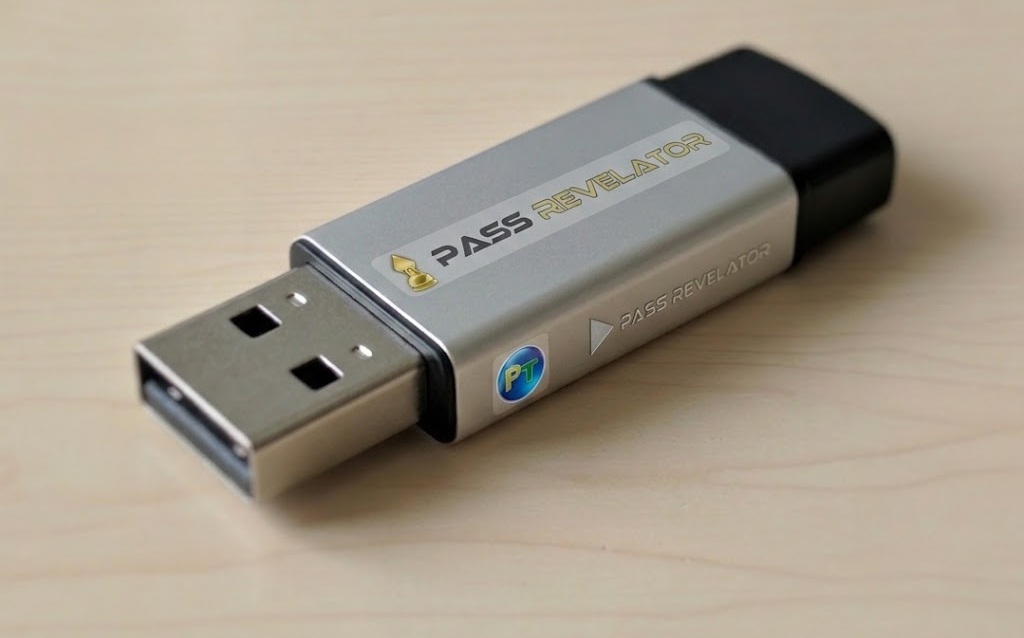
We have all been there: you power on your PC, and your mind goes blank. The password you have typed hundreds of times has simply vanished from your memory. It is frustrating, but you are not alone—it happens more often than you might think.
Pass Revelator Windows offers a different approach. It is a bootable USB key that does all the heavy lifting for you. Here is how it works:
Fully automated: The USB contains a miniature system that launches before Windows starts. It automatically locates the password database (the SAM file) on your hard drive and neutralises the password of your choice.
No technical skills required: There are no commands to type and no BIOS settings to navigate. After a simple reboot, your desktop appears, unlocked and ready to use.
Your data stays safe: The process only affects the password; your files, photos, and applications remain completely untouched.
Compatibility:
Works on Windows Vista, 7, 8, 8.1, 10, and 11 (both 32‑bit and 64‑bit).
Compatible with all PCs (desktops and laptops), whether they boot in BIOS or UEFI mode.
For the vast majority of local account lockouts, Pass Revelator Windows provides one of the fastest and most reliable solutions available.
You can download it from its official website: https://passwordrevelator.net/en/unlock-windows-account-without-password
⚠️ The Most Important Thing You Need to Know First
Before we dive into the techniques, a clear and firm legal disclaimer is essential.
This guide is for educational purposes and authorized use only. The methods described here are intended to help you recover access to your own computer or a system you have explicit written permission to test.
Unauthorized access is illegal. Attempting to bypass the security of a computer you do not own is a criminal offense in most countries.
You are responsible for your actions. By using the techniques in this guide, you accept full legal responsibility for ensuring your usage complies with all applicable local and international laws.
With that out of the way, let us explore how Windows passwords work and how you can reset them.
How Windows Stores Passwords (And Why It Matters)
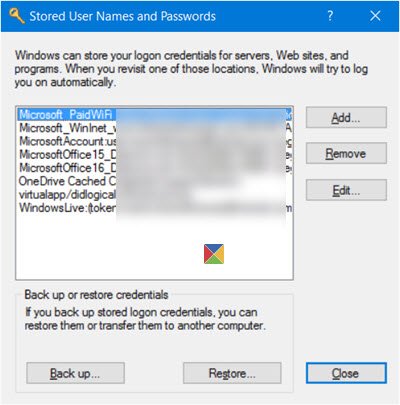
Windows does not store your password in plain text. Instead, it saves a cryptographic hash (a one-way mathematical transformation) inside a protected database called the SAM (Security Account Manager) file. This file lives at C:\Windows\System32\config\SAM and is locked when Windows is running.
What this means in practice: you cannot just "find" your password. However, you can replace or clear the hash, effectively removing the password requirement. This is what most password recovery tools do, and it is why your personal data stays completely intact—only the authentication mechanism is modified.
Method 1: Reset Your Microsoft Account Password Online (Easiest)
If you log into Windows using a Microsoft account (an email address like [email protected]), this is the simplest and safest method. You do not even need access to your locked computer.
How it works: Microsoft stores your password on their servers. You can reset it from any internet-connected device.
Steps:
On a phone, tablet, or another computer, go to the official Microsoft password reset page: https://account.live.com/resetpassword
Select "I forgot my password" and enter your Microsoft account email.
Microsoft sends a verification code to your recovery email or phone number.
Enter the code, then create a new, strong password.
On your locked Windows PC, simply type the new password at the login screen. You are back in.
Important: This method only works for Microsoft accounts. If you see "Local Account" below your username on the login screen, the "Forgot password" link will not appear. Use one of the offline methods below.
Method 2: Activate the Hidden Built-in Administrator Account
Every Windows installation includes a secret built-in Administrator account that is disabled by default. You can enable it from the recovery environment, log in (it has no password), and then reset your regular account's password.
What you need: Access to the Advanced Startup Options menu (no USB drive required).
Steps:
On the Windows login screen, hold down the Shift key.
While holding Shift, click the Power icon and select Restart. Keep holding Shift until the computer reboots into the blue Advanced Startup Options menu.
Go to Troubleshoot → Advanced Options → Command Prompt.
In the command prompt, type the following and press Enter:
text
net user administrator /active:yesYou should see "The command completed successfully."
Close the command prompt and click Continue.
On the login screen, you will now see an Administrator account. Click it (no password required).
Once logged in, right-click the Start button and select Computer Management.
Go to Local Users and Groups → Users.
Right-click your original account and choose Set Password.
Enter a new password, confirm it, and click OK.
Log out of the Administrator account and log back into your own account with the new password.
Security reminder: After you regain access, go back to Command Prompt (run as Administrator) and disable the hidden Administrator account with:
net user administrator /active:no
Method 3: The Utilman.exe (Sticky Keys) Trick – The Classic Hack
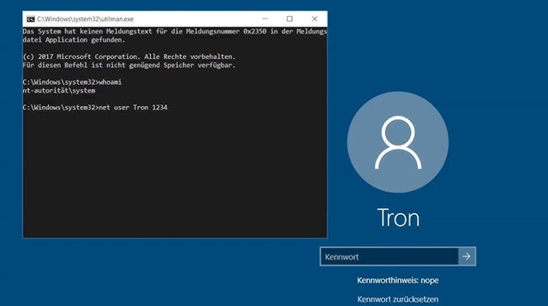
This method has been around for years because it exploits a small but powerful oversight in Windows. The Ease of Access button on the login screen runs a program called Utilman.exe. If you replace that program with a command prompt, you can launch a command prompt from the login screen with system-level privileges and reset any password.
⚠️ You will need a Windows installation USB drive or DVD (or any bootable Windows recovery media). If you don't have one, you can create one for free using Microsoft's Media Creation Tool on another computer.
Step-by-Step Instructions
Step 1 – Boot from the Windows installation media
Insert your USB drive or DVD.
Restart your computer and enter the boot menu (usually F12, F2, DEL, or ESC during startup).
Select the USB/DVD as the boot device.
When the Windows Setup screen appears, click Next, then click Repair your computer (bottom-left corner).
Step 2 – Open Command Prompt
For Windows 10/11/8: Troubleshoot → Advanced Options → Command Prompt.
For Windows 7/Vista: Repair your computer → select your OS → Command Prompt.
Step 3 – Find your Windows drive letter
When the command prompt opens, the drive letters may be different. Type:
text
C:
dir
Look for the Windows folder. If you don't see it, try D:, E:, etc. Let's assume it's C:.
Step 4 – Replace Utilman.exe with cmd.exe
Navigate to System32:
text
cd C:\Windows\System32Back up the original Utilman.exe:
text
copy utilman.exe utilman.exe.backupReplace it with a copy of cmd.exe:
text
copy cmd.exe utilman.exeWhen asked to overwrite, type Y and press Enter.
Step 5 – Restart normally
Close the command prompt.
Click Continue to exit recovery (or just restart).
Remove the USB/DVD so the computer boots into your normal Windows.
Step 6 – Launch command prompt from the login screen
On the Windows login screen:
Click the Ease of Access button (bottom-right corner, looks like a clock with a person).
Or press Windows + U on your keyboard.
Instead of accessibility tools, a command prompt will appear.
Now reset your password. Replace YourUsername with your actual account name and NewPassword123 with your new password:
text
net user YourUsername NewPassword123If you don't remember your username, list all users:
text
net userAlternatively, create a brand new administrator account:
text
net user TempAdmin MyNewPass /add
net localgroup Administrators TempAdmin /add
Then log in with TempAdmin and reset your original account's password from within Windows.
Step 7 – Restore the original Utilman.exe (recommended)
After you have successfully logged back in, restore Utilman.exe so the Ease of Access button works correctly. Repeat Steps 1–3 to boot from the USB again and open Command Prompt. Then navigate to C:\Windows\System32 and run:
text
del utilman.exe
ren utilman.exe.backup utilman.exe
Restart.
Method 4: Password Reset Disk (If You Prepared One in Advance)

A password reset disk is a USB flash drive that stores a special recovery key tied to your local user account. You must create it before you forget your password – it cannot be made afterwards.
If you already have a password reset disk:
On the Windows login screen, click Reset password (or "I forgot my password").
Insert the USB drive.
Follow the on-screen wizard to create a new password.
If you don't have one: Consider creating one immediately after you regain access. Go to Control Panel → User Accounts → Create a password reset disk.
Method 5: Third-Party Password Recovery Tools (chntpw and Others)

When built-in methods are too technical or don't work, several reliable third-party tools can reset Windows passwords. Most run from a bootable USB and work by directly modifying the SAM database.
chntpw (Offline NT Password & Registry Editor)
chntpw is a free, open-source utility that has been the go-to tool for IT professionals and security researchers for years. It works by editing the SAM database while Windows is not running.
How to use chntpw:
Download the chntpw ISO and write it to a USB using Rufus or Etcher.
Boot from that USB.
Follow the on-screen prompts to select your Windows partition and the SAM file (usually at Windows/System32/config/SAM).
Choose the user account and select the option to clear the password (or set a blank password).
Reboot – the account will have no password.
chntpw supports all Windows versions from NT3.x to Windows 11, both 32-bit and 64-bit. It can also unlock locked accounts and promote users to administrator.
Other Popular Tools
ToolDescriptionHiren's BootCD PEA full Windows PE environment that includes password reset utilities, file managers, and other recovery tools.OphcrackUses rainbow tables to recover passwords (rather than just resetting them).PassFab 4WinKeyCommercial tool with a user-friendly interface.
Safety note: Always download these tools from official sources to avoid malware.
Method 6: Manual SAM File Editing (Advanced Users Only)
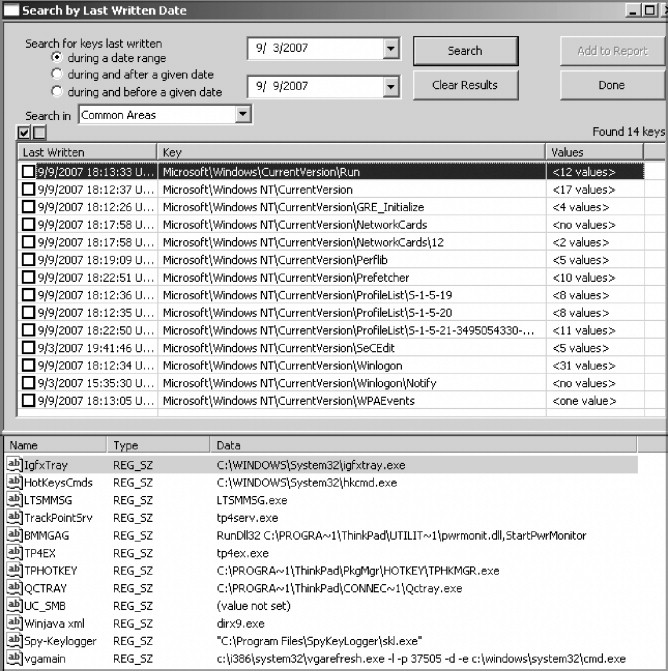
This method is for IT professionals or experienced users. It involves booting into a Linux live environment, mounting the Windows drive, and manually editing the SAM registry hive using tools like chntpw or sampasswd.
The SAM file is located at C:\Windows\System32\config\SAM. You can load it into a registry editor from another OS and clear the password hashes. However, this is complex and error-prone, so most users should stick to the methods above.
A warning from Microsoft: In older versions of Windows, you could simply delete the SAM file to reset passwords. Those days are over. Modern Windows will not let you do this.
Comparison Table: Which Method Should You Use?
MethodDifficultyRequires USB?Works WithData RiskMicrosoft account resetVery easyNoMicrosoft accountsNoneBuilt-in AdministratorModerateNoWindows 10/11 local accountsNoneUtilman.exe trickIntermediateYes (installation media)All versions (XP to 11)NonePassword reset diskEasy (must be pre-created)Yes (the disk itself)Local accounts onlyNonechntpw / third-party toolsModerateYes (bootable USB)All versionsNoneManual SAM editingAdvancedYes (Linux live USB)All versionsLow (if done carefully)
Preventing Future Lockouts
After you have regained access, take a few minutes to prevent this from happening again:
Create a password reset disk (Control Panel → User Accounts).
Link your local account to a Microsoft account – then you can always reset online.
Set up security questions (if available in your Windows version).
Use a password manager to store all your credentials securely.
Enable PIN or biometric login (fingerprint / Windows Hello) as a backup.
Write down your password and store it in a safe place (old-school, but effective).
Frequently Asked Questions
Q: Will I lose my files if I reset my password?
A: No. None of the methods described here affect your personal data. Only the password is modified.
Q: Can I reset a password without a USB drive?
A: Yes. The built-in Administrator method (Method 2) works without any external media. The Microsoft account reset (Method 1) also requires no USB.
Q: What if my hard drive is encrypted with BitLocker?
A: Most of these methods will not work on BitLocker-encrypted drives. You will need your BitLocker recovery key to proceed.
Q: Can I use these methods on a work or school computer?
A: Only if you have explicit authorization. Attempting to bypass security on a corporate or educational device without permission is a serious violation and may result in disciplinary or legal action.
Q: Is it legal to use these tools?
A: Yes, for recovering your own accounts or systems you own. No, for accessing someone else's computer without permission.
Final Thoughts
Being locked out of your own computer is stressful, but it is almost never a disaster. With a bootable USB drive and a few commands, you can reset almost any Windows password without losing a single file. The Utilman trick is the most universal method, but the hidden Administrator account method is even simpler on modern Windows 10/11 machines.
The tools and techniques in this guide—from Microsoft's own recovery options to powerful open-source utilities like chntpw—exist to help legitimate users regain access to their own systems. Use them responsibly, ethically, and legally.
Remember: These methods are for recovering your own accounts. Using them on someone else's computer without permission is illegal. Stay ethical, stay safe, and create that password reset disk today.
Have you successfully reset a Windows password using one of these methods? Share your experience in the comments below!
About the Creator
Alexander Hoffmann
Passionate cybersecurity expert with 15+ years securing corporate realms. Ethical hacker, password guardian. Committed to fortifying users' digital safety.
Enjoyed the story? Support the Creator.
Subscribe for free to receive all their stories in your feed. You could also become a paid subscriber, letting them know you appreciate their work.
Comments
There are no comments for this story
Be the first to respond and start the conversation.