
Dell Laptop Trackpad Not Working: Causes and Solutions
Fixing Dell Laptop Trackpad Issues: Expert Tips and Solutions

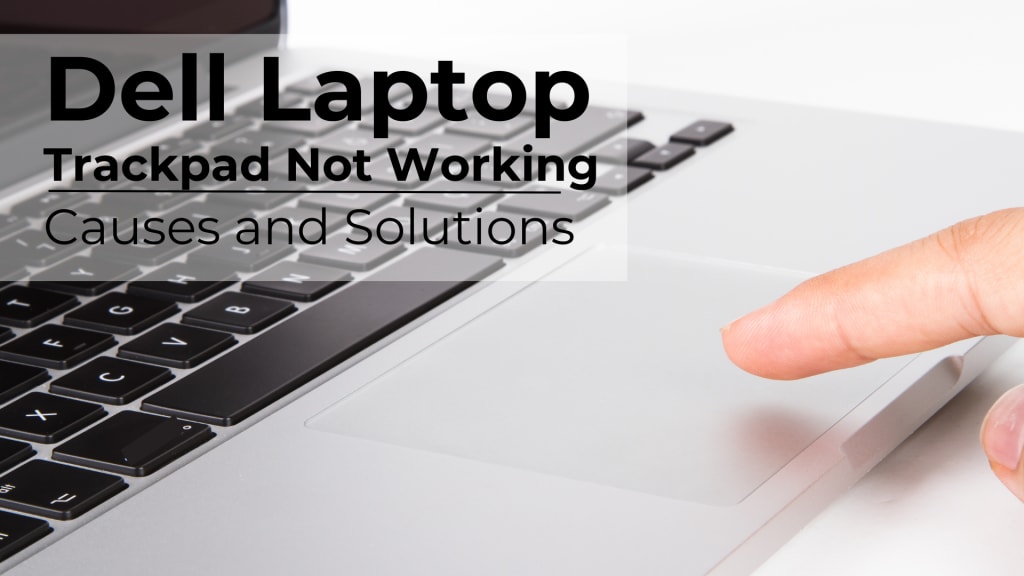
A malfunctioning trackpad can be frustrating, especially when you rely on your Dell laptop for work, study, or entertainment. Whether it's the trackpad being unresponsive, erratic, or outright non-functional, the inconvenience can disrupt productivity.
This guide will explore common causes, actionable solutions, and preventive tips by Dell Laptop Service Center in Mumbai to resolve the issue.
Why Is Your Dell Laptop Trackpad Not Working?
When your Dell laptop trackpad is not working, several factors could be at play. Let’s delve into some of the most common causes:
- Driver Issues: Outdated or corrupted touchpad drivers are a frequent culprit.
- Disabled Trackpad: The trackpad may be unintentionally disabled via settings or keyboard shortcuts.
- Hardware Malfunctions: Physical damage or wear and tear can render the trackpad unresponsive.
- Software Conflicts: Conflicting software or system updates may interfere with the touchpad’s functionality.
- Settings Misconfiguration: Incorrect touchpad settings can lead to erratic or no response.
Troubleshooting Dell Laptop Trackpad Not Working
Here are detailed solutions to fix the issue:
1. Check for Accidental Disabling
- Press the Fn + F5/F7/F9 (key combinations vary by model) to toggle the trackpad on or off.
- Open Settings > Devices > Touchpad and ensure the trackpad is enabled.
2. Update Touchpad Drivers
Outdated drivers often cause the Dell laptop touchpad not working issue. Follow these steps:
- Open Device Manager (search it from the Start menu).
- Expand Mice and other pointing devices.
- Right-click the touchpad driver and select Update driver.
- Choose Search automatically for updated driver software.
If the issue persists, download the latest drivers directly from Dell's official website.
3. Adjust Touchpad Sensitivity Settings
Sometimes, the touchpad’s sensitivity settings can cause poor responsiveness:
- Go to Settings > Devices > Touchpad.
- Adjust the sensitivity slider to a higher level.
4. Perform a System Reboot
A simple restart often resolves temporary glitches affecting the trackpad. Ensure all updates are installed before restarting.
5. Use Windows Troubleshooter
Windows has a built-in tool to identify and fix touchpad issues:
- Open Settings > Update & Security > Troubleshoot.
- Select Additional troubleshooters > Hardware and Devices.
- Run the troubleshooter and follow the on-screen instructions.
6. Reset BIOS to Default Settings
Incorrect BIOS configurations can sometimes result in the Dell laptop mouse not working issue:
- Restart your laptop and press F2 during startup to enter BIOS.
- Look for touchpad-related settings and ensure they are enabled.
- Reset BIOS to default settings and save changes.
7. Check for Physical Damage
If all else fails, inspect the trackpad for visible damage. If physical issues are detected, consult a professional for repair.
Preventive Tips to Avoid Touchpad Issues
Keep Drivers Updated
Regularly update your touchpad and system drivers to avoid compatibility issues.
Clean Your Trackpad
Dust and debris can interfere with the touchpad’s functionality. Use a microfiber cloth for regular cleaning.
Avoid Heavy Pressure
Using excessive force on the touchpad can damage internal components over time.
Why Choose Dell Laptop Service Center?
When DIY troubleshooting doesn’t resolve the issue, the Dell Laptop Service Center in Mumbai is your trusted partner for professional solutions.
Benefits of Picking Dell Service Center:
- Certified Technicians: Skilled professionals with in-depth expertise in Dell laptops ensure accurate diagnosis and repairs.
- Genuine Dell Parts: The Dell Repair Center in Mumbai uses only original or compatible parts depends on availability, guaranteeing quality and durability.
- Comprehensive Services: From resolving trackpad issues to fixing hardware problems, these centers handle all repairs.
- Onsite Support: With Dell's onsite services, you can get repairs done at your convenience without visiting the center.
- Fast Turnaround Time: Minimized downtime ensures your laptop is back to optimal performance quickly.
When to Seek Professional Help
If your Dell laptop trackpad is not working despite troubleshooting, it may indicate a hardware failure. Trust the Dell Service Center in Mumbai for expert solutions and long-lasting repairs.
Conclusion
A malfunctioning trackpad can disrupt your daily routine, but most issues are easy to fix with the right steps. From updating drivers to adjusting settings, this guide covers all aspects to resolve the problem. If you encounter persistent issues, the Dell Laptop Service Center in Delhi offers reliable and efficient repairs to get your laptop back to optimal performance.
Share your experience or additional tips in the comments below, and let’s help others navigate this common problem together!
About the Creator
Dell Laptop Service Center
Expert Dell Service Center Mumbai offering reliable repairs, genuine parts, and skilled technicians to fix all Dell laptop issues. Fast, affordable, and customer-focused solutions.
Enjoyed the story? Support the Creator.
Subscribe for free to receive all their stories in your feed.
Comments
There are no comments for this story
Be the first to respond and start the conversation.