
Dell Laptop Screen Flickering: Easy Steps to Fix
Fix Dell laptop screen flickering easily with simple steps or expert help from a trusted Dell Laptop Service Center

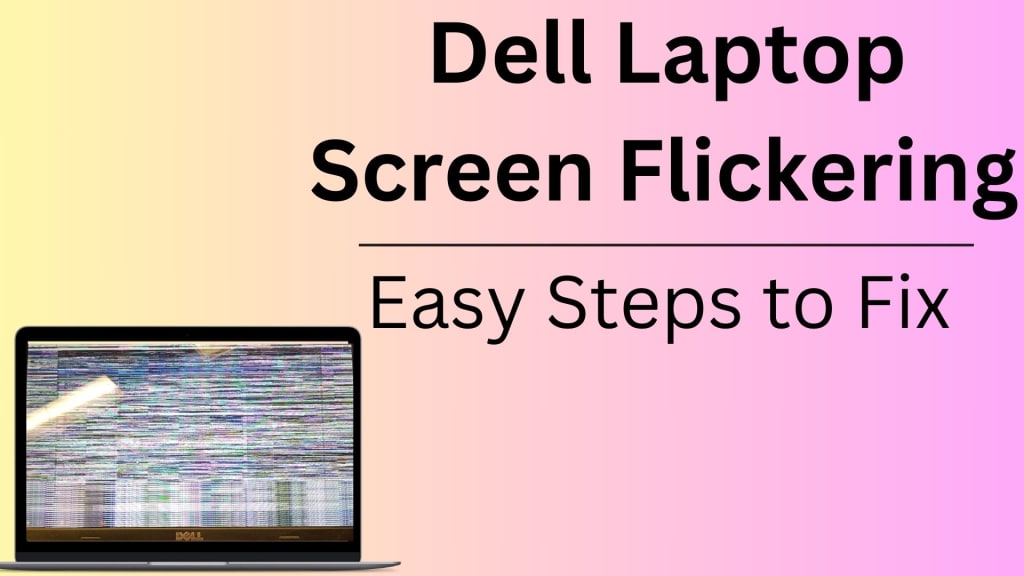
In the fast-paced world of technology, laptops have become an integral part of our daily lives. Whether it’s for work, gaming, or entertainment, a laptop’s seamless performance is vital. However, one common issue that many Dell laptop users face is screen flickering. It can disrupt productivity, strain your eyes, and lead to frustration.
Thankfully, there are easy and effective ways to fix this problem. If you’re located in the capital, visiting a Dell Laptop Service Center in Delhi might also be a practical solution for complex issues. Let’s dive into the causes and step-by-step fixes for screen flickering on Dell laptops.
Understanding the Causes of Dell Laptop Screen Flickering
Before troubleshooting, it’s crucial to identify the root cause of the problem. Screen flickering may stem from:
Display Driver Issues
Outdated or corrupted display drivers are a common culprit. These drivers control how your screen displays graphics and images.
Hardware Malfunctions
Loose cables, damaged connectors, or a faulty screen can result in flickering.
Incompatible Applications
Some applications may not be compatible with your Dell laptop's graphics card, leading to screen instability.
Incorrect Refresh Rate Settings
An improper screen refresh rate can cause flickering, especially during multitasking or high-resolution tasks.
Power Supply Problems
Inconsistent power delivery from the charger can also affect screen performance.
Steps to Fix Screen Flickering on Dell Laptops
Follow these easy steps to resolve screen flickering issues.
1. Check for Software Updates
Start with the basics. Updating your operating system and drivers can often fix the problem.
Steps:
- Press the Windows key and type "Update."
- Click on Check for Updates and install any available updates.
- Restart your laptop to apply changes.
2. Update or Reinstall Display Drivers
Faulty display drivers can often cause flickering. Updating or reinstalling them can help.
Steps:
- Right-click on the Start Menu and select Device Manager.
- Expand the Display Adapters section.
- Right-click on your graphics driver and select Update Driver.
If updating doesn’t work, uninstall the driver and reinstall it from Dell’s official website.
3. Adjust the Screen Refresh Rate
The refresh rate controls how often the screen updates its image. An incorrect setting might cause flickering.
Steps:
- Right-click on the desktop and select Display Settings.
- Scroll down and click on Advanced Display Settings.
- Under the Refresh Rate dropdown, select the recommended value.
- Click Apply to save changes.
4. Test for Incompatible Applications
Some apps may conflict with your graphics card or screen settings.
Steps:
- Open the Task Manager by pressing Ctrl + Shift + Esc.
- Check for apps using high CPU or GPU resources.
- Disable or uninstall any suspicious applications.
5. Check the Hardware Connections
- If the issue persists, inspect the hardware components.
- Ensure that the display cable is firmly connected.
- For advanced inspections, consider seeking assistance from a Dell Laptop Service Center in Delhi to avoid causing damage to internal components.
6. Perform a System Restore
If flickering started after a recent change, a system restore might help.
Steps:
- Search for System Restore in the Windows search bar.
- Follow the on-screen instructions to revert your system to a stable state.
7. Inspect Power Supply
Ensure the charger and power socket are functioning correctly. Faulty power supplies can contribute to flickering.
Why Choose a Dell Laptop Service Center in Delhi?
While the above steps can resolve most screen flickering issues, some problems might require professional intervention. This is where a Dell Service Center in Delhi comes into play. Here’s why visiting an authorized service center is the best option for Dell users:
- Expert Technicians: Service centers have certified professionals trained to handle Dell laptops.
- Genuine Parts: Using original spare parts ensures better performance and longevity.
- Warranty Coverage: Repairs done at an authorized center are often covered under warranty, reducing costs.
- Comprehensive Diagnostics: They can perform in-depth diagnostics to identify underlying issues that may not be apparent during a basic inspection.
- Convenience: With several Dell Laptop Service Centers in Delhi, you can easily find one near your location for quick assistance.
Preventing Future Screen Flickering
Taking proactive measures can minimize the chances of screen flickering in the future:
- Regularly update your operating system and drivers.
- Avoid installing unverified software.
- Use a reliable power supply and charger.
- Handle your laptop carefully to prevent hardware damage.
- Clean your laptop periodically to avoid dust accumulation in the screen and connectors.
Conclusion
Screen flickering on a Dell laptop can be frustrating, but it’s often easy to fix with the right approach. Start by addressing software-related issues, such as updating drivers and adjusting display settings. If the problem persists, consider checking hardware components or consulting a Dell Laptop Service Center in Delhi for expert assistance.
By following these steps and maintaining your laptop properly, you can ensure a smoother, flicker-free experience. A stable screen isn’t just about convenience—it’s also essential for your productivity and overall user satisfaction.
About the Creator
Dell Laptop Service Center
Expert Dell Service Center Mumbai offering reliable repairs, genuine parts, and skilled technicians to fix all Dell laptop issues. Fast, affordable, and customer-focused solutions.
Enjoyed the story? Support the Creator.
Subscribe for free to receive all their stories in your feed.
Comments
There are no comments for this story
Be the first to respond and start the conversation.