
Creating a Disk Image for Windows 10: Expert Insights and Reviews
Disk Image for Windows 10

Understanding Windows 10 Disk Images
Hello, tech enthusiasts! Today, we're exploring the fascinating realm of disk images on Windows 10/11. So, what exactly is a disk image? Think of it as a snapshot of your entire storage device, capturing everything from your operating system and software to all your files. This gives you a complete replica of your disk or partition at a specific moment in time.
Why should you care about disk images? They're invaluable for image backup, recovery, and cloning purposes. Imagine having a fail-safe copy of your system ready to go whenever you need it – that's the magic of disk images. They make life significantly easier for IT professionals and data protectors.
When should you use your disk imaging skills? Let's explore further.
Backup and Disaster Recovery: Safeguard your entire system—OS, applications, and files—from unexpected hardware failures, data corruption, or system crashes.
System Upgrades or Hardware Changes: Before upgrading your system or swapping out hardware, create a reliable disk image to preserve your current setup.
Data Preservation: When every piece of data on your computer is crucial, a disk image ensures everything is securely backed up.
Mass System Deployment: Need to set up multiple computers with the same configuration? Disk imaging simplifies this task by allowing you to create a master image for deployment across several devices.
For IT professionals and data enthusiasts, disk images are essential tools for managing and protecting systems in the dynamic world of Windows 10/11.
Simplifying Disk Imaging for Windows 10/11
Ready to create a full disk image, complete with your Windows OS and settings? Let's dive into how you can do this effortlessly using top-notch disk imaging tools.
Enter AOMEI Back upper, the ultimate solution for disk imaging on Windows 11, 10, 8.1, 8, 7, Vista, and XP, including those hidden partitions.
✔ Pros:
Versatile File System Support: Compatible with various file systems like NTFS, FAT32, FAT16, EXT2, and EXT3.
Wide Device Compatibility: Works with external hard drives, SSDs, USB flash drives, NAS, RAID setups, dynamic disks, and even CDs/DVDs.
Comprehensive Backup Options: Not just for disk imaging, AOMEI Back upper also offers backup solutions for files, folders, partitions, and entire operating systems.
Bootable Media Creation: Create bootable media for system recovery, allowing you to restore your system even without accessing Windows.
✖Cons:
Version Limitations: Some features are only available in premium versions.
No Mac Support: This tool is exclusive to Windows users.
Creating a Windows 10 Disk Image with AOMEI Back upper
Let’s dive into how AOMEI Back upper can simplify creating a disk image for Windows 10, even if you’re not a tech expert. This tool ensures your data is safe, whether you're safeguarding your Windows 10 setup or planning an upgrade to Windows 11 without losing any files. Here’s how you do it:
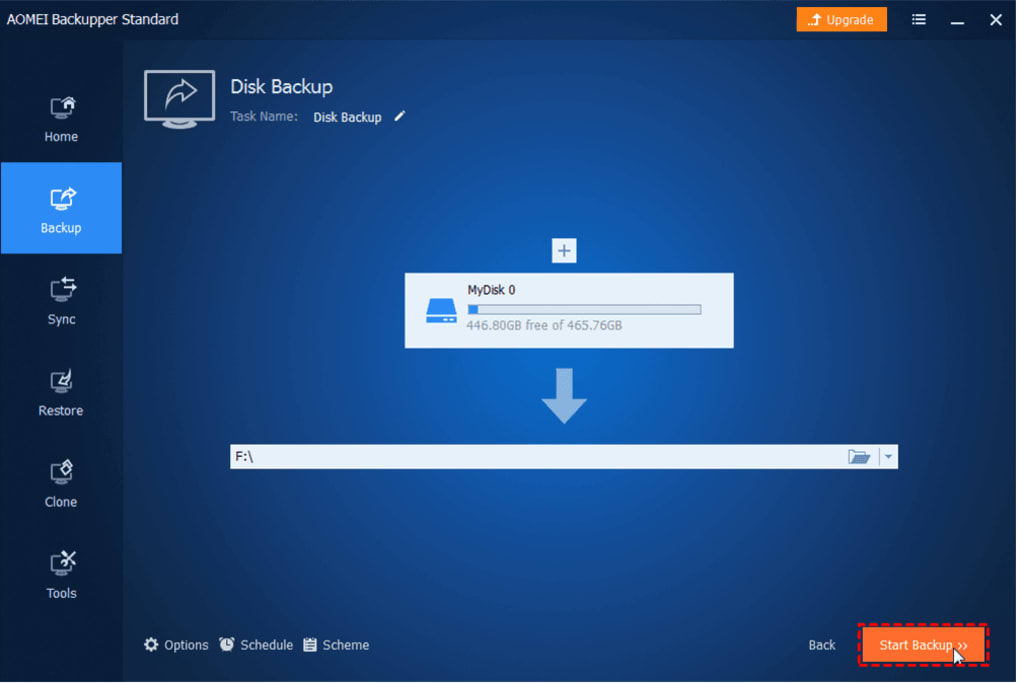
Step 1: Open AOMEI Back upper and navigate to the Backup tab. If you want to create a full disk image, select Disk Backup. If you're focusing on just the Windows 10 operating system, choose System Backup. Then, add the disk you want to back up.
Step 2: Click 'Add Disk', select the disk you want to back up, and then hit 'Add' to confirm.
Step 3: Pick where you want to save your backup by clicking on the storage location option. While you can save backups on the same drive, it's wiser to use an external or offsite location for extra security.
Step 4: Review your backup settings. If everything looks right, click 'Start Backup'. Your backup will run smoothly without interrupting your ongoing work.
☁Bonus Features:
Receive email notifications about your backups, adjust compression settings, and choose from various backup methods to suit your needs.
Schedule backups to run daily, weekly, monthly, or even automatically when you plug in a USB drive.
Optimize backup efficiency with options for full, incremental, or differential backups, and set up automatic cleanup rules (available in advanced versions).
☀Pro Tips:
When your system is acting up, create a self-booting recovery environment to save the day.
Store your recovery environment in C: Aomei Recovery and make a bootable USB, CD, or DVD with WinPE for emergencies.
Ready to make backups simple? AOMEI has you covered – no tech expertise needed.
Your turn
Creating a disk image in Windows 10 is super easy with AOMEI Back upper. Once you've made the image, recovering your disk is just a few clicks away. But that's not all! If you want to clone your hard disk without creating a disk image, AOMEI has you covered too.
Looking for a better way to manage your backups? Try free backup tool AOMEI Back upper—it’s definitely worth it!
About the Creator
Thomass Jacob
HI.
This is Thomas and I have 3 years of experience in Education industry.
Enjoyed the story? Support the Creator.
Subscribe for free to receive all their stories in your feed.
Comments
There are no comments for this story
Be the first to respond and start the conversation.