
Best Ways for Phone to Laptop Screen Mirror – Wireless & Wired Solutions
Easily Mirror Your Phone to a Laptop for a Bigger & Better Display

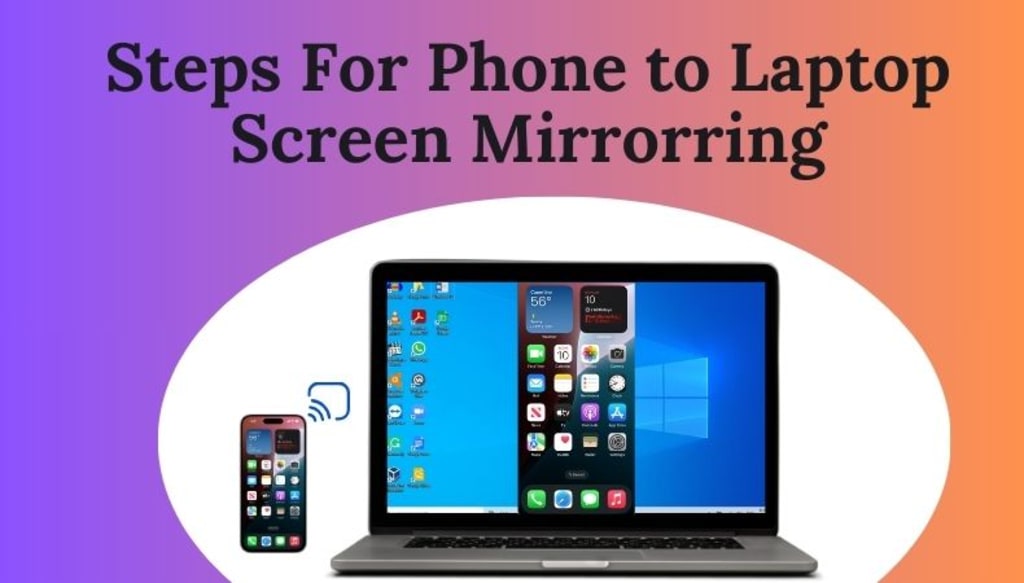
A small phone screen can be limiting when watching movies, gaming, presenting, or multitasking. Phone to laptop screen mirror allows you to expand your view, improving productivity and entertainment. Whether using Windows, Mac, Android, or iPhone, there are several wireless and wired methods to mirror your screen with ease.
This guide covers the 7 best ways to achieve phone to laptop screen mirroring, along with troubleshooting tips and expert recommendations for a seamless experience.
________________________________________
Understanding Phone to Laptop Screen Mirror
Phone to laptop screen mirroring allows you to display your mobile screen on a larger laptop screen in real-time, enhancing multitasking, streaming, gaming, and productivity.
✅ Works for video streaming, gaming, presentations, and troubleshooting
✅ Supports both wired and wireless connections
✅ Compatible with Windows, Mac, Android, and iPhone
Methods include:
• Built-in features like AirPlay, Miracast, and Google Cast
• Third-party apps for additional functionality
• Wired connections for a lag-free experience
Let’s explore how to screen mirror phone to laptop efficiently.
________________________________________
How to Screen Mirror Phone to Laptop (Android & iPhone)
1. Screen Mirror an Android Phone to Laptop (Windows & Mac)
Method 1: Using Windows Built-in Feature (Wireless)
Windows 10 and later include Wireless Display, allowing you to screen mirror from phone to laptop without installing additional software.
Steps:
1. Open Settings > System > Projecting to this PC on your laptop.
2. On your Android device, go to Settings > Connected Devices > Cast and enable it.
3. Select your laptop from the available devices.
4. Your Android screen will now appear on your laptop.
Method 2: Using Google Chrome Remote Desktop
For users who need remote access, Google Chrome Remote Desktop enables wireless phone to laptop screen mirroring.
Steps:
1. Install Chrome Remote Desktop on both devices.
2. Sign in using your Google account.
3. Select your laptop and start mirroring.
Best For: Remote access to phone files and applications.
Method 3: Using Third-Party Apps (ApowerMirror, Scrcpy, Vysor)
For advanced features and better controls, third-party apps provide smooth mirroring.
• ApowerMirror: Supports both wireless and USB connections.
• Scrcpy: A free and open-source USB mirroring solution.
• Vysor: Offers both free and paid options with extra features.
Steps:
1. Install your chosen app on both your phone and laptop.
2. Connect via WiFi or USB.
3. Start mirroring your screen effortlessly.
Best For: Gamers and users needing high-performance mirroring.
________________________________________
2. Screen Mirror an iPhone to Laptop (Windows & Mac)
Method 4: Using AirPlay (Mac Only)
Apple’s AirPlay feature allows seamless iPhone to laptop screen mirroring on Mac devices.
Steps:
1. Connect your iPhone and Mac to the same Wi-Fi network.
2. Open Control Center > Screen Mirroring on iPhone.
3. Select your MacBook from the available devices.
4. Your iPhone screen will appear on your Mac.
Best For: Lag-free mirroring for Apple users.
Method 5: Using LonelyScreen or ApowerMirror (Windows & Mac)
Windows users can screen mirror cell phone to laptop using third-party apps like LonelyScreen or ApowerMirror.
Steps:
1. Install LonelyScreen or ApowerMirror on your laptop.
2. Open Control Center > Screen Mirroring on iPhone.
3. Select LonelyScreen/ApowerMirror as your mirroring device.
4. Your iPhone screen will now be displayed on your laptop.
Best For: Windows users needing AirPlay functionality.
Method 6: Using a Lightning Cable (Wired)
For zero-lag mirroring, using a wired connection is the best option.
Steps:
1. Connect iPhone to laptop using a Lightning cable.
2. Open QuickTime Player (Mac) or Reflector (Windows).
3. Select New Movie Recording > iPhone as Source.
4. Your iPhone screen will appear on the laptop.
Best For: High-quality mirroring with no lag.
________________________________________
Why Choose Dell Laptop Service Center for Mirroring Support?
If you're experiencing issues with phone to laptop screen mirror, Dell Laptop Service Center provides expert troubleshooting and setup assistance.
Why Choose Us?
• Certified Technicians to fix mirroring hardware & software issues.
• Onsite Support for quick home & office visits.
• Genuine Parts & Software Assistance for reliable service.
• Setup Help for Third-Party Apps like ApowerMirror & Vysor.
Need Help? Contact Dell Laptop Service Center in Delhi today!
________________________________________
Frequently Asked Questions (FAQs)
How do I mirror my phone to my laptop for free?
There are multiple ways to screen mirror from phone to laptop without cost. Windows users can use Wireless Display, while Mac users can use AirPlay for iPhone to laptop screen mirroring. If you need remote access, Google Chrome Remote Desktop is a free option.
Which is the best app for screen mirroring?
The best app depends on your requirements. ApowerMirror supports both wireless & wired connections. Scrcpy is the best free option for Android users, and Vysor is ideal for developers. LonelyScreen is great for iPhone to Windows mirroring.
Can I screen mirror my iPhone to a Windows laptop without software?
No, iPhones do not natively support screen mirror cell phone to laptop on Windows. To screen mirror from phone to laptop, use third-party apps like LonelyScreen, ApowerMirror, or 5KPlayer.
Does screen mirroring require WiFi?
Yes, wireless mirroring requires WiFi, as it connects devices over a network. If you want a stable, lag-free experience, a USB connection is the better choice.
________________________________________
Final Thoughts
Phone to laptop screen mirror enhances productivity, gaming, and entertainment. Whether using AirPlay, Windows Connect, or third-party apps, there’s a screen mirroring solution for everyone.
Choose the best method for your device and enjoy seamless mirroring today. Need help? Drop your queries in the comments or reach out for expert support.
About the Creator
Dell Laptop Service Center
Expert Dell Service Center Mumbai offering reliable repairs, genuine parts, and skilled technicians to fix all Dell laptop issues. Fast, affordable, and customer-focused solutions.
Enjoyed the story? Support the Creator.
Subscribe for free to receive all their stories in your feed.
Comments
There are no comments for this story
Be the first to respond and start the conversation.