
AirPods and Dell Laptops: Your Ultimate Guide to Seamless Connectivity
Seamlessly Connect Your AirPods to a Dell Laptop for Ultimate Wireless Audio Experience

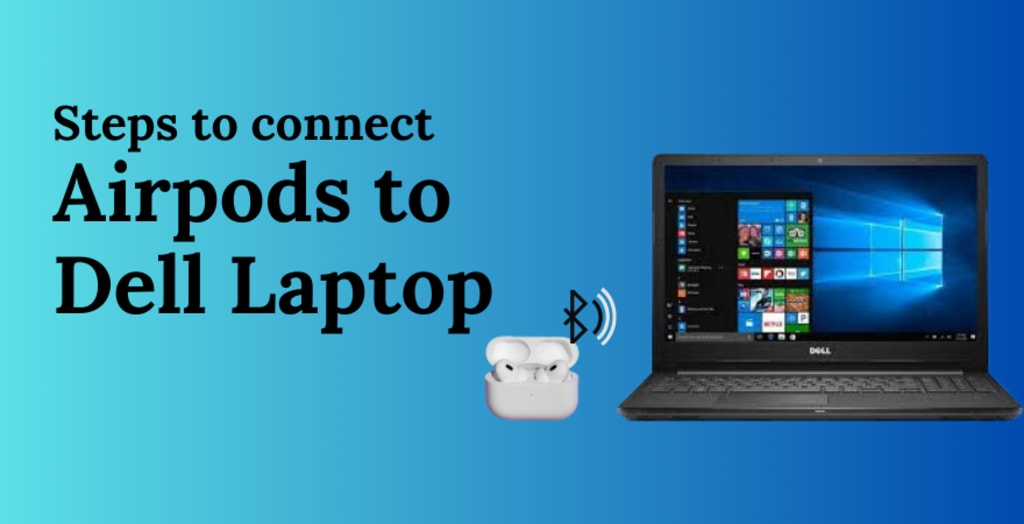
AirPods have revolutionized how we experience wireless audio, offering top-tier sound quality for everything from virtual meetings to music playlists. But Do you know "How to connect Airpods to Dell laptop?" The answer is a resounding yes! Connecting your AirPods to your Dell laptop is simple and enhances your audio experience, whether you're working on a project, binge-watching a series, or attending online classes.
Let's walk through the entire process with easy-to-follow steps, troubleshooting tips, and expert advice.
Getting Ready: Essentials Before Connecting
Before diving into the pairing process, ensure you have the essentials covered:
1. Fully Charged AirPods
Nothing disrupts a smooth pairing experience like low battery AirPods. Check the status indicator on the charging case to ensure they’re powered up.
Pro Tip: Keep the charging case handy during setup to avoid interruptions.
2. Bluetooth-Enabled Dell Laptop
Your laptop must support Bluetooth functionality. Navigate to your settings to confirm Bluetooth is active.
3. Updated Drivers
Outdated drivers can cause connectivity issues. Update your Bluetooth drivers to ensure compatibility. If this feels overwhelming, the Dell Laptop Service Center in Delhi is your go-to resource for expert guidance.
Tech Tip: These simple pre-checks save time and help avoid common pairing problems, such as disconnections or failed connections.
Step-by-Step: How to Connect AirPods to a Dell Laptop
Step 1: Activate Bluetooth on Your Laptop
Bluetooth acts as the bridge connecting your Dell laptop to AirPods. Here’s how to enable it:
- Open the Start menu and go to "Settings."
- Click on "Bluetooth & Devices" and toggle Bluetooth to ‘On.’
Analogy: Think of Bluetooth as the host introducing your AirPods to your laptop—they can’t connect without a proper introduction!
Step 2: Prepare Your AirPods
To ready your AirPods for pairing:
- Place them in the charging case.
- Open the lid without removing the AirPods.
- Press and hold the setup button on the back of the case until the LED flashes white.
- This applies to all AirPods models, including AirPods Pro and AirPods Max.
Step 3: Pair Your AirPods with the Laptop
Now, let’s make the connection:
- Click “Add Bluetooth or Other Device” on your laptop.
- Select "Bluetooth" from the options.
- Choose your AirPods from the list and complete the pairing process.
Fun Insight: Once connected, AirPods Pro’s noise cancellation transforms your workspace into a peaceful bubble, even in a noisy environment!
Step 4: Confirm the Connection
Ensure the AirPods are set as your laptop’s default audio device:
- Right-click the speaker icon in the taskbar.
- Choose "Sound Settings" and select your AirPods under "Output Devices."
Imagine This: Streaming your favorite movie without the hum of background noise—your personal theater experience!
Troubleshooting Common AirPods Issues
AirPods Not Showing in Bluetooth List
- Reset your AirPods by holding the setup button until the light flashes white.
- Restart your Dell laptop and try pairing again.
No Sound from AirPods
- Ensure AirPods are the default playback device in "Sound Settings."
- Check your laptop’s volume levels—sometimes the solution is as simple as turning up the volume.
Frequent Disconnections
- Disable Bluetooth's power-saving mode in Device Manager.
- For persistent issues, visit a Dell Repair Center in Delhi for expert assistance.
Expert Advice: Troubleshooting can feel like solving a puzzle, but with patience and the right steps, you’ll have your devices working in no time!
Advanced Tips for a Better Audio Experience
1. Optimize Audio Settings
Enhance sound quality by adjusting equalizer settings via the Control Panel.
2. Seamless Device Switching
Disconnect AirPods from one device to instantly connect them to another, perfect for multitasking.
3. Use Noise Cancellation Effectively
AirPods Pro’s noise-canceling feature is perfect for focused work or immersive entertainment.
Real-Life Scenario: Working on a deadline in a noisy café? Noise cancellation turns chaos into calm, letting you concentrate fully.
Why Choose Dell Laptop Service Center?
When tech troubles arise, the Dell Laptop Service Center in Delhi offers reliable solutions tailored to your needs:
1. Expert Technicians
Skilled professionals ready to tackle complex tech challenges.
2. Genuine Parts
Original Dell components ensure durability and optimal performance.
3. Onsite Support
Convenience at its best—get expert help right at your doorstep.
4. Quick Turnaround
Fast, efficient solutions to keep your productivity uninterrupted.
Insider Tip: Seeking professional help can save time and effort, allowing you to focus on what matters most.
Frequently Asked Questions
Q1: Can AirPods connect to Dell laptops with older Windows versions?
Yes! Ensure your laptop’s Bluetooth drivers are updated for compatibility.
Q2: What if my laptop doesn’t have Bluetooth?
You can use a USB Bluetooth adapter to establish a connection.
Q3: Is pairing AirPods Max different?
No. Simply press the Noise Control button to activate pairing mode.
Conclusion: Elevate Your Audio Game
Connecting AirPods to a Dell laptop is not just possible; it’s a game-changer for work and entertainment. From enabling Bluetooth to fine-tuning audio settings, the process is straightforward and rewarding. And if you encounter challenges, the Dell Laptop Service Center in Delhi is always there to assist with expert guidance and reliable solutions.
Your Turn: Have you successfully connected your AirPods to a Dell laptop? Share your experience or troubleshooting tips in the comments below. Together, let’s embrace the joy of wireless audio—no wires, no worries, just seamless sound.
About the Creator
Dell Laptop Service Center
Expert Dell Service Center Mumbai offering reliable repairs, genuine parts, and skilled technicians to fix all Dell laptop issues. Fast, affordable, and customer-focused solutions.
Enjoyed the story? Support the Creator.
Subscribe for free to receive all their stories in your feed.
Comments
There are no comments for this story
Be the first to respond and start the conversation.