
6 Proven Fixes for Horizontal White Lines on Laptop Screen
Horizontal White Line on Laptop Screen: Causes, Fixes, and Prevention


Have you ever experienced the frustration of seeing horizontal white lines on laptop screen? These lines can disrupt your workflow, ruin your viewing experience, and leave you wondering about the root cause. Whether you’re a student, professional, or casual user, this issue can be both irritating and concerning.
In this comprehensive guide, we’ll explore the possible reasons behind horizontal white lines on a laptop screen, how to fix them, and tips to prevent such issues in the future.
________________________________________
Understanding Horizontal White Lines on Laptop Screens
Horizontal white lines on a laptop screen can result from various software and hardware issues. These lines may appear intermittently or stay fixed on the screen, making it difficult to use your laptop effectively. Identifying the cause is crucial to implementing the right solution. Common causes include:
1. Outdated Video Card Drivers: Graphics drivers control the display on your screen. If they are outdated or corrupted, it can lead to issues like horizontal white lines.
2. Incorrect Screen Resolution Settings: Using an unsupported resolution can distort the display and cause anomalies.
3. Loose or Damaged Video Cables: Physical issues with internal or external cables connecting the display to the motherboard can also lead to white lines.
4. Faulty Ribbon Cable: The ribbon cable transmitting display signals can wear out or become defective over time.
5. Corrupted System Files: Software issues, such as corrupted system files, can interfere with proper display rendering.
6. Hardware Damage: Cracks, scratches, or other damage to the laptop screen itself may also cause display irregularities.
________________________________________
How to Fix Horizontal White Lines on Laptop Screens
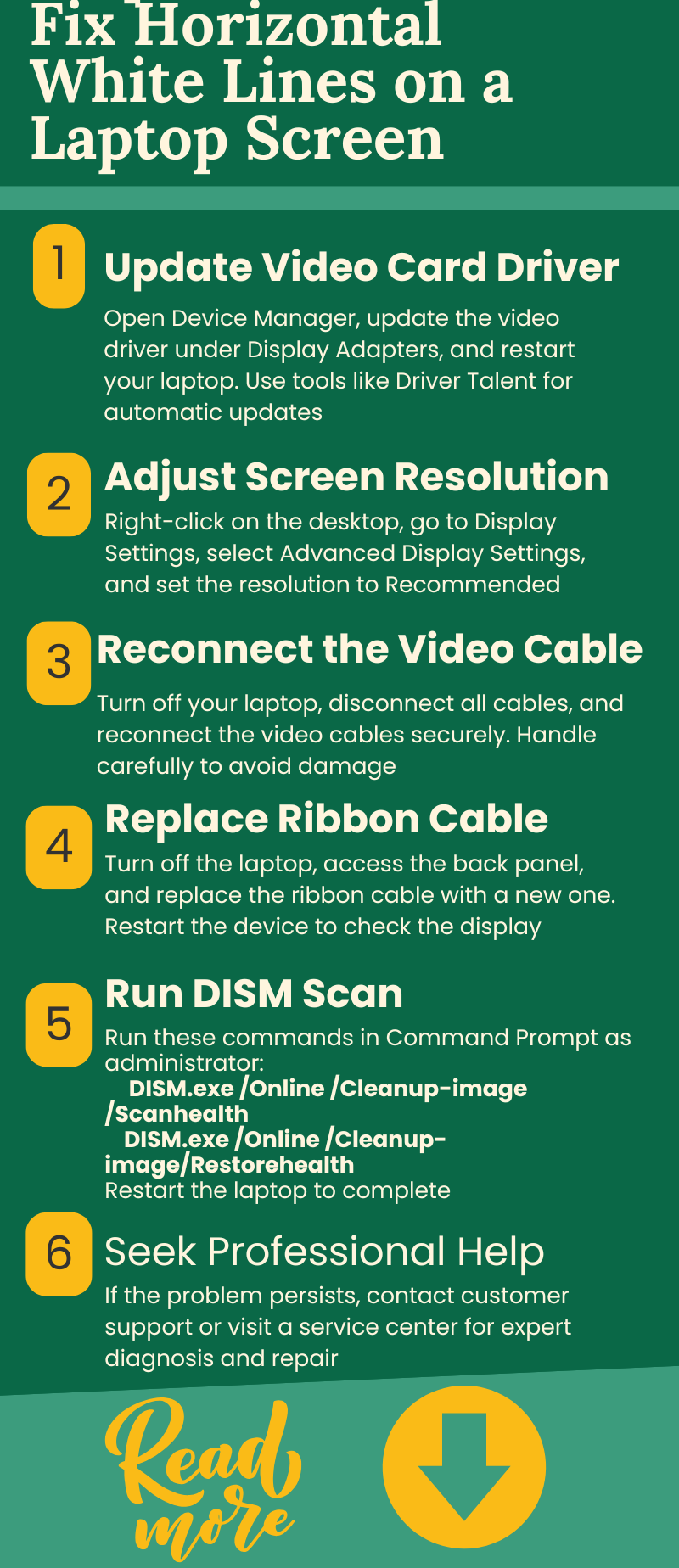
If you’re encountering horizontal white lines on your laptop screen, don’t panic. Here are six proven methods to help you troubleshoot and resolve the issue.
1. Update the Video Card Driver
One of the most common reasons for horizontal white lines is an outdated or corrupted video card driver. Here’s how to update it:
• Open Device Manager by pressing Windows Key + X.
• Expand the Display Adapters section.
• Right-click on your video driver and select Update Driver.
• Follow the on-screen instructions to complete the update.
• Restart your laptop and check if the issue persists.
Pro Tip: Use tools like Driver Talent or Driver Booster to automatically update drivers and keep them up to date.
2. Adjust the Screen Resolution Settings
Incorrect resolution settings can cause your display to malfunction. Adjust the settings to fix the problem:
• Right-click on the desktop and select Display Settings.
• Scroll down to Advanced Display Settings.
• Choose the resolution marked as Recommended and click Apply.
This method is particularly effective if the issue stems from unsupported display resolutions.
3. Reconnect the Video Cable
A loose or damaged video cable can cause display issues, including horizontal white lines. To address this:
• Shut down your laptop and disconnect all cables.
• Open the back panel to access the video cable (if you’re comfortable doing so).
• Ensure the cable is securely connected to both the screen and the motherboard.
• Power on the laptop to see if the issue is resolved.
Warning: Handle cables carefully to avoid further damage. If you’re unsure, seek professional assistance.
4. Replace the Ribbon Cable
A faulty ribbon cable might need replacement. Here’s what to do:
• Turn off the laptop and unplug it.
• Open the back panel to locate the ribbon cable.
• Replace the old cable with a compatible new one.
• Reassemble the laptop and power it on to check for improvements.
Ribbon cable replacement is a more advanced step, so ensure you follow a guide or consult an expert.
5. Run a DISM Scan to Restore System Files
Corrupted system files can disrupt your laptop’s display. Running a DISM (Deployment Image Servicing and Management) scan can fix this:
• Open Command Prompt in administrator mode.
• Run the following commands:
o DISM.exe /Online /Cleanup-image /Scanhealth
o DISM.exe /Online /Cleanup-image /Restorehealth
• Restart your laptop after the scan is complete.
This method repairs any system-level issues that could be affecting your display.
6. Consult a Professional Service Center
If none of the above methods work, it’s time to seek professional help. Persistent horizontal white lines might indicate deeper hardware issues that require expert attention. A trusted service center can diagnose and repair the problem effectively.
________________________________________
Why Choose Dell Laptop Service Center in Mumbai
When it comes to resolving laptop screen issues, especially persistent problems like horizontal white lines, you need reliable, professional service. Here’s why choosing a Dell Laptop Service Center in Mumbai is the best option:
1. Certified Technicians: Dell service centers employ certified professionals with expertise in diagnosing and repairing Dell laptops.
2. Genuine Parts: Service centers use only authentic Dell parts, ensuring long-lasting performance and compatibility.
3. Quick Turnaround: With advanced tools and an efficient workflow, Dell centers can resolve issues quickly, minimizing downtime.
4. Comprehensive Diagnostics: They offer thorough diagnostics to identify both obvious and underlying problems with your laptop.
5. Warranty Support: If your laptop is under warranty, repairs and part replacements may be covered, saving you additional costs.
Choosing a Dell Laptop Service Center in Mumbai ensures that your laptop receives the care and attention it needs from trusted experts.
________________________________________
Preventing Horizontal White Lines on Laptop Screens
Prevention is always better than cure. Follow these tips to avoid encountering horizontal white lines on your laptop screen:
• Keep Drivers Updated: Regularly update your video card drivers to avoid compatibility issues.
• Handle Hardware Carefully: Be cautious when opening or adjusting hardware components like video cables and ribbon cables.
• Use Screen Protectors: Protect your screen from physical damage by using a good-quality screen protector.
• Avoid Overheating: Ensure proper ventilation to prevent internal hardware from overheating, which can affect performance.
• Perform Regular Maintenance: Clean your laptop and its components periodically to prevent dust accumulation.
________________________________________
Conclusion
Horizontal white lines on a laptop screen can be frustrating, but with the right approach, they are often fixable. Whether it’s updating drivers, adjusting resolution settings, or consulting a professional, these solutions can help restore your laptop’s display. If you’re in Mumbai, consider visiting a Dell Service Center in Mumbai for expert assistance and reliable repairs.
By staying proactive with maintenance and addressing issues promptly, you can extend your laptop’s lifespan and ensure a smooth, uninterrupted experience. Don’t let those white lines hold you back—take action today!
About the Creator
Dell Laptop Service Center
Expert Dell Service Center Mumbai offering reliable repairs, genuine parts, and skilled technicians to fix all Dell laptop issues. Fast, affordable, and customer-focused solutions.
Enjoyed the story? Support the Creator.
Subscribe for free to receive all their stories in your feed.
Comments
There are no comments for this story
Be the first to respond and start the conversation.