
What are Some Alternatives to Sora from OpenAI?
Alternatives of Sora from OpenAI


Sora has become a popular choice for creating and editing videos, but it’s not the only option available. Several other tools offer unique features that cater to diverse video creation needs, whether for personal projects, professional content, or creative experimentation. From open-source platforms to advanced AI-driven tools, the landscape of video generation software is growing rapidly.
For those looking for alternatives to Sora AI, MimicPC provides access to powerful video creation workflow templates like HunyuanVideo, LTX-Video, and Cog VideoX-1.5. These tools are integrated into the MimicPC cloud-based platform, enabling users to experiment with different approaches to video generation without needing extensive technical expertise or hardware requirements. Below, we jump into more in-depth information about these tools.
A. HunyuanVideo
HunyuanVideo, developed by Tencent, stands out as a robust open-source solution for high-quality video generation. It supports resolutions up to 1280p, ensuring crisp and professional-looking results. Designed with ease of use in mind, its interface is powered by ComfyUI, making it an excellent choice for both beginners and seasoned video creators.
One of the standout features of HunyuanVideo is its balance between simplicity and functionality. Users can quickly produce visually stunning videos without navigating overly complicated settings. Additionally, as an open-source tool, HunyuanVideo benefits from a community-driven development approach, often leading to regular updates and enhancements.
How To Use This Workflow?
Step 1: Enter Your Text Prompt
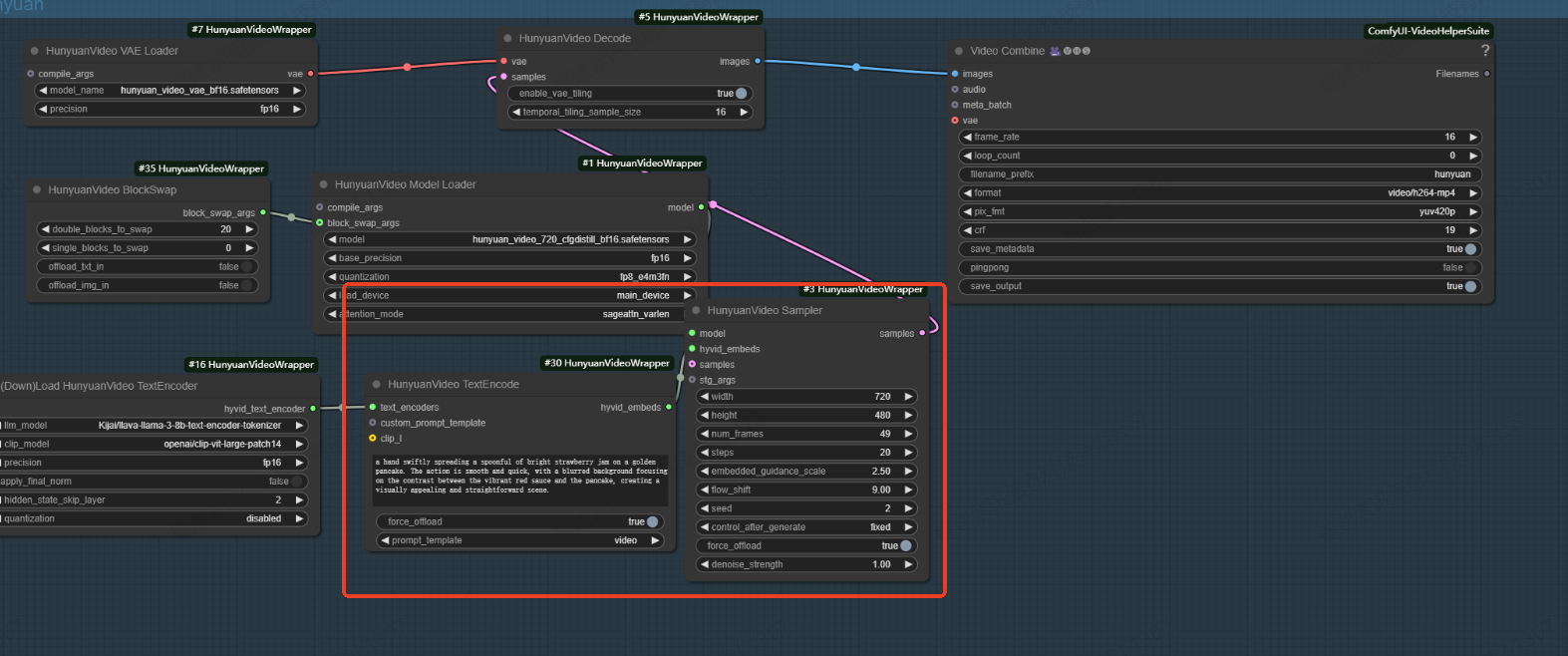
In the HunyuanVideo TextEncode node, input your desired text prompt in the "prompt" field.
Step 2: Configure Video Settings
In the HunyuanVideoSampler node, adjust the following parameters:
- Set the "width" and "height" to define your preferred video resolution.
- Set "num_frames" to determine the video length in frames.
- Adjust "steps" to control the number of denoising/sampling iterations.
- Use "embedded_guidance_scale" to control the strength of prompt guidance.
- Modify "flow_shift" to influence the overall video length.
B. LTX-Video
LTX-Video is a high-performance tool built on a DiT-based (Denoising Diffusion Transformer) video generation model. It excels in producing smooth videos at a frame rate of 24 frames per second, delivering professional-grade results. Its advanced Denoising Diffusion technology ensures minimal noise in the output, creating clean and polished visuals.
What sets LTX-Video apart is its speed and efficiency. It can generate a 5-second video in 4 seconds. This makes it particularly valuable for users who need to generate videos quickly without compromising on quality. Whether for marketing campaigns, short films, or social media content, LTX-Video provides a reliable solution for meeting tight deadlines.
How to Run This Workflow?
1. Hardware Selection
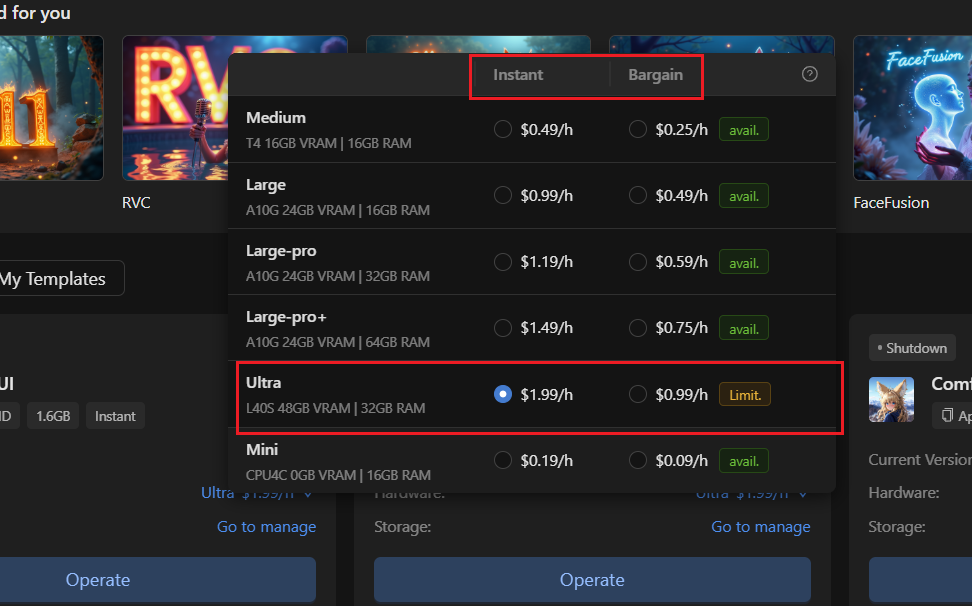
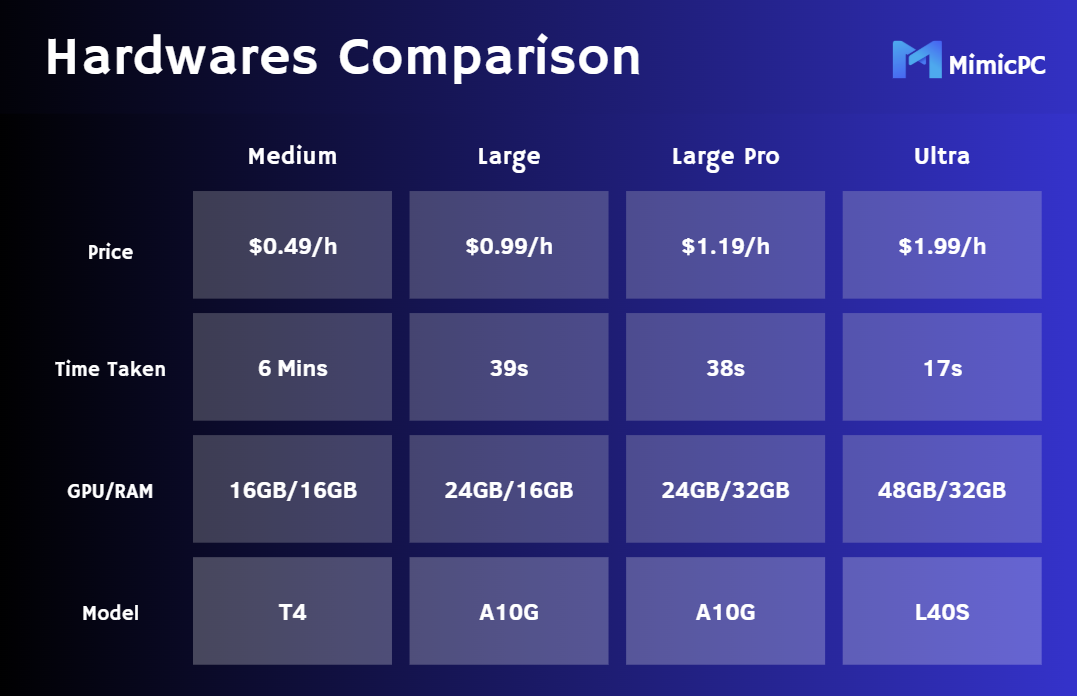
Firstly, select the hardware as needed. It is recommended that the Ultra model be used to run this workflow, as it offers the best performance and efficiency. For further details, please visit MimicPC Bargain GPU.
The image below demonstrates the time each hardware might take when running the LTXVideo image-to-video workflow.
2. Configure the Workflow Setup
After the workflow is successfully loaded, upload your source image to the image loader node. Enter your positive prompts to guide the generation process and negative prompts to avoid unwanted elements in your final output.
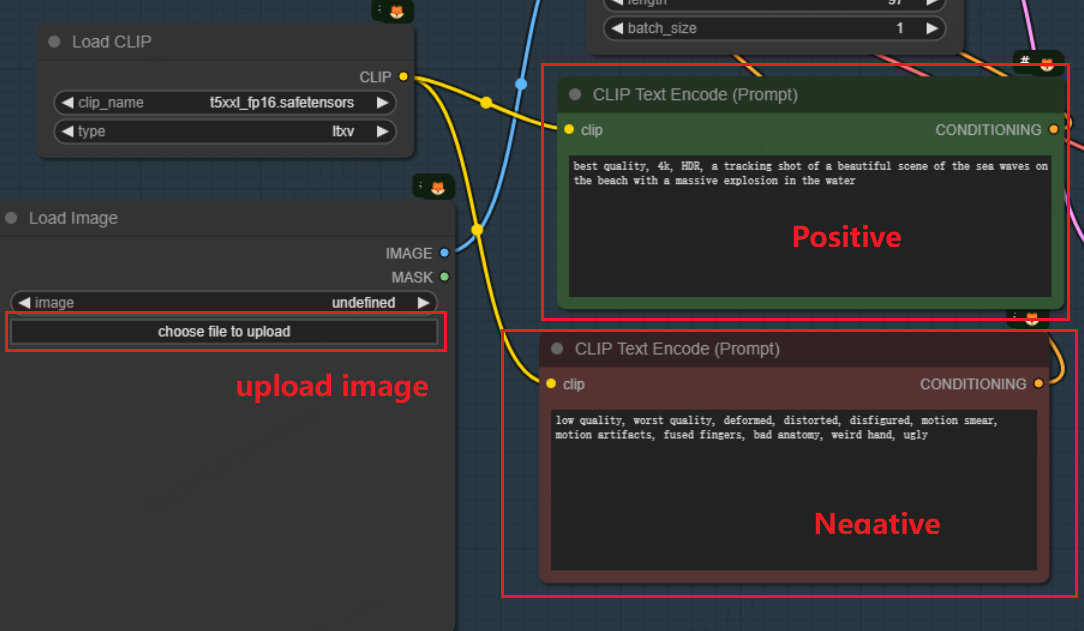
Example prompts:
Positive prompts: ''best quality, 4k, HDR, a tracking shot of a beautiful scene of the sea waves on the beach with a massive explosion in the water''
Negative prompts: ''low quality, worst quality, deformed, distorted, disfigured, motion smear, motion artifacts, fused finger, bad anatomy, weird hand ugly''
3. Processing the Video
Click the Queue button at the bottom of the interface to begin generation. Once the generation is complete, review your output.
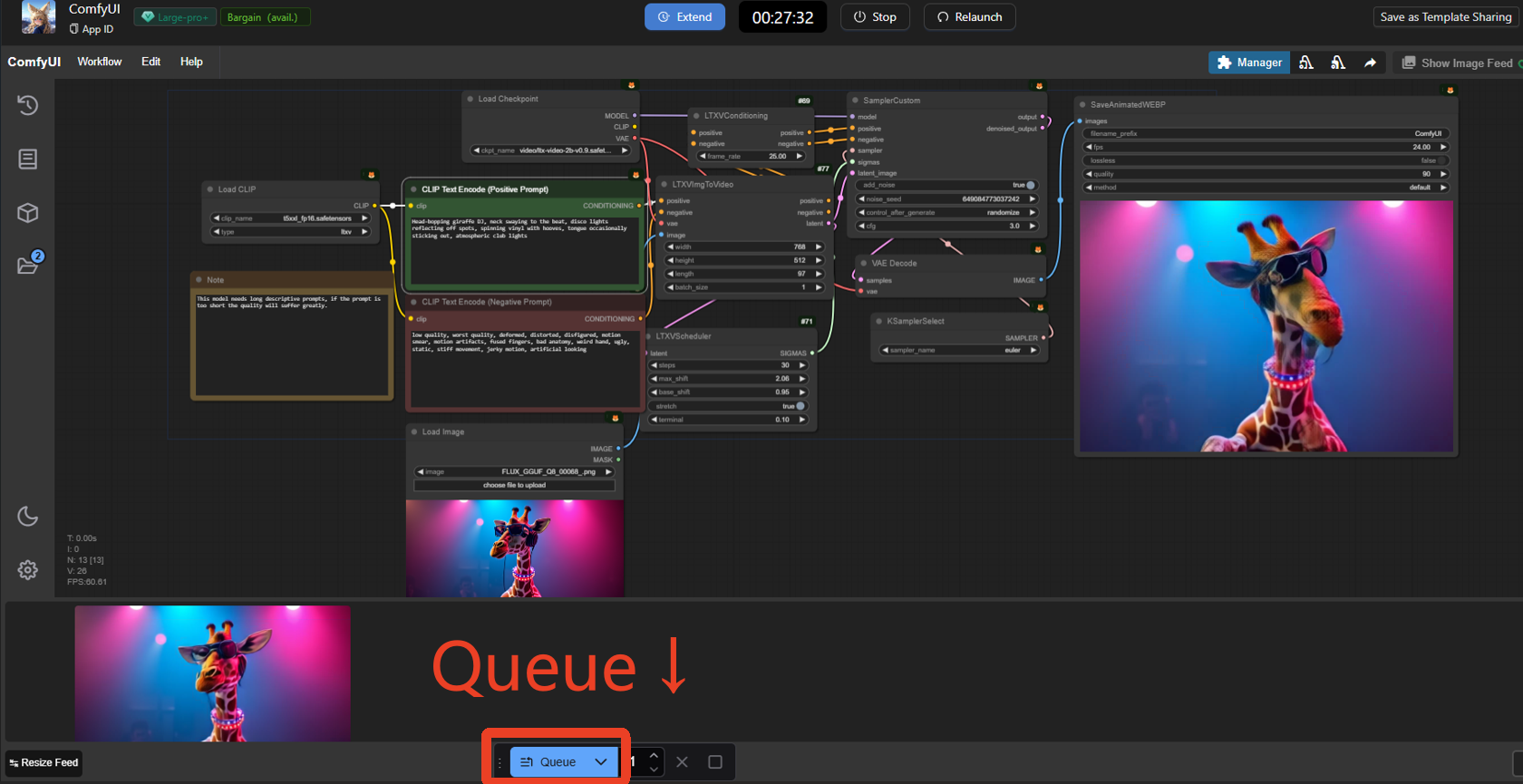
4. Final Output and Save Video
To save the final video, simply set the save_output to ''true'', and the video will automatically stored in the follow directory: Storage > output
C. Cog VideoX-1.5
Cog VideoX-1.5 is an innovative tool designed for generating videos from a single image using text prompts. It stands out for its ability to transform simple inputs into intricate, visually engaging videos. The model also supports integrated sound effects, allowing users to create immersive content tailored to various creative needs.
This tool is particularly versatile, making it suitable for applications ranging from storytelling to advertising. Its unique ability to bring static images to life with minimal effort makes it a powerful alternative for creators who want to push the boundaries of video production.
How to Run This Workflow?
1. Set Up the Workflow
Open the ComfyUI interface on MimicPC. Load the provided workflow and start using it as MimicPC provides ready to use workflows.
2. Upload the Image or Video
Use the Load Image node for uploading still images, or prepare your initial video files if necessary. Then, set the input parameters, such as resolution, in the Resize Image node (e.g., 512x512 pixels).
3. Configure the CogVideoX Pipeline
In the CogVideo Sampler node:
- Samples: Adjust the sample frames for video creation.
- Scheduler: Use CogVideoXDPMScheduler for stable outputs.
- Denoise Strength: Set to 1.0 for sharper results.
Input prompts for camera movement and specifies negative prompts for elements that you don't want in the final output video using the CogVideo TextEncode nodes:
Example prompts:
- Upper Column for Camera Movement Prompts: The camera slowly pans from left to right, starting at a desk cluttered with papers and ending on the two men sitting in front of the computer.
- Bottom Column for Negative Prompts: low quality, artifacts, glitchy frames, inconsistencies
4. Save the Output
To download the final video, simply set save_output to true, and the final outcome will be saved in the output file, as shown below.
MimicPC: A Centralized Platform
What makes these tools even more appealing is their availability on MimicPC, a cloud-based platform that brings together these advanced video generation models in one convenient location. By offering HunyuanVideo, LTX-Video, and Cog VideoX-1.5 on a single website, MimicPC eliminates the need to manage multiple installations or setups.
The platform’s cloud-based infrastructure ensures that users can access these tools from any device without requiring high-end hardware. Whether you’re experimenting with HunyuanVideo’s open-source capabilities, leveraging the speed of LTX-Video, or creating dynamic visuals with Cog VideoX-1.5, MimicPC provides an efficient and streamlined way to work with cutting-edge video generation technology.
Conclusion
If Sora doesn’t meet all your video creation needs, alternatives like HunyuanVideo, LTX-Video, and Cog VideoX-1.5 offer compelling options. Integrated into the MimicPC cloud platform, these tools provide powerful features for creating high-quality, innovative videos. With a range of capabilities suited to various requirements, MimicPC makes it easy to access and utilize these technologies, helping users achieve their creative goals effortlessly.
About the Creator
Enjoyed the story? Support the Creator.
Subscribe for free to receive all their stories in your feed.
Comments
There are no comments for this story
Be the first to respond and start the conversation.