
Spotify Secrets: Unlocking Its Full Potential
music
Spotify has evolved far beyond being just a music streaming service. It’s a dynamic platform that allows users to discover new sounds, create personalized playlists, and connect with others through shared musical experiences. Yet, many users only scratch the surface of what Spotify can offer.
This guide will help you uncover some of Spotify’s lesser-known features to maximize your enjoyment, creativity, and engagement. From downloading playlists to customizing your playlist visuals, let’s dive into how you can unlock the full potential of Spotify.
How to Download Spotify Playlist
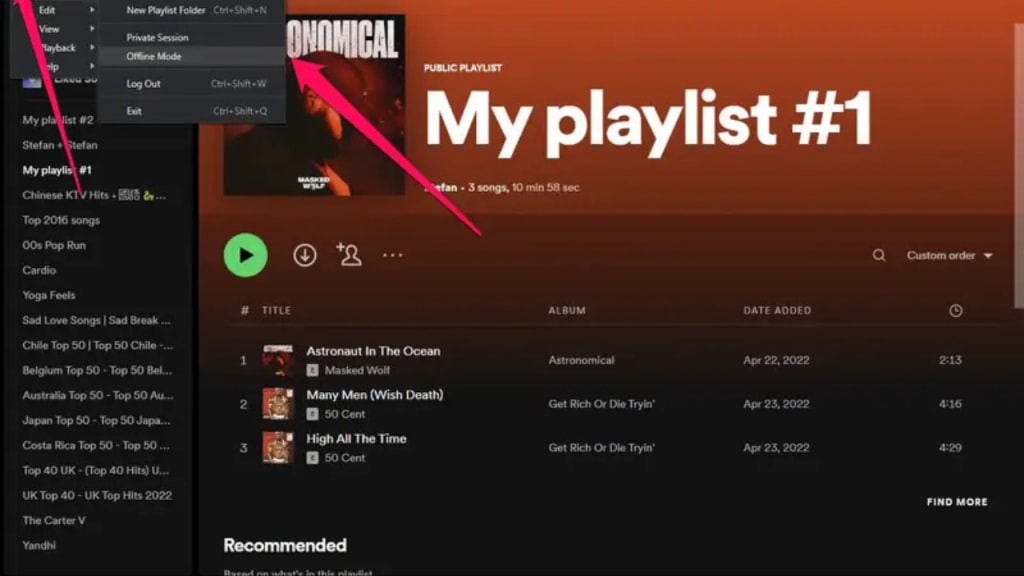
Imagine being on a long road trip or in an area with patchy internet connectivity. Spotify’s offline mode ensures you never have to go without your favorite tunes. If you’re wondering how to download Spotify playlist, the process is quick and straightforward.
Here’s how you can do it:
Ensure You Have Spotify Premium: Offline playback is a feature available to Premium subscribers.
Select Your Playlist: Navigate to the playlist you want to download in the Spotify app.
Toggle the Download Button: At the top of the playlist screen, switch on the “Download” option.
Wait for the Green Arrow: Once your playlist is downloaded, a green arrow will appear next to it, indicating it’s available offline.
With offline playlists, you can enjoy music during flights, subway commutes, or outdoor adventures where Wi-Fi isn’t available.
How to Listen Together on Spotify
Music becomes more meaningful when shared. Spotify’s Group Session feature makes it possible to enjoy synchronized playback with friends, even if they’re miles away. If you’ve ever wondered how to listen together on Spotify, here’s how to get started:
Start Playing a Song: Open Spotify and play any song or playlist.
Tap the Devices Icon: Click on the “Devices Available” icon at the bottom of the playback screen.
Start a Group Session: Select “Start a Group Session” and share the invite link with friends.
Collaborate in Real-Time: Everyone in the session can queue songs, control playback, and enjoy a collaborative music experience.
Group Sessions are perfect for virtual parties, long-distance relationships, or simply staying connected through music.
Listen on Spotify PNG
For creators, marketers, or casual users who love aesthetics, a listen on Spotify PNG is an essential resource. This logo is often used in promotional material to encourage engagement and highlight playlists.
Why use PNG logos?
Professional Look: PNG files have transparent backgrounds, making them easy to integrate into designs.
Versatile Applications: They work well in social media graphics, blog headers, and video overlays.
Enhanced Branding: Adding a Spotify logo lends credibility and drives more clicks to your playlist.
How to make the most of it:
Pair the logo with a striking image or theme for Instagram Stories.
Include it in YouTube video end cards to promote your playlist.
Use it in email campaigns to attract listeners.
These logos help your playlist stand out and increase engagement across platforms.
Share Spotify Playlist
Creating playlists is an art, but sharing them is where the magic happens. Sharing playlists allows you to connect with others, showcase your taste in music, and even introduce friends to new artists. Here’s how to share Spotify playlist seamlessly:
Tap the Share Option: Open the playlist and click the three-dot menu.
Choose a Sharing Method: Spotify offers options to share via social media, email, or direct link.
Leverage Spotify Codes: These scannable codes are ideal for in-person sharing, like at events or gatherings.
Post on Social Media: Share your playlist on Instagram, Twitter, or Facebook with an engaging caption or story.
Tips for better engagement:
Add a personal touch to your captions, explaining why you love the playlist.
Encourage feedback by asking others to share their favorite tracks.
Use hashtags to reach a broader audience.
Sharing playlists is a fantastic way to spark conversations and discover new music.
Spotify Playlist Picture
Your playlist cover is the first thing people see, so why not make it memorable? A custom Spotify playlist picture can set the mood for your playlist and attract more listeners.
Steps to create a custom playlist picture:
Choose a Theme: Decide on a theme or vibe that aligns with your playlist.
Use Design Tools: Canva, Adobe Spark, or Photoshop are great tools for creating professional-looking covers.
Upload the Image: Open your playlist, click the three dots, and select “Edit.” From there, upload your image.
Ensure High Quality: Spotify recommends square images with a resolution of at least 300x300 pixels.
Tips for designing:
Use bold fonts and vibrant colors to grab attention.
Include imagery that reflects the playlist’s mood, such as beach scenes for summer hits or soft tones for chill vibes.
Keep it clean and uncluttered to ensure it looks great on all devices.
A great playlist picture not only makes your playlist visually appealing but also sets the tone for listeners.
Hidden Spotify Features to Explore
Spotify is full of features that many users overlook. Here are a few more secrets to enhance your experience:
1. Collaborative Playlists
Invite friends to contribute to your playlist. Simply open your playlist settings and toggle “Collaborative Playlist” to allow others to add their favorite tracks.
2. Private Sessions
Want to listen to guilty pleasures without affecting your recommendations? Start a Private Session in your settings to keep your activity hidden.
3. Daily Mixes
Spotify creates personalized mixes based on your listening habits. Explore these for a fresh blend of familiar tracks and new discoveries.
4. Crossfade
Enable crossfade in your playback settings to create seamless transitions between songs. This is particularly useful for parties or workout playlists.
Benefits of Using Spotify’s Advanced Features
By mastering these tools, you can:
Enhance Your Listening Experience: Offline downloads and crossfade make your music more enjoyable.
Boost Playlist Engagement: Custom covers and sharing features attract more listeners.
Strengthen Connections: Group listening and collaborative playlists foster meaningful interactions.
Spotify’s advanced features let you go beyond passive listening and engage with music in creative, interactive ways.
Conclusion
Spotify offers endless possibilities for exploring, customizing, and sharing music. From offline playback to personalized playlist covers, these features allow you to make Spotify a true reflection of your musical journey. Whether you’re hosting a virtual listening party or curating a playlist masterpiece, there’s always a way to take your Spotify experience to the next level.
Which Spotify feature are you most excited to try? Share your thoughts and playlist links in the comments below—let’s keep the music conversation going!
About the Creator
Enjoyed the story? Support the Creator.
Subscribe for free to receive all their stories in your feed.
Comments
There are no comments for this story
Be the first to respond and start the conversation.