
How to Preload a Totwoo Locket Before Giving It as a Gift
Preloading a Totwoo locket can make the gift feel complete from the moment the recipient opens it.

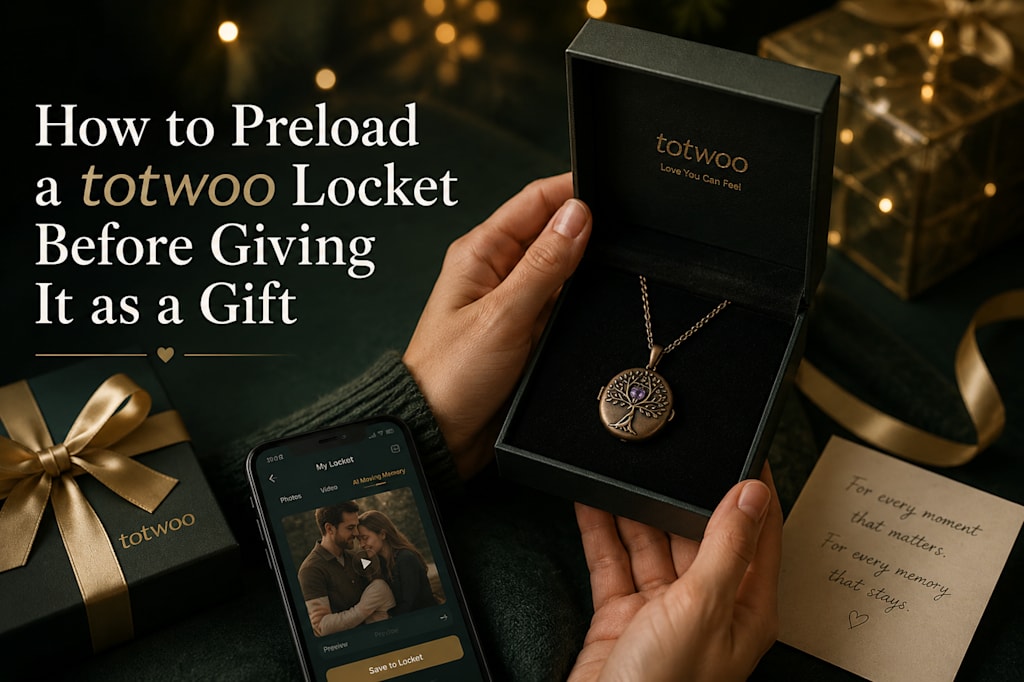
Instead of receiving an empty electronic pendant that still needs to be configured, they can immediately see a carefully selected photograph, a short slideshow, an original video clip, or an optional AI-generated animation.
There is more than one way to arrange this. You can have the locket delivered to your address and prepare it yourself, send it directly to the recipient while submitting the media through Totwoo’s customization service, or leave it unconfigured so the recipient can choose their own content.
Each method involves a different balance of surprise, privacy, convenience, and control. Preparing the locket yourself gives you the best opportunity to inspect the finished result. Remote customization is useful for long-distance gifts, but you cannot test the physical pendant before delivery. Letting the recipient complete the setup removes the surprise of preloaded content, although it gives them full control over their account and photographs.
Before choosing a method, consider how comfortable the recipient is with apps, whether the media is private, and whether you need to see the final playback before the gift is presented.
AI content notice: An AI moving memory is a newly generated animation based on a still photograph. It is not authentic video footage, does not recover the subject’s real movements, and should not be presented as a reconstruction of a person, pet, or past event.
What You Need Before Preloading the Locket
If you plan to connect and prepare the pendant yourself, gather everything before beginning.
You will need the Tree of Life AI Smart Locket, its magnetic USB charging cable, a compatible iOS or Android phone, the Totwoo App, a Totwoo account, Bluetooth access, and an internet connection.
Internet access is generally needed to download the app, sign in, and create AI content. Bluetooth is used to transfer the finished media from the phone to the pendant.
You should also prepare the photographs or video before opening the app. Choosing the files in advance gives you more time to check image quality, remove unsuitable pictures, and decide which memory format best fits the gift.
Do not begin immediately before presenting or shipping the locket. Allow enough time to charge it, transfer the content, inspect the playback, correct any problems, and restore the packaging.
The official instructions recommend keeping the pendant above 20 percent battery during a media transfer. Charging it fully before setup reduces the chance of interruption.
Choose the Memory Format First
The locket supports several media options, but they are separate modes. It does not operate as a large gallery containing photographs, video, and AI content at the same time.
You can select one static photograph, a slideshow of two to five photographs, one original video lasting up to five seconds and measuring less than 7 MB, or one AI-generated animation made from a still image.
Uploading another format later replaces the media currently stored on the pendant.
One Static Photograph
A single picture is the simplest option. It may be appropriate when one portrait or moment has clear emotional importance and does not need additional context.
This format can also be preferable when the recipient values simplicity or when several images would make the small display feel crowded.
A Two-to-Five-Photo Slideshow
A slideshow works well when the gift tells a short story.
For an anniversary, the images might move from an early photograph to a recent milestone. A family gift could include several generations. A graduation version might combine childhood, school, family support, the ceremony, and the beginning of a new chapter.
The limited number of images encourages careful selection. Five connected photographs are usually more effective than five unrelated favorites.
One Short Original Video
The video option supports one clip of no more than five seconds and less than 7 MB.
A brief clip may still capture a meaningful action, such as a smile, a wave, a pet moving toward the camera, or a moment from a celebration.
Choose footage that remains understandable on a very small screen. Wide scenes, distant subjects, fast camera movement, and complicated backgrounds may not translate well to the pendant.
Do not rely on audio unless current sound support has been confirmed.
One AI-Generated Animation
The AI option creates movement from a still photograph.
A well-lit, front-facing image with a clearly visible subject generally gives the system better information than a dark, blurry, distant, or heavily cropped picture. Even with a suitable photograph, the generated movement may not resemble the person or pet exactly.
Always preview the result before approving it. An unusual expression or unnatural movement may feel harmless in a casual photograph but upsetting in an emotionally important one.
Option 1: Receive and Preload the Locket Yourself
Having the locket delivered to you first provides the most control. You can check the packaging, charge the pendant, transfer the media, inspect the screen, correct mistakes, and return everything to the box before giving or forwarding it.
This is generally the strongest option when the gift will be presented in person.
Step 1: Open the Packaging Without Damaging It
Remove the pendant carefully and keep the original box, inserts, protective materials, manual, charging cable, and gift card together.
Avoid tearing the packaging or removing protective pieces unnecessarily. Do not discard anything until the setup and testing process is complete.
If the locket will later be mailed to the recipient, preserving the original inserts will also help protect it during shipping.
Step 2: Charge the Pendant
Attach the magnetic USB cable and allow the locket to charge before pairing it with the phone.
A device may arrive with partial power, but that is not a reason to skip charging. Media transfer and repeated testing can reduce the remaining battery.
Once the final content has been confirmed, charge the pendant again before returning it to the box.
Step 3: Install the Totwoo App
Download the current Totwoo App from the appropriate app store.
Open the app and create an account or sign in to an existing one. Follow the instructions displayed in the current version rather than relying entirely on old screenshots, because registration options and menu names may change.
Complete any permissions required for Bluetooth, photographs, camera access, or local media selection.
Step 4: Enable Bluetooth and Connect the Locket
Turn on Bluetooth and open the pendant.
Enter the locket connection area inside the app and keep the phone close to the device. The app should search for and connect to the nearby pendant.
When the locket is not detected, first confirm that it is open, charged, and close to the phone. Check that Bluetooth permission has been granted to the app, then return to the connection screen and try again.
Avoid pairing the pendant through the phone’s general Bluetooth settings unless the current Totwoo instructions specifically require it. Many app-controlled devices must be connected from inside their own app.
Step 5: Select the Content
Choose the photograph, slideshow, video, or AI mode you want to use.
The app may allow you to select an existing file from the phone or capture a new image with the camera.
Pay close attention to the cropping area. A picture that looks balanced on a phone may lose important details on the pendant’s smaller display. Keep the main face, pet, object, or visual detail near the center.
Avoid wide group photographs in which every person appears very small.
Step 6: Prepare the Media Carefully
For a slideshow, arrange the images in the intended order and check each crop separately. Remove duplicates and make sure no private or unintended photograph has been selected.
The first image deserves particular attention because it may become the opening view when the pendant is activated.
For a video, trim the clip to five seconds or less and confirm that its file size remains below 7 MB. Choose a moment that is easy to understand without a long introduction.
For an AI animation, use a clear photograph and select the correct subject category when prompted. Review the entire generated movement rather than approving it after seeing only the first frame.
AI results can vary significantly. The system may create expressions or motion that were never present in the original image.
Step 7: Transfer the Media
Start the Bluetooth transfer while keeping the phone close to the open locket.
Do not close the pendant, turn off Bluetooth, leave the transfer page, or move the phone far away during the process. Keep the locket above the recommended battery level and wait until the app confirms that the transfer has finished.
After successful syncing, the selected media is stored locally on the device. The phone does not have to remain nearby during normal viewing.
Step 8: Inspect the Finished Playback
Open the locket and watch the content from beginning to end.
Check that the correct media appears, the first photograph is intentional, the slideshow follows the desired order, and the video or animation is the approved version.
Make sure nothing private or unsuitable appears on the screen.
Test the touch-sensitive control beneath the display. Depending on the selected mode, it can be used to move to the next photograph, replay a video, or wake the screen after it turns off.
View the content more than once. A crop, transition, or unexpected image may be missed during the first test.
Step 9: Replace Anything That Is Incorrect
When you notice a problem, return to the app and choose the corrected media.
Transferring the new content replaces what is currently stored on the locket. Repeat the playback test after every replacement.
Do not assume that a successful transfer means the presentation looks right. The small screen may reveal framing problems that were not obvious on the phone.
Step 10: Recharge and Restore the Packaging
Once you are satisfied with the result, recharge the pendant.
Use a soft, suitable cloth to remove fingerprints, place the locket back in its insert, and return the charging cable, manual, gift card, and other accessories to the box.
Check the contents once more before closing the package.
When forwarding the gift by mail, do not seal the outer shipping box until you have confirmed both the playback and the included accessories.
Option 2: Ship It Directly and Submit the Content Remotely
Totwoo currently offers a customization process for buyers who want the locket delivered directly to the recipient.
This method can preserve the surprise without requiring the giver to receive, open, and repackage the pendant.
According to the current instructions, the buyer first places the order using the recipient’s delivery address. They then download the Totwoo App, sign in, open the “Me” or “Personal Center” section, locate “Customize Locket,” prepare the selected content, review it, and submit it through the app.
Menu names may change in later app versions. Follow the current interface rather than assuming that an older instruction or screenshot remains exact.
Why Remote Preloading Can Be Useful
Remote customization is convenient when the recipient lives far away or when the gift must be shipped directly for a birthday, holiday, anniversary, or other event.
It allows the recipient to open the locket and discover the selected memory without first completing the entire setup process.
It also avoids the risk of damaging the original packaging while opening and repacking the product.
What You Cannot Check Remotely
The main disadvantage is the lack of physical inspection.
You cannot personally confirm the display quality, cropping, brightness, touch control, battery condition, or playback on the finished device before delivery.
A mistake in the submitted photograph or video may not become apparent until the recipient opens the gift.
Customization may also be subject to order-processing deadlines. Submit the content promptly after ordering and review every file carefully before confirmation.
Before using this method, check whether customized or prepared orders have different return conditions.
Option 3: Let the Recipient Complete the Setup
Sending the locket without preloaded media may be the better decision when privacy or personal control matters more than the opening surprise.
After receiving it, the recipient will need to charge the pendant, download the Totwoo App, create or access an account, enable Bluetooth, connect the open locket, choose a memory mode, crop the media, transfer it, and test the playback.
You can include a short note explaining that the content can be personalized, or send them the official illustrated setup guide.
This option works particularly well when you do not have access to the photographs the recipient would prefer, the media is personal, or the recipient enjoys configuring their own devices.
It is also the safest approach when you are unsure whether they would welcome AI-generated animation.
The disadvantage is that the first opening reveals an unconfigured electronic pendant rather than a finished personal memory.
How to Change Previously Uploaded Content
The content can be updated later through the Totwoo App.
Open the pendant, connect it to the phone through Bluetooth, choose a new photo set, video, or animation, adjust the crop, and begin another transfer.
Once the transfer is complete, open the pendant and verify the new playback.
The new media replaces the content that was previously visible on the device. If the recipient later connects the locket to their own account and uploads something else, the gifted content will also be replaced.
Replacing Content Is Not Necessarily Permanent Deletion
The current public instructions explain how to replace the media stored on the locket, but they do not clearly identify a separate permanent-delete or factory-reset control.
This difference should not be overlooked.
Replacing the visible media prevents the old content from appearing during normal device playback. It does not automatically confirm that upload history, AI-processing records, cached files, or account-related data have been permanently erased.
Deleting information associated with the app or account may require a different control or a request to customer support.
Before uploading sensitive photographs, review the latest account and privacy settings. When no clear deletion option is available, contact Totwoo for current instructions.
Do not promise another person that every copy of an image has been permanently removed unless that process has been verified.
Privacy Questions to Consider
Preloading a locket means handling photographs or videos that may belong to someone else.
Use private or intimate content only with appropriate permission. Exercise additional caution with photographs of children, memorial images, health-related moments, or pictures the subject has not shared publicly.
According to the available instructions, the completed media is stored on the pendant after transfer, and the locket can display it without remaining connected to the phone. Upload history may also remain locally within the uploader’s app.
AI animation involves additional processing. Review the latest privacy policy before submitting sensitive images for generation.
When privacy is a major concern, allowing the recipient to configure the device through their own account may be the better option.
Memorial and Pet-Remembrance Gifts
Preloading remembrance content requires more emotional judgment than preparing an ordinary celebration gift.
A recipient may appreciate seeing a familiar photograph of a family member, friend, or pet who has died. Another person may find an unexpected wearable reminder distressing.
AI-generated movement can be particularly sensitive because it creates actions and expressions that were not actually recorded.
Before using it, consider whether the recipient has previously expressed interest in animated memorial images. Explain what the feature does, and never describe it as restoring a real person’s movements or bringing anyone back.
When the recipient’s preference is uncertain, use a peaceful static photograph instead of AI animation. Original video can also be appropriate when the clip was genuinely recorded and is already familiar to the recipient.
Emotional comfort should take priority over demonstrating the locket’s most unusual feature.
Check Everything Before Giving or Sending It
Before closing the package, confirm that the intended memory mode has been selected and that every included file belongs in the gift.
Check the slideshow order, image crops, opening photograph, video length, and AI result. Make sure memorial content is appropriate and that no private image appears accidentally.
When physical testing is possible, verify the complete playback and touch control. Recharge the battery and confirm that the magnetic cable, manual, gift card, and packaging are included.
The recipient will need access to the Totwoo App if they want to replace the content later.
You should also review the current customization, warranty, and return conditions before sending the package.
Choose the Method That Fits the Recipient
Receiving and preparing the locket yourself gives you the greatest control. You can inspect the device, correct the media, test playback, recharge it, and restore the packaging before the recipient sees it.
Remote customization is more convenient for long-distance delivery, although it does not provide the same opportunity for physical quality control.
Sending the locket without content gives the recipient the strongest control over their photographs, account, and privacy. The experience is less immediate, but it may be the more respectful choice for private media or uncertain AI preferences.
Whichever method you use, follow the latest official instructions. App menus, customization procedures, and account controls can change, while older tutorials may no longer match the current setup process.
About the Creator
Enjoyed the story? Support the Creator.
Subscribe for free to receive all their stories in your feed.
Comments
There are no comments for this story
Be the first to respond and start the conversation.