
Understanding QuickBooks Error Categories: Installation, Update, Payroll, and Data File Issues
Learn how different QuickBooks error categories affect software performance and explore practical methods for diagnosing and resolving common accounting system issues.

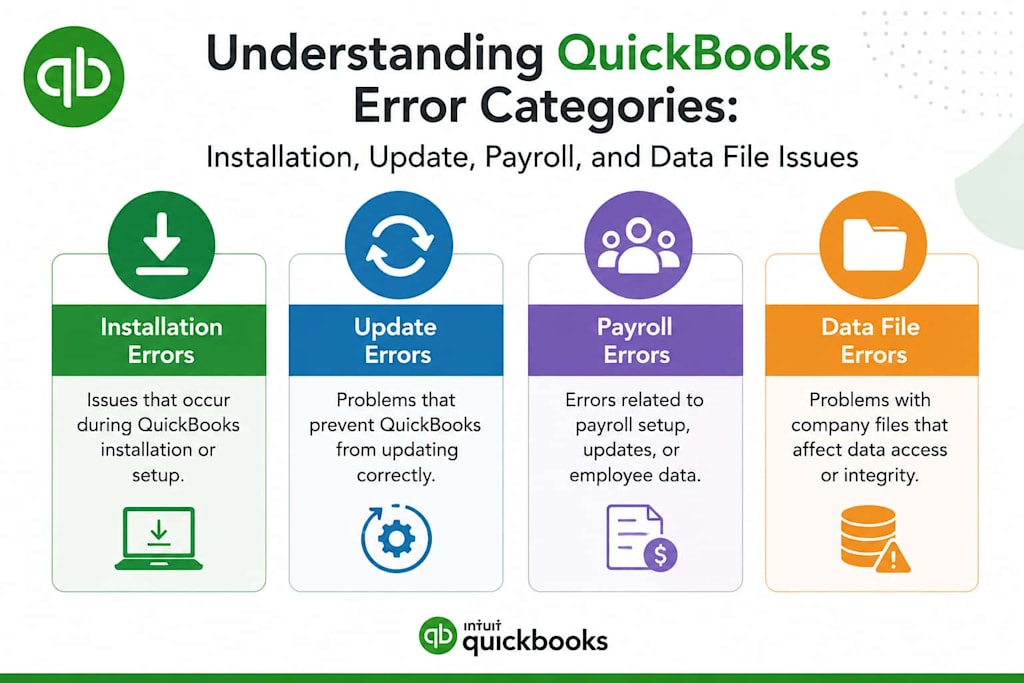
QuickBooks is widely used by businesses, accountants, and bookkeeping professionals to manage financial records, payroll, invoices, taxes, and reporting. Because the software handles multiple processes simultaneously, it depends on several components working together, including Windows services, internet connectivity, payroll subscriptions, databases, and company files.
When one of these components encounters a problem, QuickBooks may display an error code. While error codes can appear technical at first glance, they are designed to help identify the source of a problem. Understanding what category an error belongs to often makes troubleshooting much easier.
Rather than treating every error as a separate issue, users can benefit from understanding the broader categories behind them. Most QuickBooks problems fall into four primary groups:
Installation and setup errors
Update and connectivity errors
Payroll-related issues
Company file and network errors
This guide explains each category, the common causes behind it, and the troubleshooting approach that can help maintain a stable QuickBooks environment.
Why Understanding Error Categories Matters
Many users search for a specific error code when a problem appears. While that can be helpful, understanding the category behind the error often provides a clearer picture of what is happening.
For example:
Installation errors often involve Windows components.
Update errors frequently involve internet communication.
Payroll issues may relate to subscription or tax table updates.
Company file errors usually involve file access, permissions, or network communication.
Recognizing these patterns can save time and reduce unnecessary troubleshooting steps.
Installation and Setup Errors
Installation-related issues typically occur when QuickBooks is being installed, repaired, updated, or reinstalled. Because the software depends on Microsoft technologies such as .NET Framework, MSXML, and Windows Installer, problems within these components can affect the installation process.
Common signs include:
Installation failures
Unexpected setup interruptions
Incomplete upgrades
Repair process errors
QuickBooks Error 1603
QuickBooks Error 1603 commonly appears when Windows components required by QuickBooks are damaged or unavailable. It is frequently associated with Microsoft .NET Framework issues, installation conflicts, or insufficient permissions.
Users encountering this error should review Windows updates and verify that system components are functioning correctly.
QuickBooks Error 1723
QuickBooks Error 1723 is often connected to Windows Installer problems. This issue may occur when installation packages cannot access required system folders or temporary files.
Reviewing folder permissions and checking installer services can help identify the underlying cause.
QuickBooks Error 1328
QuickBooks Error 1328 generally occurs during software installation, repair, or update procedures. Corrupted installation records, incomplete updates, or damaged configuration files are frequently associated with this error.
Cleaning temporary files and reviewing installation logs may assist in diagnosis.
Update and Connectivity Errors
QuickBooks regularly communicates with online services to download updates, verify subscriptions, and maintain payroll functionality.
When communication between the software and external servers is interrupted, update-related errors may occur.
These issues are often linked to:
Firewall restrictions
Network configuration problems
Internet connectivity issues
Security software interference
Outdated system settings
QuickBooks Error 12009
QuickBooks Error 12009 usually indicates a communication problem between QuickBooks and online update services. Firewall settings, network interruptions, and security software restrictions are common contributing factors.
QuickBooks Error 12029
QuickBooks Error 12029 frequently appears when QuickBooks cannot establish communication with required online servers. Internet connectivity problems and blocked network requests are often involved.
QuickBooks Error 12037
QuickBooks Error 12037 is another update-related issue that generally points to network communication difficulties. Users may need to review browser settings, firewall rules, and connectivity status.
QuickBooks Error 15227
QuickBooks Error 15227 often occurs when update processes cannot complete successfully. Outdated system components and damaged update files are among the commonly reported causes.
The Importance of Stable Software Communication
Many update-related errors share a common theme: QuickBooks cannot communicate effectively with the services it requires.
Software communication depends on:
Stable internet access
Proper DNS resolution
Firewall permissions
Active Windows services
Updated security certificates
Even small interruptions within these areas can affect updates and online functionality.
For this reason, reviewing network health is often an important part of troubleshooting update-related issues.
Payroll-Related Issues
Payroll processing is one of the most important functions within QuickBooks because it directly affects employee compensation, tax calculations, and compliance reporting.
Payroll features rely on:
Updated tax tables
Active subscriptions
Accurate employee records
Current software versions
When one of these elements becomes unavailable, payroll-related issues may appear.
QuickBooks Payroll Update Error PS032
QuickBooks Payroll Update Error PS032 commonly occurs when payroll updates cannot be installed successfully. This may happen because of damaged payroll files, incomplete updates, or subscription verification issues.
Verifying payroll settings and ensuring that updates are current often helps identify the source of the problem.
QuickBooks Payroll Liabilities Not Showing
Some users report situations where QuickBooks Payroll Liabilities Not Showing creates inconsistencies in payroll reporting.
This issue may result from incorrect payroll item configuration, outdated payroll information, or company file data inconsistencies.
Reviewing payroll setup and verifying company data are often useful first steps.
Company File and Data Access Errors
Company files are the foundation of QuickBooks. They contain financial records, customer information, payroll data, and transaction history.
When QuickBooks cannot access or verify company file information correctly, data-related errors may occur.
Common causes include:
Damaged company files
Hosting configuration issues
File permission restrictions
Network communication failures
Corrupted support files
QuickBooks Error 6000 82
QuickBooks Error 6000 82 commonly appears when users attempt to access company files stored on shared networks. Firewall settings and hosting configuration issues are often involved.
QuickBooks Error 6000 83
QuickBooks Error 6000 83 is frequently associated with file restoration and company file access operations. File permissions and storage location issues are among the potential causes.
QuickBooks Error 6000 301
QuickBooks Error 6000 301 generally indicates communication difficulties between QuickBooks and company file resources. Verifying file integrity is often recommended.
QuickBooks Error 6000 832
QuickBooks Error 6000 832 may occur when QuickBooks cannot validate company file information correctly. Network descriptor files and supporting configuration files should be reviewed.
QuickBooks Error 6000 107
QuickBooks Error 6000 107 often points to damaged support files or unavailable file resources that QuickBooks requires during operation.
QuickBooks Error 6010 100
QuickBooks Error 6010 100 is commonly associated with multi-user communication restrictions. Security software and hosting configurations should be evaluated carefully.
QuickBooks Error 6123
QuickBooks Error 6123 frequently occurs while opening, restoring, or upgrading company files. Damaged network files and communication interruptions are commonly linked to this issue.
QuickBooks Error 6150
QuickBooks Error 6150 generally appears when QuickBooks cannot create or access a company file properly. Corrupted files and incorrect file creation procedures may contribute to the problem.
QuickBooks Error 6175 0
QuickBooks Error 6175 0 is often connected to server communication problems in multi-user environments. QuickBooks may be unable to establish a connection with the system hosting the company file.
QuickBooks Error 6177
QuickBooks Error 6177 usually indicates that QuickBooks cannot locate the correct path to a company file. Storage location changes and permission issues frequently contribute to this error.
QuickBooks Error 6190 and 816
QuickBooks Error 6190 and 816 commonly occurs when company files and transaction logs become unsynchronized. This inconsistency can prevent users from opening company data successfully.
Common Causes Behind Multiple QuickBooks Errors
Although QuickBooks provides many different error codes, several root causes appear repeatedly across categories.
Damaged Windows Components
QuickBooks depends on Windows services and Microsoft technologies. If these components become damaged, installation and update errors can occur.
Network Communication Problems
Many update and company file issues result from unstable network communication.
Security Software Restrictions
Firewalls and antivirus applications sometimes block legitimate QuickBooks processes.
Corrupted Files
Company files, support files, installation files, and update packages can occasionally become damaged.
Permission Conflicts
User account restrictions may prevent QuickBooks from accessing required resources.
Outdated Software
Running outdated versions of QuickBooks or Windows can increase compatibility risks.
When reviewing different troubleshooting scenarios, it becomes clear that many issues share similar technical foundations. This is why understanding QuickBooks Error Codes Explained: Common Causes, Fixes, and Prevention Strategies is valuable for both new and experienced users. Instead of viewing each error as a completely separate problem, it is often more effective to identify whether the issue originates from installation components, update services, payroll functions, or company file access. This broader perspective can help users troubleshoot more efficiently and reduce repeated disruptions.
A Practical Troubleshooting Approach
Rather than applying multiple fixes at once, a structured process often produces better results.
Step 1: Identify the Error Category
Determine whether the issue involves installation, updates, payroll, or company files.
Step 2: Review Recent Changes
Consider recent software updates, Windows updates, hardware changes, or network modifications.
Step 3: Verify System Requirements
Confirm that QuickBooks and Windows versions remain compatible.
Step 4: Check Internet Connectivity
Update-related and payroll-related errors often depend on stable communication.
Step 5: Review Security Settings
Ensure that QuickBooks processes are not being restricted.
Step 6: Create Reliable Backups
Always maintain current backups before performing advanced repairs.
Step 7: Use Diagnostic Tools
QuickBooks diagnostic tools can help identify installation, network, and company file issues.
Preventing Future QuickBooks Errors
While not every issue can be avoided, proactive maintenance can reduce the likelihood of recurring problems.
Recommended practices include:
Keeping QuickBooks updated
Installing Windows updates regularly
Monitoring network stability
Maintaining secure backups
Reviewing security software settings
Verifying company file integrity periodically
Training users on proper file management procedures
Small preventive actions often help reduce operational disruptions over time.
Final Thoughts
QuickBooks errors can originate from many different sources, but most belong to one of four primary categories: installation, update, payroll, or company file issues. Understanding these categories helps users approach troubleshooting more systematically and identify potential causes more efficiently.
Instead of focusing only on the error code itself, it is often more useful to examine the broader environment in which QuickBooks operates. Network connectivity, Windows components, permissions, security software, and company file health all play important roles in overall system stability.
By understanding how these elements interact, users can make more informed troubleshooting decisions and maintain a more reliable accounting environment.
Many accounting software issues are influenced by factors that users do not immediately see. The Hidden Technical Factors That Influence Accounting Software Performance often include network stability, Windows services, system permissions, security configurations, storage health, and software compatibility. Even when an application appears to be functioning normally, changes within these underlying components can affect updates, data access, synchronization, and overall reliability. Understanding these technical dependencies can help businesses maintain a more stable accounting environment and respond more effectively when issues occur.
Personal Insight
One observation that consistently appears during troubleshooting is that many QuickBooks errors are linked to underlying system conditions rather than the accounting software itself. Network communication, Windows updates, user permissions, and file integrity often influence how QuickBooks behaves. Taking a step-by-step approach and evaluating one change at a time usually provides clearer results and makes it easier to identify the actual source of a problem.
About the Creator
Kiya Verma1
✍️ Storyteller | 📚 Research Enthusiast | 🌍 Curious Mind
Sharing insights, practical knowledge, life lessons, and digital discoveries. Passionate about writing content that informs, inspires, and helps people solve real-world challenges.
Enjoyed the story? Support the Creator.
Subscribe for free to receive all their stories in your feed.
Comments
There are no comments for this story
Be the first to respond and start the conversation.