
Ultimate Guide to Using CapCut : Short and Simple
A Beginners Tutorial

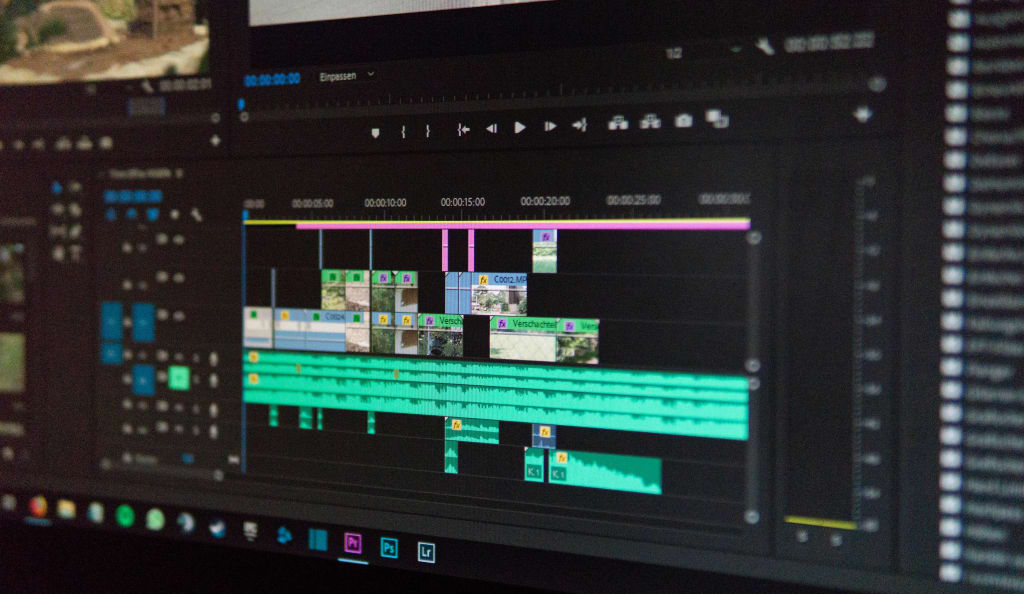
CapCut is a powerful and user-friendly video editing app that lets you create professional-quality videos directly from your smartphone. Whether you’re creating content for social media, personal projects, or professional use, this guide will walk you through the essential features and tips for editing videos with CapCut.
Getting Started with CapCut
1. Download and Install
CapCut is available for free on both iOS and Android. Visit the App Store or Google Play Store, search for “CapCut,” and download the app.
2. Open the App
Launch CapCut and tap “New Project” to start editing. You’ll be prompted to select media (photos or videos) from your device.
3. Import Media
Choose the clips and images you want to edit. CapCut allows multiple selections, so you can import all the assets you need for your project.
Editing Basics in CapCut
1. Trimming and Splitting Clips
Trim: Tap on a clip in the timeline, then drag the edges to shorten or lengthen it.
Split: Position the playhead at the point you want to divide the clip, then tap the “Split” button.
2. Adding Transitions
Tap the small white box between two clips on the timeline to access transition options. Choose from effects like “Fade” or “Zoom.” Adjust the duration for smoother transitions.
3. Adjusting Speed
Select a clip, then tap “Speed.” Choose “Normal” to manually slow down or speed up, or “Curve” for variable speed effects.
Enhancing Your Video
1. Adding Text
Tap “Text” > “Add Text” to insert titles or captions. Customize the font, color, and animation to match your style.
2. Applying Filters and Effects

Tap “Filters” to apply pre-made looks to your video. Tap “Effects” for dynamic visual elements like “Glitch” or “Blur.”
3. Inserting Music and Sound Effects
Tap “Audio” to browse the built-in music library or upload your own tracks. You can also add sound effects or voiceovers.
4. Overlaying Clips
Use the “Overlay” feature to add extra video or image layers. This is great for picture-in-picture effects or adding logos.
Advanced Features
1. Green Screen Effect
Import a clip with a green background and place it in the timeline. Tap “Remove Background” or “Chroma Key” to eliminate the green screen and integrate the overlay.
2. Keyframe Animation
Select a clip, then tap “Keyframe” to add motion effects like zooming or panning.
3. Masking
Use “Mask” to create shapes or blend multiple clips creatively.
Exporting Your Video
Once you’re happy with your edits:
1. Tap the upward arrow icon in the top-right corner.
2. Select the resolution (e.g., 1080p) and frame rate (e.g., 30fps).
3. Tap “Export” to save the video to your device.
Tips for Creating Stunning Videos
1. Plan Your Shots: Shoot high-quality footage to make editing smoother.

2. Keep It Short: Especially for social media, aim for concise, engaging videos.
3. Experiment: Try different effects and features to discover what works best for your style.
4. Stay On-Brand: Use consistent fonts, colors, and music if you’re creating content for a business.
With CapCut’s intuitive tools and powerful features, creating amazing videos has never been easier. Dive in, experiment, and bring your vision to life!
Conclusion
With CapCut’s intuitive tools and powerful features, creating amazing videos has never been easier. Dive in, experiment, and bring your vision to life. Whether you're a beginner or an experienced editor, CapCut offers everything you need to craft stunning content that stands out.
About the Creator
Editors Hub
I’m an enthusiastic filmmaker and full-time digital content creator with over 1.3 million followers across YouTube, Facebook, Instagram, and TikTok. Since 2014.
Enjoyed the story? Support the Creator.
Subscribe for free to receive all their stories in your feed.
Comments
There are no comments for this story
Be the first to respond and start the conversation.