
QuickBooks Error 1603: Why Installation Fails and How to Fix It Step by Step
Understanding the causes behind QuickBooks Error 1603 and the practical solutions that help restore a successful installation.

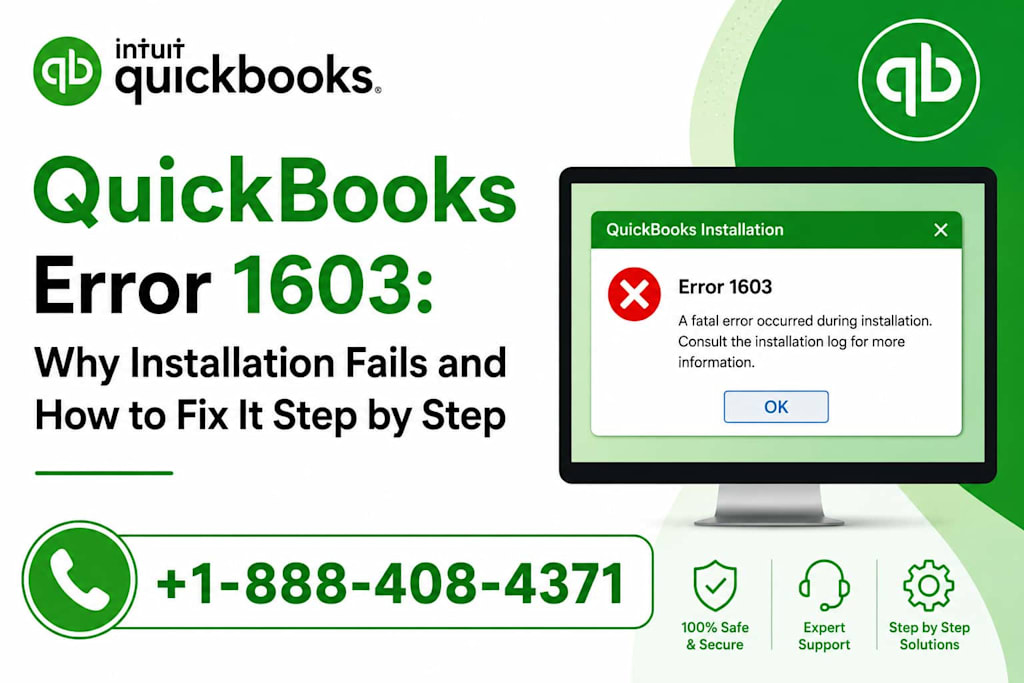
Installing QuickBooks is usually a straightforward process. You download the software, follow the setup instructions, and within a few minutes, you're ready to manage invoices, payroll, expenses, and financial reports.
But every now and then, the installation process doesn't go as planned.
Instead of reaching the finish line, the setup suddenly stops and displays an error message:
QuickBooks Error 1603
For many users, this moment is frustrating. You may have deadlines approaching, employees waiting for payroll, or financial records that need immediate attention. When the installation fails without a clear explanation, it's easy to assume something is seriously wrong.
Fortunately, Error 1603 is a well-known installation issue, and in most cases, it can be resolved without advanced technical knowledge.
This guide explains what QuickBooks Error 1603 means, why it happens, and the most effective ways to fix it.
Understanding QuickBooks Error 1603
QuickBooks Error 1603 typically appears during the installation or update process. The software attempts to install required files but encounters a Windows-related problem that prevents setup from completing successfully.
Unlike errors connected to company files or accounting data, Error 1603 is usually linked to the computer's operating system, installation permissions, or Microsoft components that QuickBooks depends on.
In simple terms, QuickBooks cannot finish installing because something in Windows is blocking or interrupting the process.
How Users Usually Encounter This Error
Many people report a similar experience.
The installation begins normally. Progress moves forward for several minutes, and everything appears to be working correctly.
Then, without warning, the setup stops.
Some users receive a message saying the installation has failed. Others notice the installer closes unexpectedly or rolls back changes that were already made.
Regardless of the exact message, the result is the same: QuickBooks isn't installed successfully.
Common Causes Behind QuickBooks Error 1603
Understanding the cause often makes troubleshooting much easier.
1. Damaged Microsoft .NET Framework
QuickBooks relies heavily on Microsoft's .NET Framework. If this component becomes corrupted or disabled, installation can fail.
2. Windows Installer Problems
The Windows Installer service manages software installations. If the service isn't functioning properly, QuickBooks may be unable to complete setup.
3. Corrupted Microsoft Components
Files such as MSXML and Visual C++ Redistributables help QuickBooks communicate with Windows. Missing or damaged components frequently trigger installation errors.
4. Insufficient Permissions
If Windows prevents QuickBooks from accessing certain folders or system resources, the installation may stop unexpectedly.
5. Antivirus or Security Software
Security applications sometimes mistake installation activities for suspicious behavior and block essential QuickBooks files.
6. Previous Installation Damage
Remnants of older QuickBooks installations can interfere with new setup attempts and create conflicts.
Signs That Error 1603 Is Affecting Your System
You may notice:
Installation stops before completion
QuickBooks setup freezes
Error 1603 appears on screen
Installation rolls back automatically
System performance slows during setup
QuickBooks cannot launch after installation
These symptoms often point to underlying Windows component issues rather than problems with QuickBooks itself.
15 Practical Fixes for QuickBooks Error 1603
Rather than jumping immediately to a complete reinstall, work through these solutions one at a time.
Fix 1: Restart Your Computer
A simple reboot can clear temporary system conflicts and release locked files.
Fix 2: Update Windows
Install all pending Windows updates.
Many installation issues occur because QuickBooks requires updated system components that aren't currently available.
Fix 3: Run the Installer as Administrator
Right-click the QuickBooks installer and choose:
Run as Administrator
This gives setup the permissions it needs to modify system files.
Fix 4: Use QuickBooks Tool Hub
Intuit's QuickBooks Tool Hub includes diagnostic utilities specifically designed to resolve installation problems.
Run the Installation Issues section and allow the tool to scan your system.
Fix 5: Run the QuickBooks Install Diagnostic Tool
Within Tool Hub, launch the Install Diagnostic Tool.
It repairs common issues involving:
.NET Framework
MSXML
Microsoft Visual C++
Installation dependencies
Fix 6: Repair Microsoft .NET Framework
Open Windows Features and verify that .NET Framework components are enabled.
If necessary, repair or reinstall them.
Fix 7: Update Microsoft Visual C++ Components
Outdated Visual C++ packages can interfere with QuickBooks installation.
Installing current versions often resolves hidden compatibility issues.
Fix 8: Verify Windows Installer Service
Open Services and confirm that Windows Installer is running correctly.
Restart the service if necessary.
Fix 9: Temporarily Disable Antivirus Software
Security programs occasionally block installation files.
Temporarily disabling protection during setup can help identify whether security software is causing the conflict.
Fix 10: Clean Temporary Files
Windows accumulates temporary files that sometimes interfere with installations.
Clearing these files can improve installation reliability.
Fix 11: Perform a Clean Boot
A clean boot starts Windows with minimal background services.
This helps determine whether another application is conflicting with QuickBooks.
Fix 12: Repair System Files
Use built-in Windows repair tools such as:
SFC (System File Checker)
DISM
These utilities scan for corrupted operating system files.
Fix 13: Remove Previous QuickBooks Installation Remnants
If an earlier installation failed, leftover files may create conflicts.
Removing these remnants often resolves repeated setup failures.
Fix 14: Download a Fresh Installer
Installation packages can become corrupted during download.
Obtaining a fresh installer eliminates this possibility.
Fix 15: Reinstall QuickBooks Completely
If every other solution fails, a clean reinstall provides a fresh installation environment and often resolves persistent Error 1603 issues.
Preventing Error 1603 in the Future
While no system is completely immune to software issues, a few habits can reduce the chances of encountering installation problems again:
Keep Windows updated
Maintain sufficient disk space
Avoid interrupting installations
Regularly update security software
Install QuickBooks using administrator privileges
Remove obsolete software components
Preventive maintenance often eliminates the conditions that trigger installation failures.
What Most Users Overlook
One of the biggest misconceptions about QuickBooks Error 1603 is that it indicates a problem with accounting data.
In reality, the error is usually tied to Windows components and installation requirements—not financial records.
Understanding this distinction helps reduce unnecessary panic and keeps troubleshooting focused on the real cause.
Final Thoughts
QuickBooks Error 1603 can interrupt an installation at exactly the wrong time, but it is rarely a sign of a major system failure.
More often, it points to a missing Windows component, damaged installation dependency, permissions issue, or software conflict that can be corrected with the right troubleshooting steps.
By approaching the problem methodically—starting with basic fixes and progressing toward deeper repairs—you can usually restore a successful QuickBooks installation without losing valuable time or data.
Personal Insight
Technology tends to work quietly in the background until something unexpected happens. Errors like QuickBooks 1603 can feel overwhelming at first, but they're often reminders that software depends on many moving parts working together. Once you understand where the breakdown occurs, solving the problem becomes much more manageable than it initially appears.
About the Creator
Kiya Verma1
✍️ Storyteller | 📚 Research Enthusiast | 🌍 Curious Mind
Sharing insights, practical knowledge, life lessons, and digital discoveries. Passionate about writing content that informs, inspires, and helps people solve real-world challenges.
Enjoyed the story? Support the Creator.
Subscribe for free to receive all their stories in your feed.
Comments
There are no comments for this story
Be the first to respond and start the conversation.