
MAIN COMPONENT OF COMPUTER
Random Access Memory (RAM):
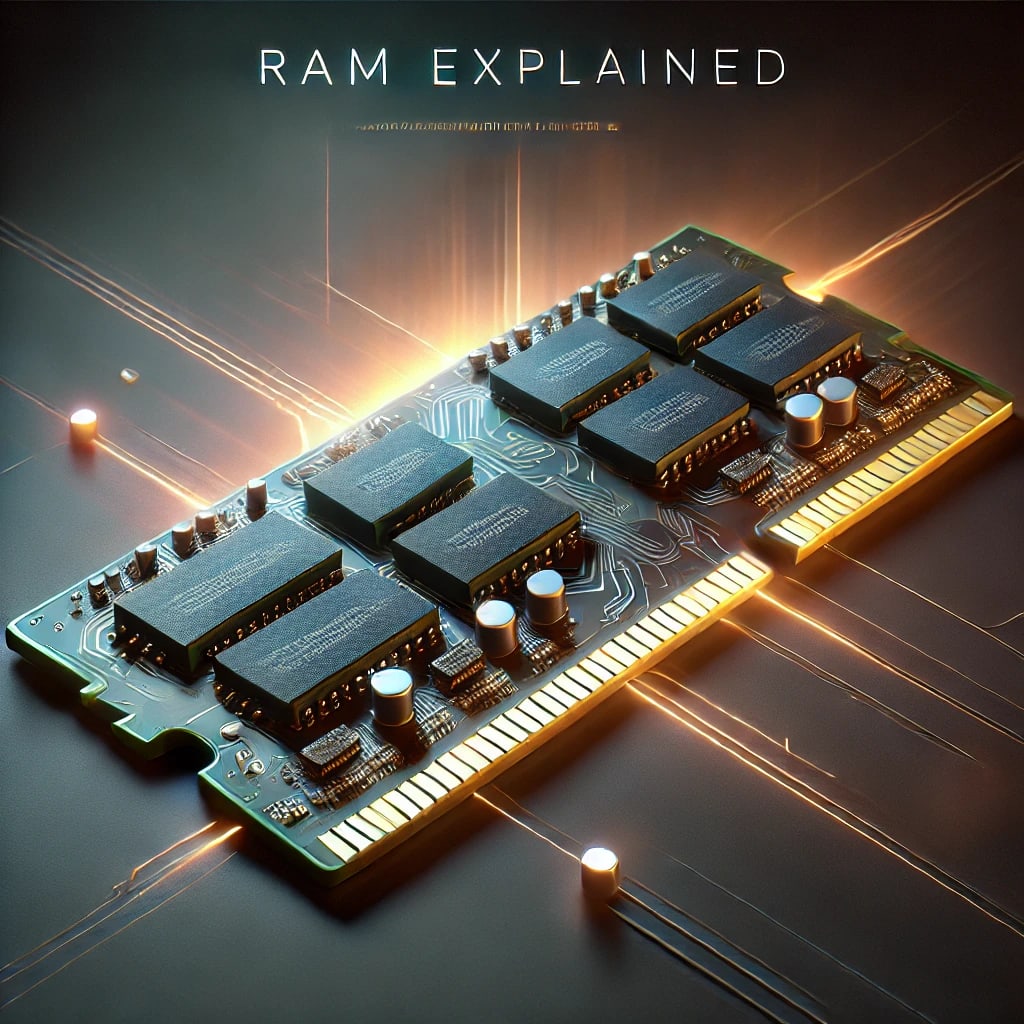
RAM (Random Access Memory) is a crucial part of your computer’s memory system. It temporarily stores executable machine code, input, output, and intermediate data processed by the CPU. RAM is volatile memory, meaning it only holds information while power is supplied. If power is lost, all data within RAM is erased.
Types of RAM:
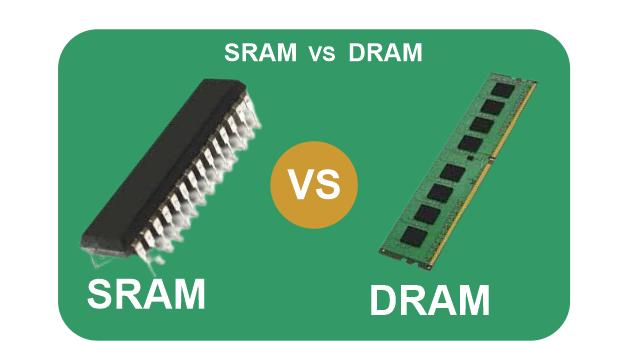
Static RAM (SRAM): An array of flip-flops (or triggers) using transistors and logic gates to store data. SRAM does not need refreshing, making it fast and suitable for cache memory within the CPU, but it takes more space on a chip and is more costly than DRAM.
Dynamic RAM (DRAM): Uses an array of capacitors to store data. Each DRAM cell consists of a capacitor and a transistor, with the capacitor graduallRAM (Random Access Memory) is a crucial part of your computer’s memory system. It temporarily stores executable machine code, input, output, and intermediate data processed by the CPU. RAM is volatile memory, meaning it only holds information while power is supplied. If power is lost, all data within RAM is erased.
Types of RAM:
y losing charge over time. This necessitates regular refreshing by a memory controller. DRAM is slower than SRAM but allows more storage per chip, making it ideal for main system memory.
Types of DRAM (Dynamic RAM)
SDR SDRAM (Single Data Rate): Operates in sync with the CPU clock, introduced in 1993, with speeds starting at 100 MHz.
DDR SDRAM (Double Data Rate): Introduced in 2000, DDR SDRAM can handle twice the data per clock cycle, with frequencies ranging from 100 to 200 MHz.
DDR2: Faster than DDR with speeds up to 800 MHz, introduced in 2004.
DDR3: Released in 2007, offering even higher speeds and lower power consumption.
DDR4: Introduced in 2014 with speeds up to 3200 MHz and higher efficiency.
DDR5: The latest, starting from 2020, with bandwidth up to 32 GB/s and even more efficient power usage.
How RAM Works with CPU and Cache
Data is exchanged between the CPU and RAM using cache memory. The cache controller analyzes running programs to predict what data might be needed next and loads it into the cache in advance. This anticipation speeds up access times, reducing reliance on slower storage (HDD/SSD). RAM contains programs, operating system data, user applications, and their related data. When the computer boots up, essential drivers and OS elements are loaded into RAM for quick access.
Paging and Swap Files
When RAM is full, the system uses a paging file or swap file on the hard drive/SSD to store data that doesn’t fit into RAM. This file allows for temporary storage, though it’s much slower than RAM. As a result, if the swap file is heavily used, overall system performance may drop.
The RAM Evolution Timeline
1993 - SDR SDRAM: Single data rate, synchronous with CPU clock.
2000 - DDR (Double Data Rate): Processes twice the data per cycle.
2004 - DDR2: Improved speed and power efficiency.
2007 - DDR3: Further enhancements in speed and efficiency.
2014 - DDR4: Reached higher data transfer rates and more efficiency.
2020 - DDR5: Up to 32 GB/s transfer rates, with better performance and lower power needs.
What’s Inside a Memory Module?
Printed Circuit Board: Holds the memory chips.
Memory Chips: Store data as electrical signals.
SPD (Serial Presence Detect) Chip: Contains settings for optimal RAM performance, read by the BIOS.
Key Slot: Ensures the RAM is installed correctly.
SMD Components (Resistors and Capacitors): These manage power regulation across the chips.
Common RAM Issues & Solutions
Slow Performance: If the system is slow, closing apps or upgrading RAM can help.
Blue Screen of Death (BSOD): Sometimes caused by faulty RAM. Running memory diagnostics can identify issues.
Failure to Boot: Incompatible or incorrectly installed RAM might cause this. Reseating or checking compatibility can resolve it.
Unrecognized RAM: If the system doesn’t detect RAM, check installation and compatibility.
Improving RAM Performance: Tips & Tricks
Install Dual-Channel RAM: Using paired RAM sticks activates dual-channel mode, which improves data transfer rates.
Optimize Speed and Latency: Higher MHz RAM speeds improve data handling, while lower latency (CAS) RAM is quicker to respond.
Close Unused Apps: Free up RAM for active programs.
Reboot Regularly: This clears RAM and improves speed.
Disable Unnecessary Startup Programs: Fewer startup programs mean less RAM usage.
RAM for Gaming and Multitasking
More RAM enables faster load times and smoother graphics in gaming. For multitasking, 16GB is ideal for most users, while 32GB or more can benefit professionals handling large data sets.
Advanced: RAM Overclocking
For tech enthusiasts, overclocking increases RAM speed for higher performance. It requires compatible hardware and sufficient cooling, as it can produce more heat.
Future of RAM: Emerging Technologies
DDR6: Currently in development with even faster speeds for AI and machine learning tasks.
3D XPoint and High-Bandwidth Memory (HBM): Newer memory technologies merging RAM and storage, aiming for ultra-fast data handling for next-gen devices.
This comprehensive overview should give you both the technical foundation and practical knowledge to understand RAM’s role, optimize performance, and troubleshoot effectively. Let me know if you'd like to dive into any topic further!
TEST QUESTION
https://fancy-handy-echo.glitch.me/
PASSWORD: 12345678
About the Creator
Enjoyed the story? Support the Creator.
Subscribe for free to receive all their stories in your feed.
Comments
There are no comments for this story
Be the first to respond and start the conversation.