
How to Use Phone Mic with Bluetooth Headphones on Android
Use Phone Mic with Bluetooth Headphones on Android

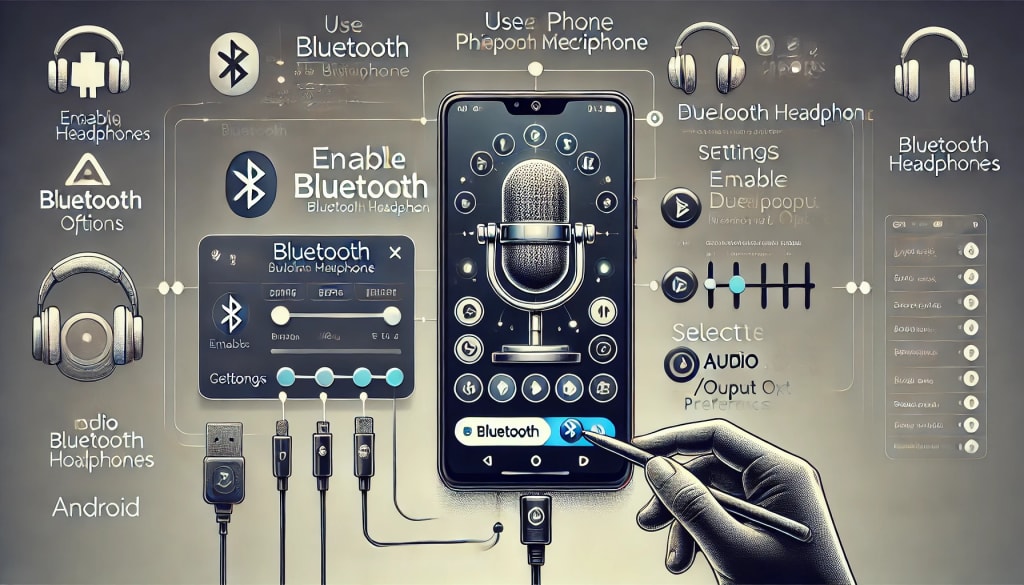
Bluetooth headphones are incredibly convenient for wireless audio playback, but users may sometimes prefer to use their phone's built-in microphone instead of the headphone mic. Whether for clearer audio during calls, recording purposes, or specific app functionality, Android devices offer flexibility to switch between audio input sources. This article provides a detailed, step-by-step guide on how to use your phone mic while keeping your Bluetooth headphones connected for audio output.
Why Use Your Phone Mic Instead of the Headphone Mic?
- Better Audio Quality: Built-in phone microphones often provide better sound quality compared to Bluetooth headset mics.
- Background Noise Reduction: Phone mics are optimized for noise reduction.
- Special Applications: Apps like recording software or video conferencing tools might perform better with the phone mic.
- Flexibility: Allows use cases where you need proximity to the phone for the mic but freedom of movement for audio output.
Step 1: Connect Bluetooth Headphones to Android Device
Enable Bluetooth on Your Android Device:
- Go to Settings > Connected devices or Bluetooth.
- Turn on Bluetooth.
Pair the Headphones:
- Tap on Pair new device.
- Select your Bluetooth headphones from the list.
- Confirm pairing and wait for the connection.
Step 2: Confirm Bluetooth Headphones as Output Device
- After pairing, check if the headphones are set as the default output device.
- Play a sample audio file or video to confirm audio output through the Bluetooth headphones.
Step 3: Select Phone Microphone as Input Device
Option 1: Through Developer Options
Enable Developer Options:
- Go to Settings > About phone.
- Scroll down to Build number and tap it 7 times.
- Enter your phone's passcode if prompted to enable developer options.
Access Developer Settings:
- Go to Settings > System > Developer options.
Force Phone Mic:
- Scroll down to Media settings.
- Look for options like Disable Bluetooth SCO audio.
- Toggle the switch to enable phone mic while keeping Bluetooth audio output.
Option 2: Use App Settings
Open the app where you want to use the phone mic.
Go to the audio or microphone settings.
Select the phone's built-in microphone as the preferred input device.
Option 3: Third-Party Apps
Download and install apps like Lesser AudioSwitch or SoundAbout from the Play Store.
Configure audio routing within these apps to force the phone mic and Bluetooth headphones for output.
Step 4: Testing the Setup
Open the app you want to test (e.g., voice recorder, messaging app).
Record a short audio clip.
Play it back to ensure the phone's mic is being used while the output remains in the Bluetooth headphones.
Step 5: Troubleshooting Tips
Restart Devices:
Turn off and on both the phone and Bluetooth headphones.
Check Permissions:
Ensure microphone permissions are enabled for the relevant app.
Clear Cache:
Clear cache for Bluetooth and audio-related apps in Settings > Apps.
Update Firmware:
Make sure both the Android OS and Bluetooth headphones have the latest updates.
Test with Other Apps: Some apps may override audio settings, so testing multiple apps can identify the issue.
Reset Bluetooth Settings:
Go to Settings > System > Reset Options > Reset Wi-Fi, mobile & Bluetooth.
Use Cases and Recommendations
Calls and Meetings
Ideal for online meetings where you can keep headphones on but rely on the clearer phone mic for speaking.
Recording Audio/Video
Useful for recording vlogs, interviews, or podcasts where sound quality matters.
Gaming and Streaming
Gamers can benefit by using the phone mic for voice chats without sacrificing wireless audio.
Conclusion
Switching between the phone mic and Bluetooth headphones on Android is a practical solution for users who prioritize audio clarity and flexibility. Whether you're recording, streaming, or simply making calls, the steps outlined in this guide should help you easily set up and optimize your audio preferences. With the combination of native settings and third-party apps, Android offers versatile options to customize your audio input and output to suit your needs.
About the Creator
Sulaiman Aarbi
Technology writer and SEO publisher. I create practical guides on smartphones, software, AI, and digital tools. I manage tech websites including Tech Kosupa, ItsTechy, and SulByte, helping readers solve everyday technology problems
Enjoyed the story? Support the Creator.
Subscribe for free to receive all their stories in your feed.
Comments
There are no comments for this story
Be the first to respond and start the conversation.