
How to Resolve QuickBooks Error 1328 on Windows 11 Without Reinstalling Everything
Learn what triggers QuickBooks Error 1328 and follow straightforward troubleshooting steps to repair installation issues and restore normal performance.

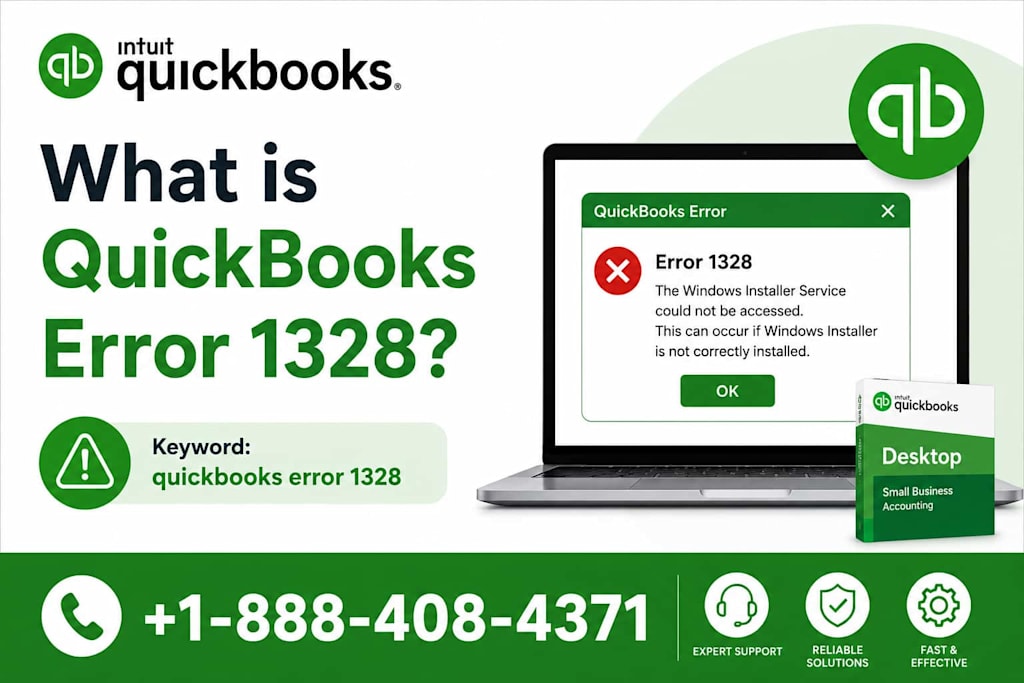
You sit down to update QuickBooks, expecting the process to take just a few minutes.
Maybe you're preparing invoices, reviewing financial reports, or getting ready for payroll. You click "Update," wait for the installation to finish, and then suddenly everything stops.
Instead of a successful update, you see an unexpected message:
QuickBooks Error 1328
At first, it doesn't tell you much. The update fails, the installation may stop midway, and you're left wondering whether something is wrong with QuickBooks, Windows 11, or your entire system.
For many users, the next step is frustration.
You restart the computer.
You try the update again.
You search for answers online.
Yet the same error continues to appear.
The good news is that QuickBooks Error 1328 is usually fixable without completely reinstalling QuickBooks. In many cases, the issue is connected to damaged installer files, update conflicts, or Windows permissions that can be repaired with a few targeted troubleshooting steps.
Let's walk through what this error means and how to fix it.
What Is QuickBooks Error 1328?
QuickBooks Error 1328 is an installation or update-related issue that typically appears when QuickBooks attempts to modify, repair, update, or remove program files.
The error often occurs when the installer cannot properly access or update specific files required for the process.
Unlike company file errors, Error 1328 does not usually involve your accounting data.
Instead, it affects the software installation itself.
In simple terms:
QuickBooks is trying to update or repair program files, but something is preventing the process from finishing correctly.
Why Does Error 1328 Appear?
The exact cause varies from system to system, but several common issues are responsible for most cases.
Damaged Installation Files
Over time, software files can become corrupted due to interrupted updates, unexpected shutdowns, or system conflicts.
When QuickBooks attempts to modify these damaged files, Error 1328 may appear.
Incomplete Previous Updates
A previous update may not have finished successfully.
This can leave behind partially updated files that interfere with future installations.
Windows Permissions Issues
QuickBooks requires permission to access and modify certain folders.
If Windows 11 blocks access, installation tasks may fail.
Security Software Interference
Antivirus programs sometimes prevent installers from making changes to important system files.
Temporary File Conflicts
Old update files and temporary installation data can interfere with current installation attempts.
Common Signs You're Experiencing QuickBooks Error 1328
Many users report similar symptoms:
QuickBooks updates fail repeatedly
Installation stops unexpectedly
Repair operations do not complete
Uninstall attempts trigger errors
Error 1328 messages appear during setup
QuickBooks becomes unstable after an update attempt
If any of these situations sound familiar, Error 1328 may be the underlying cause.
How to Fix QuickBooks Error 1328 on Windows 11
The best approach is to start with simple fixes before moving to more advanced solutions.
Fix 1: Restart Your Computer
A restart clears temporary Windows processes that may be locking installation files.
While it seems simple, many installation-related issues disappear after a full restart.
Once Windows loads again, attempt the update or installation.
Fix 2: Run QuickBooks as Administrator
Administrative privileges are often required when updating software.
To do this:
1. Close QuickBooks.
2. Right-click the QuickBooks icon.
3. Select Run as Administrator.
Try the update again after launching the program.
Fix 3: Clear Temporary Files
Temporary files can interfere with installation processes.
Windows stores these files automatically, but they aren't always removed when no longer needed.
Cleaning temporary files often removes installation conflicts that trigger Error 1328.
Fix 4: Update Windows 11
Outdated system components can create compatibility problems.
Check for available Windows updates and install everything recommended.
Restart the computer afterward and test QuickBooks again.
Fix 5: Use QuickBooks Tool Hub
QuickBooks Tool Hub is designed to identify and repair common installation issues.
The utility can help diagnose:
Installation failures
Program startup issues
Update-related problems
Damaged QuickBooks components
Many users resolve Error 1328 by running the available repair tools.
Fix 6: Repair QuickBooks Installation
Windows includes a built-in repair option for installed applications.
Repairing QuickBooks can replace damaged program files without affecting company data.
This process often resolves installer-related errors caused by file corruption.
Fix 7: Temporarily Disable Antivirus Software
Security software occasionally mistakes installer activities for suspicious behavior.
Temporarily disabling antivirus protection can help determine whether security software is causing the problem.
If the update succeeds, add QuickBooks as a trusted application before re-enabling protection.
Fix 8: Verify User Permissions
Windows user account permissions can sometimes block installation tasks.
Make sure you're signed in using an account with administrator privileges.
Without sufficient permissions, QuickBooks may be unable to update program files correctly.
Fix 9: Perform a Clean Boot
A clean boot starts Windows with minimal background services.
This helps identify whether another application is interfering with QuickBooks.
If the error disappears during a clean boot, a third-party application is likely involved.
Fix 10: Rename Update Download Folders
Sometimes damaged update files become trapped inside download folders.
Renaming these folders forces QuickBooks to create fresh update files during the next update attempt.
This simple step can eliminate recurring update-related errors.
Fix 11: Repair Microsoft Components
QuickBooks depends on several Windows components to function correctly.
Problems involving:
Microsoft .NET Framework
MSXML
Visual C++ Redistributables
can contribute to installation failures.
Repairing these components often resolves persistent update issues.
Fix 12: Check Disk Health
Storage problems can affect installation processes.
Running a disk check helps identify file system errors that may be interfering with updates.
While less common, drive-related issues occasionally contribute to Error 1328.
Fix 13: Download the Latest QuickBooks Update
If update files are corrupted, obtaining a fresh update package may resolve the issue.
A clean download eliminates the possibility of damaged update files.
Fix 14: Use Windows System Repair Tools
Windows includes tools such as:
System File Checker (SFC)
DISM
These utilities scan and repair damaged operating system files that may interfere with software installations.
Fix 15: Consider a Clean Reinstallation Only as a Last Resort
Many users immediately jump to reinstalling QuickBooks.
In reality, Error 1328 can often be resolved without taking that step.
If every repair method fails, a clean reinstall may be appropriate, but it should generally be the final option rather than the first.
How to Reduce the Chances of Seeing Error 1328 Again
Once the issue is fixed, a few preventative habits can help avoid future installation problems.
Keep Windows updated regularly
Avoid interrupting software updates
Maintain sufficient storage space
Use administrator privileges when updating software
Keep antivirus software configured properly
Restart the computer periodically
These simple habits improve overall software stability.
Final Thoughts
QuickBooks Error 1328 can be frustrating because it often appears without a clear explanation.
One moment you're updating QuickBooks, and the next you're staring at an installation error that seems impossible to understand.
Fortunately, most cases are tied to installer conflicts, damaged update files, permissions issues, or Windows-related components—not your accounting data.
By approaching the problem methodically and working through the fixes one at a time, many users are able to restore QuickBooks functionality without reinstalling the software completely.
Personal Insight
Software updates are supposed to make our work easier, yet they're often the moment when unexpected problems appear. What I've learned from troubleshooting errors like QuickBooks Error 1328 is that patience matters more than panic. Most installation errors have a logical cause, and once you focus on the underlying issue rather than the error message itself, the solution often becomes much easier to find.
About the Creator
Kiya Verma1
✍️ Storyteller | 📚 Research Enthusiast | 🌍 Curious Mind
Sharing insights, practical knowledge, life lessons, and digital discoveries. Passionate about writing content that informs, inspires, and helps people solve real-world challenges.
Enjoyed the story? Support the Creator.
Subscribe for free to receive all their stories in your feed.
Comments
There are no comments for this story
Be the first to respond and start the conversation.