
How to Convert VCF to PST Format? Quick Guide
Convert VCF to PST
In today’s digital world, managing and organizing contacts efficiently is vital. One of the most popular formats for storing contact information is VCF (vCard), and for users of Microsoft Outlook, PST (Personal Storage Table) is the go-to format for managing emails, contacts, and calendars. However, users may find themselves needing to convert VCF to PST format to transfer contacts into Outlook, allowing them to take full advantage of Outlook’s organizational capabilities.
In this blog post, we’ll explore the step-by-step process to convert vCard to PST format, ensuring you can seamlessly transfer your contact information into Outlook.
Why Convert vCard to PST?
There are several reasons why a user might need to convert VCF file to PST, including:
- Centralized Management: Outlook is a powerful tool for managing emails, calendars, and contacts. Converting vCard files to PST allows all contact information to be centrally managed within Outlook.
- Ease of Access: Outlook provides an easy-to-navigate interface for searching, organizing, and managing contacts, which may not be as straightforward with a VCF file.
- Backup and Syncing: PST files can be backed up and synchronized across devices, which makes data recovery and access more efficient.
Method 1: Convert VCF to PST Format Using Manual Method
Microsoft Outlook allows you to directly import VCF files into your Outlook Contacts folder. This is the simplest method, though it may require multiple steps if you have several VCF files to import.
Step 1: Open Microsoft Outlook
- Ensure that you have Outlook installed and configured on your computer. Launch Outlook.
- Go to the File menu and click Open & Export.
- Select Import/Export.
- In the Import & Export Wizard, select Import a VCARD file (.vcf).
- Click Next.
- Browse and select the VCF file from your computer that contains the contact information you want to import. Click Open to proceed.
- Once you select the VCF file, Outlook will import the contacts and add them to your Contacts folder. This allows you to view and manage the contacts within Outlook.
Step 2: Save as PST File
To convert the imported contacts into a PST file, follow these steps:
- Click File and then choose Account Settings > Account Settings again.
- In the Account Settings window, select Data Files and click Add to create a new PST file.
- After the PST file is created, move the imported contacts to the PST file by simply dragging them from the Contacts section to the new PST folder.
- While this method is simple for importing individual VCF files, it may not be the most efficient if you have multiple VCF files or need to automate the process.
Method 2: Convert VCF File to PST Using Windows Contacts and Outlook
If you don’t want to use first method to convert vCard to PST, you can export your contacts from Windows Contacts to a PST file by following these steps:
Step 1: Import VCF to Windows Contacts
- Open Windows Contacts (you can search for it in the Start menu).
- Drag and drop your VCF file(s) into Windows Contacts.
Step 2: Export Contacts from Windows Contacts to Outlook
After importing the VCF file into Windows Contacts, open Microsoft Outlook.
- Navigate to the File menu, choose Open & Export, and then select Import/Export.
- Select the Import from another program or file, and tick the Next.
- Select Microsoft Excel or Comma Separated Values (CSV) as the file type, and click Next.
- Browse to the location of your Windows Contacts and follow the prompts to complete the import.
- Once the contacts are imported into Outlook, you can manually create a PST file if needed.
Method 3: Convert VCF to PST Format Using Expert Solution
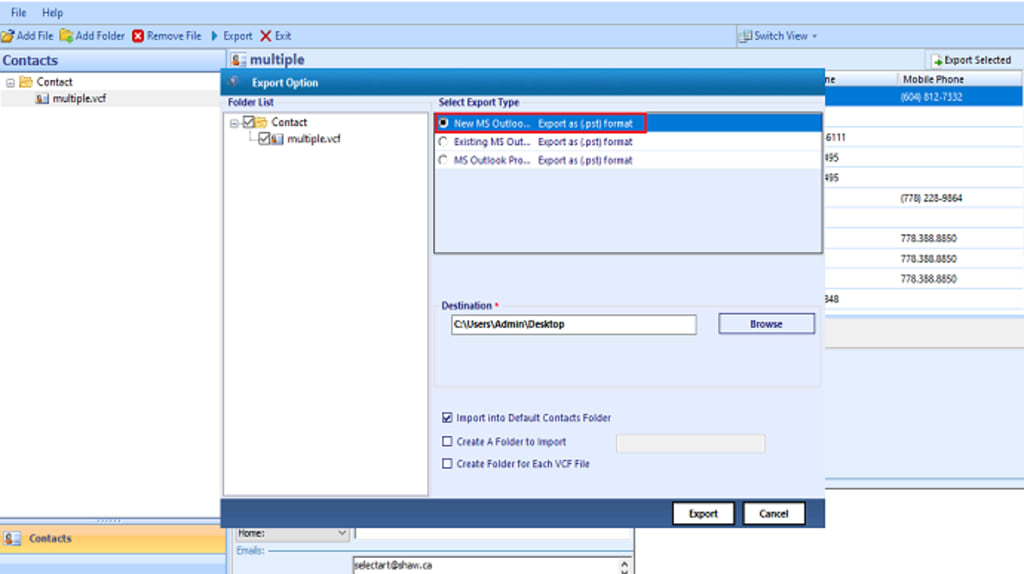
For users with large numbers of VCF files or those seeking more automated solutions, FreeViewer vCard to PST Converter Tool can facilitate the conversion of VCF files into PST format in bulk. Many tools available online can help convert multiple VCF to PST without having to import each file manually. These tools allow you to:
- Convert VCF file to PST in bulk at once.
- Map the contact fields from VCF to Outlook fields correctly.
- Avoid errors during the conversion process.
Steps to Convert Multiple VCF to PST in a Few Clicks
- Download and Install Software.
- Select Add the VCF files that you want to convert.
- Choose the PST format as the output.
- Click the Export button.
- The tool will process the VCF files and create a PST file with the contact data.
- Once the conversion is complete, you can import the generated PST file into Microsoft Outlook. Click the File > Open & Export > Open Outlook Data File, and choose the PST file you just created.
Conclusion
Converting multiple VCF to PST format can be essential for users looking to centralize their contacts within Microsoft Outlook. Whether you choose to manually import the contacts or use third-party software for a bulk conversion, the process can be completed efficiently with a little effort. Microsoft Outlook is an excellent platform for managing contacts, and with the right tools and steps, you can seamlessly transition your contact information from VCF file to PST.
By following this guide, you should now have a clear understanding of how to convert VCF to PST format, ensuring your contact information is organized and easily accessible within Outlook.
About the Creator
Enjoyed the story? Support the Creator.
Subscribe for free to receive all their stories in your feed.
Comments
There are no comments for this story
Be the first to respond and start the conversation.