
How to Convert Outlook PST file into Multiple formats?
Convert Outlook PST file into Multiple formats
Introduction
In today's fast-paced digital world, email has become an essential tool for communication and collaboration. Many professionals rely on Microsoft Outlook to manage their emails, contacts, calendars, and other important data. However, as the volume of emails grows, so does the size of the Outlook PST file. This can lead to performance issues, storage limitations, and difficulties in migrating data. In this blog post, we will explore how an Outlook PST converter can help you overcome these challenges and simplify your email management.
What is the PST file?
A PST file is a file format used by Microsoft Outlook to store email messages, calendar events, contacts, and other items. PST files are primarily associated with Microsoft Outlook, which is a popular email client and personal information manager.
When you use Microsoft Outlook to manage your emails, contacts, and calendar, all that data is stored in a PST file on your computer. This file acts as a local repository for your Outlook data, allowing you to access your emails, contacts, and other information even when you're not connected to the internet.
PST files can be password-protected to provide an additional layer of security for your Outlook data. You can create multiple PST files in Outlook to organize your data or to separate different email accounts or projects.
Why it is Necessary to Convert PST files into Multiple Formats?
Managing a large PST file can be cumbersome and problematic. Here are some common challenges faced by Outlook users:
• Performance Issues: A bloated PST file can slow down Outlook's performance, causing delays in opening, sending, and searching for emails.
• Storage Limitations: PST files have a maximum size limit, imposed by different versions of Outlook. When you reach or exceed this limit, you may encounter errors or be unable to add new data.
• Migration Concerns: When switching to a new computer or email platform, transferring a large PST file can be a daunting task. Compatibility issues and data corruption risks may arise during the migration process.
Benefits of an Outlook PST Converter:
By utilizing an Outlook PST converter, you can overcome these challenges and streamline your email management:
File Size Reduction: An efficient PST converter can shrink the size of your PST file by eliminating unnecessary data and optimizing the file structure. This ensures better performance and avoids reaching the storage limits.
Selective Export and Archiving: With a PST converter, you can selectively export specific emails, folders, or other data items from your PST file. This allows you to archive old emails, deciliter your mailbox, and reduce the overall size of the PST file.
Compatibility and Migration: When migrating to a new email client or computer, an Outlook PST converter enables smooth data transfer. It ensures compatibility between different file formats, such as PST to EML, PST to MSG, PST to MBOX, etc. This way, you can seamlessly import your emails into various email clients or cloud-based services.
Advanced Search and Recovery: Some PST converters offer advanced search and recovery features, allowing you to find and extract specific emails or attachments quickly. This can be particularly useful when dealing with legal or compliance-related requests.
Convert Outlook PST files into EML, MSG, and MBOX Formats
When you use Softaken PST Mailbox Converter Tool. It handles your emails, contacts, and calendar, all of that information is saved on your computer as a PST file. Other data even when you aren't connected to the internet. It converts PST files to multiple formats like MSG, EML, MBOX, and VCF.
There are steps to Convert PST file
1. Download and Install PST Mailbox Converter Tool
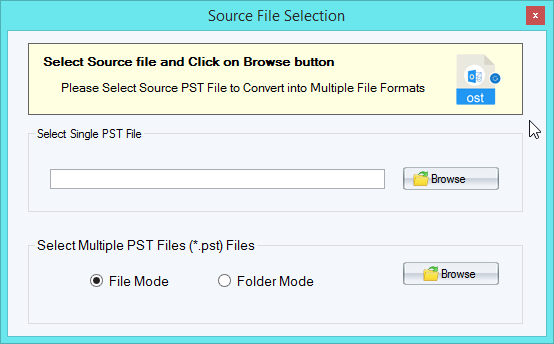
2. Click the browse button and select the PST file
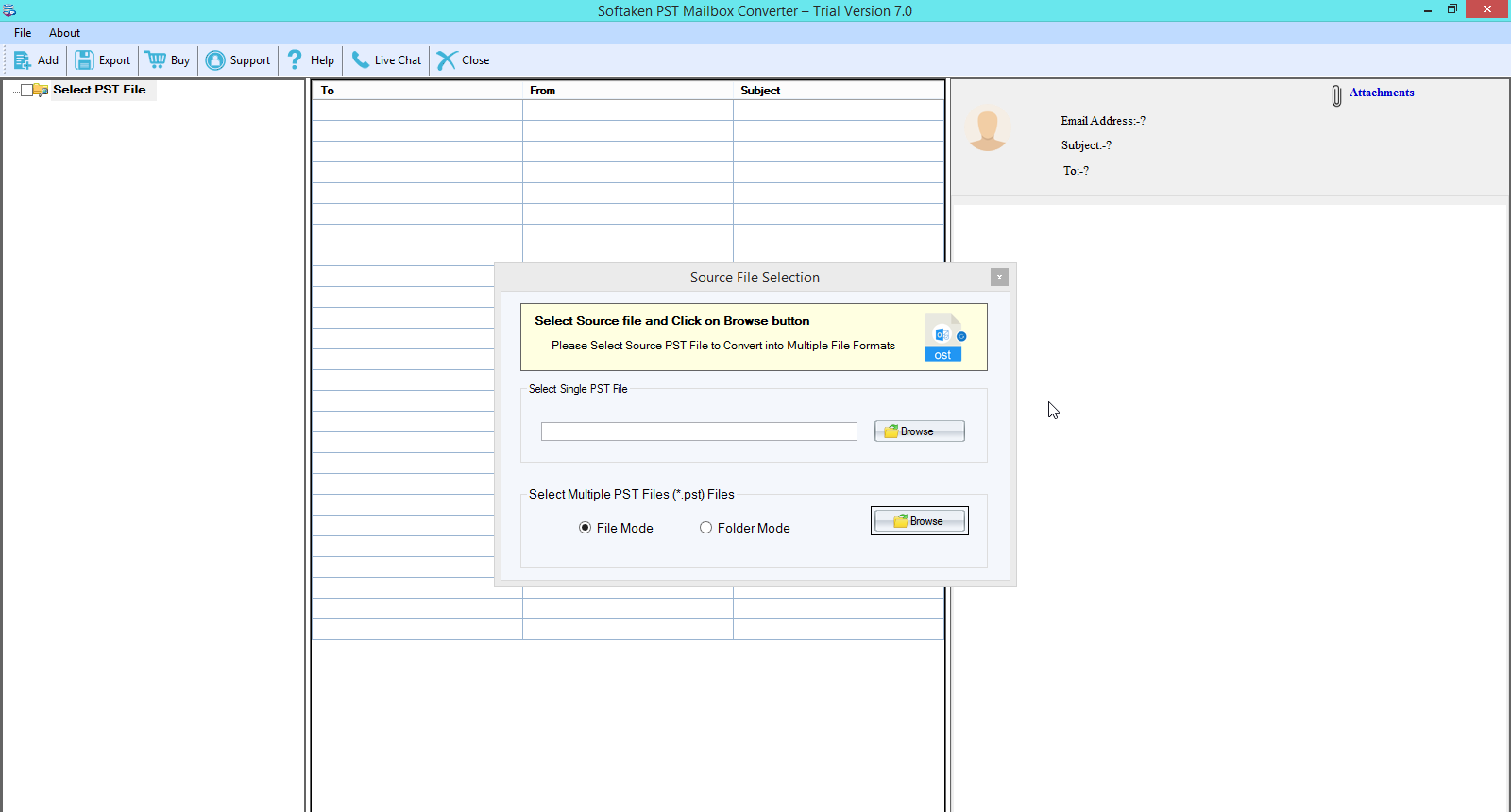
3. This will show a Preview of the PST file and Select file mode or folder mode
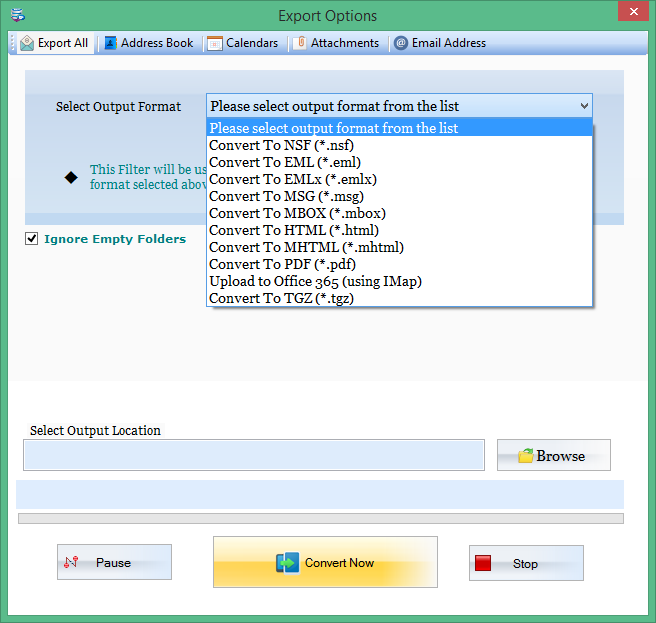
4. Choose convert of PST in export type
5. Select Output destination to save.
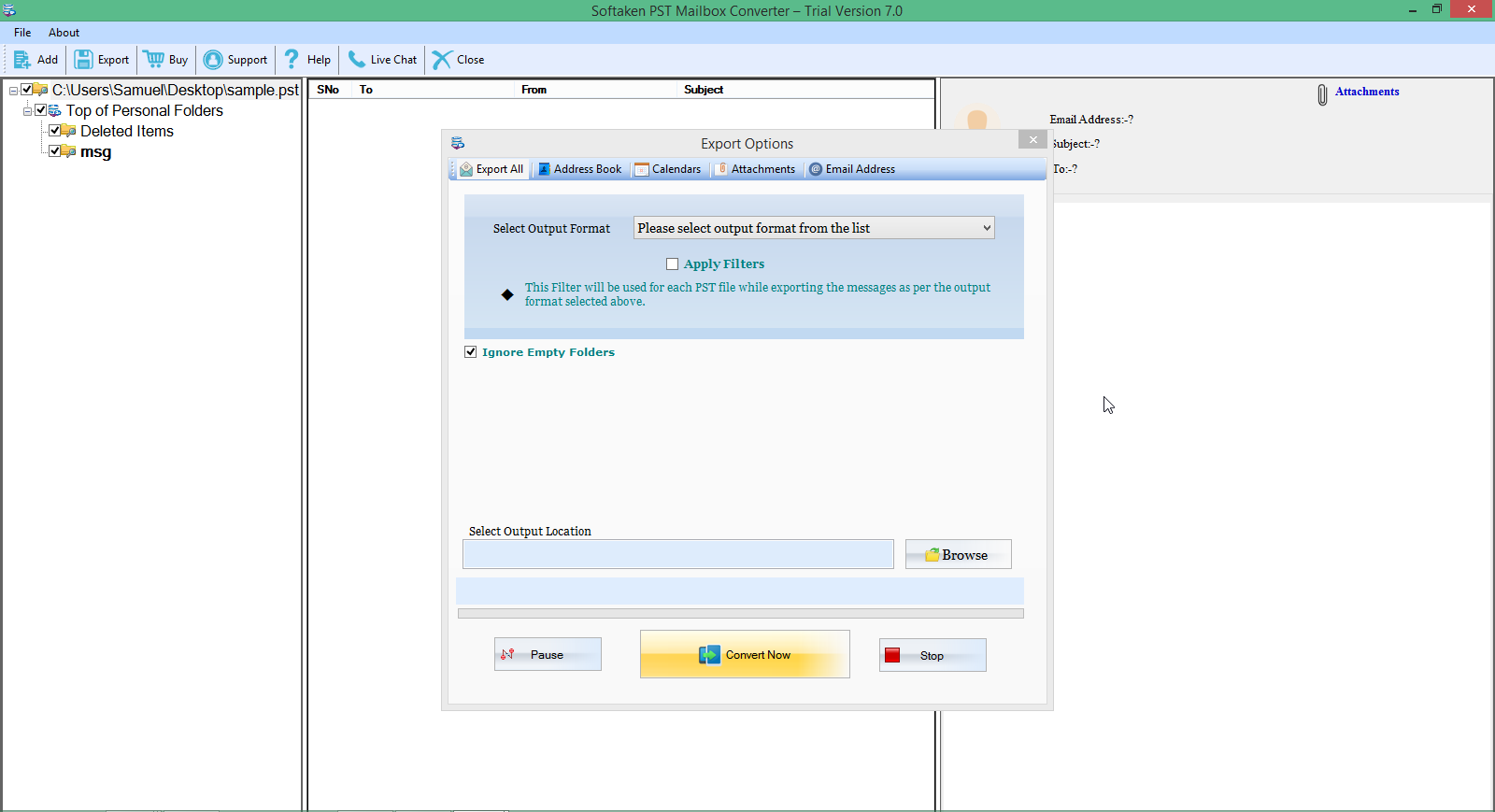
6. Click on the Convert Now Button
Conclusion
An Outlook PST converter can be a valuable asset in simplifying your email management and ensuring seamless data migration. By using an Outlook PST converter, you can easily convert PST files to MBOX, MSG, and EML, or even directly import them into various email clients like Thunderbird, Apple Mail, or Gmail. This can help you deciliter your mailbox and find important messages more quickly. With the converter, you can extract specific emails or folders from your PST files and save them in a more accessible format.
About the Creator
Enjoyed the story? Support the Creator.
Subscribe for free to receive all their stories in your feed.
Comments
There are no comments for this story
Be the first to respond and start the conversation.