
How to Backup Gmail to Multiple file formats in External Hard Drive?
Backup Gmail to Multiple files in External Hard Drive
Introduction
Email has become an integral component of our lives in the age of digital communication. Gmail is the preferred email service for many individuals and businesses due to its user-friendly layout, vast storage capacity, and sophisticated functionality. However, relying only on online storage can offer concerns, so make a backup of your Gmail data. We'll walk you through the steps of backing up your Gmail account to an external hard drive, assuring the security and accessibility of your essential emails.
What is Backup Gmail?
Backup Gmail is a service that provides users with a secure and reliable way to store and archive their Gmail messages and contacts. It offers features such as automatic backups, one-click restore options, and secure cloud storage. It allows users to store their data both on-site and in the cloud for easy access and retrieval. With Backup Gmail, users can access their data from any device with an internet connection, anytime and anywhere.
Why Need to Backup Gmail to External Hard Drive
Backing up your Gmail to an external hard drive provides several benefits and can be a wise decision for various reasons:
Data Loss Protection: While Gmail is generally reliable, there is still a possibility of data loss due to technical issues, hacking attempts, accidental deletions, or other unforeseen events. By backing up your Gmail to an external hard drive, you create an additional copy of your important emails, attachments, contacts, and other data, ensuring their safety.
Offline Access: Having a local backup on an external hard drive allows you to access your Gmail data even when you don't have an internet connection. This can be particularly useful in situations where you need to refer to old emails or retrieve specific information from your Gmail account.
Archiving and Storage: Gmail has a limited storage capacity, and depending on your usage, you may eventually reach or exceed your allocated space. By backing up your Gmail to an external hard drive, you can free up storage in your Gmail account while still retaining access to your emails and attachments.
Migration and Transition: If you plan to switch to a different email service provider or want to move your data to a new Gmail account, having a backup on an external hard drive simplifies the process. You can easily restore your emails and other data to the new account or service without any significant hassle.
Extra Security: Storing your Gmail data solely in the cloud means it is subject to potential security breaches or unauthorized access. By keeping a backup on an external hard drive, you have an additional layer of security, as you can physically control access to the drive and implement your preferred security measures.
To back up your Gmail to an external hard drive, you can use various methods, such as using email backup software and configuring email clients like Outlook.
Backup Gmail to External Hard Drive Professional Solution
If you want to back up Gmail, you can use Softaken Gmail Backup Tool. This application is easy to use user few steps I can successfully backup Gmail data to multiple Outlook formats. It is the smart solution for Gmail backup.
Steps Gmail Backup to External Hard Drive
- Install and Download Gmail Backup Tool
- Enter username and password then click "Connect to my Gmail account"
- Show preview of Gmail data and click "Next button"
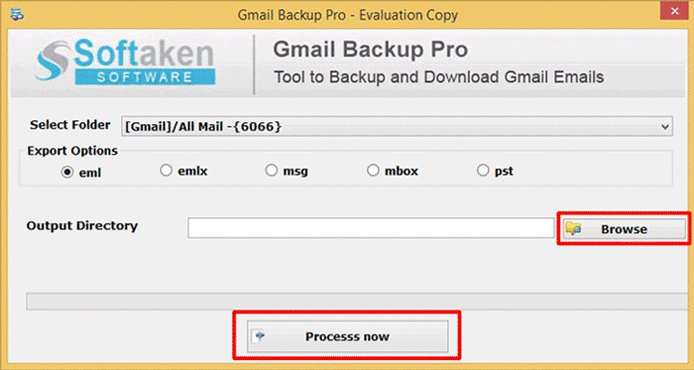
- Select a folder or all folders for backup.
- Select an export type– EML, EMLX, MSG, MBOX or PST
- Hit Browse button and choose output location to save backup data.
- Hit "Process Now" button
Conclusion
By following the steps outlined in this guide, you can effectively backup Gmail account to an external hard drive. Regularly creating backups of your important emails provides an extra layer of protection against accidental deletion, hacking attempts, or service disruptions. Remember to update your backup periodically to ensure you have the most recent data available. With a reliable external hard drive and the right tools, you can
About the Creator
Enjoyed the story? Support the Creator.
Subscribe for free to receive all their stories in your feed.
Comments
There are no comments for this story
Be the first to respond and start the conversation.