
How to Automate Your Phone to Silence Itself at School or Work
Set it once and let your phone handle silent mode automatically based on your location

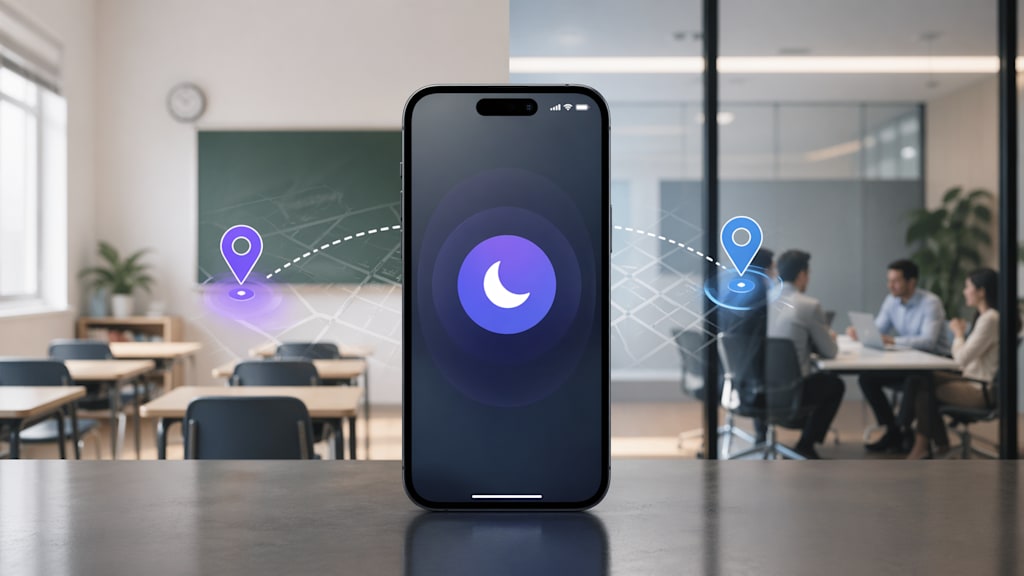
There is a small problem almost everyone has faced at least once.
You walk into a quiet classroom, a meeting, or even a church service. Everything is calm. Then suddenly, your phone rings at full volume. Everyone looks at you. You rush to silence it.
It is not a big mistake, but it feels embarrassing.
The good part is this: you do not have to rely on memory anymore. You can set up your phone to handle this automatically. Once you do it right, your phone will know when to stay quiet and when to go back to normal.
In this guide, I will show you how to set this up on both Android and iPhone in a simple way.
The Goal
Before we jump into steps, let’s make it clear what we are trying to do.
We want your phone to:
- Turn on Do Not Disturb or Silent Mode when you arrive at a place like school or work
- Turn it off automatically when you leave
Once this is set, you do nothing manually. It just works in the background.
Option 1: Android (Using Built-in Rules)
Most Android phones already have this feature built in. You do not need to install anything.
Step 1: Open Settings
Go to your phone Settings.
Scroll down and look for:
- System → Rules
If you do not see it, just use the search bar at the top and type Rules.
Step 2: Add a New Rule
Tap on Add rule, then choose:
- Location
This tells your phone to trigger an action based on where you are.
Step 3: Set Your Location
Now you will see a map.
- Search for your school or workplace
- Adjust the radius around that place
The radius is important. If it is too small, it may not trigger. If it is too big, it might activate too early. A medium-sized circle usually works best.
Step 4: Choose What Happens
Now select the action.
You will see options like:
- Turn on Do Not Disturb
- Set phone to silent
Pick the one you prefer.
If you want zero interruptions, choose Do Not Disturb. If you still want alarms or certain calls, configure DND settings before using it.
Step 5: Save and Test
Save your rule.
That’s it.
Next time you enter that location, your phone will automatically switch to silent or DND.
Pro Tip: Use Tasker for More Control
If you want more advanced control, you can use an app like Tasker.
This is where things get interesting.
With Tasker, you can create conditions like:
- Only activate silent mode on weekdays
- Only activate between certain hours
- Combine location + time
For example:
"If I am at school AND it is Monday to Friday between 8 AM and 4 PM, then turn on Do Not Disturb."
This gives you full control, but it takes a bit of learning. If you are just starting, the built-in Rules feature is enough.
Option 2: iPhone (Using Shortcuts)
On iPhone, this is done using the Shortcuts app. It is already installed on your device.
Step 1: Open Shortcuts
- Open the Shortcuts app
- Tap on the Automation tab at the bottom
Step 2: Create a Personal Automation
Tap the + icon
Select Create Personal Automation
Choose Arrive
Step 3: Choose Your Location
- Enter your school or workplace address
- Leave the time setting as Any Time
This ensures it works every day.
Step 4: Make It Automatic
This step is important.
- Turn on Run Immediately
If you skip this, your phone will ask for permission every time, which defeats the purpose.
Step 5: Add the Action
Tap Add Action
Search for Set Focus
Choose Do Not Disturb
Set it to turn on until I leave.
Step 6: Finish Setup
Tap Done.
Now your iPhone will switch to Do Not Disturb when you arrive and turn it off when you leave.
Why This Actually Matters
At first, this may look like a small feature. But it solves real problems.
1. Better Focus
When your phone is silent automatically, you are less likely to check notifications.
That means:
- More attention in class
- Better concentration at work
2. Respect for Others
Nobody likes interruptions in quiet places.
This setup helps you avoid:
- Interrupting meetings
- Distracting classmates
- Drawing unnecessary attention
3. Small Battery Savings
When your phone is not lighting up for every notification, it can save a bit of battery.
It is not a huge difference, but every bit helps, especially if you rely on your phone all day.
Quick Checklist Before You Start
Before you set everything up, check these:
Location Services
Make sure your GPS is turned on.
If location is off, this automation will not work.
App Permissions
If you are using advanced apps like Tasker:
- Set location permission to Always Allow
Otherwise, the app may not trigger correctly.
Exit Rule
Do not forget this part.
Make sure your phone goes back to normal when you leave the location.
If you skip this, your phone may stay silent even after school or work. That can cause problems, especially if someone needs to reach you.
Final Thoughts
This is one of those small automations that makes your daily routine smoother.
You set it once, and it keeps working in the background without effort.
If you are just starting, use the built-in options on your phone. They are simple and reliable. If you want more control later, then you can explore advanced tools.
Try it today and test it when you arrive at your location. Once you see it working, you will not want to go back to doing it manually.
If you found this helpful, share it with someone who always forgets to silence their phone. Also, let me know if you want a deeper guide on using advanced automation tools step by step.
About the Creator
Stephano kambeta
I specialize in breaking down complex cybersecurity trends into actionable privacy steps for everyday users and small businesses. My goal is to help you stay safe in an increasingly connected world.
Enjoyed the story? Support the Creator.
Subscribe for free to receive all their stories in your feed.
Comments
There are no comments for this story
Be the first to respond and start the conversation.