
How can I Switch an ANSI PST file to Unicode PST file?
Switch ANSI PST file into Unicode PST file

If you are using an older version of Microsoft Outlook, you may have an ANSI-format PST file. However, if you want to upgrade to a newer version of Outlook, you will need to convert your ANSI PST file to a Unicode PST file. The Unicode PST format provides many benefits over the older ANSI format, such as increased file size limits and improved performance.
In this blog, we will walk you through the steps to export an ANSI PST file to a Unicode PST file.
What is the difference between an ANSI PST file and a Unicode PST file?
Prior to Outlook 2003, ANSI PST files were utilized by Microsoft Outlook. They have a storage capacity of up to 2GB.
Unicode PST files are a newer format that Outlook 2003 and later support. They can accommodate up to 20GB of data.
Exporting an ANSI PST file to a new Unicode PST file can be beneficial for several reasons:
Increased storage capacity: Unicode PST files have a higher storage capacity than ANSI PST files. ANSI PST files have a limit of 2 GB, while Unicode PST files have a limit of up to 20 GB.
Better compatibility: Unicode PST files are more compatible with modern email clients, such as Microsoft Outlook 2003 and later versions. If you are using an older version of Outlook, you may encounter issues when opening or using an ANSI PST file.
Improved performance: Unicode PST files are optimized for better performance, especially when dealing with larger mailboxes. They offer faster search, retrieval, and indexing capabilities, making it easier to manage and access your emails.
Enhanced security: Unicode PST files support better encryption algorithms, which provide enhanced security for your emails and attachments.
Future-proofing: As technology evolves, it is likely that support for ANSI PST files will eventually be phased out. By converting your PST file to Unicode, you can ensure that your emails remain accessible and compatible with future email clients and systems.
Export ANSI PST file to the new Unicode PST file
Now that we have created a new Unicode PST file, we need to copy the contents of the ANSI PST file to the new file. To do this, follow these steps:
- Open Microsoft Outlook.
- Click on "File" in the top left corner of the window.
- Select "Open & Export" and then click "Import/Export."
- Choose "Export to a file" and then click "Next."
- Choose "Outlook Data File (.pst)" and then click "Next."
- Select the ANSI PST file you want to convert and click "Next."
- Choose the new Unicode PST file you created in Step 2 and click "Next."
- Check the box next to "Include sub folders" and then click "Finish."
- Wait for the export process to complete.
Step 4: Set the new Unicode PST file as the default data file
Now that we have created a new Unicode PST file with the contents of the ANSI PST file, we need to set it as the default data file in Outlook.
To do this, follow these steps:
- Open Microsoft Outlook.
- Click on "File" in the top left corner of the window.
- Select "Account Settings" and then click "Account Settings" again.
- In the "Data Files" tab, select the new Unicode PST file you created.
- Click "Set as Default" and then click "Close."
Method 2: Easy to Switch an ANSI PST file into a Unicode PST file
This is made feasible via the OSTTOPSTAPP ANSI to UNICODE Converter Tool. Users can transfer data correctly and quickly. This tool transforms many ANSI PST files to Unicode in order to create a single, strong PST file. This program is suitable for both technical and non-technical users. The user can save time by utilizing this software to convert Healthy files fast and easily. Because it is a small tool, it can be quickly downloaded on all Windows systems. It has additional properties such as attachments, notes, messages, tasks, contacts, emails, and so on.
There are Steps ANSI PST file into a Unicode PST file:
- Install and Download the ANSI to Unicode program.
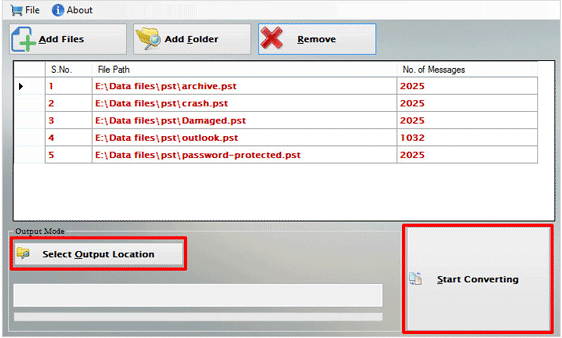
- Open the software, then choose the ANSI files you want to use by browsing in File or Folder Mode.
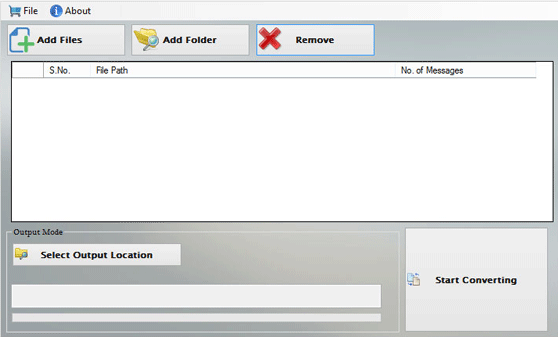
- Click browse, choose the output destination.
- Select "Start Converting" from the menu.
Conclusion
Congratulations, you have successfully converted your ANSI PST file to a Unicode PST file! You can now use the benefits of the Unicode format, such as increased file size limits and improved performance.
About the Creator
Enjoyed the story? Support the Creator.
Subscribe for free to receive all their stories in your feed.
Comments
There are no comments for this story
Be the first to respond and start the conversation.