
Find my Phone Samsung even when it's off Step By Step 2024
Find my Phone Samsung even when it's off Step By Step 2024
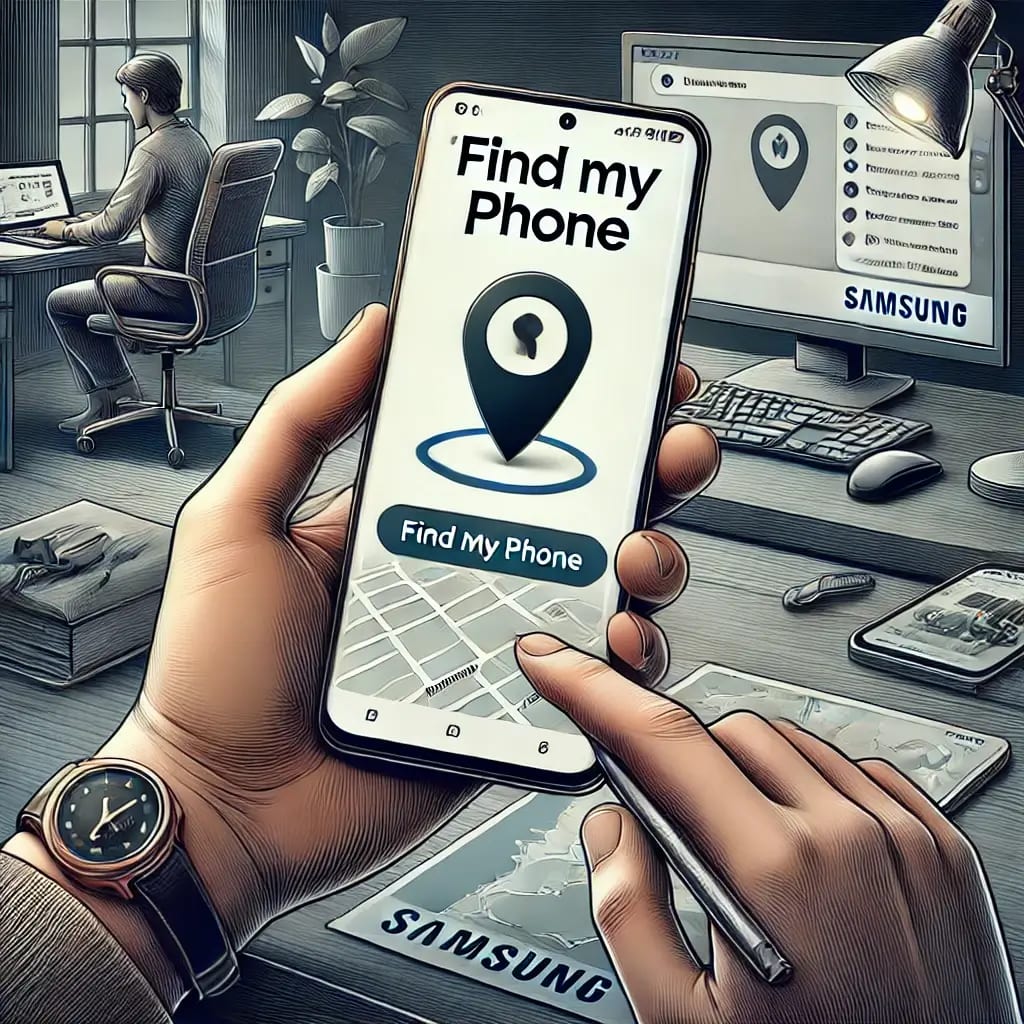
in today’s fast-paced world, losing your smartphone can be a significant inconvenience, causing stress and anxiety. Fortunately. This comprehensive guide will walk you through how to use Find My Phone, Samsung's feature, ensuring you can always find your device when you need it the most. What is Find my Phone Samsung?
Find my Phone Samsung is a service that allows users to locate their lost or stolen Samsung devices remotely. By using this feature, you can track your device's location, lock it, erase its data, or even make it ring at full volume to help you find it quickly. This service is part of Samsung's Galaxy ecosystem and is available on most Samsung smartphones and tablets.
Setting Up find my phone samsung account
Before you can use the Find My Phone feature, you need to ensure it is set up on your device. Here are the steps to set it up:
- Sign in to Your Samsung Account:
- Enable Remote Controls:
Make sure you are signed in to your Samsung account on your device. If you don’t have a Samsung account, you can create one during the setup process.
Go to Settings > Biometrics and Security > Find My Mobile.
Toggle the Remote Controls switch to turn it on. This will allow you to control your device remotely through the Find My Phone service
- Allow Google Location Service:
Go to Settings > Location.
Ensure the Google Location Service is enabled. This improves the accuracy of your device's location.
- Enable Send Last Location:
In the Find My Mobile settings, enable the Send Last Location feature. This will send your device's last known location before the battery dies, helping you track it even if it runs out of power.
How to Use Find my Phone Samsung Android
Once you’ve set up Find My Phone, you can access it from any web browser or another Samsung device. Here’s how to use it:
Access the Find My Mobile Website: Go to the Find My Mobile website and sign in with your Samsung account credentials.
Locate Your Device:
After signing in, you will see a map displaying the current location of your device.
If the device is turned off, you will see its last known location.
Ring Your Device:
If your device is nearby but you can’t find it, use the Ring feature. This will make your phone ring at maximum volume for 1 minute, even if it is set to silent or vibrate.
Lock Your Device:
If you believe your device is lost or stolen, use the Lock feature. This will lock your device, display a message on the lock screen, and prevent anyone from accessing your personal data.
Erase Your Data:
If you think your device is permanently lost or stolen, use the Erase Data feature. This will perform a factory reset on your device, erasing all your personal data to protect your privacy. Note that once this is done, you won’t be able to track your device anymore.
Track Location:
Use the Track Location feature to receive updates on your device's location every 15 minutes. This is useful if your device is moving, helping you trace its path.
How to Use Find my Samsung phone when it's off
1. Access Samsung’s Find My Mobile Website
Open a browser on any device.
Go to the Find My Mobile website.
Log in using your Samsung account credentials linked to the lost phone.
2. Select Your Device
Once logged in, a list of all registered devices under your Samsung account will appear.
Click on the missing device.
3. Check the Device’s Location
If the phone is online, its current location will be displayed on the map.
If the phone is offline, it will show the last known location before it went offline.
4. Enable Offline Finding
If Offline Finding was turned on prior to the loss, nearby Samsung devices can help locate your phone, even if it's turned off.
5. Send a Remote Signal
Select the “Ring” option to play a sound on the phone if it’s nearby.
You can also enable the “Track Location” feature to get updates as soon as the device turns back on.
6. Lock Your Device
Use the “Lock” feature to secure your phone remotely.
Create a custom lock screen message with contact details to help someone return it.
7. Erase Data if Necessary
If recovery seems unlikely, select “Erase Data” to factory reset the phone, ensuring your private information remains secure.
8. Notify Local Authorities
Provide the authorities with your device's IMEI number for tracking. (You can find this in the original box or purchase receipt.)
Key Tips
Enable Offline Finding and Remote Controls on your Samsung device for future incidents:
Go to Settings > Biometrics and Security > Find My Mobile.
Toggle on Remote Controls and Offline Finding.
keep your Samsung account credentials safe, as they are essential for accessing the service.
Additional Features
Samsung’s Find My Phone service offers additional features for added convenience and security:
Back Up Data: Before erasing your device, you can back up your data to Samsung Cloud.
Retrieve Logs: Get call and message logs from your device for up to the last 50 calls/messages.
Unlock My Screen: If you forget your screen lock, you can remotely unlock your device using the Find My Mobile service.
Find my phone Samsung Galaxy
You follow the same steps above to find your Samsung Galaxy phone using the Find My Mobile service. All Samsung Galaxy devices with this feature enabled can be located using the platform.
Conclusion
Samsung's Find My Phone feature is a robust tool for ensuring your device is never truly lost. By setting up and familiarizing yourself with this service, you can take swift action to locate, secure, or erase your device as needed. Whether you’ve misplaced your phone at home or it’s been stolen, Find My Phone provides peace of mind, knowing you have the tools to recover your device or protect your data.
About the Creator
Enjoyed the story? Support the Creator.
Subscribe for free to receive all their stories in your feed.
Comments
There are no comments for this story
Be the first to respond and start the conversation.