
DeepLiveCam - Face Swap on a Live WebCam | Swap Faces on a Video
Create a fake video or a fake Live webcam
If you want to create a fake video or a fake webcam, then here is a complete detailed blog on how you can install DeepLiveCam to your Windows PC. Using this free application, it's very easy to manipulate the faces and all you need is a single image. You can as well use it on a Live Webcam. However, please be cautious on how you use this application. DeepLiveCam is a Python application developed by Hacksider.
1. Download and Install Anaconda to your PC
In order to run the application, we need Python. There are many applications available in the market but we will be using Anaconda to create a Python environment. It is very simple to use. So if this is your first time using Anaconda, then simply go to the Anaconda Official Website, download the application, and install it to your computer. The installation process is very simple.
Download links: Click Here

2. Using Anaconda to Create and Activate Python Environment
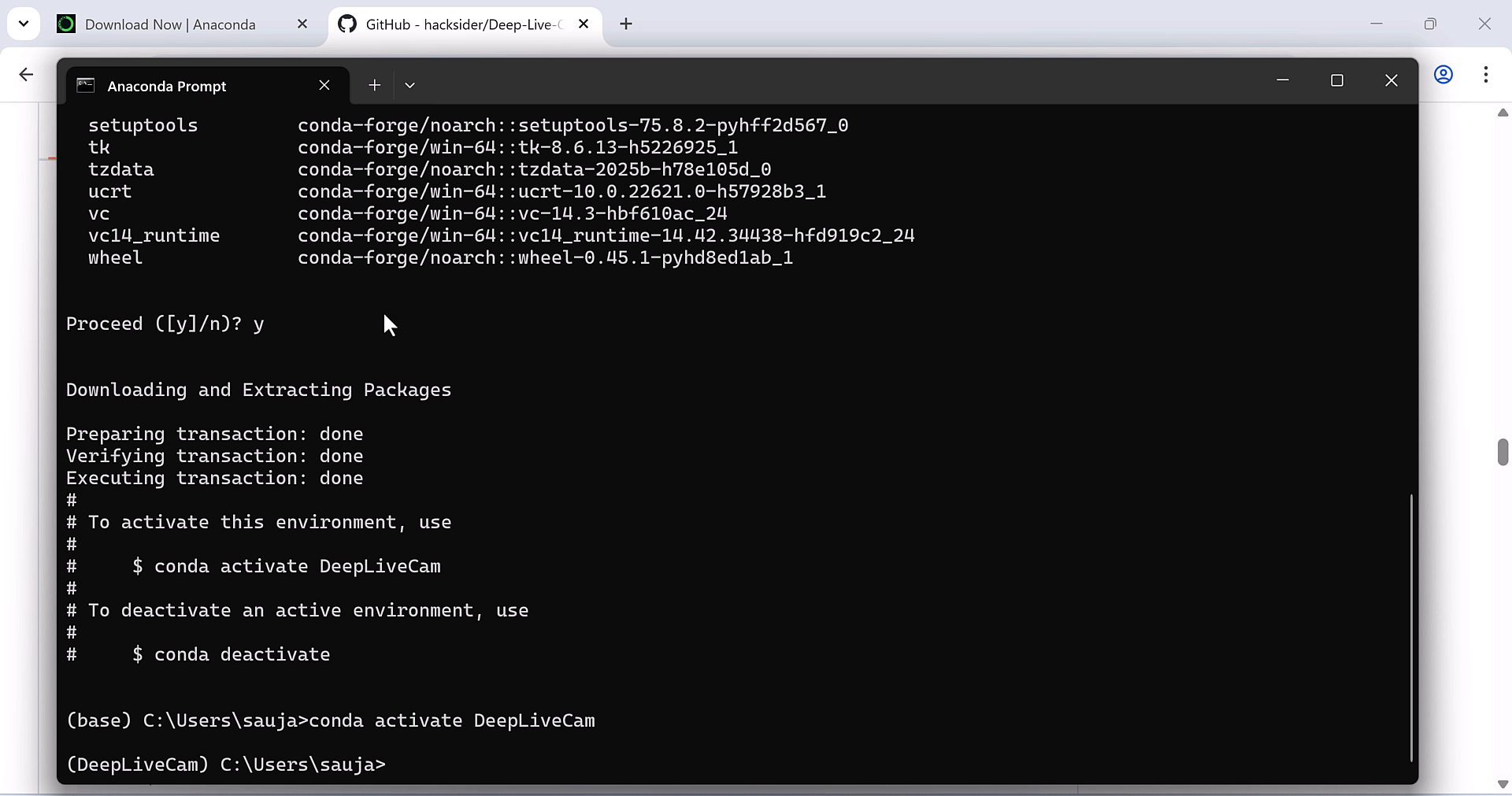
Once Anaconda is installed on your PC, go to your Start Menu and search for Anaconda Prompt. This prompt is different from the normal CMD. Anyway, simply open the Anaconda Prompt and create the Python Environment using the following command. Once the env is created, you will also need to activate the environment. Please note that the latest Python version at this time is 3.13, however, this app works best with 3.10.
Create Python Env
conda create --name DeepLiveCam python=3.10
Activate the env
conda activate DeepLiveCam
3. Download All the Files and Models to Run DeepLiveCam
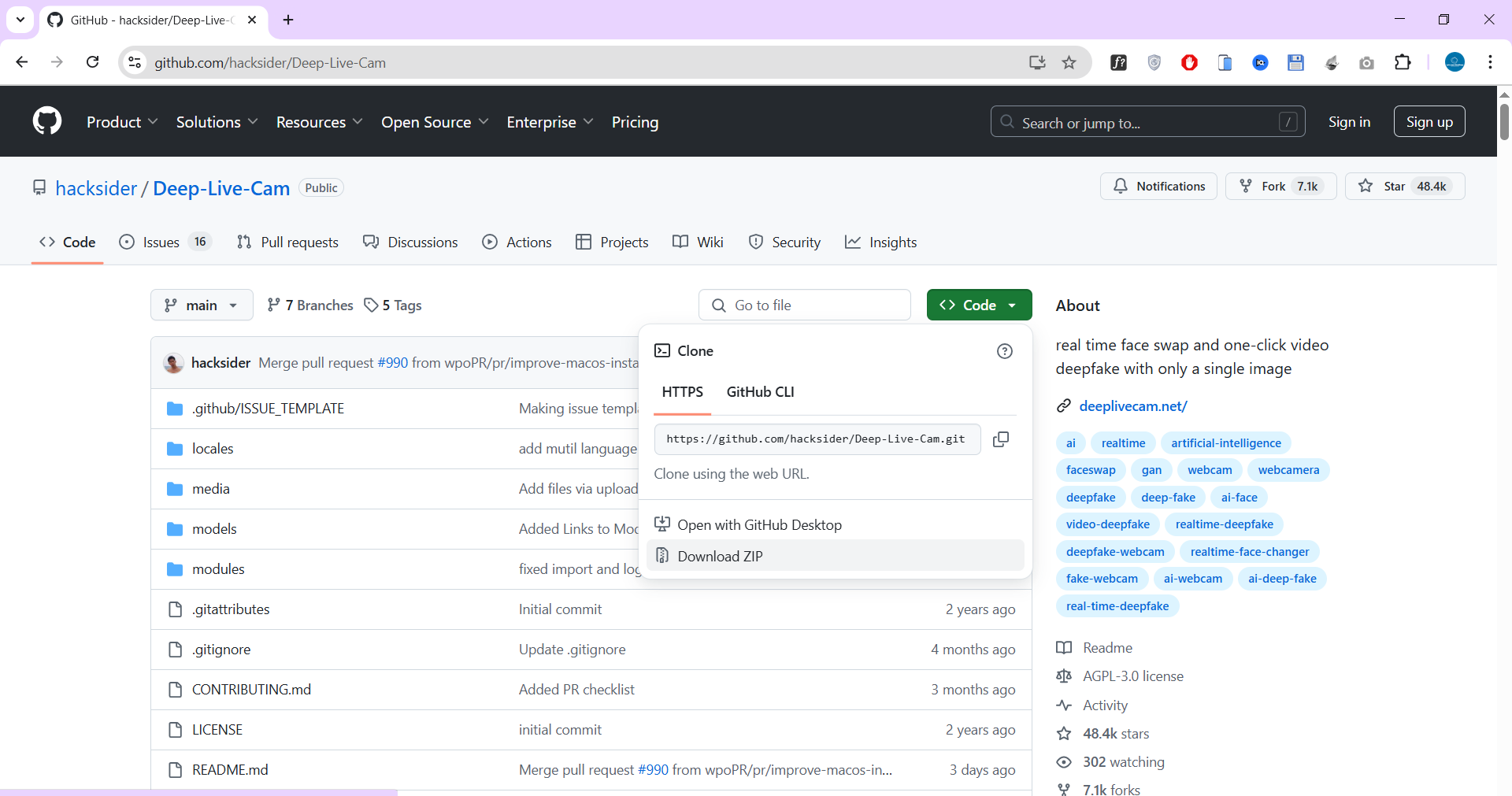
Now we need to download DeepLiveCam files along with other models. All downloads are available on GitHub or you can simply click on the link provided and download the GitHub files along with the models. Also note, if you do not have the Visual Studio 2022 Runtimes (Windows), kindly download and install it to your PC.
Download links: Click Here
4. Install Required Dependencies
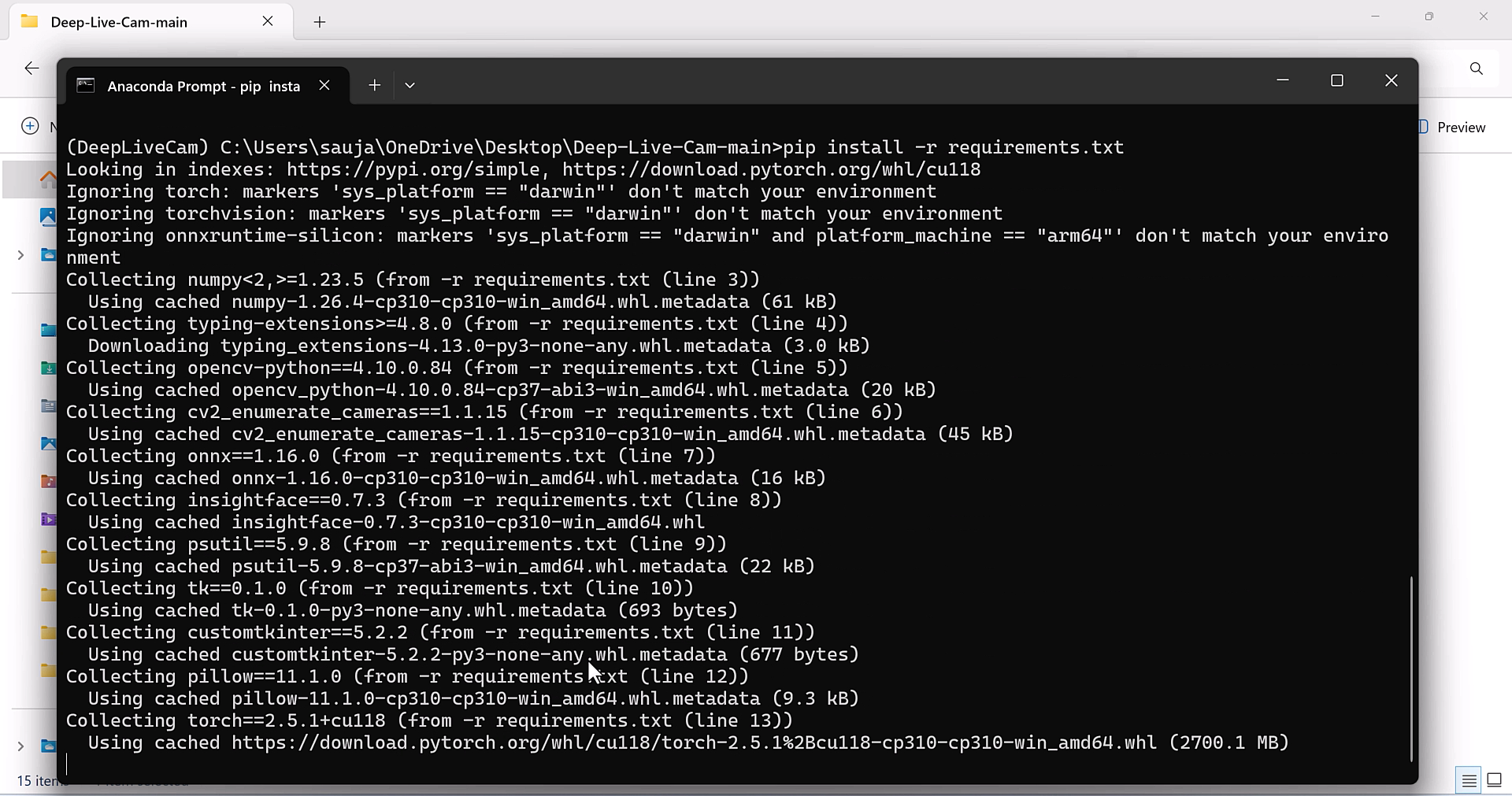
DeepLiveCam requires various dependencies to run on your PC. Thus, extract the DeepLiveCam files you downloaded earlier and also copy the two models inside the models folder of the DeepLiveCam-main folder. After this, we need to navigate to this folder on Anaconda Prompt. Use the following commands to navigate and install all requirements and FFMPEG.
Navigate to the folder:
cd C:/Your_folder
Install Dependencies:
pip install -r requirements.txt
Install FFMPEG
conda install ffmpeg
5. Let's Run the Application
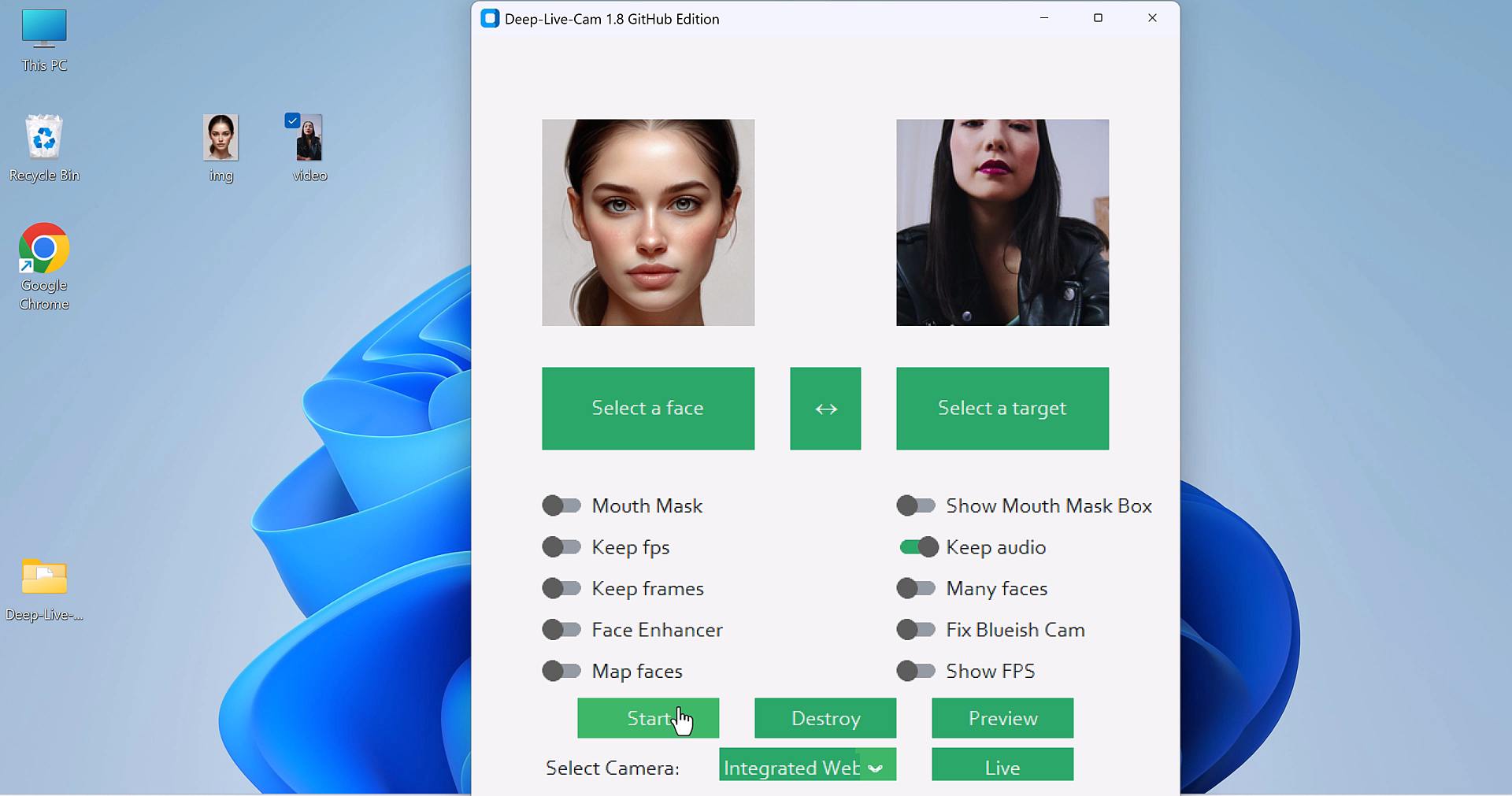
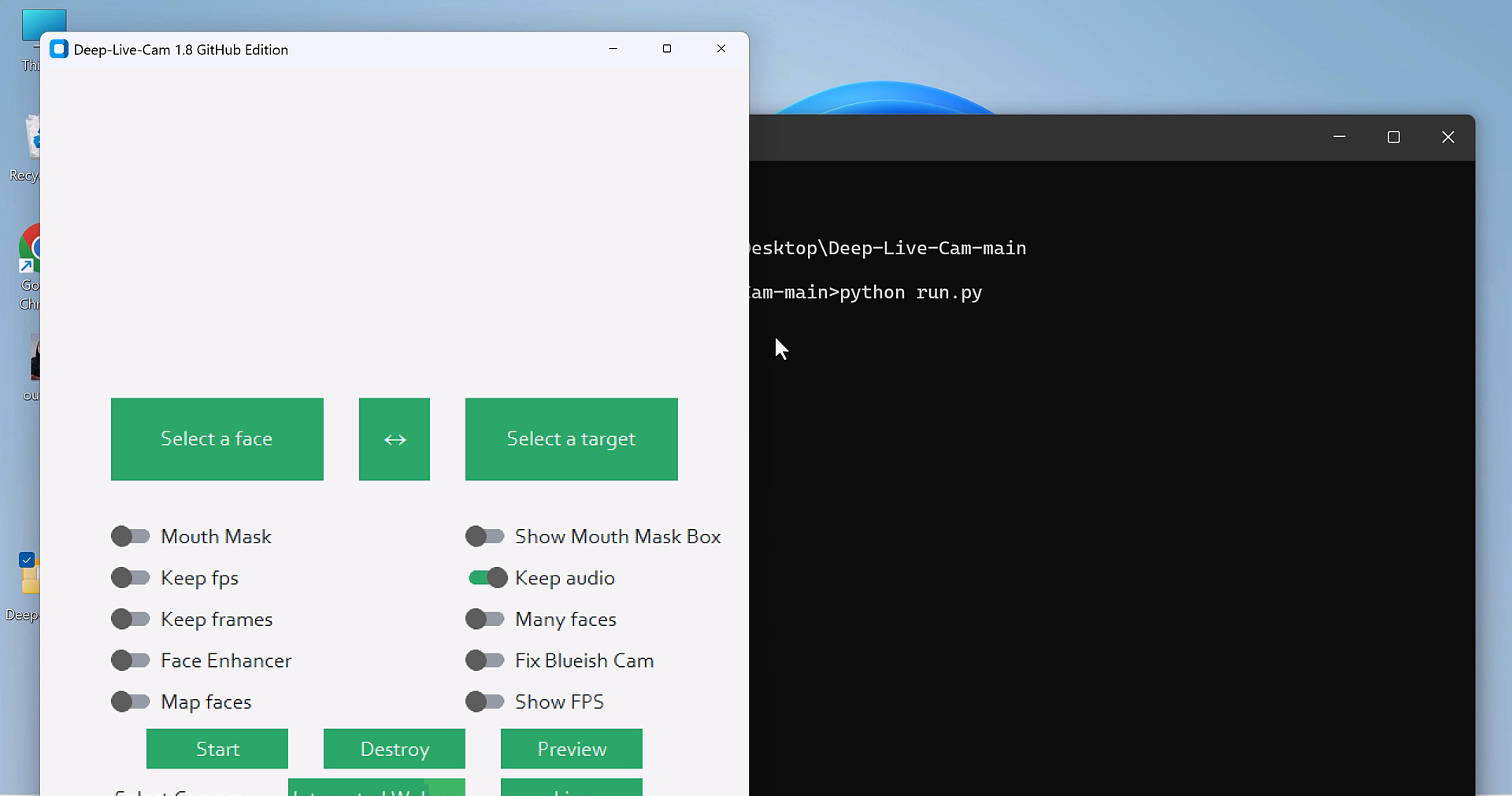
Since we have installed all dependencies and downloaded all the models, we can now run DeepLiveCam on your computer. Use python run.py to open DeepLiveCam — make sure you are inside the DeepLiveCam main folder. For Live Webcam preview, select an image and use the integrated or another webcam, and click on Live. And for face swap, select an image and select a target video and start.
Run DeepLiveCam
python run.py
6. If you have Nvidia Graphics
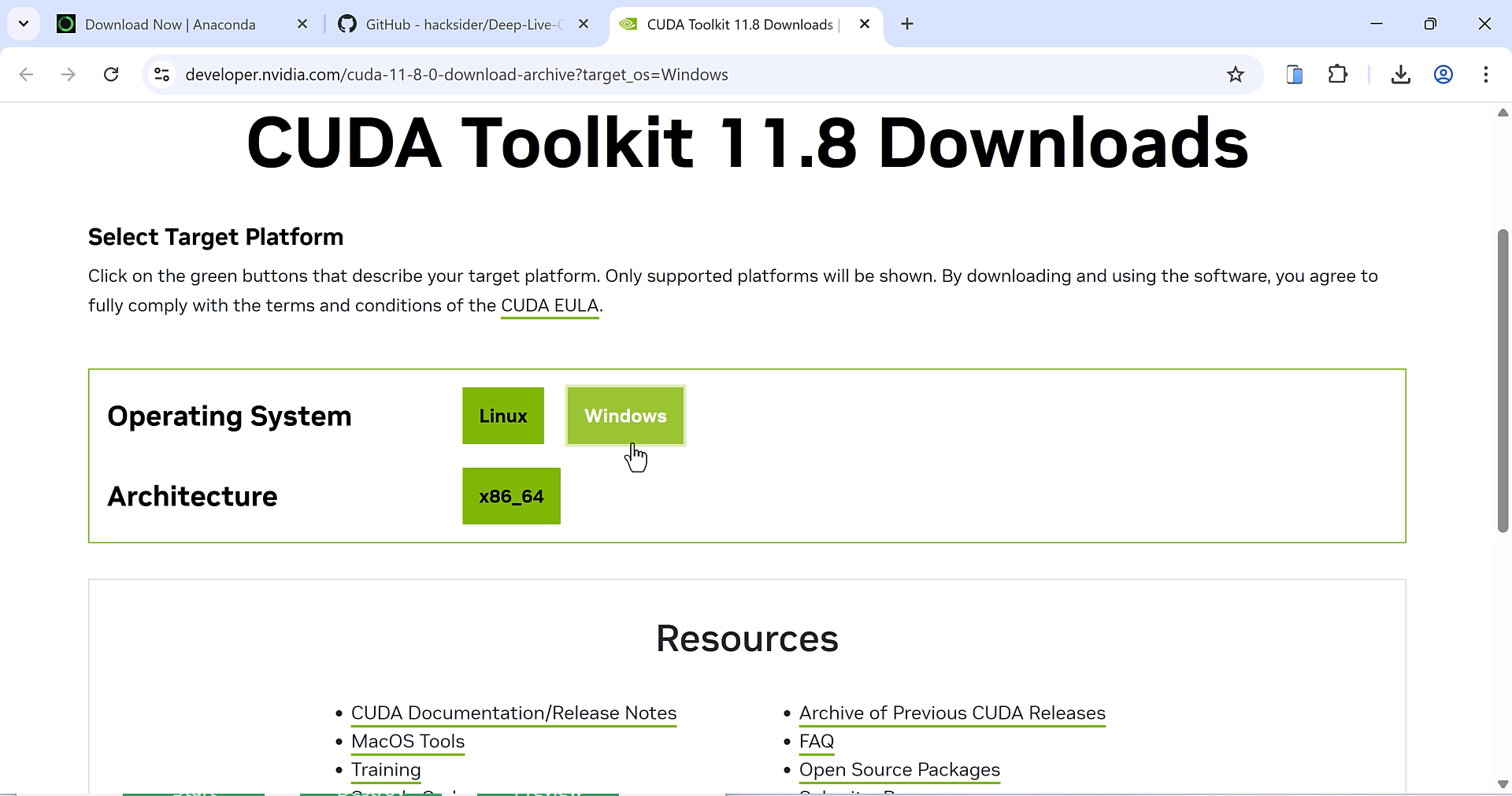
For those users using a Nvidia graphics card, you will be required to install CUDA on your PC. Kindly download CUDA from the following link. Also, you will need to uninstall onnxruntime and install the compatible version to work with the GPU. Then, instead of python run.py (as earlier), use it with CUDA.
Download links: Click Here
Uninstall Onnxruntime
pip uninstall onnxruntime onnxruntime-gpu
Install compatible Onnxruntime
pip install onnxruntime-gpu==1.16.3
Run the application
python run.py --execution-provider cuda
7. How to re-open DeepLiveCam
After using DeepLiveCam and closing it, you can reopen the application without having to install anything. All you have to do is open the Anaconda Prompt from the Start Menu. After that, navigate to your DeepLiveCam folder. Then simply run the command to open the application: python run.py or with CUDA execution. You do not require to reinstall everything.
For More interesting Contents: Heyletslearnsomething.com
About the Creator
Enjoyed the story? Support the Creator.
Subscribe for free to receive all their stories in your feed.
Comments
There are no comments for this story
Be the first to respond and start the conversation.