
10 Common HP Printer Problems and How to Fix Them
Troubleshooting Guide: How to Fix 10 Common HP Printer Problems for Smooth Printing Experience

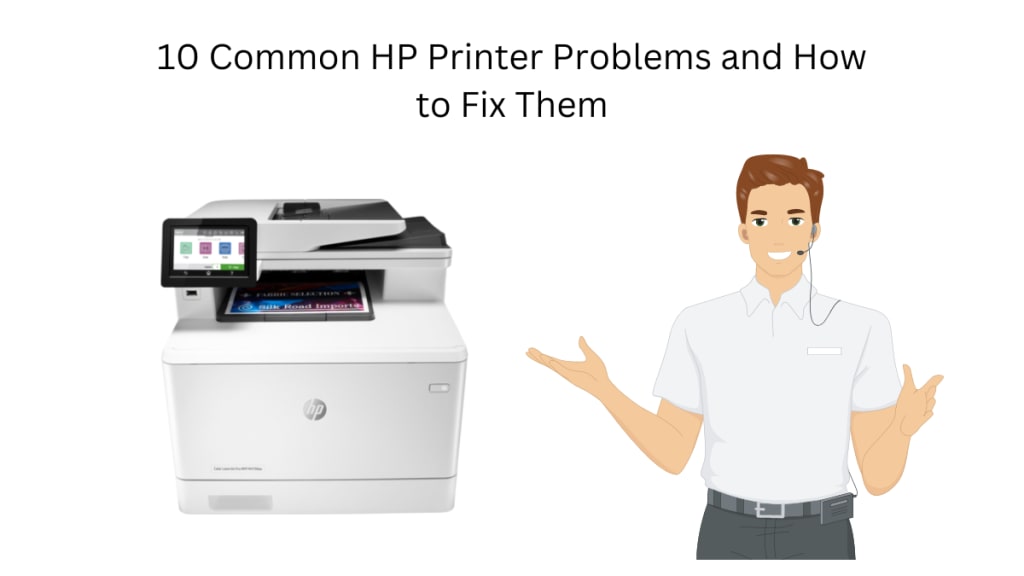
HP printers are popular for personal and business use due to their high-quality printing capabilities and reliability. However, like any electronic device, HP printers can experience problems. From paper jams to poor print quality, printer issues can cause frustration and delay productivity.
In this article, we will cover the ten most common problems that users encounter with their HP printers and provide tips on fixing them. These issues include printer not responding, paper jams, poor print quality, error messages, wireless connectivity issues, printer spooler errors, and more.
By following the tips and solutions provided in this article, users can troubleshoot and fix these common issues with their HP printers, ensuring they can continue to produce high-quality prints without interruption.
HP printers are well known for their unquestionable reliability and capabilities in the world of high-quality printing, but like any electronic device, and they are not immune to problems. Here are ten of the most common issues users face with their HP printers and tips on fixing them.
Printer not responding: One of the most common issues with HP printers is the printer not responding to print jobs. Various reasons, such as a disconnected USB cable, a faulty wireless connection, or outdated printer drivers, can cause this issue. To fix this issue, ensure your printer is connected to your computer or network, and your printer drivers are up to date. If you use a wireless connection, try restarting your router and printer.
Paper jams: Paper jams are another common issue with HP printers, which can occur when the paper is not loaded correctly, or the printer rollers are dirty. Turn off the printer and remove any stuck paper to fix a paper jam. You may also need to clean the printer rollers with a lint-free cloth.
Printer offline: If your printer is showing as offline, it could be due to a connection issue or incorrect printer settings. First, ensure your printer is turned on and connected to your computer or network. Next, check your printer settings to ensure it is the default printer.
Poor print quality: Poor print quality can be caused by various factors, such as low ink or toner levels, clogged print heads, or outdated printer drivers. To fix this issue, check your ink or toner levels and replace them if necessary. You can also try cleaning the print heads or updating your HP printer drivers.
Error messages: Error messages are a common issue with HP printers and can be caused by various factors, such as outdated printer drivers, incompatible software, or hardware malfunctions. To fix this issue, try restarting your printer and computer, updating your printer drivers.
Printer won't print: If your printer is not printing, it could be due to various reasons, such as incorrect printer settings, low ink or toner levels, or a faulty printer cable. To fix this issue, check your printer settings and make sure your ink or toner levels are adequate. You may also need to replace your printer cable or contact HP support for further assistance.
Wireless connectivity issues: Wireless connectivity issues can occur when your printer is not properly connected to your network, or your wireless settings are not configured correctly. To fix this issue, ensure your printer is connected to your network and try restarting your router and printer.
Printer's not detected: If your computer is not detecting your printer, it could be due to a faulty USB cable or outdated printer drivers. Replace your USB cable or update your printer drivers to fix this issue.
Printer spooler errors: Printer spooler errors can occur when there are too many print jobs in the print queue or when there is a problem with the print spooler service. Try clearing the print queue or restarting the print spooler service to fix this issue.
Ink or toner smears: Ink or toner smears can occur when the print heads are clogged or when the paper has excess ink or toner. To fix this issue, clean the print heads or use a different type of paper.
Final Word
HP printers are reliable and high-quality printing devices, but like any electronic device, they can experience problems. If you encounter any of the above issues with your HP printer, try following the above tips to resolve the issue. If you are still experiencing problems, contact HP support for further assistance.
Find More Update: printer drivers
About the Creator
Megumi Takani
My name is Megumi Takani, and I am the proud owner of this printer drivers website. I have always been passionate about technology and its potential to make our lives easier. As a computer enthusiast.
Enjoyed the story? Support the Creator.
Subscribe for free to receive all their stories in your feed.
Comments
There are no comments for this story
Be the first to respond and start the conversation.