
Why Your Wi-Fi Feels Faster on 2.4 GHz After a Wall
It's not your imagination. Your phone is probably stuck on the wrong band, and your router is helping it stay there.
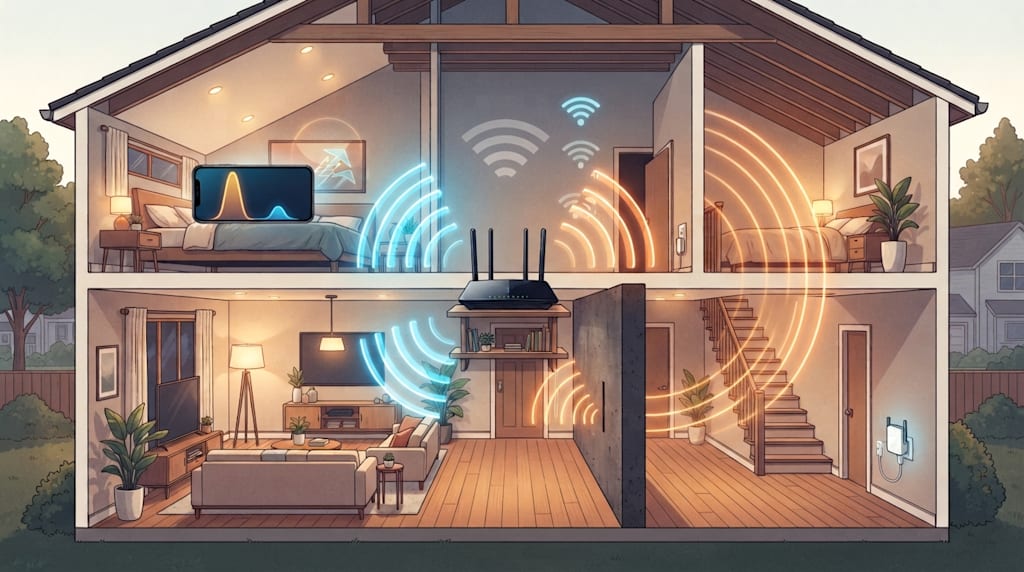
On your bed, your phone says it is connected to 5 GHz. A short video spins. You switch to 2.4 GHz. It plays right away.
You start blaming the router, the broadband, the phone. Before you buy anything, walk to the router and run a speed test on 5 GHz. In most homes, it will hit 800 to 1000 Mbps. Then walk back to the bedroom, through a load-bearing wall. The same 5 GHz connection may fail to load a web page.
The wall is the problem. 5 GHz gives out first. 2.4 GHz keeps a usable link. Your phone feels faster because it can still do something.
5 GHz only wins up close
5 GHz has wider channels, less interference, and lower latency. Next to the router, it can use your gigabit broadband. Gaming, 4K video, and large downloads run better on 5 GHz.
Distance and walls hurt it more than 2.4 GHz.
Higher frequency means shorter wavelength and worse diffraction. 2.4 GHz has a wavelength of about 12.5 cm. 5 GHz is about 6 cm. Through a 24 cm concrete load-bearing wall, 5 GHz can lose 40 to 55 dB. Its speed can fall below 30% of the theoretical value. The phone drops packets, retransmits, and tries to reconnect. Pages spin. Video stutters. Game latency jumps.
The same wall usually costs 2.4 GHz only 25 to 35 dB. Through two walls, it may still hold tens of Mbps. That is enough for video and calls. Latency moves around more, but the connection stays up.
5 GHz is a sprinter. 2.4 GHz is a distance runner. Your bedroom is not a straight track.
Band steering sends phones to the wrong band
Many routers ship with "Band Steering" or "Smart Connect" turned on. 2.4 GHz and 5 GHz share one Wi-Fi name. The router claims it will pick the best one.
It often picks wrong.
First problem: client stickiness. You connect to 2.4 GHz in the living room. You walk next to the router. The phone does not switch to 5 GHz. 2.4 GHz still has one bar, so the phone keeps it. You see full bars. You are still on 2.4 GHz.
Second problem: smart devices cannot connect. Robot vacuums, smart bulbs, and cameras often support only 2.4 GHz. With band steering on, they may be pushed to 5 GHz. Setup fails.
Turn off band steering. Give the two bands different names. For example:
Home_2.4G: smart home devices, old devices, far rooms.
Home_5G: phones, computers, TVs.
Save and reboot. Phones and computers will prefer 5 GHz. Robot vacuums and cameras will use 2.4 GHz. This costs nothing. You will notice the change the same day.
Router placement matters more than the price tag
Some people spend a thousand on a flagship router and put it inside a structured wiring cabinet. The metal box shields the signal. Gigabit broadband shrinks.
Place the router by three rules. Put it 1 to 1.5 m above the floor, not on the floor and not inside a cabinet. Put it near the center of your home. Signal spreads like light, and the center is the most even spot. Keep the front clear. Do not press it against a wall, TV, or metal.
Best spots, in order: top open shelf of a TV cabinet, coffee table, corner, inside a structured wiring cabinet.
Never put it in a structured wiring cabinet or metal cabinet, where attenuation can pass 70%. Keep it at least 50 cm from a microwave. 2.4 GHz is easily disturbed there. Do not put it directly behind a load-bearing wall. Rebar mesh absorbs signal, and speed drops after the wall.
If the router has several antennas, do not keep them all vertical. Put one vertical, one horizontal, and one at 45 degrees. Then the phone can get a decent signal whether you hold it flat or upright.
Three fixes that usually work
Step 1: move the router. Take it out of the cabinet, corner, or floor. Put it at the center of your home, 1 m above the floor, with a clear front. This helps more than replacing the router.
Step 2: turn off band steering. In the router admin panel, turn off "Band Steering" or "Smart Connect." Give 2.4 GHz and 5 GHz separate names. Save and reboot.
Step 3: make your phone prefer 5 GHz. On iPhone, auto mode may be fine. If the names are separate, pick the 5 GHz network. On Android, open WLAN settings, find "Wi-Fi Preferred Band" or "Preferred Band," and choose 5 GHz. On Windows, open Device Manager, then Network Adapters, then Wireless Adapter Advanced Settings, then "Preferred Band," and choose 5 GHz.
One more trick: turn off "auto connect" for 2.4 GHz. Then your phone will not slide back when the signal weakens.
For channel tuning, use WiFi Analyzer. Fix 2.4 GHz to 1, 6, or 11. Those are the non-overlapping channels. For 5 GHz, choose low-use channels such as 149 or 153. In tests, switching from auto channel to a clean fixed channel has cut latency from hundreds of milliseconds to tens of milliseconds.
Large homes need Mesh, not a stronger single router
Over 120 m², or in a duplex or loft, one router will leave dead zones. No cheap router covers the whole home by itself.
Wireless Mesh is the easiest. Plug it in and go. But dual-band Mesh backhaul shares 5 GHz with your devices, so bandwidth often drops by half. Run Ethernet for wired backhaul if you can. Through two walls, wired backhaul may still hold 600 Mbps or more. Wireless backhaul may fall below 40 Mbps.
AC plus AP is best for new homes with pre-installed Ethernet. Ceiling-mounted APs work well. Old homes usually cannot use this.
Powerline avoids new wiring, but it depends on circuit quality. In old homes or homes with modified circuits, it fails often.
More Mesh nodes is not better. For 120 to 150 m², one main node and one satellite usually cover the place. Put the satellite where the main router signal is weak but not dead, such as the master bedroom door or the end of the hallway. A satellite next to the main router wastes money.
Wi-Fi 6E and Wi-Fi 7 can wait
In China, 6 GHz is currently reserved for mobile communications. Domestic Wi-Fi 6E routers are locked out of 6 GHz at the factory. You would pay for a feature you may never use.
At the same price, buy a good Wi-Fi 6. It is mature, easy to compare, and widely available. If you have money to spare and want future-proofing, Wi-Fi 7 is fine. Do not expect it to solve wall penetration by itself. Physics does not care about the generation number.
Check the band before you blame the router
Take your phone next to the router. Connect to 5 GHz. Run a speed test. Walk back to the bedroom. Connect to 2.4 GHz. Test again. The difference will be clear.
If 5 GHz still stutters in the bedroom, check two things first. Is the router inside a structured wiring cabinet? Is band steering still on? Most "2.4 GHz feels faster" problems come from those two.
About the Creator
Jin
Writer of reamstories
https://reamstories.com/jin
Enjoyed the story? Support the Creator.
Subscribe for free to receive all their stories in your feed. You could also become a paid subscriber, letting them know you appreciate their work.
Comments
There are no comments for this story
Be the first to respond and start the conversation.