
I Used iPadOS 27 for a Week. It Quietly Makes the iPad Feel Like a Mac.
Liquid Glass is calmer, file transfers are faster, and Sidecar now works with touch. Upgrade for those. Wait if you need AI in mainland China.
iPadOS 27 Review: A Quieter Redesign and a Faster iPad
Apple released iPadOS 27 on September 15. If you own an iPad, you have likely seen the update notification. The question is whether to install it. This review covers what changed and what those changes feel like after a few days of use. Back up your iPad before you update. You can reinstall software. You cannot always recover lost data.
Liquid Glass, Year Two
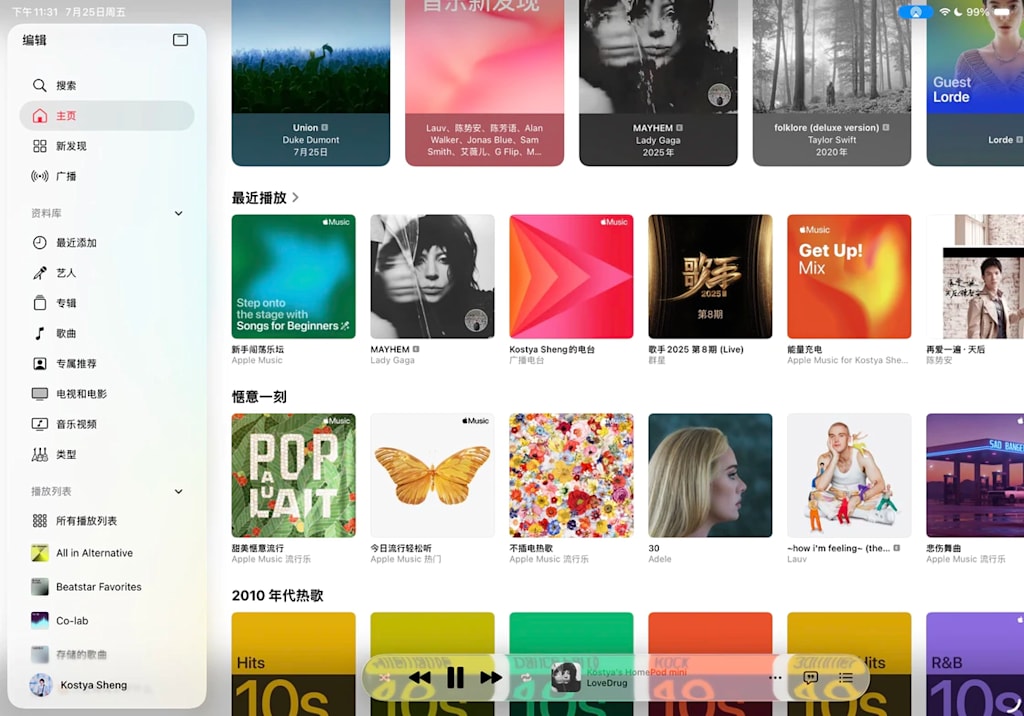
iPadOS 26 introduced Liquid Glass. Many people liked the look. Some found it busy. iPadOS 27 keeps the style but tones it down.
The sidebar changed first. In iPadOS 26, sidebars floated with a gap at the screen edge. In iPadOS 27, they sit edge to edge. The new layout matches macOS 27 Golden Gate. It looks cleaner. The older floating version had more depth. Which one you prefer comes down to taste.
Apple redrew most built-in app icons. Maps, Mail, Photos, and Weather now use more Liquid Glass elements. Third-party icons also render differently. They look more three-dimensional and have sharper edges. Compare WeChat or sspai after the update, and you will see the difference.
Buttons, notifications, text fields, and context menus use new lighting. They look more dimensional. The blur underneath components is weaker than in iPadOS 26. That makes text easier to read.
Settings > Appearance now has a transparency slider. You can adjust Liquid Glass continuously. At the least transparent setting, the interface looks milky and frosted, close to iPadOS 18. If Liquid Glass felt too flashy, this slider fixes that.
The design changes in iPadOS 27 are small. Some feel like a step back. I miss the floating sidebars. I also understand why Apple removed them. Design is subjective. You will either like this or you won’t.
The Menu Bar
iPadOS 26 added an App menu bar. Pulling down from the top center often opened it by accident. iPadOS 27 changes the default. The top bar shows the app name. Tap the name, and the menu opens. The pull-down gesture now opens Siri. You can pin the menu bar in Settings if you prefer it always visible.
iPadOS 26 also tried adding small SF Symbols icons to menu items. The result was uneven. Some items had icons. Some did not. Some icons were unclear. iPadOS 27 removes most of them. macOS 27 does the same. The remaining icons cover window operations. Those are easy to understand. The menu bar is cleaner now.
Home Screen, Windows, and Sidecar
You can undo and redo Home Screen edits in iPadOS 27. This sounds minor. It is not. Arranging icons and widgets takes time. One wrong move used to undo everything. Now you can step back.
Extra-large widgets live in Today View. They do not go on the Home Screen. That may disappoint some users. Apple still treats the Home Screen and Today View as different spaces.
iPhone apps resize more freely on iPadOS 27. Before, they were locked to a fixed size. Now you can adjust their windows. This helps apps that have not been adapted for iPad.
Sidecar now accepts touch input from the iPad. You can scroll, pinch, and zoom on the Mac interface. The iPad is no longer just a second display. It is becoming a touch input device for the Mac. This is not a finished touch Mac. Gestures and latency still need work. The direction is clear.
Apple Pencil and Notes
Apple Pencil has a new charging sound. It sounds like the iPad charging tone, but slightly different. Small detail. Apple is good at those.
Handwriting is now indexed by Spotlight. You can search handwritten notes in the Notes app. The feature uses PencilKit, so third-party apps built with PencilKit get it too. Your old meeting notes and class notes are no longer just ink. They are searchable text.
Notes can also copy content as Markdown. That makes it easier to move notes into other editors or feed them to AI tools. Markdown is a cleaner format for both.
Performance
iPadOS 27 feels faster. Animations are quicker. The system is smoother. Some iPads last longer in standby. File transfers improved the most.
I copied 3.74 GB from a hard drive to an iPad mini in about 5 seconds. I copied 21 GB from the iPad mini to an SSD in under 30 seconds. The 10 Gbps connection seems to saturate. The number matters less than the feeling. For video editing and backups, that feeling matters more than any interface change.
AI
Apple Foundation Models now use Google Gemini. Apple says the models are still its own. Siri AI adds system context and screen awareness. You can open it from the top center or in a standalone app. It can interact with what is on the screen.
Mainland China does not get Apple Intelligence or Siri AI yet. If those features are your reason to update, wait. The hardware and software are ready. The regional rollout is not.
Should You Upgrade?
iPadOS 27 focuses on polish. It brings the iPad closer to the Mac. Edge-to-edge sidebars, freer windows, a Mac-like menu bar, Sidecar touch, and faster file transfers all point in one direction. The iPad is becoming a touch Mac. It is also still an iPad.
Upgrade if you have a recent iPad and want faster transfers or handwriting search. Wait if you need AI features in mainland China. Wait if you prefer the older Liquid Glass look. The update is solid. It is not urgent.
About the Creator
Jin
Writer of reamstories
https://reamstories.com/jin
Enjoyed the story? Support the Creator.
Subscribe for free to receive all their stories in your feed. You could also become a paid subscriber, letting them know you appreciate their work.
Comments
There are no comments for this story
Be the first to respond and start the conversation.