
How to Share Mobile Internet: Hotspot Setup & Fixes Guide
Learn how to share mobile internet on iPhone and Android, find hotspot passwords, connect your laptop, and fix common connection problems.

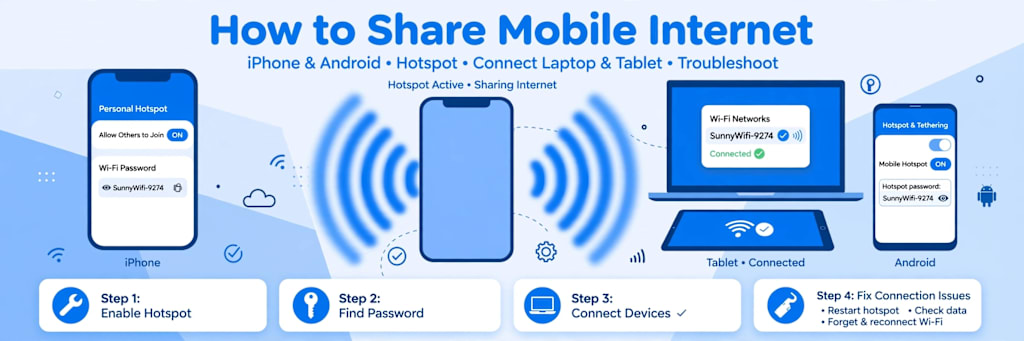
How to Share Mobile Internet Safely: Hotspot Setup, Passwords & Connection Fixes
Your home Wi-Fi goes down right before an important video call. You're sitting in a coffee shop with your laptop, but the public network keeps disconnecting. Or maybe you're traveling and need to get your tablet online without paying for another internet plan.
In situations like these, your smartphone can become a surprisingly useful backup internet connection.
Most modern iPhones and Android phones include a mobile hotspot feature that lets you share cellular data with laptops, tablets, and other devices. Getting connected usually takes less than a minute. However, finding the right password, dealing with connection errors, and managing data usage can make the process frustrating.
The good news? You don't need special equipment or advanced technical skills to get everything working.
This guide explains how to share mobile internet, locate your hotspot password, connect different devices, troubleshoot common problems, and keep your connection secure.
What Is a Mobile Hotspot and How Does It Work?
A mobile hotspot is a feature that allows your smartphone to share its cellular internet connection with other devices.
Instead of connecting your laptop directly to a home router, you connect it to a Wi-Fi network created by your phone.
Your phone receives internet access through its cellular connection, such as 4G LTE or 5G, and shares that connection with nearby devices.
For example, imagine you're working from a hotel where the Wi-Fi barely loads a webpage. If your phone has a reliable cellular signal, you can enable its hotspot and connect your laptop to it.
There are three common ways to share mobile internet:
Wi-Fi hotspot: Creates a wireless network that nearby devices can join.
USB tethering: Shares internet through a compatible USB connection.
Bluetooth tethering: Allows supported devices to share an internet connection over Bluetooth, usually at lower speeds.
Wi-Fi hotspot sharing is generally the easiest option because it works with most laptops, tablets, and smartphones without additional cables.
Keep in mind that hotspot availability, data allowances, and connection speeds depend on your phone, cellular carrier, and service plan.
How Do You Turn On a Mobile Hotspot on Android?
Android phones make it relatively easy to share mobile data, although the exact menu names depend on the manufacturer.
Google Pixel, Samsung Galaxy, Motorola, and Xiaomi phones may organize hotspot settings differently.
Steps to Enable a Hotspot on Android
Open the Settings app on your Android phone.
Select Network & Internet or Connections.
Find Hotspot & Tethering or Mobile Hotspot and Tethering.
Tap Wi-Fi Hotspot or Mobile Hotspot.
Turn on the hotspot feature.
Check the displayed network name and password.
Open the Wi-Fi settings on the device you want to connect.
Select your phone's hotspot network and enter its password.
Once connected, your second device should be able to access the internet through your phone's cellular data.
How to Enable a Hotspot on Samsung Galaxy
Samsung Galaxy phones typically use a slightly different settings path.
Open Settings, select Connections, and tap Mobile Hotspot and Tethering. Choose Mobile Hotspot and switch it on.
You can also open the Mobile Hotspot settings to change the network name, password, and available connection options.
On some Galaxy models, you can display a QR code that another device can scan to join the network without manually entering the password.
The available settings can vary depending on your version of Samsung One UI.
How Do You Turn On Personal Hotspot on iPhone?
Apple calls its internet-sharing feature Personal Hotspot.
It allows compatible devices to connect through Wi-Fi, Bluetooth, or USB, depending on the device and connection method.
Steps to Enable Personal Hotspot
Open Settings on your iPhone.
Tap Personal Hotspot. On some configurations, you may need to open Cellular first.
Enable Allow Others to Join.
Locate the Wi-Fi Password field.
Open the Wi-Fi settings on your laptop or tablet.
Select your iPhone's network name.
Enter the password displayed in Personal Hotspot settings.
Your connected device should now be able to use your iPhone's cellular internet connection.
If the Personal Hotspot option is missing, check whether your cellular plan supports hotspot sharing.
Some carriers require hotspot access to be included in your plan before the feature becomes available.
What If Your Laptop Cannot Find Your iPhone Hotspot?
If your iPhone hotspot doesn't appear in the available Wi-Fi networks, start by keeping the Personal Hotspot settings screen open while attempting to connect.
On supported iPhones, you can also enable Maximize Compatibility.
This option favors broader Wi-Fi compatibility and may help older laptops recognize your hotspot. It can reduce wireless performance in exchange for compatibility.
Restarting Wi-Fi on the receiving device may also help refresh the list of available networks.
Where Can You Find Your Mobile Hotspot Password?
One of the most common problems people encounter when sharing mobile internet is forgetting the hotspot password.
You turn on your phone's hotspot, open Wi-Fi settings on your laptop, and select the correct network. Then your laptop asks for a security key you can't remember.
Fortunately, you usually don't need to reset your phone or install another app.
The password is generally available in your phone's hotspot settings.
Finding the Password on Android
On many Android phones, open Settings, select Network & Internet, and navigate to Hotspot & Tethering.
Tap Wi-Fi Hotspot and look for the password field.
Depending on the phone, you may be able to reveal the password by tapping an eye icon or opening the hotspot configuration screen.
Finding the Password on Samsung
Open Settings and select Connections.
Next, choose Mobile Hotspot and Tethering, followed by Mobile Hotspot.
Look for the password displayed in the hotspot settings. Some Samsung devices also provide a QR code for connecting another phone or tablet.
Finding the Password on iPhone
Open Settings and select Personal Hotspot.
The Wi-Fi Password field shows the password used by other devices to join your iPhone's hotspot.
If you need instructions for a specific phone brand, this detailed guide explains how to find your hotspot password on iPhone, Samsung, Google Pixel, Xiaomi, and other Android devices.
Knowing where to find this information is particularly helpful when switching laptops, connecting a new tablet, or sharing your connection with someone you trust.
How Do You Connect a Laptop to Your Phone's Hotspot?
Connecting a laptop to a mobile hotspot works much like joining any other Wi-Fi network.
You need the hotspot enabled on your phone, its network name, and the correct password.
Connect a Windows 11 Laptop
Enable the mobile hotspot on your phone.
Open Quick Settings on your Windows laptop.
Select the Wi-Fi network list.
Find your phone's hotspot name.
Select Connect.
Enter the hotspot password.
Wait for Windows to establish the connection.
After connecting, open your browser and visit a website to confirm that internet access is working.
If you're using a limited cellular plan, consider setting the hotspot connection as a metered network in Windows.
This can help reduce certain background data activities.
Connect a MacBook
On a MacBook, open the Wi-Fi menu from the menu bar or Control Center.
Choose your phone's hotspot network and enter its password when prompted.
Once connected, macOS should display the active Wi-Fi connection.
If your laptop doesn't recognize the network or repeatedly asks for the password, the problem may involve a saved network profile, wireless compatibility, or an incorrect security key.
For more detailed device-specific instructions, see this guide on how to connect a phone hotspot to a laptop.
Why Is Your Mobile Hotspot Not Connecting?
A mobile hotspot can be enabled and still fail to provide a working internet connection.
Sometimes your laptop cannot find the network. Other times, it connects successfully but displays a message saying there's no internet access.
These problems have different causes, so identifying the exact symptom can save time.
1. Incorrect Hotspot Password
An incorrect password is one of the simplest reasons a device refuses to join a hotspot.
Passwords are case-sensitive, so uppercase and lowercase letters matter.
Check the password directly on the phone providing the connection.
If you've recently changed it, your laptop might still be trying to use the previous password.
Forget the saved hotspot network on your laptop, reconnect, and enter the current password.
2. Mobile Data Is Turned Off
A hotspot needs an active internet connection to share.
If your phone's cellular data is disabled, connected devices may join the hotspot network but remain offline.
Open your phone's settings and confirm that mobile data is enabled.
Try loading a webpage directly on your phone using cellular data.
If the phone itself cannot access the internet, the hotspot is unlikely to provide internet access to other devices.
3. Weak Cellular Signal
A hotspot cannot deliver a consistently fast connection when the phone has poor cellular reception.
If you're inside a building with thick walls or in an area with limited coverage, your connection may become slow or unstable.
Try moving closer to a window or another location with stronger reception.
Keep your phone in a well-ventilated area, especially during extended hotspot sessions.
4. Incompatible Wi-Fi Frequency
Many modern smartphones can broadcast hotspot connections using the 2.4 GHz or 5 GHz Wi-Fi bands.
The 5 GHz band can provide better wireless performance under suitable conditions, while 2.4 GHz generally offers broader compatibility and range.
Some older laptops cannot detect certain 5 GHz hotspot configurations.
If your phone offers a frequency-band setting, try switching to 2.4 GHz.
On compatible iPhones, the Maximize Compatibility setting may resolve similar detection problems.
5. Carrier Restrictions or Data Limits
Not every cellular plan includes the same hotspot allowance.
Some US mobile carriers offer dedicated hotspot data limits, even when a plan advertises unlimited smartphone data.
Depending on your plan, reaching the hotspot allowance may result in reduced speeds or other restrictions.
Check your carrier account or plan details if your hotspot suddenly becomes unusually slow.
6. Temporary Network Errors
Phones and laptops occasionally experience temporary networking problems.
Try turning the hotspot off and back on, then reconnecting your second device.
If that doesn't work, restart both devices.
You can also forget the saved network and create a fresh connection.
Avoid immediately resetting every network setting on your phone, since that can remove saved Wi-Fi networks and other connection preferences.
How Can You Share a Hotspot Password Without Typing It?
Typing a long password on a laptop is manageable, but entering it on multiple phones or tablets can become annoying.
Some Android devices provide QR code sharing directly within the mobile hotspot settings.
When this option is available, the receiving device can scan the code and join the hotspot without manually typing the password.
To use it, open your hotspot settings and look for a QR Code or Share option.
Display the code and scan it using the receiving device's camera or compatible Wi-Fi scanner.
Follow the connection prompt to join the network.
Not every device supports this feature in the same way, and iPhone Personal Hotspot does not offer an equivalent universal QR-code button.
Also, a hotspot QR code contains connection credentials. Share it only with people you trust.
For additional instructions covering different phones and wireless networks, learn how to share a Wi-Fi password between compatible devices.
How Can You Keep Your Mobile Hotspot Secure?
A mobile hotspot is convenient, but it also creates a wireless network that nearby devices may detect.
You should protect that network just as you would protect your home Wi-Fi.
Choose a Strong Password
Avoid obvious passwords such as your name, phone number, or a simple number sequence.
Instead, use a long, unique password that isn't shared with your other accounts or networks.
A randomly generated password or a memorable passphrase with sufficient length is a better choice.
Use Modern Wi-Fi Security
If your phone allows you to choose the hotspot security mode, use WPA3 when supported by all connecting devices.
WPA2-AES remains a practical compatibility option for devices that don't support WPA3.
Avoid disabling password protection unless you have a specific reason and understand the risks.
Disconnect Unknown Devices
Some smartphones display a list or count of devices connected to the hotspot.
Check this information if your mobile data is disappearing faster than expected.
If you notice an unfamiliar connection, change your hotspot password and reconnect only your trusted devices.
Turn Off the Hotspot When You're Finished
Leaving a hotspot active unnecessarily can consume battery power and make your network available for nearby devices to discover.
Turn it off when you no longer need to share internet access.
This is especially useful when traveling, working in public places, or using a limited cellular data plan.
Does Using a Mobile Hotspot Consume More Data?
Using a hotspot doesn't automatically mean every activity consumes more data.
However, the devices you connect can use significantly more data than you expect.
A laptop may download operating system updates, synchronize cloud files, load full desktop websites, or run background applications.
For example, streaming a high-definition video, downloading a large game, or uploading a folder of photos can quickly consume several gigabytes.
If you're working with a limited hotspot allowance, pay attention to what your connected devices are doing.
You can reduce unnecessary data consumption by pausing large downloads, limiting cloud synchronization, and adjusting streaming quality.
Windows users can also enable a metered connection to discourage some background downloads.
To understand your remaining allowance, check your carrier's account app or read this walkthrough on how to check how much hotspot data you have left.
Remember that your phone's total mobile data usage and your carrier's dedicated hotspot allowance may be tracked differently.
Is a Mobile Hotspot Better Than Public Wi-Fi?
A password-protected personal hotspot can be a practical alternative to an unfamiliar public Wi-Fi network.
Because you control the hotspot password and the devices you allow to connect, you have more control over who joins your local wireless network.
However, a hotspot isn't automatically secure in every situation.
Your phone, connected laptop, and online accounts still need appropriate security protections.
Keep your devices updated, use secure websites, and avoid sharing your hotspot credentials with strangers.
Public Wi-Fi can still be useful, particularly when cellular reception is weak or your mobile data allowance is limited.
The better option depends on network reliability, security settings, data costs, and the activities you need to complete.
Frequently Asked Questions
Can I share my phone's internet without Wi-Fi?
Yes. Depending on your devices, you may be able to share your phone's cellular connection through USB tethering or Bluetooth tethering. Compatibility varies by operating system and hardware.
Why does my hotspot say connected but no internet?
This usually means your device has joined the hotspot's local Wi-Fi network, but the phone cannot provide working internet access. Check cellular data, signal strength, carrier restrictions, and remaining data allowance.
Can someone connect to my hotspot without the password?
On a properly configured password-protected hotspot, an ordinary new device needs valid credentials to join. However, previously authorized devices or certain ecosystem-specific sharing features may reconnect without manually entering the password again.
How do I change my hotspot password?
Open your phone's hotspot settings, locate the password field, enter a new password, and save the change. Previously connected devices may need to reconnect using the new credentials.
Does a hotspot work with 5G?
Yes. A compatible phone can share its 5G cellular internet connection through a mobile hotspot. Actual speeds depend on signal quality, carrier policies, phone capabilities, and the wireless connection to the receiving device.
Can I connect multiple devices to one mobile hotspot?
Yes. Many smartphones support several simultaneous hotspot connections. The exact number depends on the device, software, and carrier restrictions. Sharing bandwidth among multiple devices can reduce the speed available to each one.
Why does my hotspot keep disconnecting?
Common causes include weak cellular reception, battery-saving features, overheating, wireless interference, and device compatibility problems. Check your hotspot settings, keep the phone cool, and restart the connection if necessary.
Final Thoughts
A mobile hotspot is one of the easiest ways to stay connected when your regular Wi-Fi isn't available.
Whether you're working remotely, traveling, attending online classes, or simply trying to get a second device online, your phone can provide a useful backup internet connection.
The key is knowing how to configure it correctly.
Start by enabling the hotspot, locating the network password, and connecting your laptop or tablet. If something goes wrong, check the password, cellular data connection, Wi-Fi compatibility, and carri
er allowance before trying more complicated fixes.
A strong password, sensible data management, and a few basic troubleshooting habits can make mobile internet sharing safer and far less frustrating.
About the Creator
Gulshan
SEO Services, Guest Post & Content Writter.
Enjoyed the story? Support the Creator.
Subscribe for free to receive all their stories in your feed.
Comments
There are no comments for this story
Be the first to respond and start the conversation.