
How do you setup a wifi extender
10 Easy Ways to Extend Your WiFi Range at Home
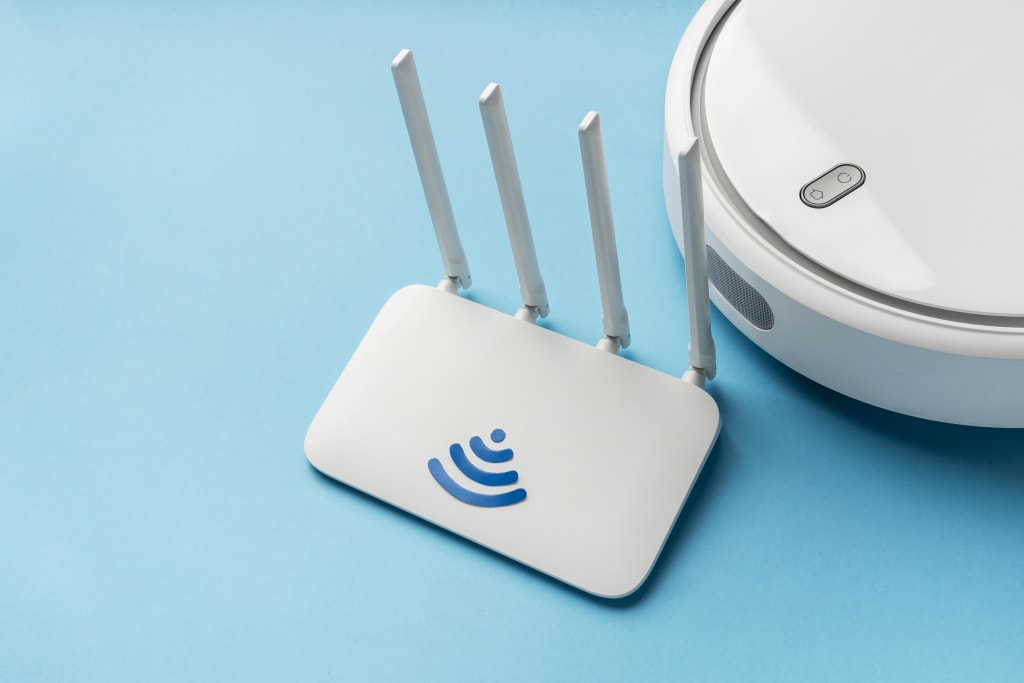
A slow or patchy WiFi signal can be incredibly frustrating—especially when you're trying to stream your favorite show, attend a Zoom meeting, or play an online game. The good news? You don’t always need to buy a new router or invest in expensive equipment to improve your WiFi. In this guide, we’ll show you 10 easy ways to extend your WiFi range at home, plus answer common questions like how to connect a Netgear WiFi extender and how to set up a TP-Link WiFi extender.
1. Reposition Your Router
Often, the easiest solution is simply moving your router to a better location. Place it in a central area of your home, ideally on a high shelf, and away from walls or large metal objects. Avoid placing it near microwaves or cordless phones, which can interfere with signal strength.
2. Update Your Router’s Firmware
Routers need software updates just like your phone or computer. These updates often contain performance improvements and security patches. Check your router manufacturer’s website or login to your router's admin panel to update the firmware.
3. Use a WiFi Extender
WiFi extenders (also known as WiFi boosters or repeaters) are designed to expand the coverage of your existing network. If you’re wondering how to extend WiFi range, this is one of the most effective ways.
How to Connect Netgear WiFi Extender
- Plug in the Netgear extender and wait for the power LED to turn solid green.
- Use a device (laptop or phone) to connect to the extender’s default WiFi network.
- Open a browser and go to http://mywifiext.net.
- Follow the on-screen instructions to connect it to your home WiFi.
- Once connected, place the extender midway between your router and the area with weak signal.
4. How to Connect Netgear WiFi Extender to New Router
If you’ve upgraded your router, you’ll need to reconfigure your Netgear extender:
- Reset the extender using the reset button.
- Repeat the setup process as mentioned above.
- During setup, select your new router's SSID and enter the password.
5. How to Setup TP-Link WiFi Extender
- Plug the extender into a power outlet.
- Connect to the extender’s network (usually named TP-LINK_Extender).
- Visit http://tplinkrepeater.net.
- Log in and select your main WiFi network.
- Enter your WiFi password, then reboot the extender.
- Place it between the router and the weak signal zone.
TP-Link also offers a mobile app (Tether) that makes setup even easier.
6. Upgrade Your Router’s Antennas
If your router has detachable antennas, consider upgrading to high-gain antennas. These are designed to direct signal over a wider area, extending your WiFi range without the need for extra devices.
7. Use Ethernet Cables for Key Devices
While this doesn’t boost WiFi range directly, it reduces traffic on your wireless network. Connect smart TVs, gaming consoles, or desktop PCs via Ethernet. Fewer devices using WiFi = better speed and range for everything else.
8. Switch to 2.4GHz for Longer Range
Most modern routers offer dual-band (2.4GHz and 5GHz). While 5GHz provides faster speeds, 2.4GHz has a longer range and better wall penetration. If you need signal in a distant room, switching to the 2.4GHz band may help.
9. Install a Mesh WiFi System
If you live in a large home with multiple floors, a mesh system may be the best option. It uses several nodes placed around your house to create a single, seamless network. Though more expensive, it offers the best coverage for big spaces.
10. Limit Interference and Bandwidth Usage
Other devices—baby monitors, Bluetooth speakers, even neighbors' routers—can interfere with your WiFi. Also, too many users streaming at once can slow things down. Use your router's Quality of Service (QoS) settings to prioritize devices or apps.
Frequently Asked Questions (FAQ)
Q: What is the best location for a WiFi extender?
A: Place it halfway between your router and the dead zone. Make sure it still receives a strong signal from the router to rebroadcast effectively.
Q: How do I know if my WiFi extender is working?
A: You should see improved signal strength on your device in the previously weak area. You can also run a speed test before and after setup to compare results.
Q: Can I use more than one extender in my home?
A: Yes, but it’s best to space them out and connect them to the main router instead of each other. Too many chained extenders can slow down the network.
Q: Do WiFi extenders reduce speed?
A: Sometimes. Since extenders rebroadcast the signal, they may reduce speed slightly. Using dual-band extenders or upgrading to a mesh system can help avoid this.
Q: How often should I reboot my router or extender?
A: Reboot once every week or two for best performance, or anytime you notice a drop in speed or connectivity.
Conclusion
If you’ve been dealing with spotty WiFi, don’t worry—it’s a common issue with several easy fixes. From simple repositioning to adding a WiFi extender or setting up a mesh system, there are many ways to extend your WiFi range at home. Whether you’re figuring out how to connect Netgear WiFi extender to a new router or learning how to setup TP Link WiFi extender, these solutions are all about making your internet experience faster, smoother, and more reliable.
About the Creator
Enjoyed the story? Support the Creator.
Subscribe for free to receive all their stories in your feed.
Comments
There are no comments for this story
Be the first to respond and start the conversation.