
Why Upscaling a Blurry Clip Needs a Preview First
Preview First for Better, Sharper Video Results

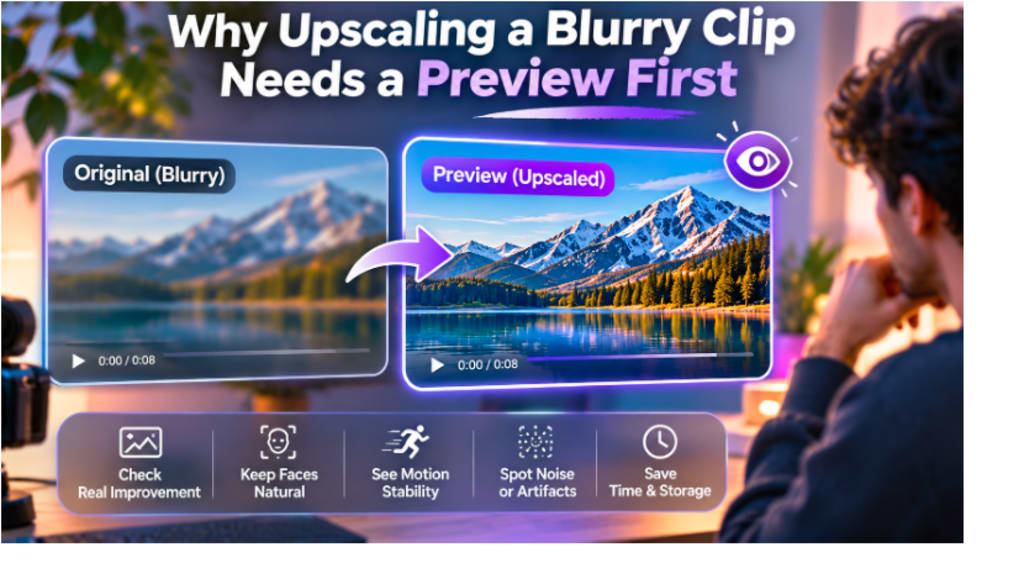
One of the most frustrating issues that can arise when editing video is blurriness. The clip may have a great moment, a nifty interview, a great family shot, or a crucial part of a larger project, but the image is just too soft to be consistent with the rest of the project. In some instances upscaling may be helpful, but merely boosting resolution does not yield the same results as true detail restoration. This is why it's crucial to check out the output first before taking the plunge into a complete export.
The preview feature provides a realistic idea of what the enhancement process is doing to the image. It lets you know if the faces are natural, if the edges are clean, if there's any movement that's stable and if any sharpness added has enhanced the clip or made it feel artificial. Otherwise, it's simple to spend hours working on a complete video and only end up with new issues.
Upscaling Can Improve Presentation but It Cannot Fully Recreate Missing Detail
The upscaling process involves building a video with higher resolutions and applying software to create an additional amount of information to the video. The traditional approach involves interpolation, and more sophisticated AI-powered tools can use pattern, edge, texture, and shape analysis to yield a more sophisticated image.
It can help to make a soft or low-resolution video look clearer when viewed from a distance. But, this process is still limited. No enhancement technique can exactly recreate what the camera missed in the case of a badly out of focus face, when the original recording was unintelligible due to text, or when a camera's shutter was too slow to capture fine detail due to motion blur.
That is why it is important to have a preview. It helps you decide if it's worthwhile to enhance the source footage or not.
The difference can be significant in some instances. In others, the change can be a subtle one. The idea is not to upscale all blurry clips to higher resolutions, it is to determine if the upscaled footage is more useful and visually consistent.
A Preview Helps You Catch Artificial Sharpness Before It Becomes Distracting
Over-sharpening is one of the most frequent issue that people face while enhancing.
If a tool attempts to make too hard a definition, it can cause halos around objects, sharp edges around faces, exaggerated skin texture, or unnatural outlines around hair or clothing. Such effects can be helpful in the beginning but can be distracting when viewing normal videos.
A short preview lets you look at these areas before you process the entire clip.
Be aware of faces, text, tree branches, hair, buildings and other places with fine edges. The first areas to show signs of artificial sharpening are often these.
The enhancement should make the image easier to view, without being the focus of the image. If they see that the video is digitally processed or too sharp, the effect is likely to be more damaging than beneficial.
A single frame can't reveal issues with motion.
Judging video enhancement is easy done from a stopped frame, but video is all about movement.
Things might come out fine when the frame is set, and when the image is in movement, there may be flickering, wobbling edges, odd textures, or ghosting around the moving parts.
This is particularly necessary with scenes that include motion of people, camera panning, vehicles, handheld movement, sports, or fast action.
There may be differences in interpretation of information from frame to frame in some enhancement processes. This can give an uneven texture, and may result in a texture that shimmers when played back.
Looking at the preview information for several seconds is much better than looking at a still image alone to get a better idea of the final quality.
Therefore, editors should always evaluate moving sections before making the conclusion that an upscale is successful.
Faces Need Special Attention Because Small Errors Are Easy to Notice
The human face, is one of the most delicate features in video enhancement.
People are very adept at knowing when a person's face doesn't look right. Any alteration of eyes, skin texture, teeth, hair lines and/or expressions can cause a person to appear unnatural.
An enhancement system can attempt to fill in information that is missing from an image, if it is shot with low resolution.
This can help to create clarity, however it can also give somewhat artificial results.
Preview the video to see if it has close-ups or medium shots of people, before processing a full video. Ensure skin remains normal in appearance and face features remain consistent during motion.
This is especially important in interviews, family videos, documentary, and personal recordings where the authenticity of the subject is more important than just getting the picture as sharp as possible.
Noise and Compression Artifacts May Become More Visible After Upscaling
Low resolution is not the only source of softness.
Noisy, blocky, banded or other compression artifacts may be present in older clips and/or highly compressed files.
These defects can sometimes be more noticeable when upscaling, as the image will be displayed larger.
For instance a tiny block that appears in a low-resolution frame might be more noticeable when the frame is enlarged. Too much sharpness can also result in grain being more evident in dark areas.
A preview will help you determine if the enhancement is enhancing the image or just making any problems more noticeable.
For some workflows, light noise reduction before or during upscaling might help to achieve a cleaner result. But excessive noise reduction can cause the image to appear smooth and waxy, so there needs to be a balance.
Different Types of Blur Respond Differently to Enhancement
Not all blurry clips are created equal.
A video can be soft due to being shot at a low resolution but also may be soft due to an incorrect focus point, camera movement, motion blur, digital zoom, strong compression, and low light noise.
These problems require different solutions when it comes to enhancement.
A low-resolution shot with good focus might also be rescaled well as there is still a good definition of shapes and edges in it.
The out-of-focus clip is harder because the original optical detail was never sharply captured.
Likewise, it is not always possible to remove the motion blur merely by increasing the resolution.
Previewing Saves Processing Time and Storage Space
Saving Time and Memory by previewing saves.
Upscaling video can be a very intensive process, particularly with longer videos or higher resolutions.
If you are creating a video that is going to be a whole 20-minute or an hour long, it's best to try the settings first so as not to waste time on a video you will ultimately end up having to delete.
Larger, high resolution exports take up more space.
It is better to test a sampling of the section first. Select a segment with the most difficult portions of the clip (e.g., faces, action, complex background, text, low lighting, etc.).
Previewing Is Especially Important When Mixing Old and New Footage
If, however, the image is not good, you can either set the parameters or just accept that the original footage will not be altered to a different resolution.
When working with both old and new footage, it is especially important to preview the footage to see if it is compatible.
In many video projects, clips are recorded on various devices or different time periods.
Older phone videos can be incorporated into a family documentary along with the more recent 4K videos. Clips from various cameras may be used in a travel video. A retrospective project can include information from numerous years.
In these cases, it is frequently not about making all clips look exactly the same, but making them similar enough that the project maintains a level of cohesion.
While an AI video enhancer can enhance lower resolution footage, it is crucial to test the enhanced video to see how it looks before actually using it, as older clips may have varying noise, compression, colour shifts and softness levels.
A successful preview can help to see how the video clip will look when it is combined with the rest of the timeline.
Compare the Preview at the Final Viewing Size
Another frequent error is assessing improved footage solely when zoomed in on an editing monitor.
A clip that looks bad at 200 percent magnification may be a great clip when played at normal size.
This is also possible. An impressive preview result will yield strange artifacts when full screen.
Always compare by the size and resolution that is closest to the final size and resolution in mind.
If the video is predominantly going to be viewed on mobile devices, preview it with a smaller screen. If it's meant for a large TV or presentation display, look at it at a larger size.
Enhancement is to make the viewing experience better, so the final viewing environment should help you to decide.
“The Best Result is the most Natural Result”.
It's easy to be influenced by the dramatic change in the videos before and after.
But, the greater the difference the better isn't always the case.
The best one typically is the one that enhances the quality of the footage without altering its original character.
An extreme sharpness is a distraction from natural skin texture, stable edges, realistic motion, and consistent detail.
This is especially important for personal videos and documentary footage in which a natural look is more important than an artifice.
A preview can help you achieve this balance prior to committing to a full render.
Final Thoughts
Upscaling is very helpful if using blurry or low-resolution video, but that does not mean it is something that should be done on every clip.
Each clip reacts to each original focus, compression, lighting, motion and amount of detail captured in the original.
Previewing first lets you see if you need to worry about any artifacts which may be present in the video such as artificial sharpness, shaky video, facial changes, enlarged video noise, etc. before processing the whole video.
It will also save you time, prevent unnecessary exports, and allow you to determine if the enhancement really makes the footage better.
The best method is to test a short, but difficult, portion, then review it at normal playback speed and final viewing size, and then determine if the settings are suitable for the entire clip.
The upscale should be so good that the footage looks easier and more fun to watch than it did prior to the enhancement, but not so good that it is immediately recognizable. If it looks natural, consistent and suitable for final project, then the preview has done what it should do!
About the Creator
Gulshan
SEO Services, Guest Post & Content Writter.
Enjoyed the story? Support the Creator.
Subscribe for free to receive all their stories in your feed.
Comments
There are no comments for this story
Be the first to respond and start the conversation.