
What Customers Need to Read After They Have Booked a Service
A booking confirmation should tell people what is settled, what they need to do, and what happens if plans change.

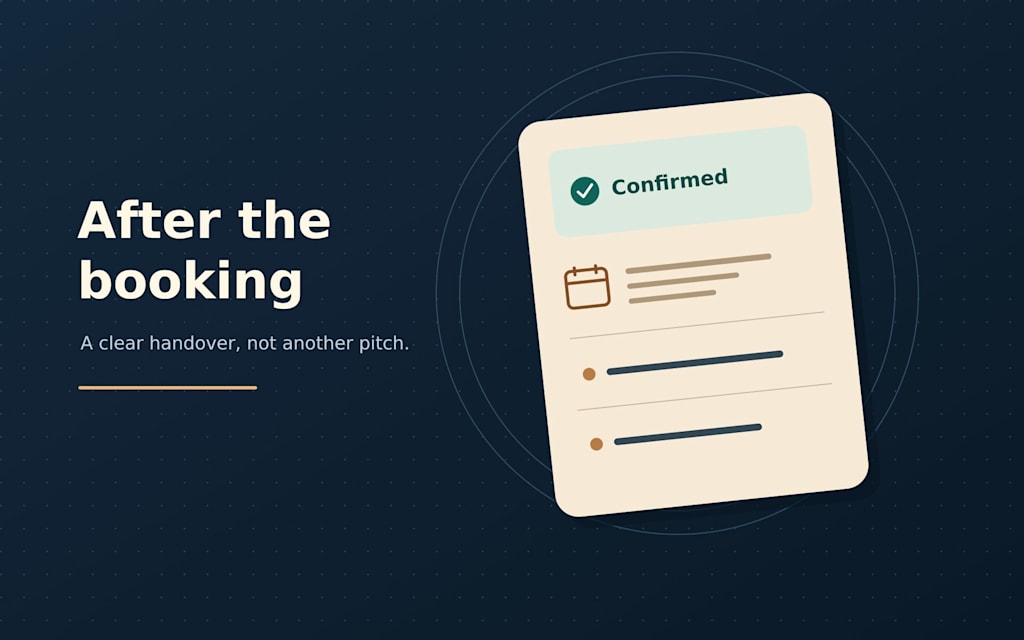
Disclosure: This article and its cover illustration were created with AI. The scenarios and sample wording are fictional.
A customer has just booked an appointment. The screen says, “Thank you! We look forward to seeing you.” It sounds friendly, but five minutes later the customer still cannot answer three questions: Did I choose Tuesday or Thursday? Do I need to bring anything? Who do I call if I am running late?
The confirmation is often the last practical instruction the customer sees before the service takes place. Treat it like a short handover, not another chance to explain why the service is worth buying. Start with the information the customer would otherwise have to ask for.
Say what is confirmed
Put the status and the appointment details together. If an appointment is confirmed, say so. If the business still needs to accept the request, say that instead and explain when or how the customer will hear back. A request received is not a booking confirmed. Using the same message for both saves a little writing and creates a much bigger misunderstanding.
For a confirmed visit, show the service, date, time, and location or meeting link. Spell out the month if a numeric date could be read two ways. If the customer booked an arrival window, show the window as a window; do not present its start as a guaranteed arrival time. For a remote appointment that people may join from different places, state the time zone.
Include a reference if your team actually uses it to find bookings. A reference nobody can search is another thing the customer has to keep track of. The UK government design system’s confirmation page pattern (https://design-system.service.gov.uk/patterns/confirmation-pages/) is a useful reference for separating a completed action from what happens next.
Tell them what to do before the appointment
Give people the smallest useful set of instructions. For a repair appointment, that might mean clearing access to the appliance. For a video session, it might be opening the meeting link a few minutes early. For a home visit, it might mean sharing entrance instructions through the normal private contact channel. These are different appointments. They should not inherit the same checklist.
Put a deadline next to any time-sensitive instruction. “Reply by Monday at 5 p.m. if the entrance code has changed” is more useful than “Please check your access details.” If nothing is required, say so. That keeps a customer from wondering whether a missing attachment or a second email contains an instruction they have not seen.
Give changes their own line
Put the action to reschedule or cancel beside the details, not at the bottom of a long paragraph. Use the channel someone actually answers. If the customer should use a link to move an appointment but call for a same-day delay, separate those two instructions. Where a deadline or fee applies, use the business’s real terms and make them easy to find. Do not invent a generic 24-hour rule just to fill a template.
A short example
Imagine a local bike workshop that takes advance bookings:
Your bike assessment is confirmed for Thursday, 19 November, at 14:30. Come to the service counter at the workshop address shown above. Bring the key if the bike has a lock you want us to inspect. This booking is for an assessment; we will discuss any repair and its cost before starting it. If you need another time, use the rescheduling link in this message. If you are running late on the day, call the workshop number in the footer.
This copy explains what the customer booked and what they did not book. The counter, rescheduling link and phone number are only useful if the real message includes them. Replace placeholders with working details before publishing a template.
Test it the way a customer reads it
Open the confirmation email or page on a phone. Give someone who did not write it ten seconds to find the date, what to prepare and how to change the booking. Try the links from the actual confirmation, not from an editor preview. Then compare its wording with the calendar and check whether the same status appears in both places. Fix any disagreement before sending the template again.
If the customer can put the appointment in their calendar and explain the next step without writing to you, the confirmation has done its job.
About the Creator
Vladyslav Yanchenko
Marketer at Salestudia in Idstein, Germany. I write about websites, SEO, digital marketing and e-commerce, plus how people choose services and products.
Enjoyed the story? Support the Creator.
Subscribe for free to receive all their stories in your feed.
Comments
There are no comments for this story
Be the first to respond and start the conversation.