
CSV to vCard File Conversion for Email Clients: Technical Export Methods
Transfer CSV files to vCard error-free
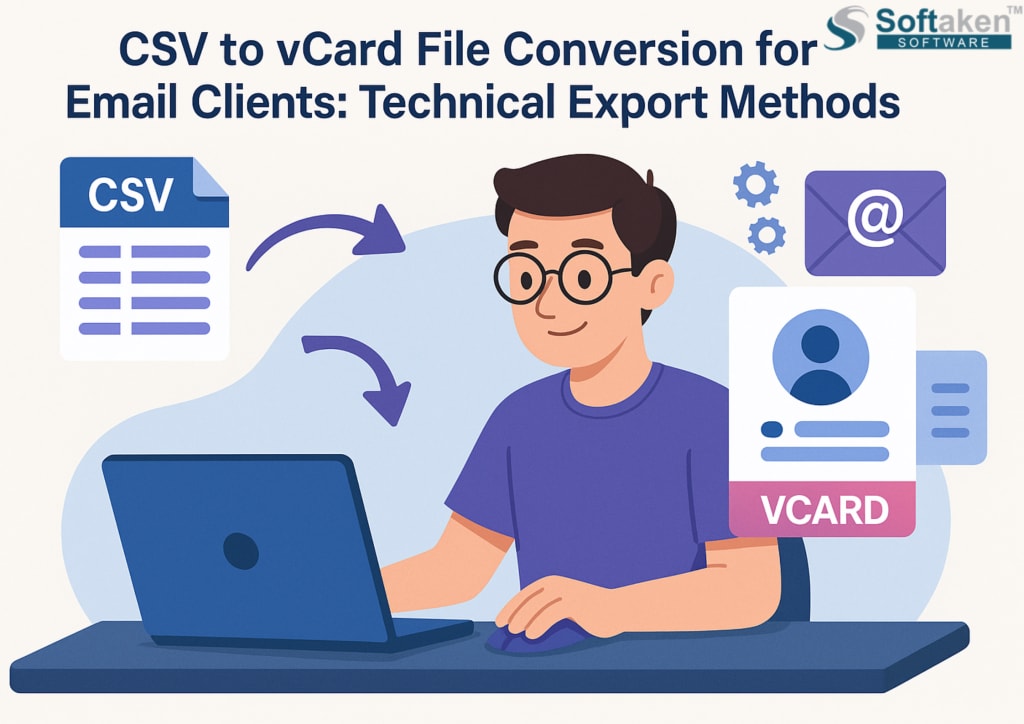
In todays connected digital world, managing contact data efficiently is very important. A lot of people, both professional and personal, work with contact files that are in different formats. CSV is one of the most prevalent formats for contact lists. It is often used for spreadsheets like Microsoft Excel or when contact management systems export data.
But if you try to import these contacts into email clients like Gmail, Outlook, Yahoo Mail, or Apple Mail, they might not accept the CSV file right away or might lose some data fields throughout the import process. Most of these email services only work with vCard or VCF format. This is a more advanced and universal format that was made just for contact information.
That is why it is important for those who want to move contacts between platforms to convert CSV files to vCard files. In this blog, we will talk about the technical ways to convert CSV files to vCard files, how different email clients operate with these formats, and how you can simply do this with professional tools.
What is CSV and Why It Needs to Be Converted?
When you save contact information in a CSV file, the values are separated by commas. This format is easy to read and modification in Excel or Notepad, but it doesn't work with sophisticated data like contact photographs, numerous phone numbers, or structured address information.
VCF, on the other hand, is a format made just for storing contact information in a consistent way. It lets each contact include names, addresses, phone numbers, emails, photographs, notes, and even social media profiles, all in one small file. Most common email applications, mobile phones, and internet systems like iCloud and Google Contacts support the vCard format.
This is why it is vital to convert from CSV to vCard. It makes sure that all of your contact information is kept up to date and accurately imported into your email application.
Why Email Clients Prefer vCard Format
Many email platforms provide support for vCard files due to their structure and flexibility. You can import contacts from vCard format into Gmail, Outlook, Apple Mail, Thunderbird, and iCloud. This is especially useful when you switch devices, upgrade your email service, or sync your contacts with cloud accounts.
In rare cases, CSV files may work, but they usually need exact field matching and explicit data mapping. This is when things go wrong, as when a column in the CSV file called Cell Phone does not match Gmail's expected Phone label. If there are these kinds of differences, data can be missing or imported wrongly.
vCard files, on the other hand, follow a universal standard, which makes importing considerably easier and safer without having to make any changes manually.
Manual Methods for CSV to vCard File Conversion
There are a few free, manual ways to convert CSV files into vCard format, especially using email platforms themselves. Let’s go through the most common methods.
Method 1- Using Google Contacts
You can import CSV files into Google Contacts and export them as vCards. Here is how to accomplish it-
- Open your web browser and sign in to your Gmail account.
- To get to Google Contacts, click on the grid symbol and then on Contacts.
- Click Import on the left panel and choose the CSV file you want to upload.
- Once you have imported your contacts, pick either the group you imported or all of your contacts. Now, click Export and pick vCard (for iOS Contacts) as the format.
- To download the vCard file, click Export.
This method is easy, but it does not work all the time. You need an active Google account. If your CSV has fields that are not standard, some of the data can not show up correctly in the final VCF file. Also, you cannot change how the fields are mapped during the conversion.
Method 2- Using Microsoft Outlook
You can also convert CSV to vCard indirectly with Microsoft Outlook, although it takes a few steps.
- Use the Import/Export wizard in Outlook to open your CSV file.
- Carefully map the fields so that names, phone numbers, and email addresses are all in the right places.
- After the contacts have been imported, go to your Contacts section to find them.
- Now, to export each contact as a vCard, open it and choose "Save As vCard."
This procedure works, but it takes a long time. You cannot export more than one contact to a single VCF file at once without using extra scripts or tools. It also needs to have the right fields mapped during import to keep data from being lost.
Method 3- Using iCloud for Apple Devices
If you use an Apple device, you can indirectly import contacts from a CSV file into iCloud. But you also need to become ready for this.
You can use Google Contacts or Excel extensions to convert your CSV file into a format that vCard can read.
- Sign in to your iCloud account.
- Go to the Contacts section.
- To import a vCard, click the gear symbol in the bottom left corner.
- Upload the vCard file so that it works with your Apple devices.
You still have to convert the CSV file to a VCF file before you can use iCloud. You are unable to insert CSV files directly into iCloud.
Challenges in Manual Conversion
- There are manual ways to do everything, but they don't always work well, especially when you have a lot of contacts.
- You want to keep notes, custom fields, or more than one phone number.
- You need to convert CSV files often so that they work on multiple systems.
- You want to make sure everything works together perfectly and avoid mistakes.
Taking manual steps is slow, often leads to data loss, and fails to give you much control over output files. This is why a lot of people and corporations hire professionals or use automated tools to do this.
Perfect Solution - Utilize a Professional CSV to vCard Conversion Tool
The only way to get around all the problems with manual approaches is to use a special tool that ensures speed, accuracy, and help with difficult fields. The Softaken CSV to VCF Converter is an example of a dependable and easy-to-use solution.
This professional software is made to convert CSV contacts to vCard format with 100% accuracy. It works with all kinds of CSV files, even ones made in Excel, Outlook, or any other contact management program. You can convert one or more CSV files into VCF format without losing any data.
Key Features of the Professional Solution
- Allows you to convert many CSV files at once
- Keeps all contact fields, such as email, name, phone number, company, and custom labels.
- You can make one or more VCF files for each contact.
- Works with all versions of Windows
- Creates VCF files that can be opened by Gmail, Outlook, Thunderbird, Yahoo, iCloud, Android, and iOS devices.
- An easy-to-use interface that doesn't need any technical expertise
How to Use the Software- Step-by-Step
Utilizing the application to convert CSV to vCard is quite straightforward-
- Get the software and install it on your Windows computer.
- Open the application and select "Browse" to open your CSV file.
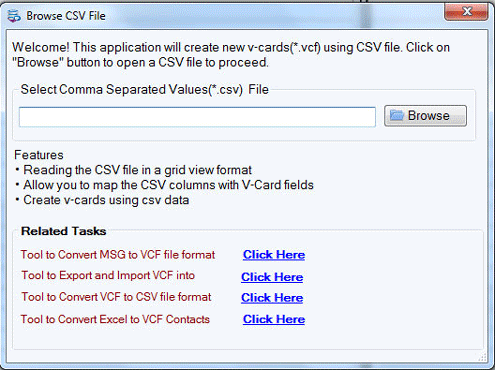
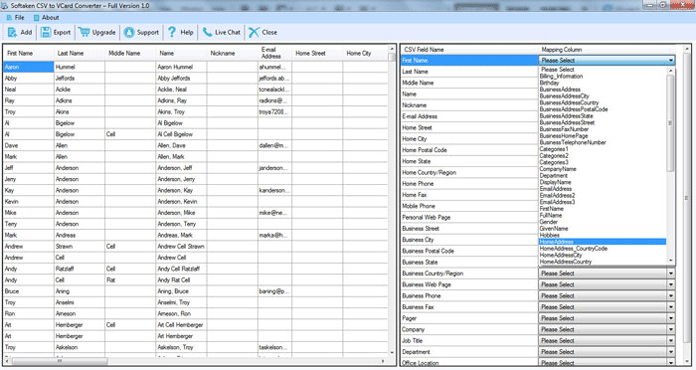
- The software automatically previews your CSV contact data.
- Map the fields between the CSV and vCard formats (like First Name, Email, Phone, etc.).
- Choose a folder to save the file to and click "Convert."
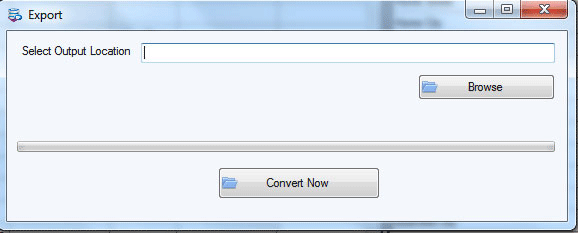
The utility quickly converts your VCF file and saves it so that you can access it in any email application.
Final Words
If you want to move your contacts to email applications like Gmail, Outlook, Thunderbird, Yahoo Mail, or Apple devices, you need convert CSV files to vCard (VCF) format. There are free manual methods, but they often have problems like mismatched fields, missing data, or procedures that take too long.
Using a professional solution is the most efficient method to swiftly, precisely, and flawlessly convert CSV files to VCF files. The Softaken CSV to VCF Converter is a valuable tool. It has a user-friendly interface, accurate field mapping, and works with all email clients. This tool makes it easy and quick to move hundreds of contacts or just a handful.
About the Creator
Enjoyed the story? Support the Creator.
Subscribe for free to receive all their stories in your feed.
Comments
There are no comments for this story
Be the first to respond and start the conversation.