
A Complete Guide on How To Connect YI Home Camera To New WiFi Easily!
Connect YI Camera To WiFi
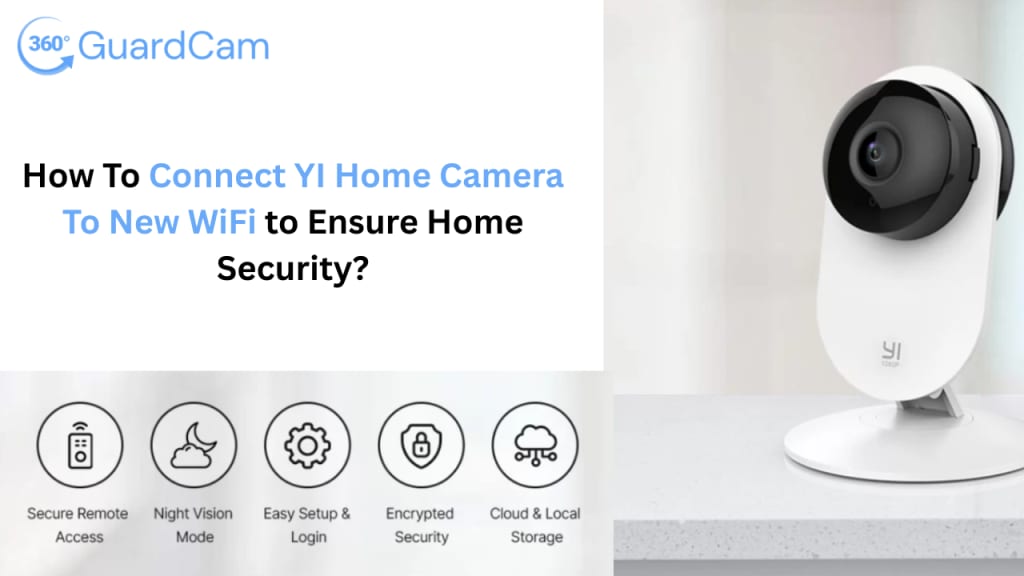
Have you got a new YI camera and want to get it online without any hassle? Don’t worry! It might sound like confusion at first, especially when you switch routers or update your network settings. But, in reality, the process of connecting your YI security camera to a new wifi is quite simple. Therefore, if you want to know How To Connect YI Home Camera To New WiFi in a few simple steps, then you’re in the right place.
Whether you are setting up your security device in a new location or reconfiguring it from scratch, this quick guide will help you through every step. Moreover, you will walk through the step-by-step process on Connect YI Camera To WiFi, ensuring your camera is back online. By following our easy-to-follow guide, you can ensure complete protection of your space without any technical headaches. So, let’s jump into this guide!
What Do I Need to Connect YI Camera To WiFi?
Before beginning with the camera connectivity to the wifi network, make sure you are ready with the few essential things. So, here is what you will need:
- A fully powered YI security camera
- YI Home app
- A 2.4 GHz wifi network
- A compatible smartphone
- The default wifi name and password
- Ethernet cable, etc.
Once all these items are ready, you are all set to begin with the wifi setup on the YI camera to connect it seamlessly to a new network.
How To Connect YI Home Camera To New WiFi Quickly?
However, you can easily connect your YI security camera to a new wifi network using the smartphone app. YI camera has a dedicated smartphone app, i.e., YI Home app, to enable wifi connectivity and configuration.
On the other hand, you can also Connect YI Camera To WiFi on the PC. For that, you can use the YI Home PC on Windows or Mac systems. If you are interested in learning any of these procedures, read through this section carefully.
Stepwise Procedure: How To Connect YI Home Camera To New WiFi on the Phone!
- Firstly, ensure that your security camera is within the router’s range.
- Now, make sure that your wifi router is working correctly.
- Power on your camera near the wifi router.
- Then, reset your YI camera by pressing and holding the reset button on the camera.
- Wait for the camera's flash LED to indicate the reset.
- Then, your camera reboots and is ready to pair again.
- Now, install the latest version of the YI Home app on your smartphone.
- Launch the app and access your login portal.
- After that, you reach the camera’s home dashboard.
- Hereon, add your camera or select the camera you want to connect to wifi.
- Navigate to the Settings or tap the gear icon and visit the ‘WiFi Settings’.
- Further, select your preferred wifi network and enter its password to connect.
- Then, the app generates a QR code.
- Scan the code using your YI camera lens and you will hear a voice prompt when it scans the network.
- Wait till the camera is paired to the chosen wifi network successfully.
- Finally, you can see the YI camera (newly added) in the device list in the app.
Final Note
In short, this guide concisely defines the complete process of How To Connect YI Home Camera To New WiFi easily and effectively. With the right preparation and having all the items at hand, you can seamlessly perform this process and get your camera online to ensure its optimal performance.
About the Creator
Enjoyed the story? Support the Creator.
Subscribe for free to receive all their stories in your feed.
Comments
There are no comments for this story
Be the first to respond and start the conversation.