
QuickBooks Error 3371 Status Code 11118 Fix Guide - Restore QuickBooks Without Data Loss
A detailed guide covering licensing issues, damaged entitlement files, and simple fixes for QuickBooks Error 3371.

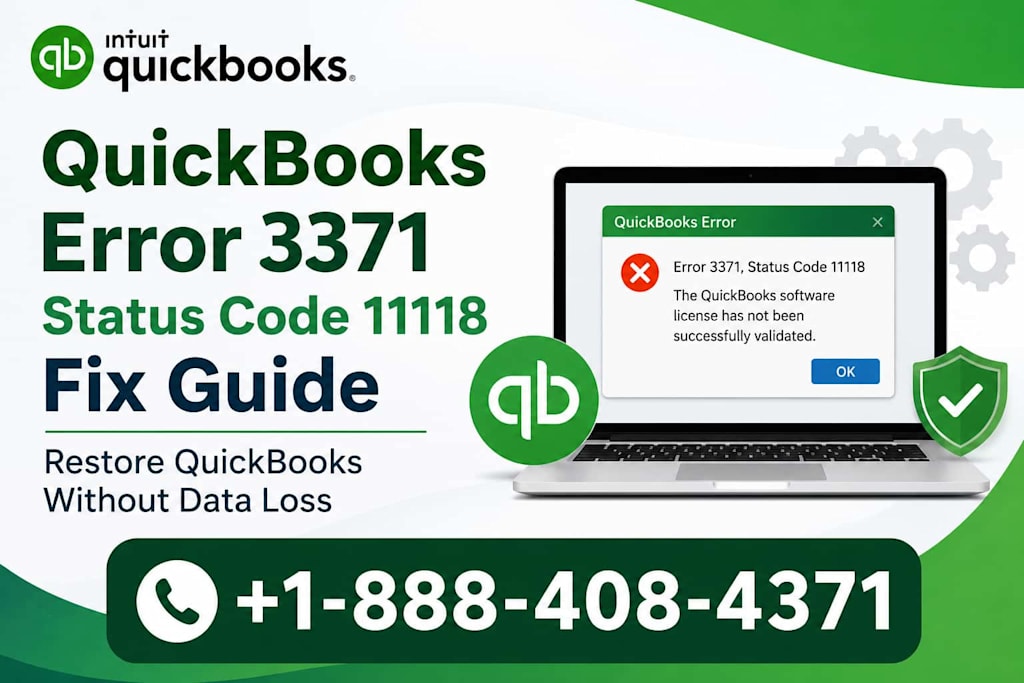
Accounting software is designed to simplify financial management, but technical issues can occasionally disrupt daily operations. One problem that many QuickBooks users encounter is QuickBooks Error 3371 Status Code 11118. This error typically appears when QuickBooks cannot load the license data required to start the application.
For business owners, bookkeepers, and accountants, seeing this error can be frustrating, especially when access to important financial records is needed immediately. The good news is that the issue is often related to damaged licensing files or system components rather than company file corruption.
This guide explains what causes the error, how it affects QuickBooks, and the practical steps you can take to resolve it without putting your accounting data at risk.
Understanding QuickBooks Error 3371 Status Code 11118
When QuickBooks starts, it verifies licensing information stored on the computer. If the software cannot read or validate that information, it may display QuickBooks Error 3371 Status Code 11118.
In many cases, users see a message indicating that QuickBooks could not initialize license properties. This prevents the program from opening normally.
The error is most commonly reported after:
Reinstalling Windows
Moving QuickBooks to a new computer
Restoring a system backup
Updating QuickBooks
Experiencing unexpected system shutdowns
Deleting important QuickBooks files accidentally
Although the message can seem serious, it usually affects the program's startup process rather than the actual company data stored in QuickBooks.
Common Signs of the Error
Recognizing the symptoms can help identify the problem quickly.
Users experiencing this issue often notice:
QuickBooks fails to launch.
A licensing-related message appears on screen.
The software closes immediately after opening.
QuickBooks becomes unresponsive during startup.
Previously functioning installations suddenly stop working.
Since these symptoms can also occur with other technical problems, it is important to confirm that the message specifically references Error 3371 and Status Code 11118.
Why Does QuickBooks Error 3371 Status Code 11118 Occur?
Understanding the cause is often the first step toward finding the right solution.
Damaged Entitlement Files
QuickBooks stores licensing information in entitlement files. If these files become damaged, deleted, or corrupted, the software may be unable to verify ownership and complete the startup process.
Missing Windows Components
QuickBooks relies on Microsoft components to function properly. If certain system files are missing or damaged, licensing verification may fail.
Interrupted Installation Process
An incomplete installation or update can leave QuickBooks without the files required for activation.
Security Software Conflicts
Some antivirus or security applications may block QuickBooks processes or restrict access to licensing files.
System Migration Issues
When users move QuickBooks to a new computer or restore a backup image, licensing information may not transfer correctly.
Hard Drive or Storage Problems
Storage-related issues can damage files that QuickBooks needs during startup.
Does This Error Affect Company Data?
One of the most common concerns is whether financial information has been lost.
In most situations, QuickBooks Error 3371 Status Code 11118 does not damage company files. The problem generally affects the application's ability to start rather than the accounting data itself.
However, before performing major troubleshooting steps, it is always wise to ensure that backups of important company files are available.
Regular backups remain one of the most effective safeguards against unexpected software issues.
How to Fix QuickBooks Error 3371 Status Code 11118
Several troubleshooting methods are commonly used to resolve the issue.
Solution 1: Close QuickBooks Completely
Before making changes, ensure that QuickBooks is not running.
Close QuickBooks.
Open Task Manager.
End any QuickBooks-related processes.
Restart the computer.
Sometimes a simple restart clears temporary conflicts affecting licensing verification.
Solution 2: Delete the Entitlement File
Because damaged entitlement files are a common cause, removing them often allows QuickBooks to create new versions automatically.
Steps:
Close QuickBooks.
Navigate to the Entitlement Client folder.
Locate the entitlement file.
Delete the file.
Reopen QuickBooks.
Follow the prompts to reactivate the software.
During startup, QuickBooks should generate a fresh licensing file.
Solution 3: Update QuickBooks to the Latest Release
Running an outdated version can sometimes trigger compatibility issues.
To update:
Open QuickBooks.
Navigate to the update section.
Download available updates.
Install updates.
Restart the system.
Updated releases often contain fixes for licensing and startup-related problems.
Solution 4: Install Windows Updates
QuickBooks depends heavily on Windows components.
To check for updates:
Open Windows Settings.
Select Update & Security.
Search for available updates.
Install all recommended updates.
Restart the computer.
Missing system updates can occasionally contribute to licensing verification failures.
Solution 5: Use QuickBooks Tool Hub
QuickBooks Tool Hub contains diagnostic utilities that help identify and repair common issues.
After installing Tool Hub:
Open the application.
Select the appropriate troubleshooting section.
Run available repair tools.
Allow the process to complete.
Restart QuickBooks.
Many users find this step helpful when standard troubleshooting methods do not resolve startup errors.
Solution 6: Perform a Clean Installation
If the error continues, a clean installation may help remove damaged program files.
A clean installation generally involves:
Uninstalling QuickBooks
Renaming installation folders
Reinstalling the software
Reactivating the license
This process removes corrupted files that may be preventing successful startup.
Before beginning, make sure product and license information is available.
Best Practices to Prevent Future Licensing Issues
While no software environment is completely free from technical problems, several habits can reduce the likelihood of encountering startup errors.
Keep Software Updated
Install QuickBooks and Windows updates regularly to maintain compatibility and security.
Avoid Abrupt Shutdowns
Unexpected power interruptions can damage important program files.
Create Regular Backups
Backups protect business data and simplify recovery if technical issues occur.
Maintain Healthy Storage Devices
Failing hard drives can corrupt files and trigger software errors.
Review Security Software Settings
Ensure that QuickBooks processes are not blocked by antivirus or firewall rules.
Use Reliable System Maintenance Practices
Periodic system scans and storage checks can identify problems before they affect software performance.
Final Thoughts
Encountering QuickBooks Error 3371 Status Code 11118 can interrupt important accounting tasks, but the issue is often manageable once the underlying cause is identified. In many situations, damaged entitlement files, missing system components, or installation-related problems are responsible for the error.
The most effective approach is to start with simple troubleshooting steps, such as restarting the system, updating QuickBooks, and repairing licensing files. If the problem persists, more advanced options like a clean installation may be necessary.
Most importantly, maintaining regular backups, keeping software updated, and following sound system maintenance practices can reduce the likelihood of future disruptions.
By understanding how this licensing error works and addressing it methodically, users can restore access to QuickBooks while keeping valuable financial data protected.
Personal Note
One thing I have noticed is that QuickBooks startup errors can create a sense of urgency, especially when important accounting tasks are waiting. However, rushing into major changes often makes troubleshooting harder. A careful step-by-step approach usually leads to a quicker and safer resolution.
About the Creator
Kiya Verma1
✍️ Storyteller | 📚 Research Enthusiast | 🌍 Curious Mind
Sharing insights, practical knowledge, life lessons, and digital discoveries. Passionate about writing content that informs, inspires, and helps people solve real-world challenges.
Enjoyed the story? Support the Creator.
Subscribe for free to receive all their stories in your feed.
Comments
There are no comments for this story
Be the first to respond and start the conversation.