
How to back up email from Office 365 ? Get the best solution
Backup emails from O365
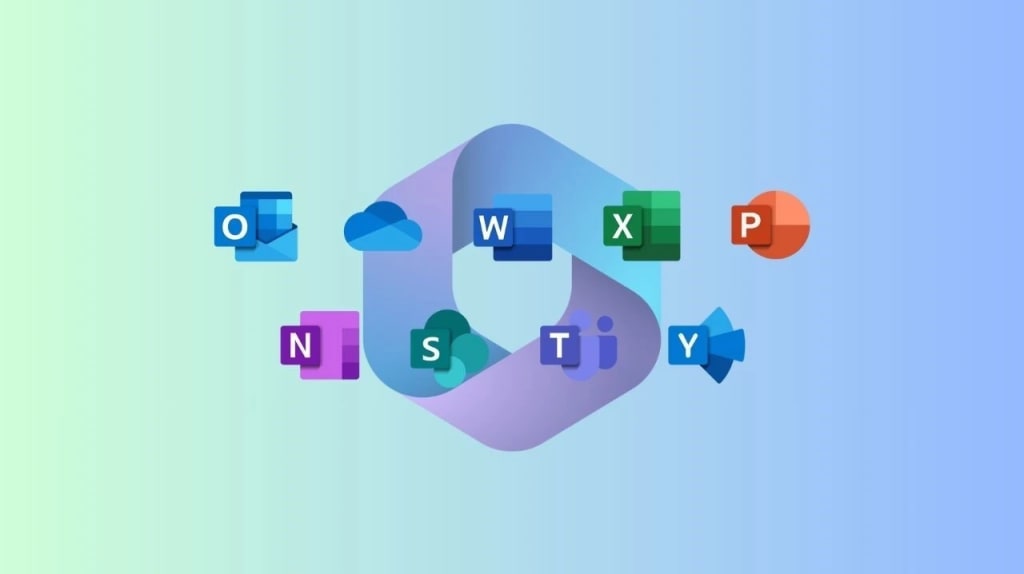
With regard to email message and attachment file management, Office 365 is the most used program globally. Because it comes with so many set up applications—Outlook, OneDrive, Word, Excel, PowerPoint, Skype, and more—it improves the efficiency of your organization. Nevertheless, you could have security flaws and other problems with your account, just as with other email clients. Therefore, for security purposes, it is advantageous to backup your Office 365 Admin Portal inbox and Personal folder's contents. The many ways to back up mailbox emails using the Office 365 admin interface will be covered in this how-to blog. Alternatively, you may make a local backup of your Office 365 mailbox using the Office 365 Backup Tool
Why Is an Office 365 Email Backup Necessary?
Users are strongly advised to backup their Office 365 mailbox emails to a computer, PC, or hard drive for a number of important reasons.
1. The server for the Office 365 admin site is down and unusable.
2. You should back up your Office 365 emails and other data if you are moving from one email client to another.
3. Your Office 365 admin portal has to be adjusted.
4. Workers could desire to leave their present employer quietly and take their important information with them.
5. You may backup your Office 365 mailbox emails to prevent data loss.
6. Viruses and hacks are two more likely causes to download Office 365 data.
Top Methods for Office 365 Admin Portal Email Backups
To backup email using the Office 365 admin interface, there are two excellent and highly efficient options. When backing up O365 emails manually appears to be impossible to operate there is a third-party option available to assist you
Method 1: Use Microsoft Outlook to Backup Your Office 365 Email
Users of Outlook can also make backups of their Office 365 Admin Portal mailbox emails; setting up your Office 365 account in Microsoft Outlook is the only requirement before beginning the backup procedure.
1. Launch the Microsoft Outlook program and select File.
2. Click on the Import/Export function after selecting the Open & Export option.
3. Select "Export to a file" and press "Next."
4. Click Next after selecting the Outlook Dat File (.pst) option.
5. Check the Include subdirectory option after selecting the location where you need to backup your configured Office 365 account.
6. Select Next.
7. To choose the path to backup the resulting PST file, choose the Browse option.
8. In order to finish backing up the Office 365 Admin portal emails, press the Finish button.
Method 2:Use a Professional Solution to Backup Email from the Office 365 Admin Portal
If you find that the manual method is inefficient for you and only allows you to back up a small amount of data, we recommend that you use the Office 365 Backup Tool. This application is stable and efficient for backing up mailbox emails through the Office 365 admin site. Be sure you have the necessary login credentials for your O365 account before starting the backup process. Office 365 mailboxes can be backed up and restored with this tool to PST, MBOX, MSG, EML, and EMLX files,and others file format. There are no size limitations for this utility. With the aid of this program, several Office 365 emails can be backed up. Using this software is completely secure. It is compatible with every Windows operating system.
1. Install Office 365 Tool on your computer.
2. Enter the IMAP server's login credentials to establish a connection.
3. To create a backup, click all or the selected email folder.
4. Select a file format for the output.
5. Specify where the backup file should be exported.
6. Select "Process Now" to begin the procedure.
Conclusion
We will learn how to use both native and third-party solutions to backup email via the Office 365 Admin Portal in this article. The blog also discusses the potential necessity of backing up emails from Office 365 mailboxes. However, we advised you to download emails from the Office 365 admin site using a third-party service.
About the Creator
Enjoyed the story? Support the Creator.
Subscribe for free to receive all their stories in your feed.
Comments
There are no comments for this story
Be the first to respond and start the conversation.