
How I Tricked My Computer Into Speaking Python
A Funny Tale of VS Code & Anaconda!
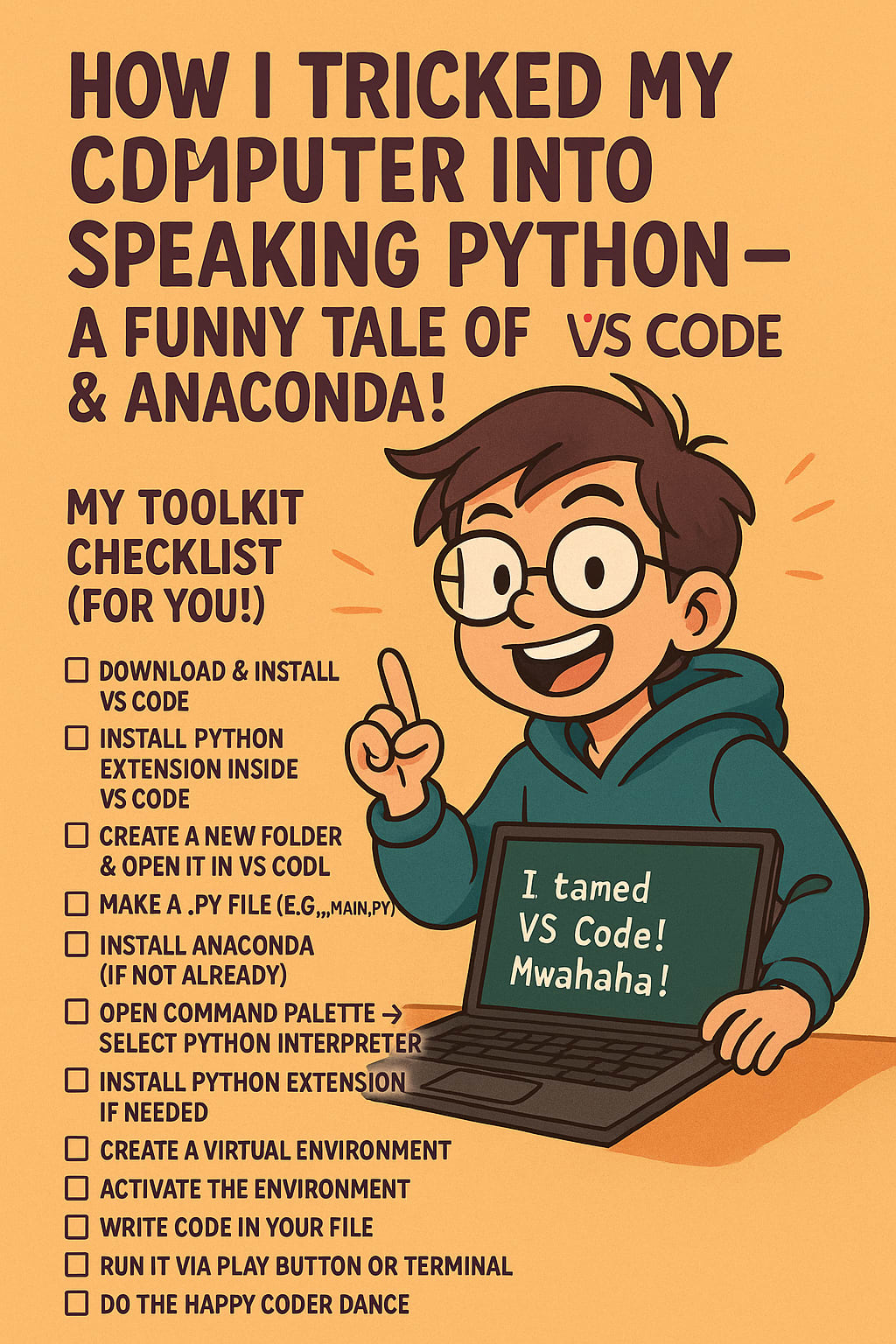
Once upon a time in a small room filled with snacks, dreams, and WiFi, there lived a curious 15-year-old named Alex. One fine afternoon, Alex decided to become a Coding Wizard. Not the kind who wears cloaks and casts spells, but the one who types something like print("Hello World!") and watches magic happen on screen.
But there was one tiny problem…
Alex’s laptop had no idea what “Python” was, let alone how to run it.
So began Alex’s legendary quest to set up VS Code and Anaconda, two powerful tools that help humans and computers speak the mystical language of Python.
Chapter 1: Summoning the Great VS Code
Alex first visited the secret portal:
code.visualstudio.com/docs/languages/python
There, they downloaded VS Code, the “spellbook” every modern coder swears by. Installing it was like inviting a super-organized assistant into the computer—one who loves colorful fonts and hates errors.
Once inside VS Code, a little friendly popup shouted:
“Hey! Wanna install Python Extension?”
Alex clicked YES faster than they accept cookies on websites.
Boom! Python was now ready to chat!
Chapter 2: Making a Home for the Spells
Next, Alex created a new folder called “PythonAdventure.”
They right-clicked it like a ninja, then selected:
“Open with VS Code.”
Or just opened VS Code and went:
File -> Open Folder -> PythonAdventure
Inside that folder, on the left, a “New File” button appeared next to the folder name.
Alex whispered:
“Let’s call it... main.py”
And thus, the first spellbook was born.
Chapter 3: The Terminal That Talks Like Anaconda
Now, VS Code looked cool. But it didn’t talk to Python properly yet.
Alex needed to connect it with something magical: Anaconda – a powerful Python whisperer.
So, they ran to download it (depending on their computer—Windows, Mac, etc.).
Then, inside VS Code, they pressed:
View -> Command Palette -> Python: Select Interpreter
But wait! What if Python doesn’t show up?
Simple! They typed “Python” in the search bar on the left, found the Python extension, and hit Install. After that, the correct Python interpreter appeared like magic.
Chapter 4: Creating a Virtual World (Environment, Really)
Inside VS Code, Alex opened the terminal (like a secret console):
- For Windows – switched to cmd
- For Mac – switched to zsh
Then typed:
conda create -p venv python=3.8
This created a tiny personal Python world inside the folder. Think of it like creating a mini Hogwarts for Python spells.
Alex hit Y when asked to proceed.
Then came activation:
conda activate path-to-folder/venv
Or simply copied the path of the venv folder and activated it directly.
Chapter 5: Testing the Magic
Now that everything was set, it was time to try their first real spell.
Inside main.py, Alex typed:
print("I tamed VS Code! Mwahaha!")
Then they clicked the Play Button in the top-right corner.
OR
Used the terminal to run:
python path-to-folder/main.py
Suddenly, the screen lit up with:
I tamed VS Code! Mwahaha!
And Alex did a tiny happy dance.
Chapter 6: Alex’s Toolkit Checklist (For You!)
Here’s everything Alex did in order, like a pro:
- Download & Install VS Code
- Install Python Extension inside VS Code
- Create a new folder & open it in VS Code
- Make a .py file (e.g., main.py)
- Install Anaconda (if not already)
- Open Command Palette -> Select Python Interpreter
- Install Python Extension if needed
- Create a virtual environment using conda create -p venv python=3.8
- Activate the environment
- Write code in your file
- Run it via the play button or terminal
Do the happy coder dance
Moral of the Story
Setting up VS Code with Python isn’t scary—it’s just like preparing your secret lab. Once it's ready, you’re free to create anything: games, calculators, robots, or even your own AI assistant!
Just remember what Alex said while sipping orange juice and running their Python code:
“The real magic isn't in the code. It's in YOU.”
About the Creator
Priyanka Neogi
AI Data Enthusist.
Enjoyed the story? Support the Creator.
Subscribe for free to receive all their stories in your feed.
Comments
There are no comments for this story
Be the first to respond and start the conversation.