
You Didn’t Break Your 165Hz Monitor: Windows Just Forgot It
After a GPU swap, Windows often drops to 60Hz. Check this setting before you blame the hardware.
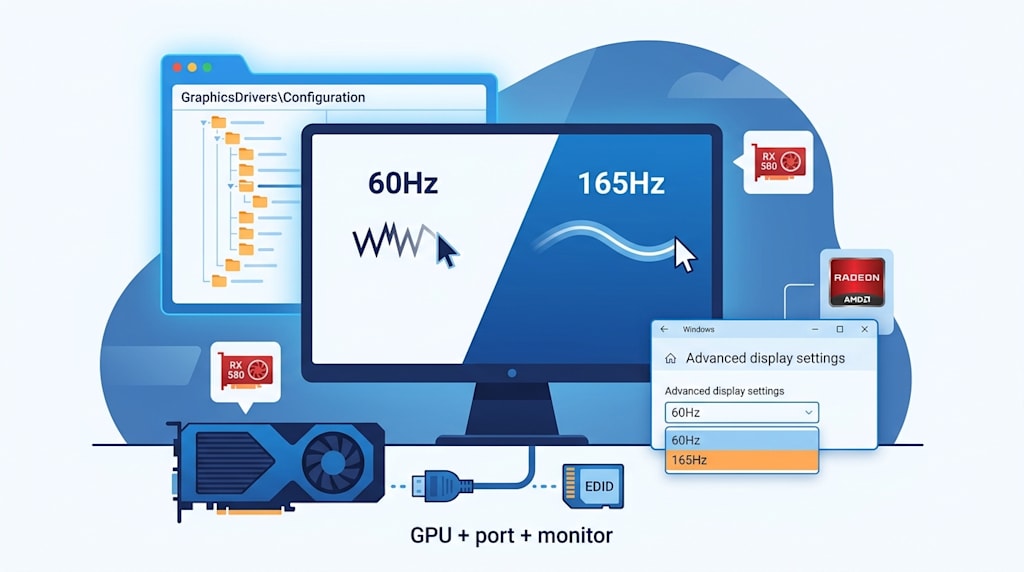
After installing a new graphics card, you boot up and reach the desktop. The mouse pointer leaves a short trail. Dragging a window feels slightly pulled. Scrolling a webpage looks less steady. The monitor menu says 165Hz. Windows Advanced display settings says 60Hz.
The monitor is probably fine. The new GPU is probably fine too. Windows has not reused your old high-refresh configuration.
1. Windows stores display settings in the registry
Windows saves display configurations it has used, including resolution and refresh rate. The location is:
text
HKEY_LOCAL_MACHINE\SYSTEM\CurrentControlSet\Control\GraphicsDrivers\ConfigurationOpen this location and you will see groups of entries. They are generated by the combination of GPU, output port, and monitor. The GPU is identified through its driver. Without a driver, it may show up as a generic device such as “Microsoft Basic Display Adapter.” The monitor is identified through EDID. EDID is the monitor’s résumé: manufacturer, model, supported resolutions, refresh rates, and timings.
Windows stores a mode for a specific GPU, port, and monitor combination. It does not store a general “this machine likes 165Hz” preference. A new port, GPU, monitor, or driver set can create a new entry.
2. Why a GPU upgrade drops to 60Hz
A GPU upgrade changes the driver environment. Unless it is an in-place upgrade within the same vendor and driver support range, the driver has to be reinstalled or matched again. A driver change can change how Windows identifies the GPU, port, and monitor combination. Windows adds a new configuration record.
Windows has no confirmation that the new combination supports 165Hz. It falls back to a conservative mode. That mode usually comes from the monitor’s EDID default, and many monitors default to 60Hz. 60Hz offers compatibility with old GPUs, consoles, motherboard BIOS, and PE environments. The result: the monitor is 165Hz, the GPU can handle it, and Windows sits at 60Hz.
One example: under some resolutions and port conditions, the RX 580 may cap at 4K 60Hz. The Radeon 610M integrated graphics may support 144Hz. GPU performance and high-refresh output are different things. Port version, bandwidth, driver, and monitor support all affect the result.
3. 165Hz vs 60Hz
If the current rate is 60Hz, the comparison is invalid. At 165Hz, desktop use feels more responsive. Mouse movement is smoother. Window dragging is easier to follow. Webpage scrolling leaves less afterimage. 90Hz to 100Hz is noticeable. 165Hz compared with 60Hz is more obvious.
In games, 165Hz also brings VRR into play, often as FreeSync. VRR matches the monitor’s refresh rate to the GPU’s frame output. It reduces tearing and the discomfort that comes with frame-rate swings. “How many frames count as smooth” varies by person. Tearing is visible or it is not. High refresh plus VRR smooths motion and steadies frame-rate changes.
4. If it drops to 60Hz, check these steps
Step one: check the current refresh rate.
Right-click the desktop, open Display settings, and go to Advanced display settings. Check the current refresh rate. Do not trust the monitor OSD alone. The monitor menu can say 165Hz while Windows outputs 60Hz.
Step two: check the port and cable.
High refresh rates need bandwidth. HDMI and DP versions, cable quality, and port specifications can all limit the signal. If the refresh rate drops after a port switch, check the cable and port first.
Step three: check the monitor OSD.
Some monitors require you to enable high-refresh mode, overclock mode, a DP version, or FreeSync in the menu. Confirm those options are on.
Step four: check the GPU control panel.
In NVIDIA Control Panel, open Change resolution. In AMD Software, open Display. In Intel Graphics Command Center, check the display settings. Confirm the refresh rate after a driver reinstall.
Step five: confirm VRR.
FreeSync and G-Sync Compatible affect the gaming experience. Set the refresh rate to 165Hz first. Then check VRR.
The registry explains the mechanism. Do not delete configuration entries. Use system display settings, the GPU control panel, and the monitor OSD.
5. Set this setting back first
After a GPU, port, or driver change, check the refresh rate before judging the result. Right-click the desktop. Open Display settings. Go to Advanced display settings. If the rate is 60Hz, select 165Hz and click Apply. Set this setting back first.
About the Creator
Jin
Writer of reamstories
https://reamstories.com/jin
Enjoyed the story? Support the Creator.
Subscribe for free to receive all their stories in your feed. You could also become a paid subscriber, letting them know you appreciate their work.
Comments
There are no comments for this story
Be the first to respond and start the conversation.