
What Are the Common Issues When Splitting PST Files and How to Avoid Them?
Learn About the Challenges of Splitting PST Files and Smart Ways to Handle Them
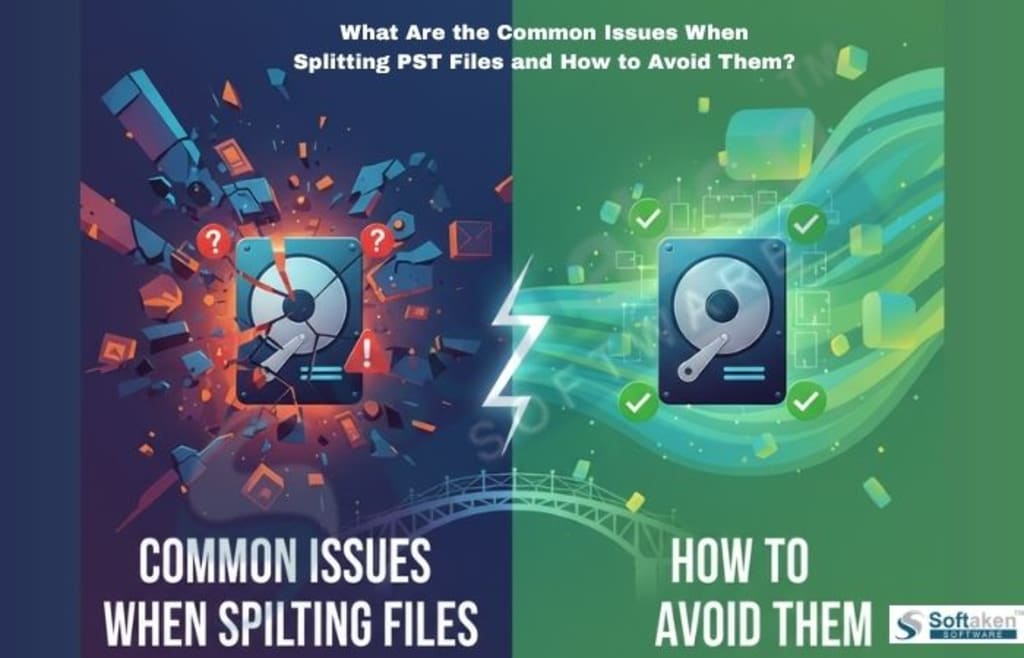
Microsoft Outlook is one of the most popular email applications in the world. It uses the PST file format to store emails, contacts, calendars, tasks and other data. As you continue to send and receive messages, the size of this PST file increases. A large PST file can cause various issues including slow performance, corruption or even complete inaccessibility of your Outlook data.
To deal with this issue, many users choose to split their PST files into smaller parts. Splitting makes data easier to organize, reduces the chance of corruption and ensures that Outlook runs smoothly. However, splitting PST files is not always simple. There are multiple issues that consumers experience during the procedure, whether they do it manually or using a professional tool.
In this blog, we will go over the most usual issues when splitting PST files and how to avoid them. We will also go over both manual approaches and the use of an expert application.
Why Should Users Split PST Files?
Before we get into the problems & it is crucial to understand why dividing PST files is necessary. Here are the primary reasons
- Large File Size The size of PST files is limited by the Outlook version. Older versions (such as Outlook 2003 and before) only support up to 2 GB, however later versions can handle far more quantities. However, when the file becomes too large, efficiency decreases.
- Damage dangers Large PST files are more susceptible to corruption, which can result in data loss.
- Improved Organization Smaller PST files are easier to organize and backup.
- Splitting improves the outlook performance and speed.
Common Problems When Splitting PST Files
Although splitting is helpful, many users have issues when attempting to separate their PST files. Let us look at the most prevalent issues
1. The risk of data loss
Loss of data during the process is one of the most difficult challenges. If the splitting is not done carefully, you risk losing emails, attachments or entire folders. This is especially prevalent when utilizing manual procedures, which require several steps and are prone to errors.
How to avoid
- Always make a backup of your original PST file before proceeding
- If you use manual techniques ensure that all folders and items are migrated
- Consider utilizing a professional tool that ensures data integrity
2. Corruption in the PST file
A typical problem occurs when a file is corrupted during or after splitting. Manual techniques might sometimes result in unstable PST files that cannot be opened in Outlook.
How to avoid
- Ensure the system is stable during the procedure.
- Use trustworthy tools created exclusively for dividing PST files.
- To avoid compatibility difficulties keep Outlook updated to the newest version.
3. Time consuming Process
Manual ways for splitting PST files include creating new PST, moving objects and exporting data regularly. This can take a long time & especially if your files are large
How To Avoid
- If you wish to use the manual method, make a plan prior to time and set aside enough time.
- To get faster results, use automated applications that can split big files in minutes.
4. Technical complexity.
Not all users are comfortable with technological procedures. Manual approaches take numerous steps in Outlook settings which might be complicated for non-technical users
How To Avoid
- When using the manual approach carefully follow the step by step instructions
- Choose a user friendly tool that simplifies the procedure with a few clicks
5. The Limitations of Manual Methods
Outlook does not have a straight split feature. Manual splitting typically involves archiving, creating new PST files and moving directories. These methods frequently have limitations you might not be able to split by size, date or folder based on your requirements.
How To Avoid
If you require flexibility - split by year, folder or custom size, professional tools are the best solution.
6. Duplicated Data
Duplicate emails and files can occur when items are copied rather than relocated. This not only causes confusion, but also wastes storage space.
How To Avoid
- When utilizing manual methods, make sure you select move rather than copy.
- Professional splitting software ensures that no duplicate data is generated.
7. Compatibility issues
Outlook versions process PST files differently. Unicode PSTs (used in later Outlook versions) and ANSI PSTs (used in earlier versions) have distinct restrictions and structures. Using the incorrect procedure can result in files that cannot be opened.
How To Avoid
- Check the Outlook version you are using.
- Make sure the splitting method or tool utilized supports your version.
Manual Methods for Splitting PST files
If you want to split your PST files without using additional software here are some popular manual approaches
1. Using the Archive Feature
You can use Outlook Auto Archive feature to transfer older items to a new PST file & This approach works nicely for splitting by date
Steps
- Open Outlook and navigate to File > Options > Advanced
- Choose Auto Archive Settings
- Select the folders and time range for archiving
- Save the archive as a new PST file
2. Export data into a new PST
You can additionally create a new PST file and export specific things to it
Steps
- Navigate to File > Open & Export > Import/Export
- Select Export to a file
- Select Outlook Data File (.pst)
- Select the folders you wish to export
- Save them as a new PST file
3. Transfer Data Manually
You can create a new PST file and then drag & drop items into it. This procedure is really simple but time-consuming.
Limitations of manual methods
- There is no option for splitting by size
- Needs a lot of manual effort
- There is a risk of missing or duplicating data
Professional solution.
A professional application is the greatest alternative for those who want to divide PST files in a more dependable and efficient manner. You can split PST files using tools like Softaken Split PST Tool based on their size, date, year and folder. These tools are intended to prevent the usual problems stated above such as corruption, data loss and duplication. They are also more easier to operate, even by non technical individuals, because to their simple interface.
Best Practices for Avoiding Problems
Regardless of the approach you use, here are some necessary steps to assure success
- Always make a backup of your PST file before splitting it.
- Check Outlook version compatibility.
- Avoid disrupting the process once it has started.
- If you have a big number of PST files, consider using expert software.
- Instead of waiting for PST files to become unmanageable split and manage them on a regular basis.
Conclusion
Splitting PST files is an excellent approach to keep Outlook functioning smoothly while preventing corruption or data loss caused by large files. However, the process might be difficult, particularly if carried out manually. Common problems include data loss, corruption, time consumption, duplication and technical complexity.
To avoid these issues, users should either carefully follow manual techniques with sufficient backups or utilize a professional solution that guarantees safe and speedy splitting. By taking the proper steps, you can better manage your Outlook data and avoid future difficulties.
About the Creator
Enjoyed the story? Support the Creator.
Subscribe for free to receive all their stories in your feed.
Comments
There are no comments for this story
Be the first to respond and start the conversation.