
What Are the Common Issues When Dividing Large PST Files and How to Avoid Them?
Tips and Solutions to Safely Split Large Outlook PST Files Without Data Loss or Errors
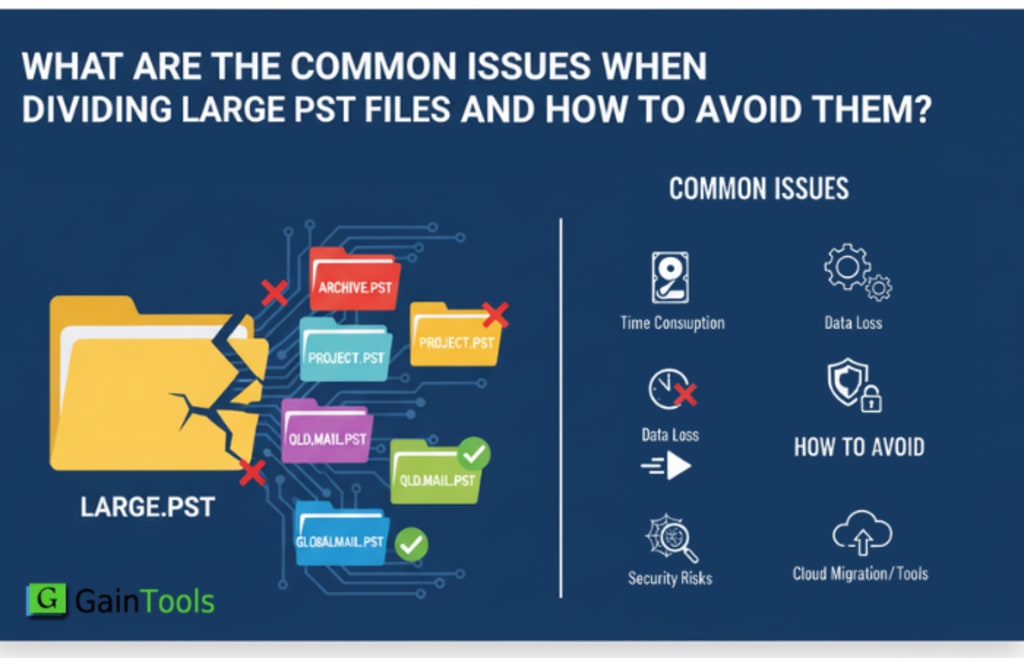
Microsoft Outlook is one of the most used email applications for personal and professional use. Outlook data eventually accumulates in a PST file, which stores emails, contacts, calendars and other vital information. Although PST files are helpful, they can get rather large over time. Large PST files can cause issues such as sluggish performance, Outlook freezing and even corruption. That is why breaking big PST files into smaller and more manageable pieces is important. However, dividing large PST files can pose its own set of issues. In this blog, we will go over frequent concerns when splitting large PST files and suggest simple solutions to avoid them.
Common Issues When Dividing Large PST Files
Outlook Performance Slowdown
One of the most obvious issues with big PST files is that Outlook becomes slow and unresponsive. This can occur when the PST file size exceeds the recommended maximum of 50 GB for Outlook 2010 and subsequent editions. Slow performance might make it difficult to work productively because accessing emails, searching and even sending messages can be time consuming.
- PST File Corruption
When PST files become too large, they are more liable to corruption. Corruption can end up in accessible emails, deleted data, and recurring error messages. Outlook can choose not to open a damaged PST file, causing serious delays to everyday activity.
- Data Loss During Manual Division
Manually dividing a PST file without following the necessary processes can lead to data loss. Users who try to copy or move folders from one PST to another without paying attention to detail risk missing emails, contacts, or attachments. Missing data can be critical, particularly for corporations.
- Time consuming Process
Manually separating large PST files can be very time consuming. Moving and dropping emails or folders one by one into a new PST file could take hours, depending on the size of the original file. This process can be difficult, especially for those who require a speedy fix.
- Complexity for Non Technical Users
Not all Outlook users are aware with the advanced functions. Manually dividing PST files requires expertise with new PST file creation, as well as proper data import and export. Non technical people frequently have difficulties understanding these processes, which leads to errors and frustration.
Manual Method for Dividing Large PST Files
You can split large PST files manually in Outlook. This method takes time, but it is free and does not require any additional software. Here is a step-by-step guide.
Create a New PST File.
- Start Microsoft Outlook.
- Navigate to File > Account > Account Settings.
- Choose the Data Files tab.
- To create a new PST file, select Add.
- Give the new PST file a name and save it in the desired location.
Move or Copy Emails to the New PST File.
- In Outlook, choose the folder or emails that you want to move
- Right click and then select Copy Folder or Move Folder
- Choose a new PST file as the destination
Repeat the Process
- Continue moving or copying other folders and emails until your large PST file is broken down into smaller ones.
- Maintain a logical structure to facilitate future access
Backup Your PST Files
Before beginning the division process, always make a backup of your PST files. This ensures that no data is lost in the event of a mistake throughout the process
Note: The manual method is suitable for small PST files or when only a few emails need to be separated. Manually processing big PST files can be slow and error prone
How to Avoid Common Issues
To avoid frequent difficulties while dividing PST files & adopt these easy practices
Regularly Archive Emails
Archiving old emails in separate PST files makes the main PST file smaller and more manageable. Outlook includes an Archive option under File > Tools > Clean Up Old Items.
Keep PST file Sizes Within Limits
Never allow your PST files get too large. Keeping each PST file under 20 GB can help prevent performance issues and limit the possibility of corruption.
Use a Structured Approach
Consider how you want to partition your PST files. You can divide by year, folder type (Inbox, Sent Items, etc) or project. A organized approach guarantees that important data is not eliminated.
Make Backups Before Division
Always retain a backup copy of your original PST file. This ensures that even if something goes wrong during the division process, your data is still safe.
Consider Professional Tools For Large Files
When dealing with large PST files, manually separating them could not be practical. Professional applications such as GainTools Split PST Tool & can dividing large PST Files rapidly and without causing data loss. These applications allow you to split PST files by size, date or folder, making the procedure more efficient and safe.
Benefits of Using a PST Split Tool
- Using an effective PST splitter tool has various benefits
- Easily divides large PST files in minutes
- All emails, attachments, contacts and calendar entries are retained
- Divide by size, date or folder as needed
- Simple to use even for non technical individuals
- Reduces the possibility of PST file corruption or Outlook performance problems
Conclusion
Dividing large PST files is critical for Outlook speed and data integrity. While the manual technique is free and efficient for small files and it can be time consuming and complicated for larger PST files. You can avoid typical division concerns by following suitable procedures like as backing up data, structuring PST files and keeping file sizes manageable.
For consumers dealing with big PST files, applications like GainTools Split PST Tool provide a dependable and fast solution. They protect data, save time and make the entire process simpler. Whether you use a manual approach or a professional solution, managing your PST files correctly is critical to keeping Outlook quick, safe and organized.
About the Creator
Enjoyed the story? Support the Creator.
Subscribe for free to receive all their stories in your feed.
Comments
There are no comments for this story
Be the first to respond and start the conversation.