
Testing AI Upscaling on Low-Resolution Event Footage
Improving Blurry Event Videos with AI Enhancement Tools

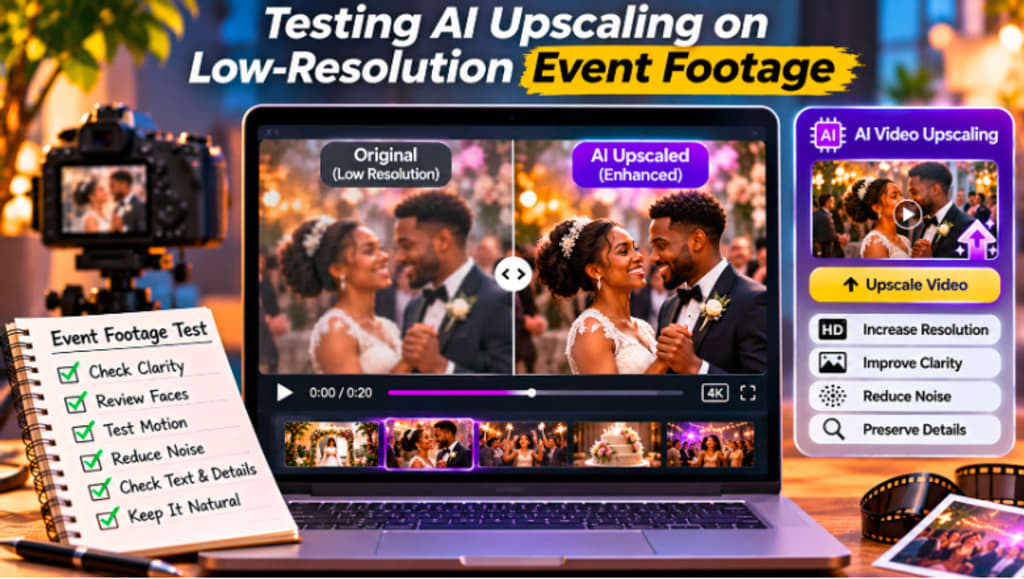
Even if the actual quality of a video isn't great, old event footage can be extremely valuable. Family photos, school photos, wedding photos, community photos, concert photos, or business photos may have been taken with an older phone, a compact camera, or an early digital camera that didn't have as much detail as the current digital camera.
This footage can be particularly noticeable in today's context, with the low resolution becoming apparent on bigger screens and high-resolution displays.
One potential solution may be the use of AI upscaling. However, it should be tested carefully rather than applied automatically. Tools designed to upscale low resolution video can help improve clarity, but event footage often includes challenging elements such as moving subjects, changing lighting, dark backgrounds, flares, fast camera pans, and compression.
A short test helps determine whether the enhancement improves the viewing experience without changing the natural character of the original footage.
Start by Evaluating the Original Recording
It is important to carefully consider the original footage before applying any enhancement. But poor quality video is not solely due to resolution. The image could also have some motion blurring, a lack of focus, digital noise, compression artifacts, camera shake, or improper exposure.
Each of these problems has distinct solutions to AI enhancement. A low resolution clip that is reasonably sharp could be upscaled to a higher resolution with success, as the edges are still clear and there are still recognisable details in the clip. If a clip is wildly out of focus and the subject matter wasn't captured as a part of the whole, it may be tricky.
It's helpful to know where it comes from so you can have realistic expectations. While AI processing can enhance clarity and presentation, it is incapable of accurately reconstructing information that was not recorded. The initial testing of the original footage ensures the footage is not unnecessarily processed and helps determine which footage is best for processing.
Choose a Challenging Sample Rather than the entire Event.
Often the complete event record is processed before trying to check if a chosen setting works. If you want to render a long event into video, it may take a while, especially if you want to render it at a high resolution.
It's better to pick a short portion that captures the most challenging parts of the shots. This footage may contain facial movements, fine detail of clothes, camera movement, darker areas, and text on banners, plus the movement of people, props, and stage lights.
A difficult test shot will give more valuable data than a simple test shot that can be taken from a static position. If the enhancement works well in challenging conditions, then there is a greater likelihood that similar conditions in the remainder of the footage will work.
This test also simplifies the strength comparison of different enhancement methods, as it doesn't require multiple full-length exports.
Compare Faces Carefully During Movement
Facial quality is particularly vital in event footage because it often will have a lot of people.
The use of AI to enhance the image can sharpen facial details or fill in missing parts, but aggressive processing can sometimes make faces appear unnatural. The skin can get too smooth, eyes can look like they are more alert than they really are, or the skin around the eyes can get a little different from frame to frame.
As a result, it is important to examine faces during the playing of the video rather than on a paused screen shot.
Observe the movement of people as they walk, speak, turn head or move through the photo frame. The improved version should allow for stability in the face during these movements.
The ideal result should simply be the ability to be recognized without a fabricated look. This is especially crucial for personal recordings when the original quality is crucial more than the extreme sharpness.
Analyse Motion and Camera Movement
Older event footage can be shaky and pan around rapidly as the person is following the action.
Movement can reveal lapses in enhancement not easily discerned in a single frame.
Images can have a wavy edge, objects can get strange textures when they move, and fine details can flicker. Certain places to look for inspection are within the hair, patterned clothes, decorations and background lights.
If the enhanced version looks sharper when paused but not so sharp in normal playing, the processing might be too “aggressive”.
The best outcome is to make the overall image clearer, but still retaining smooth, believable movement. A little softer but steady video is easier to watch than a video that is so sharp that it is obviously flickering.
Review Noise in Dark Event Scenes
This is often the case for weddings, concerts, parties or indoor events.
Many old cameras would boost sensitivity in low-light conditions, resulting in artefacts. The noise can be even more prominent when this footage is magnified.
A bit of this noise can be minimized through AI processing, but excessive smoothing can eliminate genuine facial, clothing, and decoration detail.
The target should be equilibrium.
Examine the background color, shadows, and skin tones for any issues. A good enhancement should eliminate unwanted sounds and maintain sufficient detail to maintain realism.
If the footage is too smooth or plastic, the noise reduction should be reduced.
Test Compression Artifacts' Response to Upscaling
Highly compressed low resolution recordings are not uncommon, especially if they have been passed down via messaging apps, social media or exported multiple times over the years.
Compression may result in blocky patterns, smearing, ringing of edges, or loss of detail when moving.
These can be enlarged as a result of upscaling, but can also be enhanced through upscaling.
That's why the "before and after" shot needs to be looked at for more than sharpness.
Consider flat ground, walls, dark areas and fast-passing parts. The resulting video could be more likely to show compression artifacts when the clip is processed with the enhancement routines, so it might be better to use a less aggressive processing.
In cases where cleanup is not severe, it may sometimes be better to clean up first and then upscale than to perform strong sharpening directly on a compressed copy.
Use AI Upscaling as a “Controlled Test”.
AI tools can be helpful when older recordings are needed to be shown with newer, higher-resolution recordings. A wedding anniversary video can include clips from years past and recent video from their smartphones, for instance.
In this case, it can be helpful to use a tool with upscaling video for older video clips to give them a bit more clarity, and make it easier to see the difference between the older clips and the newer clips.
The improved version, however, shall always be considered a test until thoroughly reviewed.
It is not about making an old recording look "out of the past" (artificial modernization). It is meant to facilitate the viewing of this event without loss of character and authenticity.
Compare the Result at Normal Viewing Size
Enhanced footage is often examined by editors with the zoom bar as far to the right as possible, in individual frames. This is helpful when looking for artifacts, but shouldn't be the only way to evaluate.
The vast majority of viewers will view the last video in normal playback size. What seems like a small item at 200 percent magnification might not be seen at normal viewing.
At the same time, the unstable or flickering movement can be more distracting when the video is played at full speed.
Discuss the test regarding the type of screen where the final work will be seen.
If the event video is to be shown on a TV, try viewing it on a bigger screen. If the presentation will be used predominantly on a mobile device or social media, use a mobile device to test it as well.
The effectiveness of the enhancement must be judged in the final viewing conditions.
Look at Text, Decorations, and Fine Details.
Signs, banners, invitations, clothes patterns, table decorations, and other small details can be found in recordings of events.
Elements that are useful when testing an enhancement to reveal the ability of the software to handle edges and fine textures.
The letters should start to look clearer and not develop haloes or distorted shapes. Patterns should not change when moving.
Care should also be taken with reflective objects, stage lights, and decorations, as they can sometimes enhance edges or highlights to the point that they become exaggerated.
The objective is not to create a ‘cleaner' image but a ‘cleaner' image that does not appear to be digitally overworked.
Keep Original Event Footage.
The original recording should always be kept unchanged. AI enhancement should not replace the original source file but create a new one.
This is particularly the case with personal or historical event footage, where original may be irreplaceable.
Having both versions would also facilitate comparisons in the future. If a better enhancement method is found later, the original source can be re-processed without having to use the already modified file.
Eliminating confusion about file names and using a separate folder for the original and enhanced copies can help avoid overwriting problems.
Review the Full Video Only After the Test Is Approved
After the sample section generates a natural and stable output, a few more scenes can be tested using the same settings prior to processing the full recording.
Lighting and movements can drastically vary throughout an event. A bright outdoor show can certainly react otherwise to a dark reception or indoor event.
It's important to check a few representative sections so that you don't find issues once you've completed a long full-length render.
These tests should only be processed after they appear consistent, before which the entire event video should not be processed.
Final Thoughts
AI upscaling works best when it is intended to enhance the quality of the low-resolution event footage, but not transform it dramatically.
Even though the audio quality of older recordings may be poor, there could be important moments that should be retained. The power of AI can be leveraged to clean these clips and make them more appropriate for current viewing, but each source reacts differently.
The process should start with a careful analysis of the original footage, the selection of a difficult test section, and face, motion, noise, compression, text and fine details should be compared.
The improved version should then be tested on the playback speed and the type of device that the final video will be viewed on.
The best is typically the one that makes the original recording clearer, but doesn't detract from it. If the faces are natural and the motion is stable and the footage doesn't look like it was artificially processed, then the upscaling has done its work.
About the Creator
Gulshan
SEO Services, Guest Post & Content Writter.
Enjoyed the story? Support the Creator.
Subscribe for free to receive all their stories in your feed.
Comments
There are no comments for this story
Be the first to respond and start the conversation.